Key Takeaways
- V-Sync adds significant input lag on high refresh rate monitors. Use V-Sync Fast instead and cap your frame rate just below your monitor's refresh rate.
- Power Management Mode should be set to 'Prefer Maximum Performance' to prevent GPU throttling during gameplay.
- The Nvidia overlay can consume system resources. Disable it if you don't actively use its features.
Whether you're running the classic Nvidia Control Panel or the newer Nvidia App, it's easy to leave settings at defaults that actively hurt your gaming experience. Even owners of high-end cards like the RTX 5070 can lose frames and gain input lag from common configuration mistakes.
Dave Meikleham, a PC hardware writer who has gamed on Nvidia GPUs for over 15 years, recently outlined the most frequent errors he sees. Here's what to check and fix.
1. Leaving V-Sync Enabled on High Refresh Rate Monitors
V-Sync prevents screen tearing by locking your game's frame rate to your monitor's refresh rate. On a 60Hz display, this makes sense. On a 120Hz or 240Hz gaming monitor, it becomes a liability.
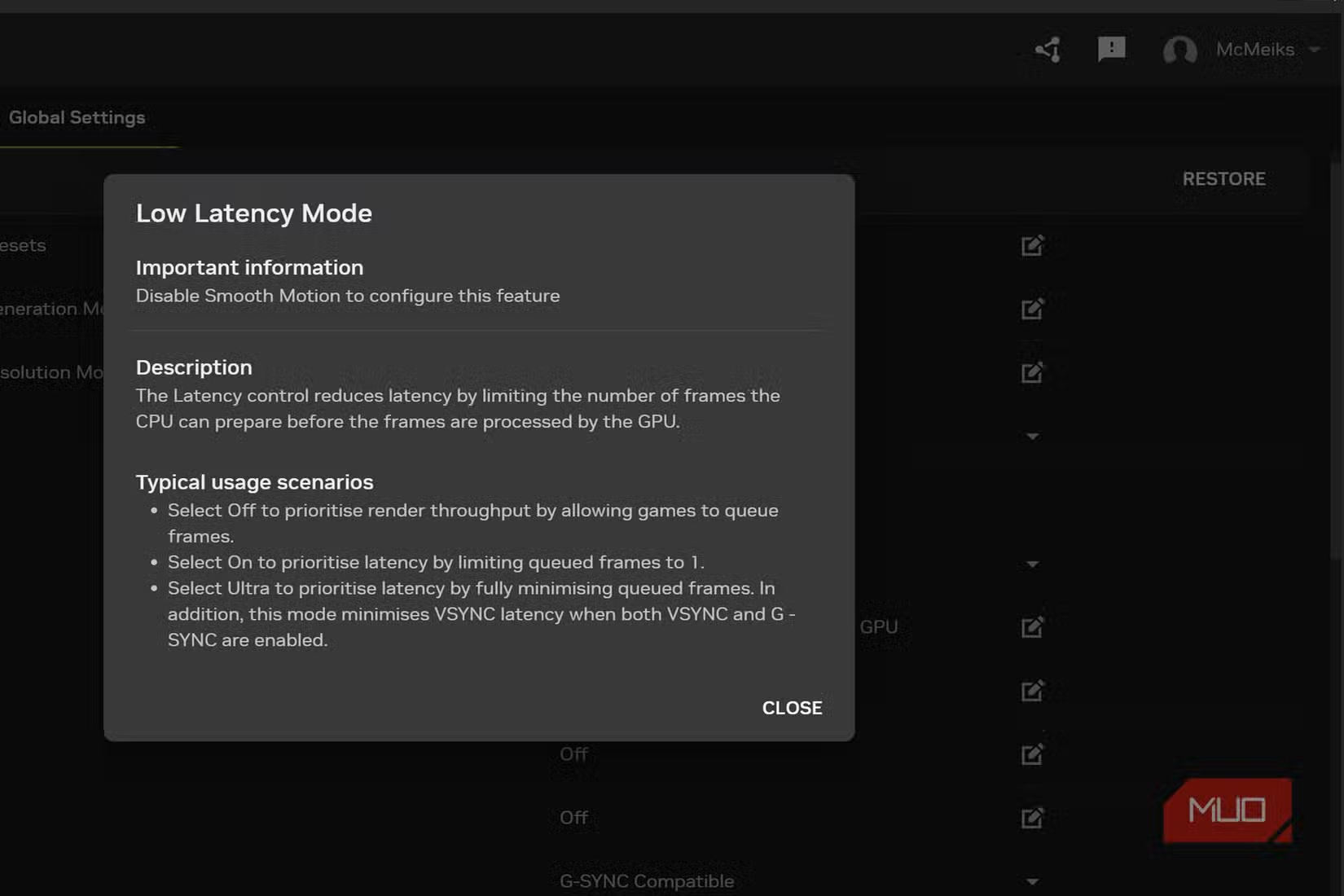
The problem is latency. V-Sync adds input lag that becomes noticeable in competitive games. If you own a G-Sync compatible monitor, you might assume V-Sync needs to stay on to benefit from variable refresh rate. That's a common misconception.
The fix: Enable V-Sync Fast instead, then set the Max Frame Rate option in Nvidia Control Panel to a few FPS below your monitor's maximum. This combination minimizes input lag while avoiding screen tears.
2. Using Wrong Power Management Mode
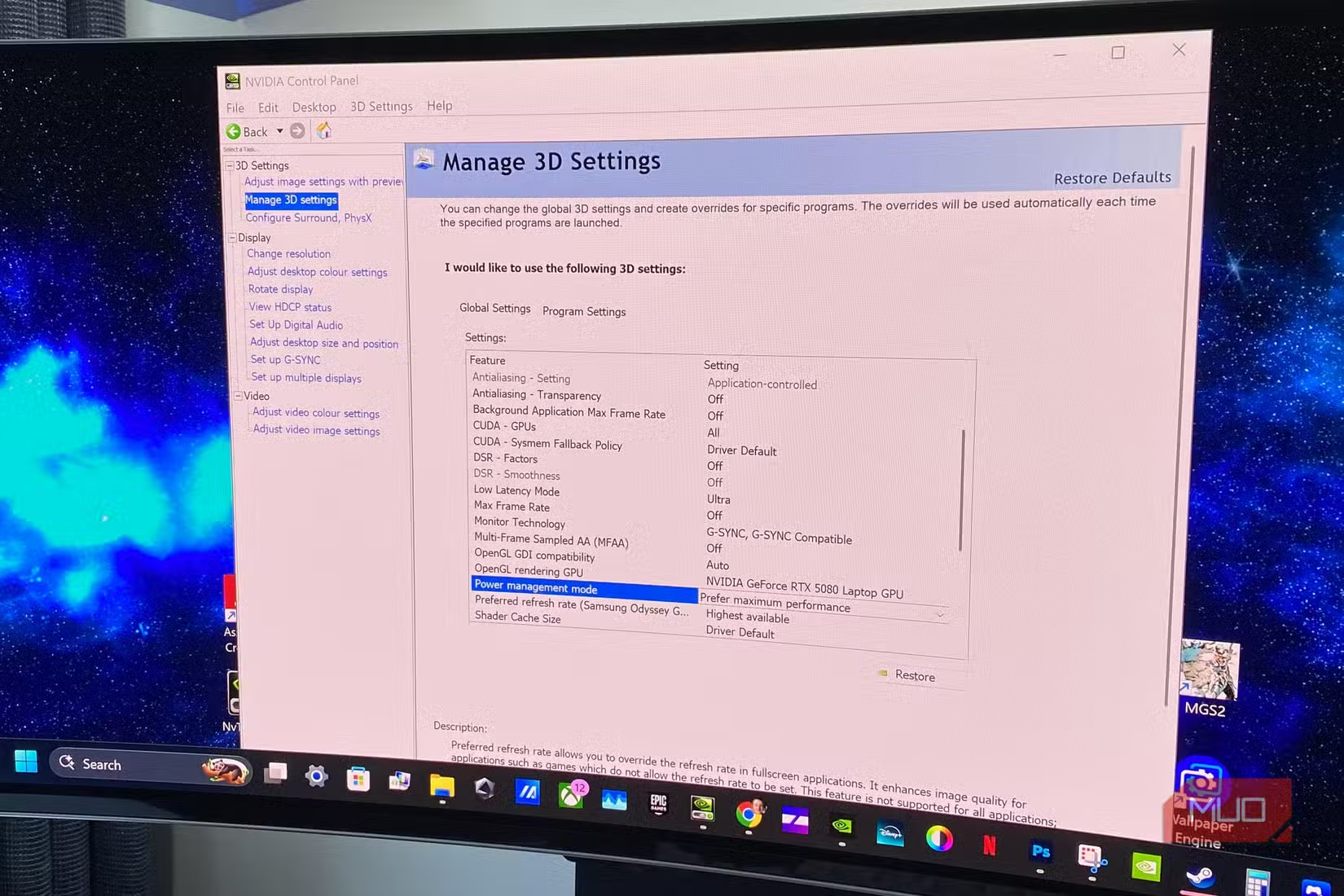
Nvidia's default Power Management Mode setting often prioritizes efficiency over performance. This means your GPU might throttle itself during gaming sessions, reducing frame rates when you need them most.
For gaming, set Power Management Mode to 'Prefer Maximum Performance.' This tells your GPU to run at full speed during demanding tasks. Yes, it uses more electricity, but you bought a gaming GPU to game, not to save a few watts.
3. Keeping the Nvidia Overlay Running
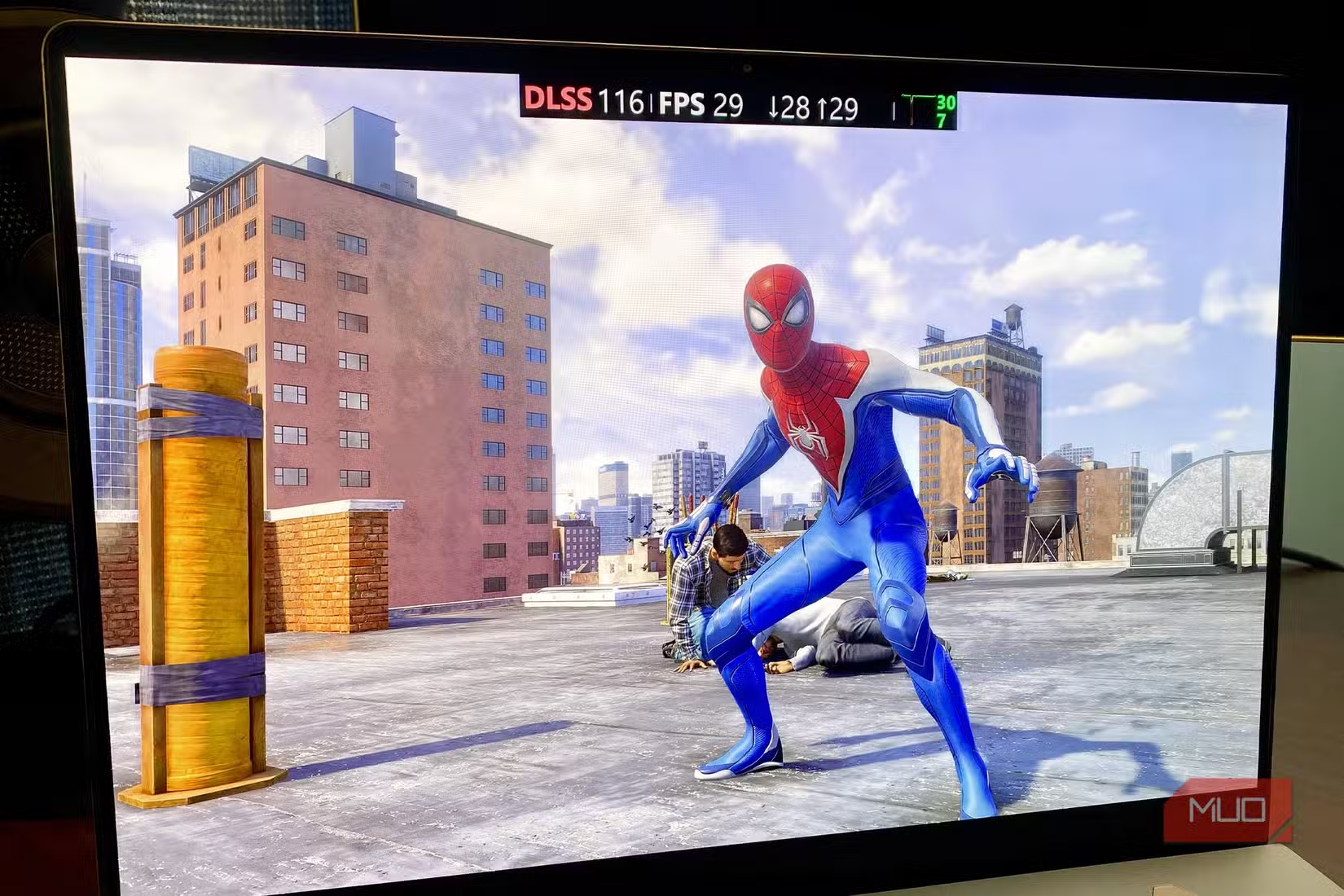
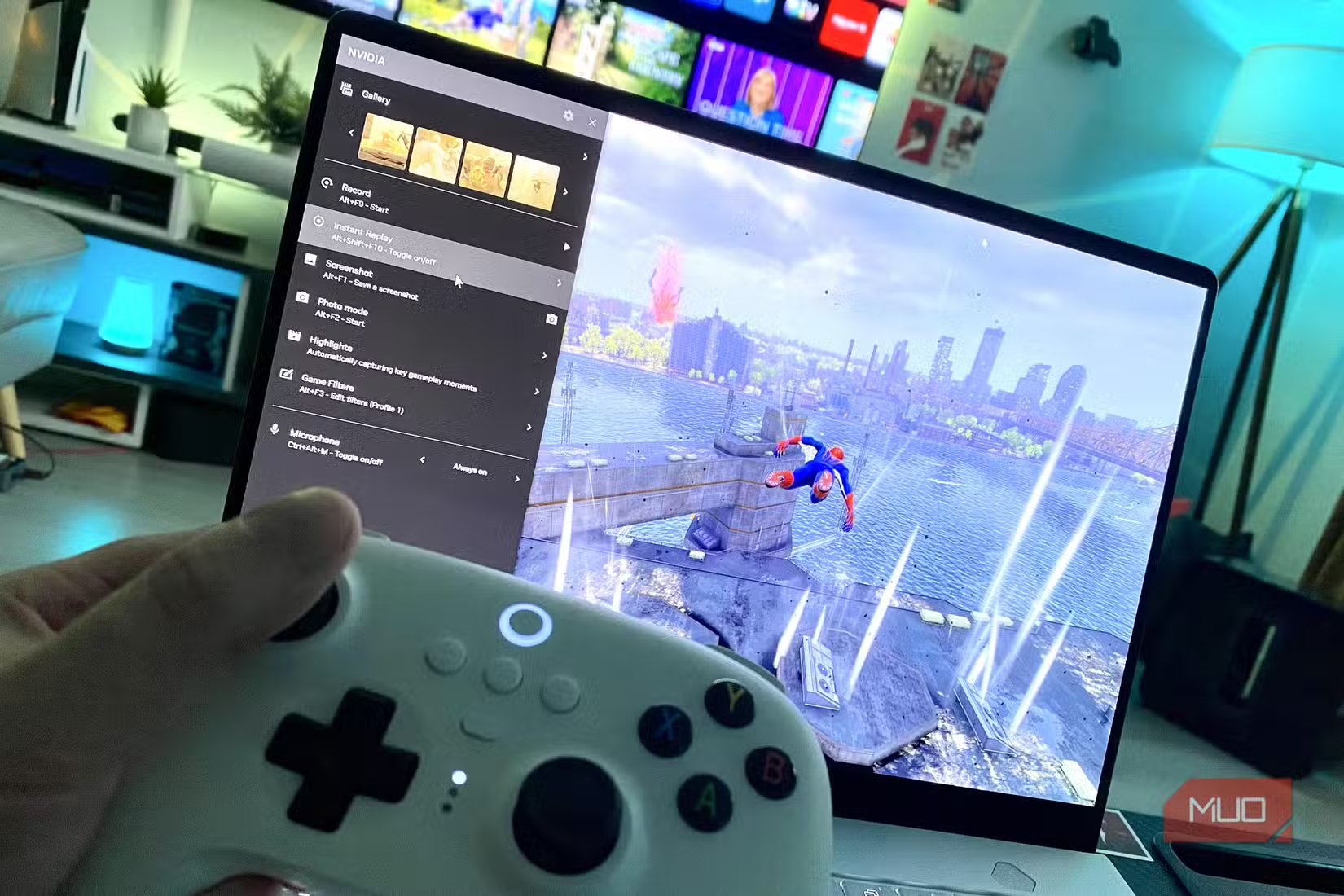
The Nvidia overlay provides useful features: screenshot capture, video recording, performance monitoring. But it runs constantly in the background, consuming CPU and GPU resources even when you're not using it.
If you rarely use overlay features, disable it entirely. Open the Nvidia App or GeForce Experience, go to settings, and turn off the in-game overlay. You might see a small but measurable improvement in frame times, especially on lower-end systems.
4. Ignoring Per-Game Settings
Global settings in Nvidia Control Panel apply to every application. But not every game benefits from the same configuration. A fast-paced shooter and a turn-based strategy game have completely different requirements.
Use the 'Manage 3D Settings' panel to create per-game profiles. For competitive titles, prioritize low latency and high frame rates. For cinematic single-player games, you can enable higher quality settings without worrying about milliseconds of input lag.
5. Maxing Out Multi-Frame Generation Without Checking Compatibility
Nvidia's Multi-Frame Generation technology can dramatically boost frame rates in supported titles. But enabling it globally or in games that don't properly support it can cause visual artifacts and increased input latency.
Check whether your specific game supports Multi-Frame Generation before enabling it. When it works, it's impressive. When it doesn't, you're trading visual quality and responsiveness for a misleading frame rate number.
Quick Settings Checklist
- V-Sync: Off or V-Sync Fast for high refresh rate monitors
- Power Management Mode: Prefer Maximum Performance
- Max Frame Rate: 2-3 FPS below your monitor's refresh rate
- Overlay: Disabled unless actively used
- Multi-Frame Generation: Enabled only in supported titles
Games now push 8GB GPUs to their limits. Getting the most out of your hardware means configuring it correctly, not just buying the latest card.
Logicity's Take
These aren't obscure tweaks. They're basic settings that Nvidia probably should default differently. The fact that V-Sync still defaults to on, and Power Management defaults to 'Optimal,' suggests Nvidia prioritizes visual consistency and power draw over raw gaming performance. That's a reasonable default for a laptop, not for a desktop gaming rig.
More settings you can fix without spending money
If you're ready to upgrade your hardware instead
Frequently Asked Questions
Should I use V-Sync with a G-Sync monitor?
No. G-Sync handles variable refresh rate on its own. Use V-Sync Fast instead and cap your frame rate slightly below your monitor's maximum refresh rate.
Does the Nvidia overlay affect FPS?
Yes, though the impact varies by system. Disabling it when not in use can improve frame times, especially on lower-end hardware.
What power management mode is best for gaming?
'Prefer Maximum Performance' prevents GPU throttling during games. Use this for gaming PCs. Laptops on battery might want 'Optimal' to preserve charge.
Can wrong Nvidia settings damage my GPU?
No. Incorrect settings affect performance and visual quality but won't cause hardware damage. Your GPU has built-in thermal and power limits.
Should I update Nvidia drivers for better performance?
Generally yes. New drivers often include game-specific optimizations. However, check community reports before updating, as some releases have bugs.
Need Help Implementing This?
If you're managing a fleet of gaming PCs or want to standardize settings across your organization's workstations, we can help. Reach out to Logicity for technical guidance on GPU configuration at scale.
Source: MakeUseOf
Manaal Khan
Tech & Innovation Writer
Produced with AI assistance and reviewed by the Logicity editorial team. Learn more in our Editorial Policy.