Key Takeaways
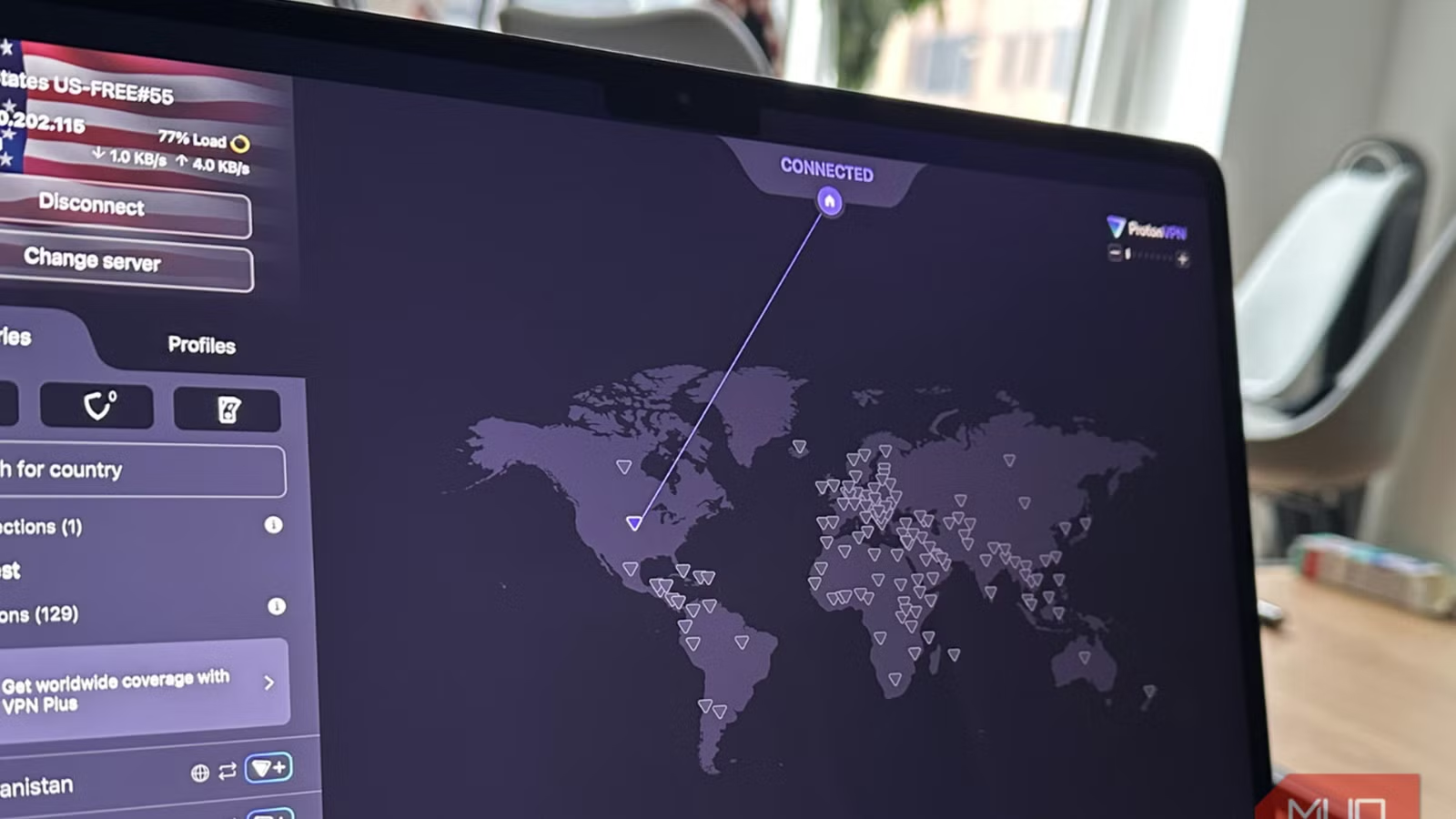
- WebRTC can bypass your VPN tunnel and expose your real IP address to any website
- Browser geolocation uses GPS and Wi-Fi data, which no VPN can mask
- DNS leaks silently send your browsing history to your ISP even when connected to a VPN
A VPN masks your IP address. It does not, however, stop your browser from handing over your real location, your DNS requests, and your device fingerprint to every website you visit. According to research from CyberShield Institute, 78% of users mistakenly believe a VPN makes them completely anonymous online. It doesn't.
"A VPN protects the tunnel, but your browser is the vehicle leaking your data at every intersection," says Sarah Chen, Lead Privacy Researcher at CyberShield Institute. The problem is that browsers have multiple independent channels for exposing your identity. Fix one, ignore the rest, and you're still exposed.
Here are the five browser settings you need to change. The first one is the most dangerous.
1. WebRTC: The silent IP leak
WebRTC, or Web Real-Time Communication, enables video chat and peer-to-peer file sharing directly in your browser. Useful. The problem is how it works. To establish a peer-to-peer connection, WebRTC bypasses your VPN tunnel entirely and queries your real IP addresses, both local and public. A website can use WebRTC to discover your IPv6 address while you're connected to a VPN. This is called a WebRTC leak, and it's one of the most common ways VPNs get exposed.
Firefox users can fix this immediately. Type about:config in the address bar, search for media.peerconnection.enabled, and toggle it to False. Chrome and Edge don't offer a built-in toggle, but Google's own WebRTC Network Limiter extension works. After installing, select "Use my proxy server (if present)" or the UDP-limited option. This ensures that if your VPN doesn't support a specific connection type, it fails rather than leaking.
2. Geolocation: GPS doesn't care about your VPN
Your VPN masks your IP-based location. It cannot mask your browser's geolocation API, which reads your GPS signal, nearby Wi-Fi access points, and cellular towers to pinpoint your exact coordinates. When a website asks "Can we access your location?" and you click Allow, you've handed over your precise location. VPN or no VPN.
Most people click Allow without thinking, especially on Google Maps or weather sites. The permission doesn't expire automatically. Many websites query this data quietly in the background.
In Chrome, go to Settings > Privacy and Security > Site Settings > Location, then select "Don't allow sites to see your location." Firefox users can find this under Settings > Privacy and Security > Permissions > Location. Review sites that already have permission and revoke access you don't need.
3. DNS leaks: Your ISP sees everything
Every time you type a web address, your browser sends a DNS request to translate that domain into an IP address. If that request goes to your ISP's DNS server instead of your VPN's, your ISP sees every site you visit. This happens more often than you'd expect. A quick DNS leak test can reveal your ISP's server in plain view while your VPN is active.
The fix is to switch to a privacy-respecting DNS provider and enable DNS-over-HTTPS (DoH). Cloudflare's 1.1.1.1 and Quad9's 9.9.9.9 are solid options. In Firefox, go to Settings > Privacy and Security > DNS over HTTPS and enable it. Chrome users can find this under Settings > Privacy and Security > Security > Use secure DNS.
4. Browser sync: Your account undermines your VPN
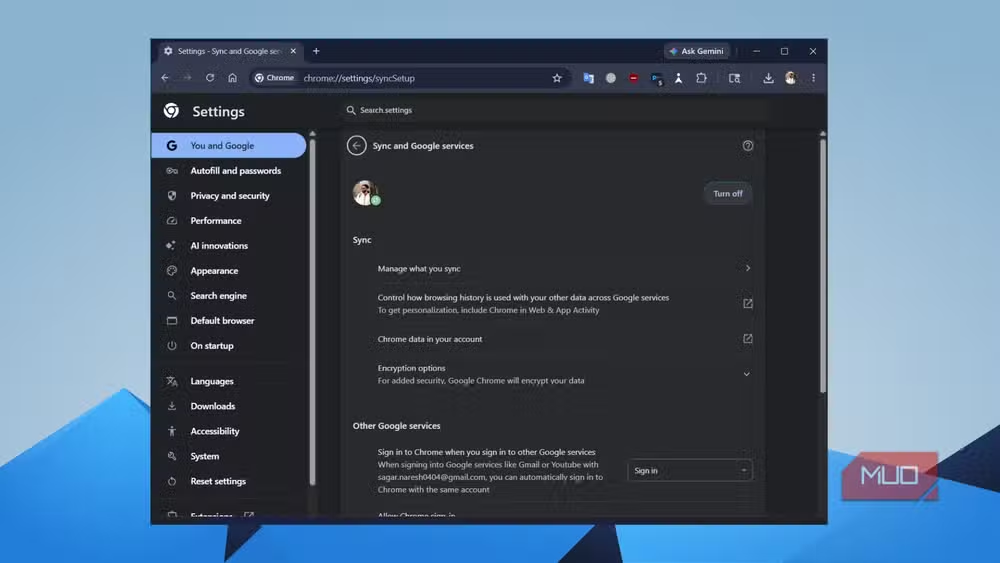
Signed into Chrome with your Google account? Firefox with your Mozilla account? Your browsing history, bookmarks, and open tabs sync to their servers. This creates a persistent identity tied to your account, not your IP. Your VPN becomes irrelevant for tracking purposes.
If privacy matters, turn off sync or use a separate browser profile for VPN sessions. In Chrome, go to Settings > You and Google > Turn off sync. Consider using a dedicated privacy browser like Brave or a hardened Firefox profile for sensitive browsing.
5. Cookies and fingerprinting: The final layer
Third-party cookies track you across websites. Your VPN doesn't touch them. Block them in your browser settings. In Chrome, go to Settings > Privacy and Security > Third-party cookies and select "Block third-party cookies."
Browser fingerprinting is harder to defeat. Websites analyze your screen resolution, installed fonts, timezone, and dozens of other signals to create a unique identifier. Marcus Thorne, CEO of PrivacyArmor, puts it bluntly: "In the era of AI-driven fingerprinting, a VPN is just the beginning; hardening your browser is the real battleground for digital sovereignty."
Extensions like Privacy Badger and uBlock Origin help reduce fingerprinting surface. Firefox's Enhanced Tracking Protection on Strict mode is one of the more aggressive built-in options. The Tor Browser remains the gold standard, but it comes with usability trade-offs.
The kill switch matters more than you think
On Reddit's r/privacy and r/cybersecurity forums, technical users emphasize one point repeatedly: without a kill switch, your VPN gives a false sense of security. If your VPN connection drops for even a second, your real IP leaks. Most commercial VPNs include a kill switch, but it's often disabled by default. Enable it.
Also worth noting: the 14 Eyes alliance. Fourteen countries, including the US, UK, Canada, and Australia, can legally share surveillance data. Where your VPN provider is headquartered matters. A VPN based in Panama or Switzerland operates under different legal constraints than one in Virginia.
Protocol choice affects battery and speed
Modern protocols like WireGuard and TUIC can improve battery life by up to 40% compared to older protocols like OpenVPN. If you're using a VPN on mobile, check which protocol your app uses. WireGuard is faster and lighter. Most major VPN providers now support it.
Logicity's Take
The VPN industry has a marketing problem. Providers sell "complete privacy" when what they deliver is one layer of a multi-layer defense. The real work happens in your browser settings. A user who disables WebRTC, locks down geolocation, uses encrypted DNS, and blocks third-party cookies is harder to track than someone who just clicks "Connect" on a VPN app. The settings changes take about ten minutes. The false confidence from ignoring them can last years.
Frequently Asked Questions
Does a VPN make me completely anonymous online?
No. A VPN masks your IP address and encrypts your traffic, but your browser can still leak your identity through WebRTC, geolocation, DNS requests, cookies, and fingerprinting. You need to configure browser settings separately.
How do I check if my VPN has a WebRTC leak?
Visit a WebRTC leak test site like browserleaks.com/webrtc while connected to your VPN. If you see your real IP address listed under "Local IP Address" or "Public IP Address," you have a leak.
What is DNS-over-HTTPS and should I enable it?
DNS-over-HTTPS (DoH) encrypts your DNS queries so your ISP can't see which websites you're visiting. Yes, you should enable it. Both Firefox and Chrome support DoH in their privacy settings.
Does browser fingerprinting work even with a VPN?
Yes. Fingerprinting uses your browser configuration, screen resolution, fonts, and other device characteristics to identify you. A VPN doesn't change any of these. Use privacy-focused browsers or extensions like Privacy Badger to reduce your fingerprint.
What is a VPN kill switch and why does it matter?
A kill switch blocks all internet traffic if your VPN connection drops unexpectedly. Without it, your real IP address can leak for seconds or minutes before you notice the VPN disconnected. Most VPNs have this feature, but it's often off by default.
Need Help Implementing This?
If you're configuring browser privacy settings for a team or organization, Logicity offers technical consulting on privacy-hardened browser deployments. Contact us for enterprise privacy configuration audits and implementation guidance.
Source: MakeUseOf
Huma Shazia
Senior AI & Tech Writer
Produced with AI assistance and reviewed by the Logicity editorial team. Learn more in our Editorial Policy.






