Key Takeaways
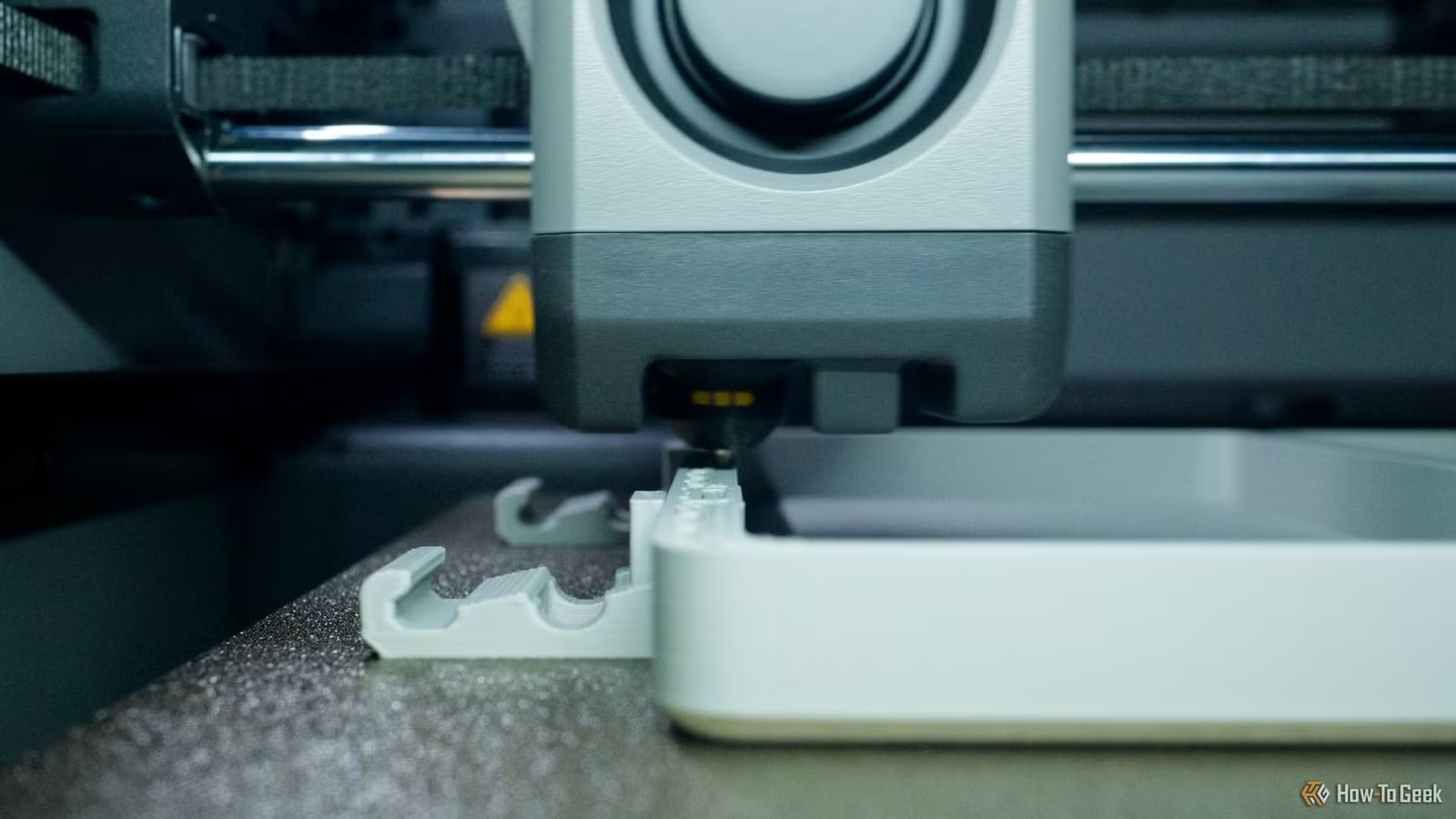
- Slicer settings cause more print failures than actual hardware defects
- Cheap filament with inconsistent diameter mimics serious printer problems
- Model files themselves can be corrupted or unprintable, regardless of printer quality
Your 3D printer probably isn't broken. That failed print sitting in your trash, the one that looked like spaghetti or lifted off the bed entirely, likely has nothing to do with your hardware. The real culprits hide in software settings, material quality, and file corruption.
Sydney Butler, a technology writer with over two decades of hands-on PC and 3D printing experience, recently documented the five most common non-hardware failures that plague 3D printing hobbyists and small business operators. His takeaway? Stop dismantling your printer and start looking at everything around it.
Why slicer settings wreck more prints than broken hardware
The slicer is the software that converts your 3D model into layer-by-layer instructions for your printer. It controls everything from print speed to cooling fan behavior. Get one toggle wrong and your print fails before the first layer finishes.
Butler recounts a painful experience with one of his old printers. First layer adhesion was impossible. He even shipped the printer back to the dealer, who couldn't diagnose the problem. The culprit? A single toggle in the slicer that disabled the cooling fan, causing the first layer to bead up and curl.
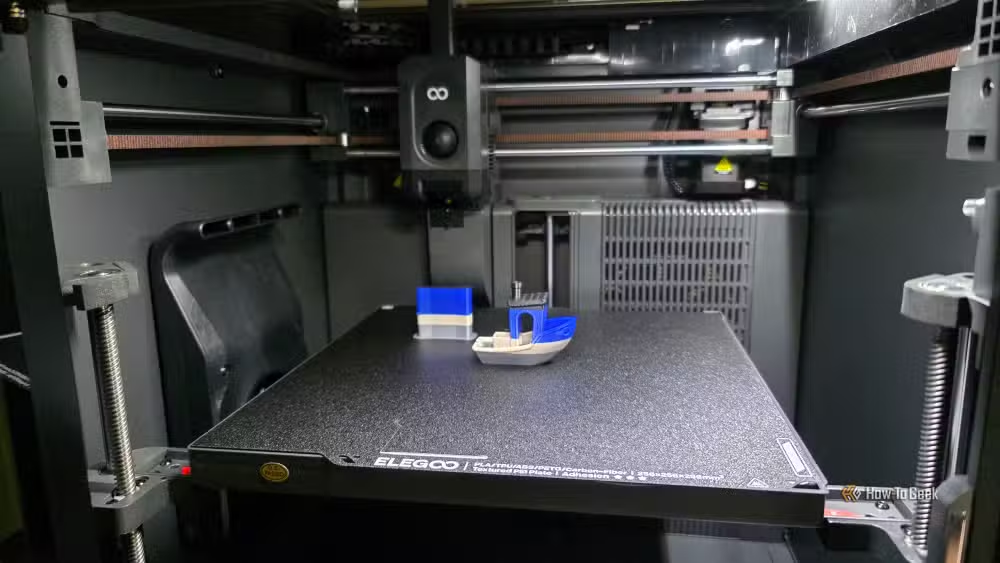
This is why experienced operators argue the slicer matters more than the printer itself. You can own a $2,000 machine and still produce garbage if your temperature, speed, or layer height settings are off by small margins.
Cheap filament mimics serious printer defects
Butler's wife runs a small business selling 3D-printed models at local markets. The pressure to cut costs on filament taught them a hard lesson: your printer is only as good as the material you feed it.
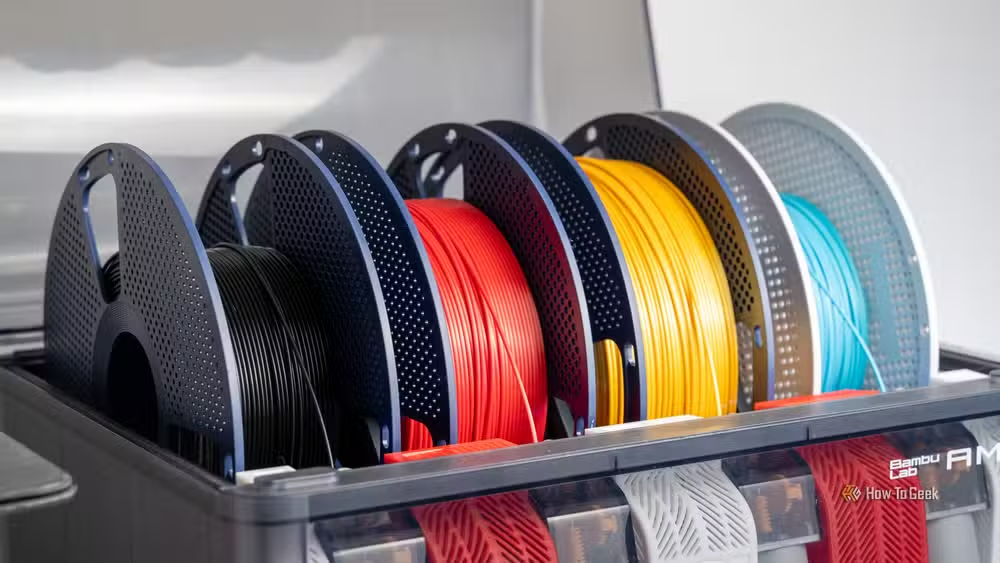
Two spools of PLA can look identical and behave completely differently. Some budget brands clogged his printers repeatedly, especially multi-material setups during filament changeovers. The issue often comes down to inconsistent diameter. Cheap filament varies in thickness along its length, which causes extrusion problems that look exactly like nozzle clogs or extruder failures.
Then there's moisture. Filament absorbs water from the air, and wet PLA produces awful stringing and surface defects. If your spools sit for weeks between prints, a filament dryer becomes necessary. Butler mentions the SUNLU S1 Plus, which dries filament while printing and handles temperatures from 35°C to 55°C for over 20 filament types.
When the model file itself is the problem
Sometimes the failure has nothing to do with your printer or settings. The 3D model file is corrupt or simply unprintable.
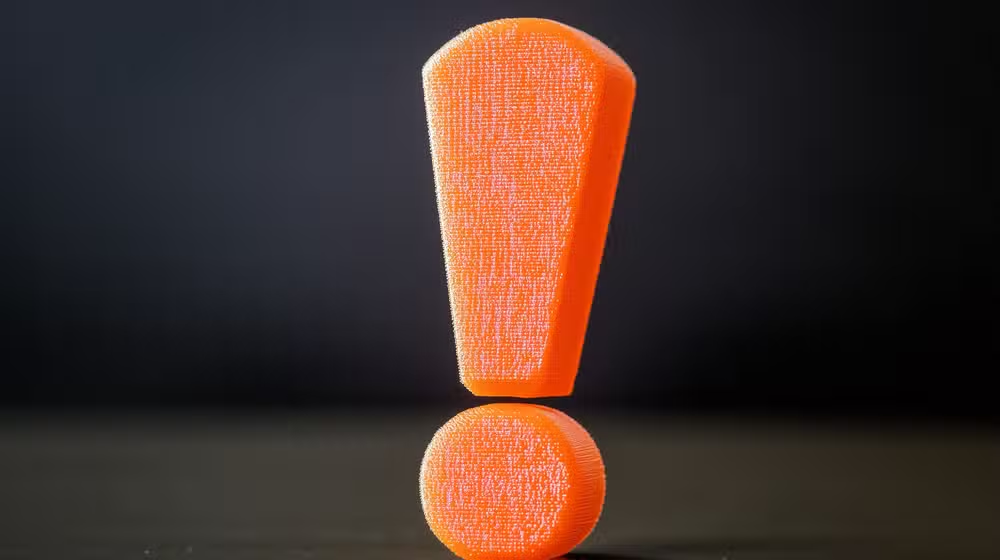
Butler has purchased models for his wife's business that refuse to print correctly regardless of settings or hardware. Bad mesh geometry, non-manifold edges, or impossible overhangs baked into the design will doom a print before it starts. The blame falls on the designer, not your machine.
Before assuming hardware failure, run your model through a mesh repair tool. Free options like Meshmixer or the built-in repair functions in modern slicers can identify problems your printer has no way to communicate.
The real troubleshooting checklist
The pattern here is clear. When a print fails, check software before hardware. Work through this sequence:
- Verify slicer settings match your filament type and printer capabilities
- Confirm filament diameter consistency and check for moisture damage
- Run the model file through mesh repair software
- Test with a known-good model file to isolate the variable
- Only then consider hardware inspection
This approach saves hours of unnecessary disassembly. It also prevents the common mistake of replacing expensive components that were working fine all along.
What this means for small 3D printing businesses
For anyone selling 3D-printed products, downtime costs money. Every hour spent chasing a phantom hardware problem is an hour of lost production. The instinct to blame the machine is strong, but the evidence points elsewhere.
Investing in better filament and learning your slicer's quirks delivers higher returns than buying backup hardware. And keeping a library of test files that you know print correctly gives you a fast diagnostic tool when something goes wrong.
Logicity's Take
The 3D printing community still treats troubleshooting as hardware-first, but the data suggests the opposite. As printers get more reliable, the bottleneck shifts to operator knowledge. The real skill gap isn't mechanical, it's understanding how slicer parameters interact and recognizing the signatures of bad filament. This is why experienced printers obsess over profiles and material sourcing while beginners keep replacing nozzles.
Frequently Asked Questions
Why does my 3D print keep failing on the first layer?
First layer failures usually trace back to bed leveling, incorrect Z-offset, or slicer settings like cooling fan behavior. Check that your cooling fan isn't running during the first layer, as this can cause curling and adhesion problems.
How do I know if my 3D filament is bad?
Signs include frequent clogs, stringing, brittle prints, or popping sounds during extrusion. Test filament diameter at multiple points with calipers. Variance greater than 0.05mm indicates quality issues.
Can a corrupted STL file cause print failures?
Yes. Non-manifold geometry, holes in the mesh, or impossible overhangs in the model file will cause failures regardless of your hardware or settings. Run files through repair tools like Meshmixer before printing.
How often should I dry my 3D printer filament?
Dry filament before use if it's been exposed to air for more than a few days, especially in humid climates. PLA and PETG absorb moisture quickly. A filament dryer running during printing prevents reabsorption.
What slicer settings cause the most 3D print failures?
Print temperature, cooling fan settings, and print speed cause the majority of software-related failures. A 5°C temperature difference or 10mm/s speed change can determine success or failure on the same model.
Another guide on optimizing your tech setup through software rather than hardware upgrades
Need Help Implementing This?
If you're running a 3D printing operation and want help optimizing your workflow, slicer profiles, or material selection, reach out to Logicity's editorial team. We connect readers with specialists who solve these exact problems.
Source: How-To Geek
Manaal Khan
Tech & Innovation Writer
Produced with AI assistance and reviewed by the Logicity editorial team. Learn more in our Editorial Policy.