Key Takeaways
- Disabling cloud content search and Search Highlights requires only Settings toggles, no registry work
- Removing Bing web suggestions requires a registry edit or one-line PowerShell command
- The Recommended section can be minimized or hidden entirely through Personalization settings
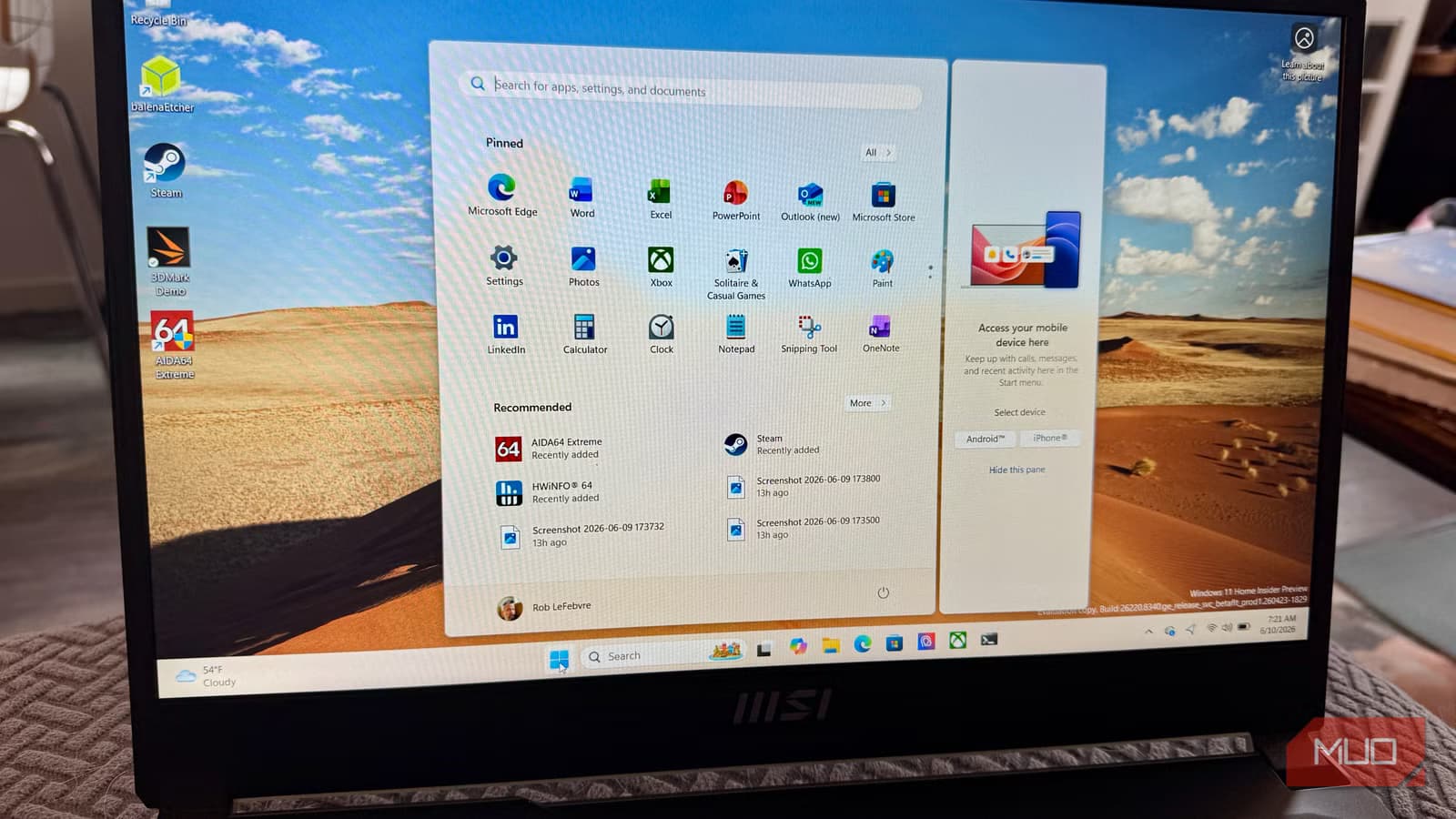
The Windows 11 Start menu sends your typos to Bing instead of admitting it found nothing. Type "wrd" hoping for Word, and you get web links. Type "painet" for Paint, same result. Microsoft benefits from the ad impressions. You lose seconds waiting for results you never wanted.
Three changes fix this: two Settings toggles and one registry edit. After applying them, the Start menu searches only local apps, files, and settings. No Bing. No cloud suggestions. No animated holiday trivia cluttering your search results.
Why does the Start menu search Bing at all?
When Windows 11 launched in October 2021, Microsoft redesigned the Start menu around cloud integration. The Recommended section pulls from OneDrive and recent files. Search queries that don't match local apps route through Bing. Search Highlights inject illustrated content about holidays and trending topics from Microsoft's servers.
For Microsoft, this drives engagement with its services. For users who know exactly what they want to launch, it's friction. Over 68% of Windows users remain on Windows 10, according to StatCounter data from late 2024. The Start menu redesign is one reason adoption has been slower than expected.
First fix: disable cloud content and Search Highlights
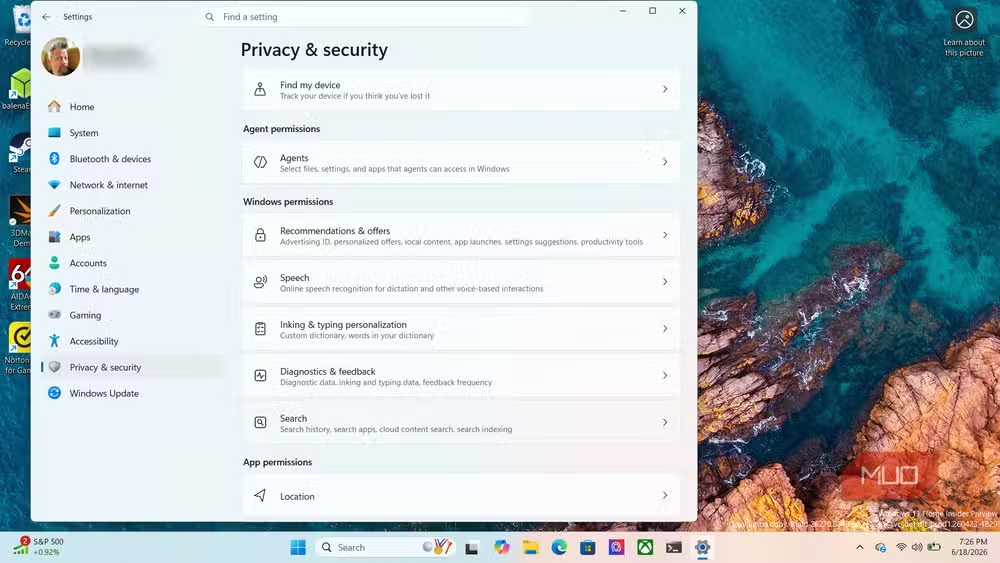
Open Settings, then Privacy & security, then Search permissions. Scroll to Cloud content search and turn off both Microsoft account and Work or School account. This stops the Start menu from pulling results from OneDrive, Outlook, and your broader Microsoft account.
Just above those toggles, find Show search highlights and turn it off. This removes the animated promotional content Microsoft injects into search results. Neither change requires registry work. Both take effect immediately.
These two toggles won't stop Bing web suggestions. That requires going deeper.
Second fix: kill Bing suggestions with a registry edit
Before touching the registry, create a System Restore point. Search for "Create a restore point" in the Start menu, select your system drive, click Configure to confirm protection is on, then click Create. Name it something you'll recognize.
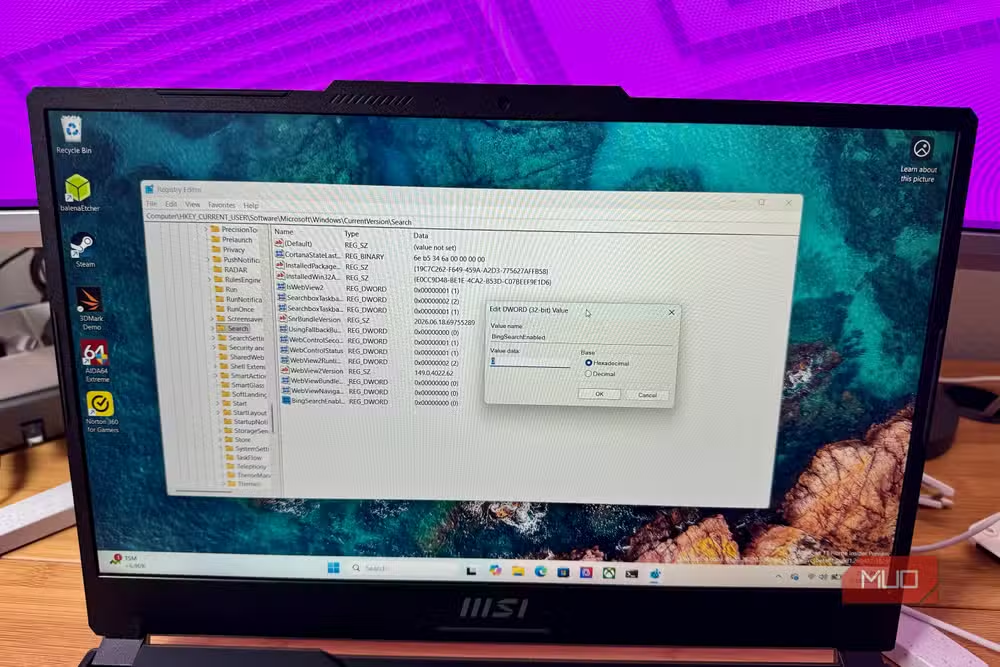
Press Win + R, type regedit, hit Enter. Navigate to HKEY_CURRENT_USER\Software\Microsoft\Windows\CurrentVersion\Search. Right-click in the right pane, choose New, then DWORD (32-bit) Value. Name it BingSearchEnabled. Double-click it and set the value to 0.
For Windows 11 24H2 and later builds, you need one more key. Navigate to HKEY_CURRENT_USER\Software\Policies\Microsoft\Windows\Explorer. If the Explorer key doesn't exist, right-click Windows, select New, then Key, and name it Explorer. Create a new DWORD called DisableSearchBoxSuggestions and set it to 1.
Restart your PC. The Start menu will now return only local results.
PowerShell alternative for the registry-averse
If you'd rather not click through Registry Editor, one PowerShell line accomplishes the same thing:
Set-ItemProperty -Path "HKCU:\SOFTWARE\Microsoft\Windows\CurrentVersion\Search" -Name "BingSearchEnabled" -Value 0Both methods are permanent until you manually reverse them. Windows 11 still lacks an official Settings toggle for this, though Microsoft may add one in a future Insider build.
Third fix: shrink the Recommended section
The Recommended section consumes roughly half the Start menu by default. It shows recently opened apps, recent files, and OneDrive content. If you already know what you want to launch, this space is wasted.
Go to Settings, then Personalization, then Start. You can toggle off recent apps, recent files, and recommendations. The space converts to additional pins for apps you actually use. You can also choose different layout options to prioritize pins over recommendations.
A deeper look at the frustrations with Windows 11's default configuration
What about app suggestions and ads in the Start menu?
While you're in Settings, check Personalization, then Start, and look for "Show recommendations for tips, shortcuts, new apps, and more." Turn it off. This stops Microsoft from promoting apps you haven't installed.
Microsoft has increasingly treated the Start menu as advertising space. These toggles exist, but they're scattered across different Settings pages. Finding them requires knowing where to look.
Logicity's Take
Microsoft's default Start menu configuration prioritizes Microsoft's business interests over user efficiency. The company could easily add a single toggle for "local search only," but doing so would hurt Bing engagement metrics. Until that changes, registry edits remain the only complete solution. The 68% of users still on Windows 10 aren't just resistant to change. They're avoiding exactly this kind of friction.
Frequently Asked Questions
Will these changes break Windows Update or other Microsoft services?
No. These edits affect only Start menu search behavior. Windows Update, Microsoft Store, and other services continue working normally.
Can Microsoft reverse these registry changes through updates?
Technically possible but rare. Major feature updates occasionally reset certain preferences. Keep your restore point and reapply the registry edit if needed.
Does this work on Windows 11 Home edition?
Yes. The registry method works on all Windows 11 editions. Group Policy alternatives exist for Pro and Enterprise but aren't necessary.
Will disabling cloud search affect OneDrive file access?
Only in Start menu search. You can still access OneDrive files through File Explorer and the OneDrive app normally.
How do I undo these changes if something breaks?
Restore from your System Restore point, or manually set BingSearchEnabled back to 1 and delete DisableSearchBoxSuggestions from the registry.
Need Help Implementing This?
If you're managing multiple Windows 11 machines, Group Policy or Intune can deploy these settings at scale. Contact your IT administrator or reach out to Logicity for enterprise deployment guidance.
Source: MakeUseOf
Huma Shazia
Senior AI & Tech Writer
Produced with AI assistance and reviewed by the Logicity editorial team. Learn more in our Editorial Policy.






