Key Takeaways
- DNS server issues can make websites unreachable even when your Wi-Fi connection is strong
- Background apps and cloud syncing can consume all your bandwidth without warning
- Switching to Cloudflare (1.1.1.1) or Google (8.8.8.8) DNS can reduce page load times by up to 50%
You've run the speed test. You've checked your Wi-Fi signal strength. Everything looks fine. Yet websites crawl, video calls stutter, and that critical file upload seems stuck at 12%. Before you call your ISP or buy a new router, consider this: the problem might have nothing to do with Wi-Fi at all.
Patrick Campanale, an editor at How-To Geek, recently ran into this exact situation. He had strong Wi-Fi and Ethernet connections. Other sites loaded fine. But one site refused to work. The culprit? DNS settings. And that's just one of three common issues that masquerade as Wi-Fi problems.
1. Your DNS Server Is Failing Silently
DNS stands for Domain Name System. It translates human-readable addresses like google.com into the numeric IP addresses computers actually use (142.250.180.14, in Google's case). Think of it as the internet's phone book.
When your DNS server stops responding, which happens more often than ISPs admit, websites won't load. But your speed test might still work fine because it uses IP addresses directly. This makes DNS failures look exactly like Wi-Fi problems.
“The biggest bottleneck in your home network is often not the Wi-Fi signal itself, but the DNS resolver handling your connection's requests.”
— Patrick Campanale, Editor/Reviewer at How-To Geek
The Fix: Switch to a Public DNS
Access your router's settings and change the DNS from your ISP's default to one of these alternatives:
- Cloudflare: 1.1.1.1 and 1.0.0.1 (or 1.1.1.2 for malware blocking)
- Google: 8.8.8.8 and 8.8.4.4
Users who switch from ISP-default DNS to high-performance alternatives like Cloudflare report around 50% reduction in time-to-first-byte. That's the delay between clicking a link and seeing the page start to load.
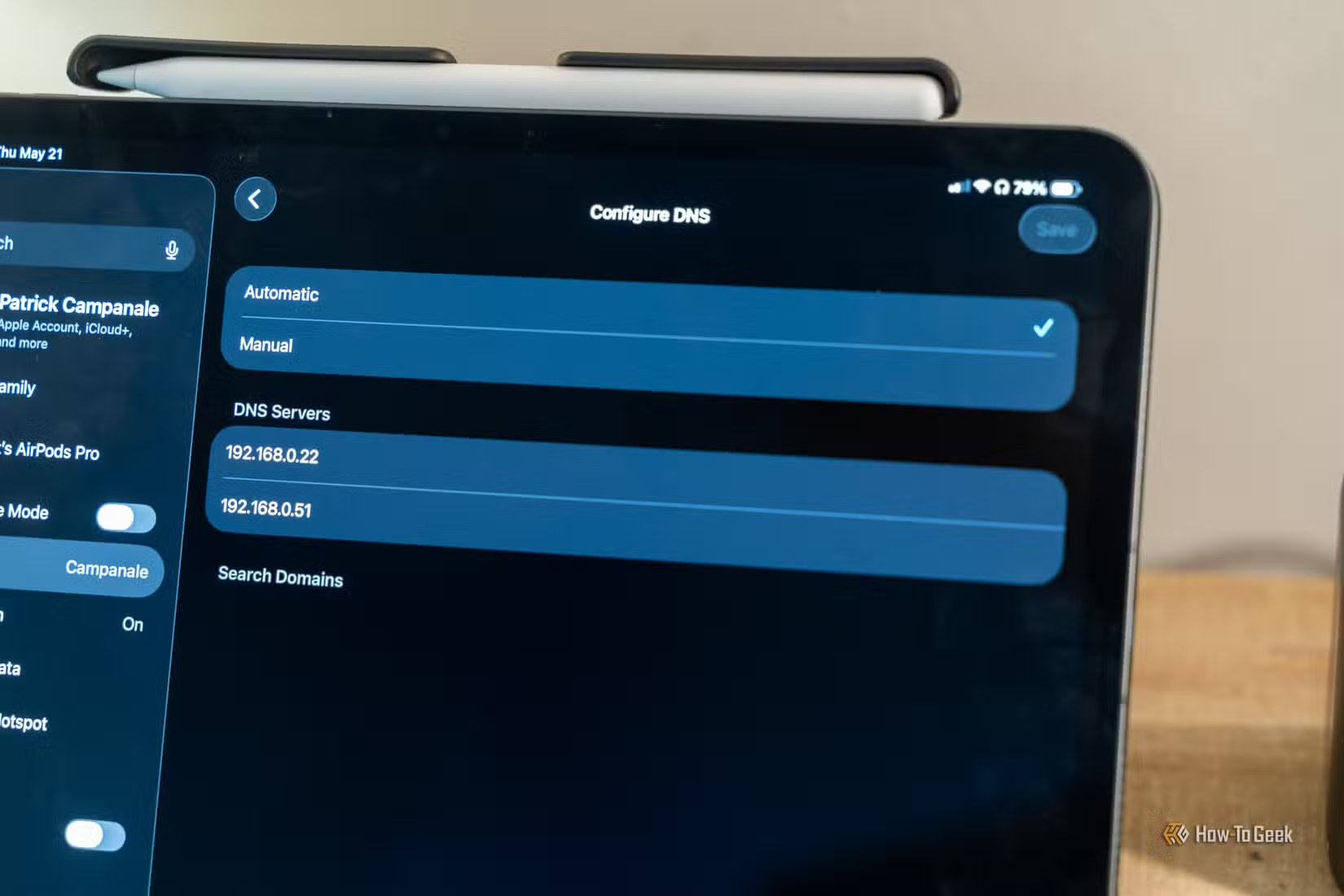
After changing your DNS settings, wait a few minutes before testing. If one provider doesn't help, try the other. Cloudflare is generally faster, but Google's DNS has broader compatibility with some networks.
2. Background Apps Are Eating Your Bandwidth
Here's a scenario: you're on a video call, and your connection keeps dropping. You check Wi-Fi. Full bars. You run a speed test. Numbers look fine. But your call still stutters.
The likely cause? Something else on your network is consuming bandwidth in the background. Cloud backup services, automatic software updates, and smart home devices all compete for the same pipe.
“Often, what users perceive as an ISP issue is actually a silent war for bandwidth happening inside their own home network by background apps.”
— Network Analyst, Tech Industry Observer
Common Bandwidth Hogs
- Windows Delivery Optimization: shares updates with other PCs by default
- Cloud sync services: Dropbox, OneDrive, Google Drive uploading large files
- Game launchers: Steam, Epic, Xbox app downloading updates automatically
- Smart TVs and streaming devices: pre-loading content in the background
- Security cameras: constantly uploading footage to cloud storage
The worst part: these services often prioritize their own traffic. Your video call gets whatever bandwidth is left over.
The Fix: Audit and Schedule
On Windows, open Task Manager and check the Network column to see what's using bandwidth. On Mac, Activity Monitor shows the same data. Look for anything consuming significant download or upload capacity.
Most sync services let you schedule uploads for off-hours. Steam and other game launchers can limit download speeds or be set to update only when you're not using the computer. Windows Delivery Optimization can be turned off entirely in Settings > Windows Update > Advanced Options.
PowerShell can help identify which processes are consuming your bandwidth
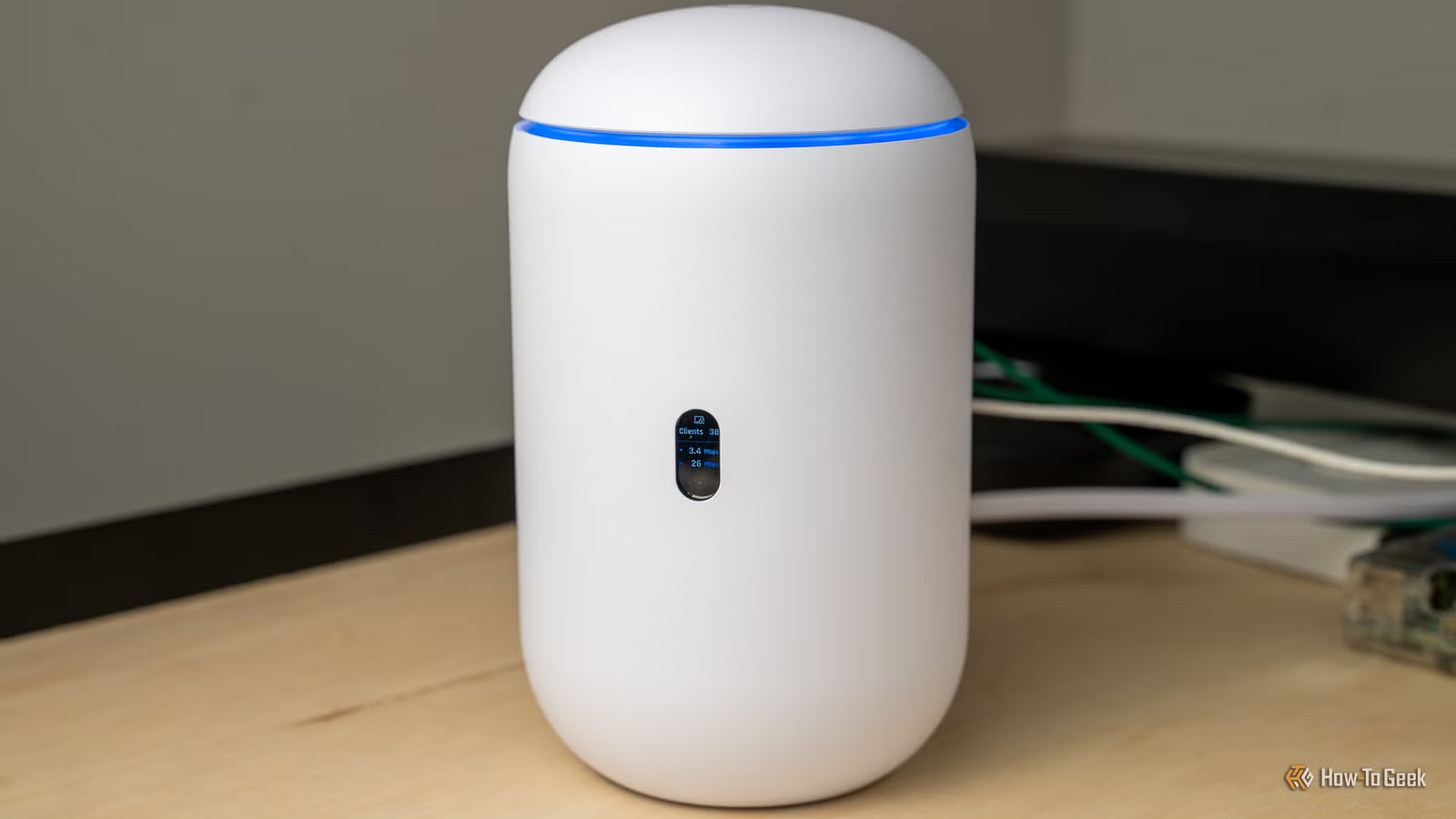
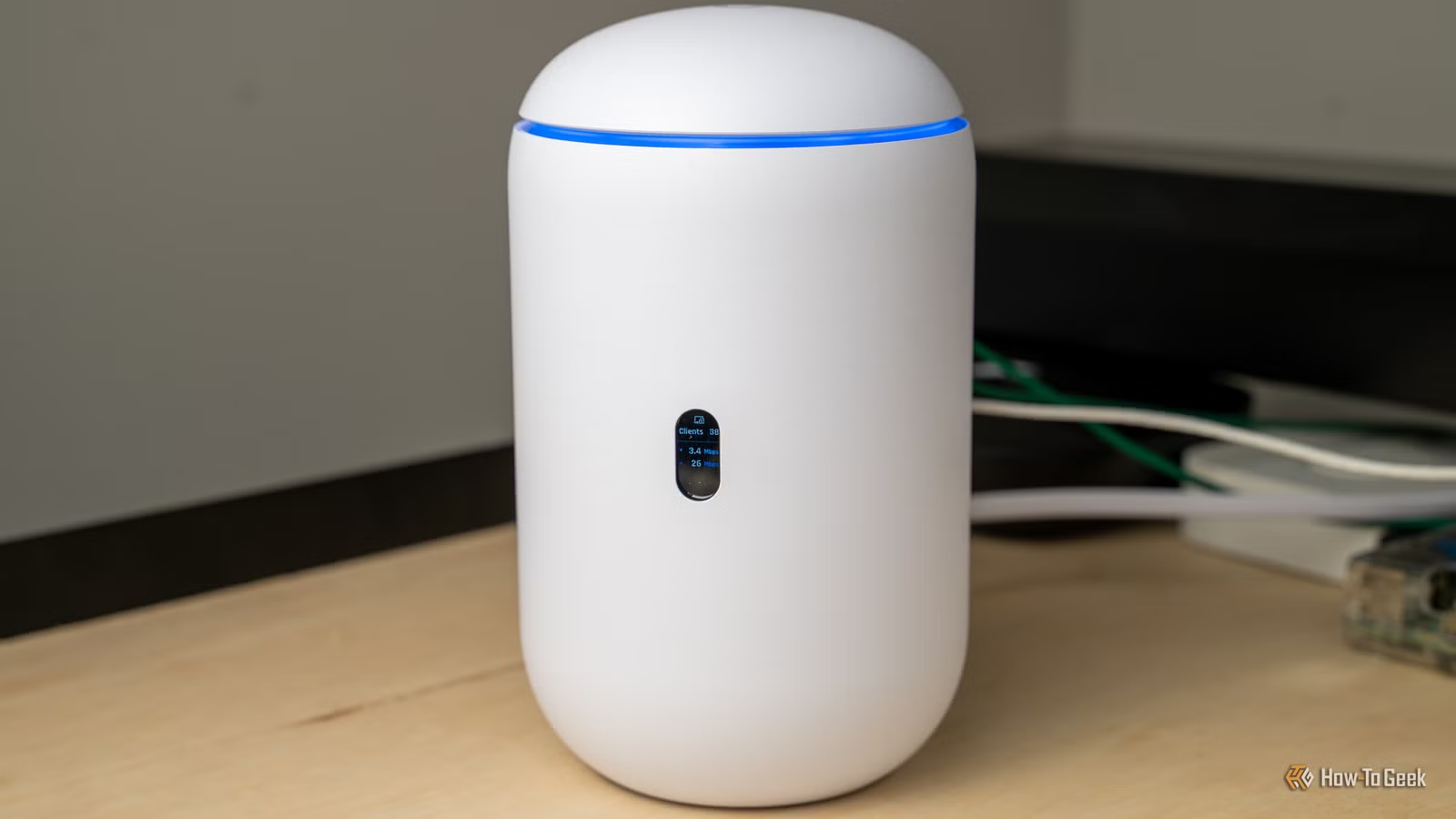
3. Your Router Can't Keep Up With Your Speed
This one surprises people: your router might be the bottleneck even when Wi-Fi signal is perfect. Many routers, especially older models or the ones ISPs provide for free, can't actually process packets as fast as your internet plan delivers them.
If you're paying for gigabit internet but your router's processor can only handle 300 Mbps of throughput, you'll never see those speeds. And if you're running a VPN, firewall rules, or QoS settings, the processing overhead gets worse.
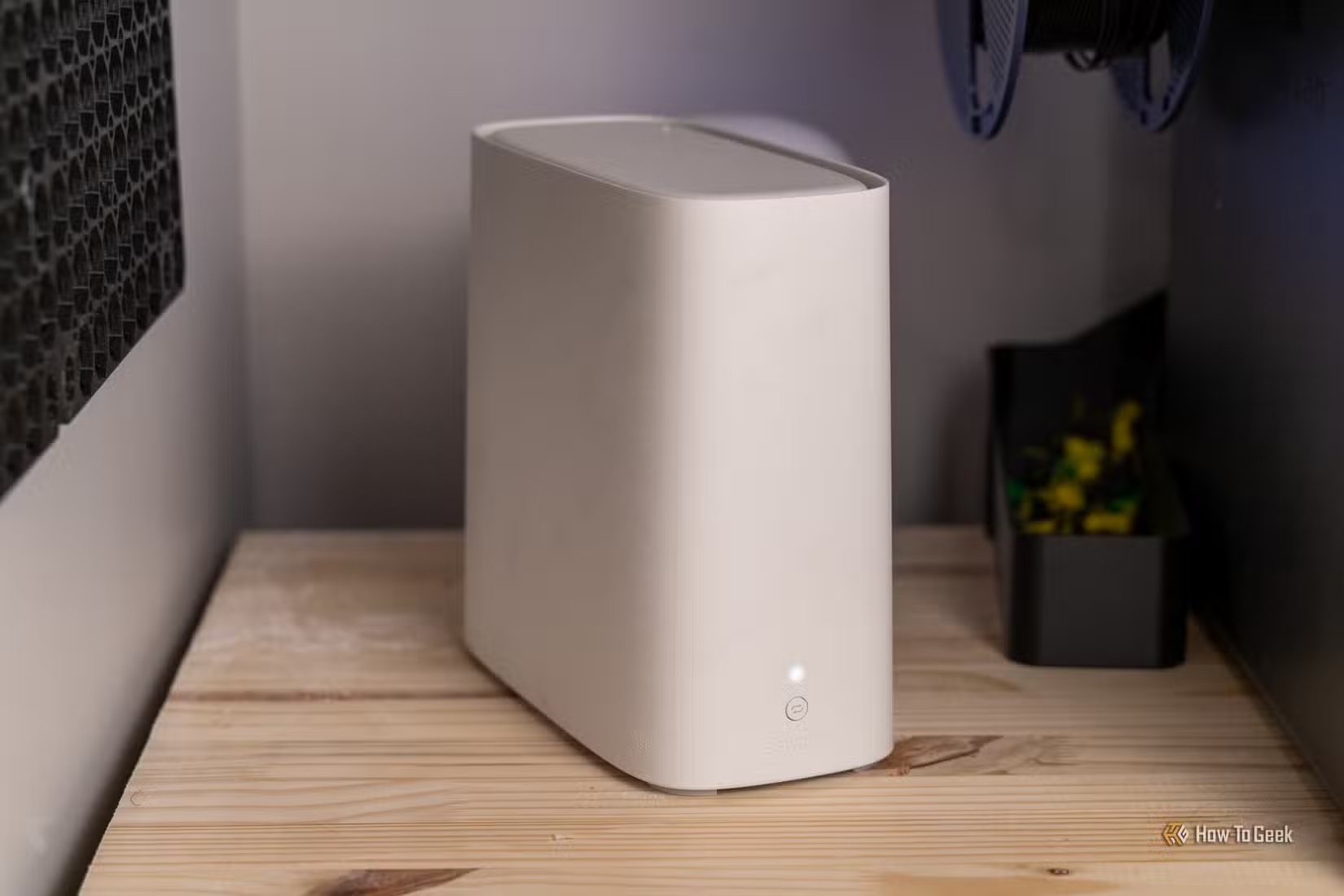
The Fix: Check Your Hardware Specs
Look up your router's actual throughput rating. This is different from its theoretical Wi-Fi speed. A router might advertise "AX6000" but only push 400 Mbps through its WAN port after processing.
If your router is more than four years old and you've upgraded your internet plan since then, it's probably time for new hardware. Modern routers with decent processors cost between $100 and $200. For most homes, that's a better investment than paying for a faster plan you can't actually use.
How to Test for These Issues
Start with the free Waveform Bufferbloat test (search "Waveform Bufferbloat test" to find it). This measures how well your router handles traffic under load. A grade of A or B means your hardware is fine. C or lower suggests your router is struggling.
For DNS issues, try accessing a site by its IP address instead of its domain name. If that works but the domain doesn't, DNS is your problem.
For bandwidth hogs, monitor your network usage over a few days. Many routers show connected devices and their data usage in the admin panel. Look for anything consuming more than expected.
Logicity's Take
Frequently Asked Questions
Will changing DNS make my internet faster?
It won't increase your raw download speed, but it can significantly reduce the time it takes for websites to start loading. Users switching to Cloudflare or Google DNS often see page loads begin up to 50% faster.
How do I know if my router is the problem?
Run a Bufferbloat test. If you get a C grade or lower, your router is struggling to manage traffic under load. Also compare your router's rated WAN throughput against your internet plan speed.
Can smart home devices slow down my internet?
Yes. Security cameras, smart TVs, and voice assistants all use bandwidth, sometimes constantly. Cameras uploading to cloud storage are especially demanding. Check your router's admin panel to see which devices use the most data.
Should I use 1.1.1.1 or 8.8.8.8?
Cloudflare's 1.1.1.1 is generally faster and has stronger privacy policies. Google's 8.8.8.8 has broader compatibility. Try Cloudflare first; switch to Google if you have issues with specific sites.
How often should I replace my router?
Every four to five years, or whenever you upgrade your internet plan. Router technology improves quickly, and older hardware often can't handle modern high-speed connections efficiently.
Need Help Implementing This?
Source: How-To Geek
Manaal Khan
Tech & Innovation Writer
Produced with AI assistance and reviewed by the Logicity editorial team. Learn more in our Editorial Policy.