Key Takeaways
- XLOOKUP eliminates VLOOKUP's leftmost-column requirement and column-counting errors
- The UNIQUE function extracts distinct values without manual filtering or helper columns
- FILTER creates dynamic subsets that update automatically when source data changes
Why Legacy Formulas Still Dominate
Excel has shipped better tools for years. XLOOKUP arrived in 2019. UNIQUE and FILTER came with Office 365's dynamic array update. Yet most users stick with VLOOKUP, manual duplicate removal, and AutoFilter because that's what they learned.
The cost is real. Every time you add a column to a VLOOKUP range, you risk breaking your formula. Every time you filter data manually, you create a static snapshot that won't update. Every time you hunt for duplicates by sorting and scanning, you burn time on something a formula can handle instantly.
Here are three replacements worth learning this week.
Replace VLOOKUP With XLOOKUP
VLOOKUP has two structural problems that trip up even experienced users. First, your lookup value must sit in the leftmost column of your selected range. If you need to find an employee's name based on an ID, but your table has Name in column A and ID in column B, VLOOKUP cannot perform that search.
Second, you must manually count which column holds the data you want. Insert a new column into your table, and every VLOOKUP referencing that range breaks. You end up debugging a formula that worked perfectly yesterday.
XLOOKUP fixes both issues. Instead of referencing an entire table and counting columns, you point directly to the column you're searching and the column you want returned:
=XLOOKUP(lookup_value, lookup_array, return_array, [if_not_found], [match_mode], [search_mode])The lookup_array and return_array are independent. Search column B, return from column A. No problem. Add columns between them. The formula still works.
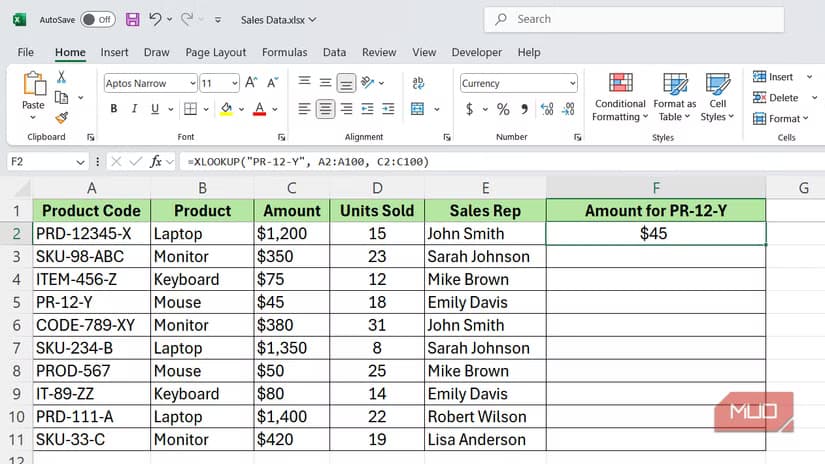
XLOOKUP also defaults to an exact match, which is what you want 95% of the time. VLOOKUP defaults to approximate match unless you remember to add FALSE at the end. That default has caused countless silent errors in financial models.
Replace Manual Deduplication With UNIQUE
The old approach to finding unique values involved sorting your data, using conditional formatting to highlight duplicates, then manually deleting rows. Or you'd use Remove Duplicates, which destroys your source data and doesn't update when new records arrive.
The UNIQUE function solves this in one cell:
=UNIQUE(A2:A100)This returns a dynamic array of distinct values from your range. Add new data to the source range, and the UNIQUE list updates automatically. No helper columns. No manual refresh.
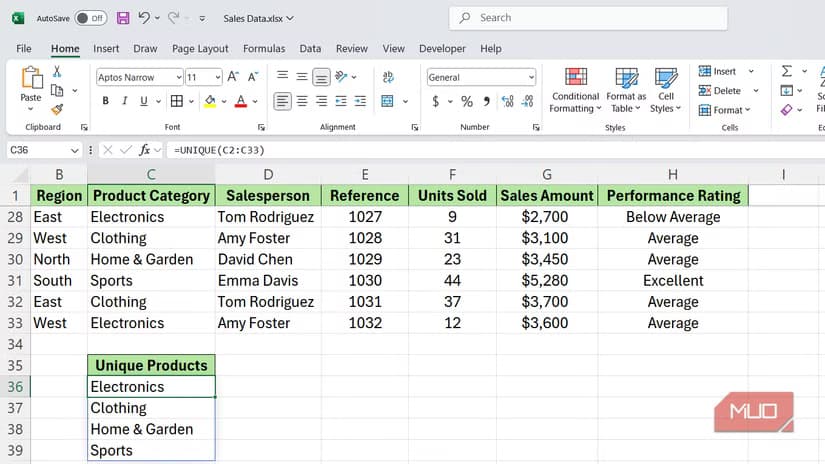
You can also use UNIQUE across multiple columns to find unique combinations. Pass an entire table range, and it returns rows where the combination of all columns is distinct.
Replace AutoFilter With FILTER
AutoFilter is useful for quick exploration, but it creates problems for reporting. The filtered view doesn't update automatically. You can't reference it in other formulas. And if someone else opens the file, they see your filter state, not the full dataset.
The FILTER function creates a dynamic subset that lives in its own range:
=FILTER(data_range, condition, [if_empty])Want all sales over $10,000? Write =FILTER(A2:D100, D2:D100>10000). The result spills into adjacent cells and updates whenever your source data changes. You can reference this filtered range in SUM, AVERAGE, or other calculations.
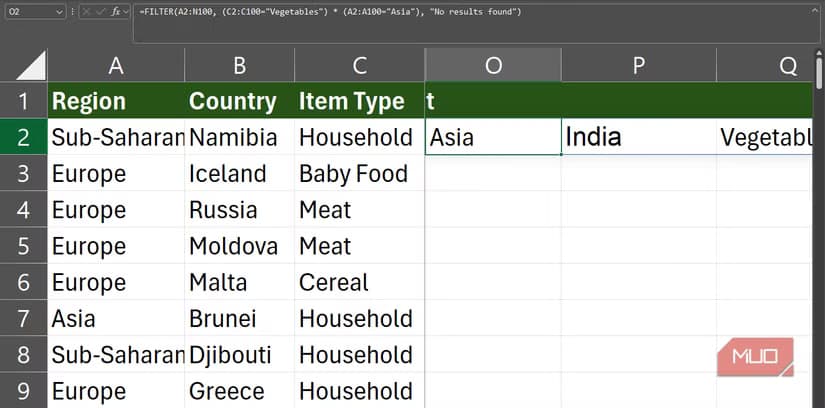
Combine FILTER with UNIQUE for powerful reporting. Extract unique customer names, then use FILTER to pull all transactions for a selected customer. The entire workflow stays dynamic.
When to Make the Switch
You don't need to rewrite every spreadsheet you've ever built. Focus on workbooks you open frequently. If you're maintaining a VLOOKUP that breaks every time someone adds a column, spend five minutes converting it to XLOOKUP. If you're manually re-filtering data every Monday morning, build a FILTER formula once and let it update itself.
One note on compatibility: these functions require Excel 365 or Excel 2021 and later. If you're sharing files with users on Excel 2016 or earlier, they won't be able to edit cells containing these formulas. For internal workflows, that's rarely a problem in 2026. For external reporting, check your recipients' versions first.
Logicity's Take
Frequently Asked Questions
Does XLOOKUP work in Google Sheets?
Yes. Google Sheets added XLOOKUP in 2022, so the syntax and behavior match Excel's implementation.
Can I use FILTER with multiple conditions?
Yes. Multiply conditions together for AND logic: =FILTER(range, (condition1)*(condition2)). Add them for OR logic: =FILTER(range, (condition1)+(condition2)).
What happens if UNIQUE or FILTER returns more results than available cells?
You'll get a #SPILL error. Clear the cells where the array needs to expand, or move the formula to a location with more empty space below and to the right.
Is VLOOKUP still useful for anything?
Only if you're working with users stuck on Excel 2019 or earlier who need to edit your formulas. For personal use and modern team environments, XLOOKUP is strictly better.
Another practical hack for getting more out of existing hardware
Need Help Implementing This?
Source: MakeUseOf
Huma Shazia
Senior AI & Tech Writer
Produced with AI assistance and reviewed by the Logicity editorial team. Learn more in our Editorial Policy.






