Key Takeaways
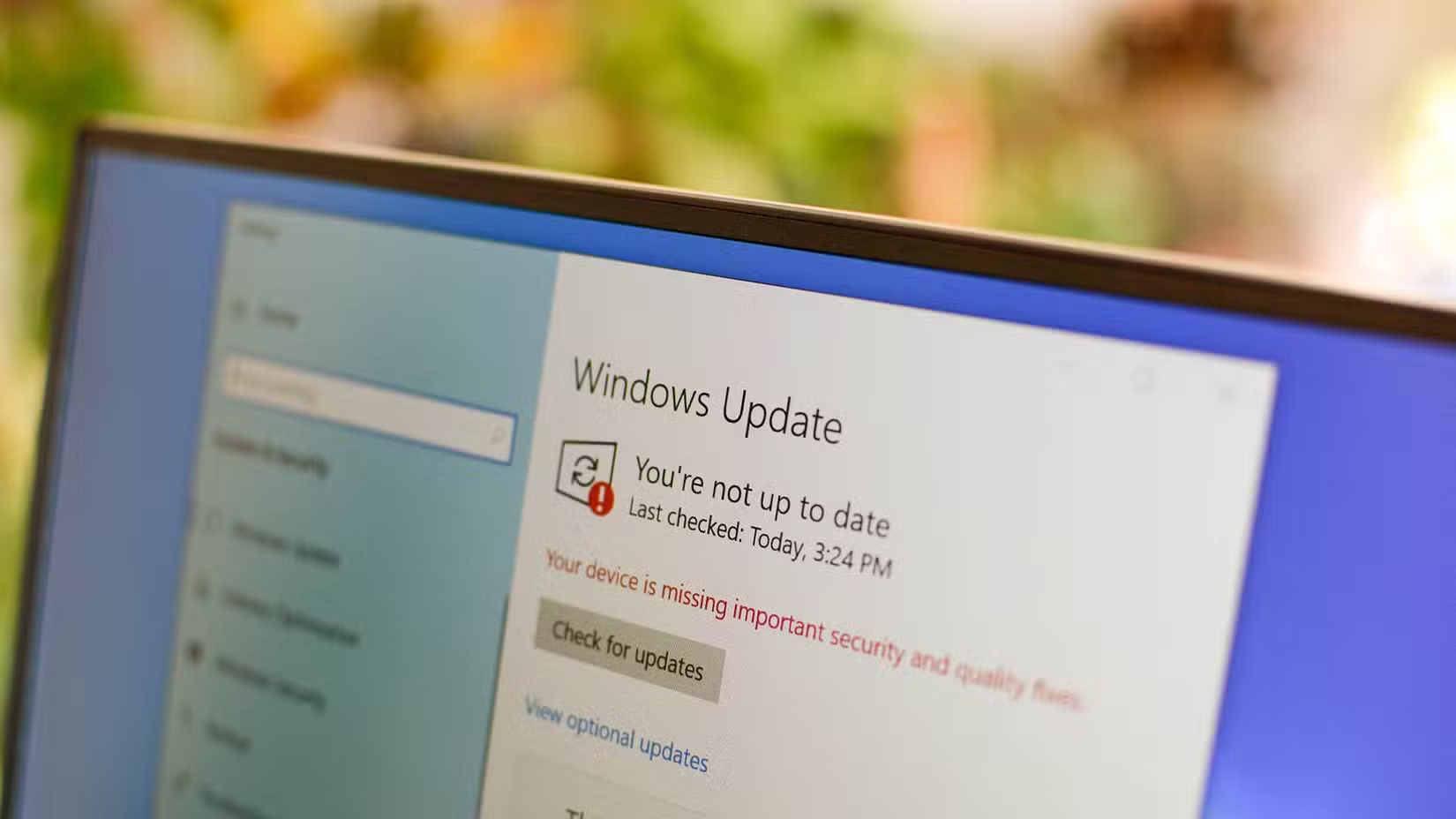
- Run Windows Update immediately after installation to patch security vulnerabilities
- Back up your BitLocker recovery key before it locks you out of your own drive
- Enable System Restore manually since Windows 11 disables it by default
Windows 11 now runs on 400 million monthly active devices. That's a lot of people dealing with the same annoyances: pre-installed apps nobody asked for, an AI assistant that interrupts your workflow, and cloud storage prompts that pop up every time you open File Explorer.
Goran Damnjanovic, a veteran tech writer at How-To Geek, has installed Windows 11 on enough machines to develop a reliable post-install ritual. His approach skips the nuclear options like custom ISOs and focuses on practical changes anyone can make in under an hour.
Here's the full checklist, with context on why each step matters for your machine's performance and your sanity.
1. Install Updates First, Always
This sounds obvious, but it's worth stating: every fresh Windows 11 install has pending updates. Open Settings, go to Windows Update, and click "Download and Install." Wait for the reboot, then check again. Security patches accumulate fast, and the installation media you used was probably months old.
2. Back Up Your BitLocker Recovery Key
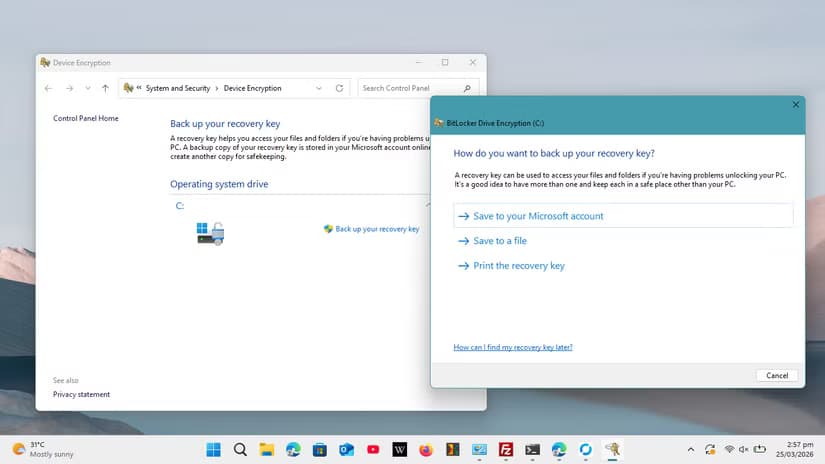
Windows 11 Pro enables BitLocker encryption by default on many devices. If something goes wrong with your boot configuration, you'll need that 48-digit recovery key to access your files. Without it, your data is gone.
Open Control Panel, search for BitLocker, and back up your recovery key to your Microsoft account, a USB drive, or a printed document. Store it somewhere you can actually find it. A locked-out laptop is a surprisingly common IT support ticket.
3. Enable System Protection (Restore Points)
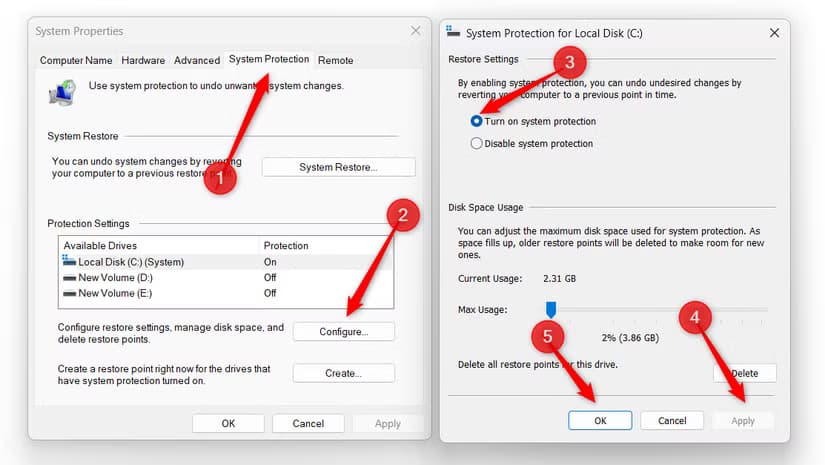
Here's a default that baffles power users: Windows 11 ships with System Restore disabled. If you install a bad driver or a piece of software corrupts your system files, you have no rollback option unless you manually enable it.
Search for "Create a restore point" in the Start menu. In the System Properties window, select your system drive, click Configure, and turn on System Protection. Allocate at least 5-10% of your drive space for restore points. This single step has saved countless hours of troubleshooting.
4. Remove the Bloatware
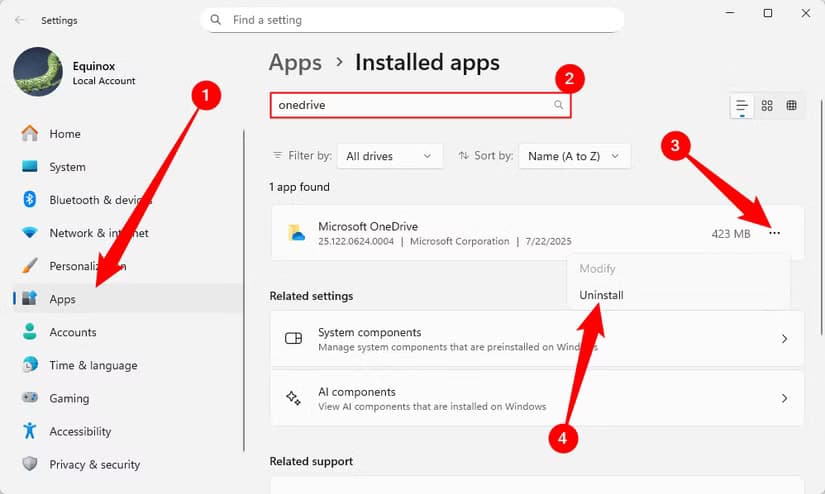
A clean Windows 11 install isn't clean. You'll find Candy Crush, Spotify, Disney+, TikTok, and other promotional apps cluttering your Start menu. Right-click and uninstall each one. If you want to be thorough, open Settings > Apps > Installed Apps and sort by date to catch anything hiding.
For users who want a more aggressive cleanup, tools like the one Chris Titus Tech maintains can remove additional background services. But manual uninstallation handles the worst offenders without requiring elevated PowerShell scripts.
5. Disable or Remove Microsoft Copilot
Microsoft's AI assistant now has a dedicated taskbar button on fresh installations. If you find it more distracting than useful, right-click the taskbar and uncheck "Copilot" to hide it. For a deeper removal, you can disable it through Group Policy on Pro editions or through registry edits on Home.
The assistant isn't inherently bad, but it consumes resources and can interrupt focus work with suggestions. Decide whether the tradeoff makes sense for how you use your machine.
6. Tame OneDrive's Aggressive Integration
OneDrive starts automatically, backs up your Desktop and Documents folders to the cloud, and nags you about storage limits. If you use a different cloud service or prefer local storage, this behavior is intrusive.
Open OneDrive settings, go to the Sync and Backup tab, and click "Manage backup." Turn off the folders you don't want synced. You can also prevent OneDrive from launching at startup entirely through the Settings tab. The app remains installed if you change your mind later.
More power-user tips for your daily tools
7. Configure Privacy and Telemetry Settings
Windows 11 collects usage data by default. Open Settings > Privacy & Security and review each category. You can disable advertising ID tracking, location history, diagnostic data collection, and activity history. None of these affect core functionality.
HackerNews discussions frequently highlight these settings as the minimum viable privacy configuration. Users who want more control often turn to PowerShell scripts, but the built-in toggles handle the most common data collection vectors.
8. Install Your Essential Software
Rather than downloading installers one by one, tools like winget (Windows Package Manager) can batch-install applications from the command line. Run "winget install Firefox 7zip.7zip VideoLAN.VLC" and grab coffee while it handles dependencies.
Ninite remains another solid option for non-technical users. Select your apps on the website, download the custom installer, and let it run. Either approach beats clicking through a dozen "Next" buttons.
9. Set Up a Proper Backup System
System Restore protects against configuration problems. It doesn't protect your actual files. Set up Windows Backup to an external drive or configure File History for continuous protection. Cloud backup services like Backblaze or Proton Drive provide off-site redundancy for critical data.
The time to configure backups is now, when your system is fresh and everything works. Not after the drive fails.
10. Customize the Interface to Your Workflow
Windows 11's centered taskbar and simplified Start menu frustrate users who built muscle memory on earlier versions. Third-party tools like StartAllBack or ExplorerPatcher can restore the Windows 10 Start menu, movable taskbar, and classic context menus.
Even without third-party tools, you can right-click the taskbar to access Taskbar Settings and consolidate or hide elements like the Widgets button, Search, and Task View. The fewer distractions on screen, the more focus you have for actual work.
Another productivity fix for your Windows workflow
The Nuclear Option: Custom ISOs
For users installing Windows on multiple machines, tools like Winhance or Rufus can create custom installation media with bloatware pre-removed and local account setup enabled. This skips the Microsoft account requirement entirely and produces a cleaner baseline.
Rufus is particularly popular because it handles bootable USB creation and includes checkboxes to disable specific Microsoft services during initial setup. It's free, open source, and maintained actively. The learning curve is minimal for anyone comfortable with BIOS settings.

Logicity's Take
Frequently Asked Questions
Can I use Windows 11 without a Microsoft account?
Yes. Tools like Rufus let you create installation media that bypasses the Microsoft account requirement. You can also use the OOBE\BYPASSNRO command during setup to enable local account creation.
Does disabling telemetry break Windows Update?
No. The privacy settings in Windows 11 allow you to reduce data collection while keeping core functionality like updates intact. Microsoft separates required diagnostic data from optional telemetry.
Is it safe to use debloat scripts from the internet?
It depends on the source. Scripts from established creators like Chris Titus Tech are widely reviewed and generally safe. Random scripts can disable critical services or create security vulnerabilities. Always read what a script does before running it.
Why is System Restore disabled by default in Windows 11?
Microsoft hasn't officially explained this, but it likely relates to storage optimization on smaller SSDs. The feature works fine when enabled manually and remains the fastest way to recover from bad driver installations.
Will removing Copilot cause problems with future Windows updates?
Hiding Copilot from the taskbar causes no issues. Deeper removal through Group Policy or registry edits may require re-application after major feature updates, but won't break the OS.
Need Help Implementing This?
Source: How-To Geek
Removing Microsoft Copilot via Group Policy (April 2026 Update)
The new article provides specific technical instructions for completely removing Microsoft Copilot via the Group Policy Editor, a feature introduced in the April 2026 Windows update. It also clarifies the specific system requirements and limitations, such as the need for Windows 11 Pro and the condition that the Copilot app must not have been launched in the past 28 days.
Manaal Khan
Tech & Innovation Writer
Produced with AI assistance and reviewed by the Logicity editorial team. Learn more in our Editorial Policy.