Key Takeaways
- You can disable Apple's automatic email categories and restore the classic list view
- Custom swipe gestures let you flag, archive, or mark emails as read with a single motion
- The Remind Me feature pushes emails into the future so you can deal with them later
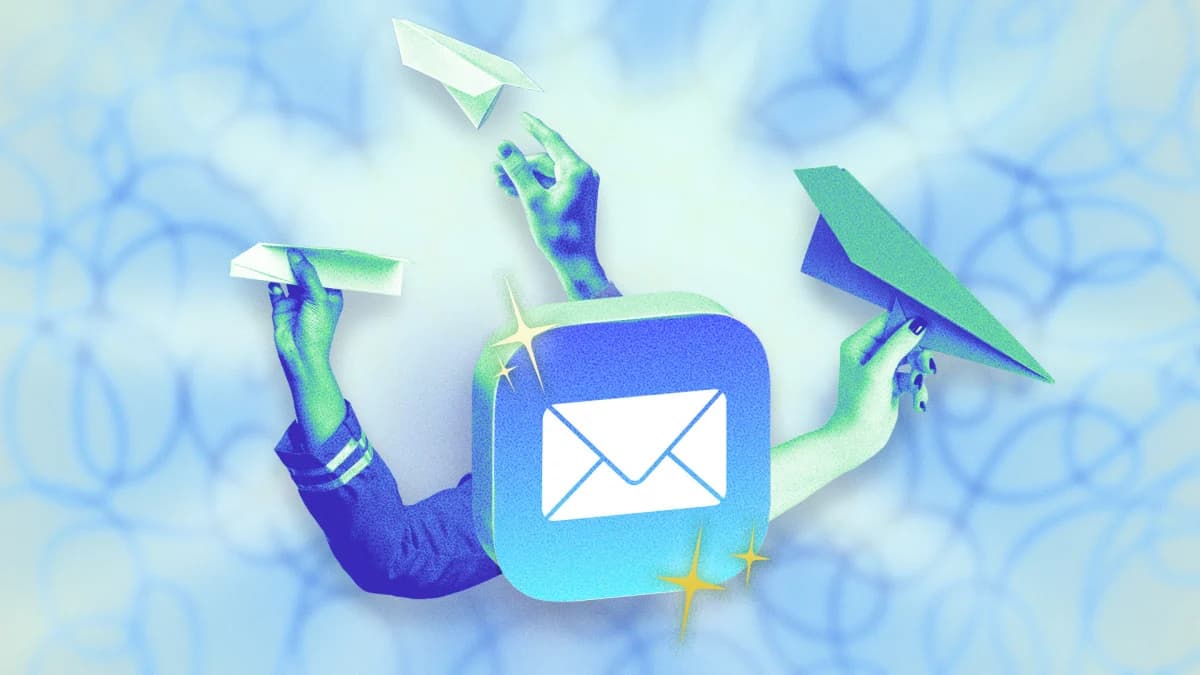
Apple Mail comes preinstalled on every Mac, iPhone, and iPad. That default status makes it the email client for millions of people who never think twice about alternatives. The simple interface is part of the appeal. But simple doesn't mean shallow.
After decades of active development, Mail has accumulated features that most users never discover. These tools can help you sort through a crowded inbox, build repeatable workflows, and stop treating email like a constant emergency.
Turn Off Categories to Restore the Classic View
Apple Mail now automatically sorts incoming messages into categories: Primary, Transactions, Updates, and Promotions. The sorting is decent, but if you prefer the old single-stream inbox, you have options.
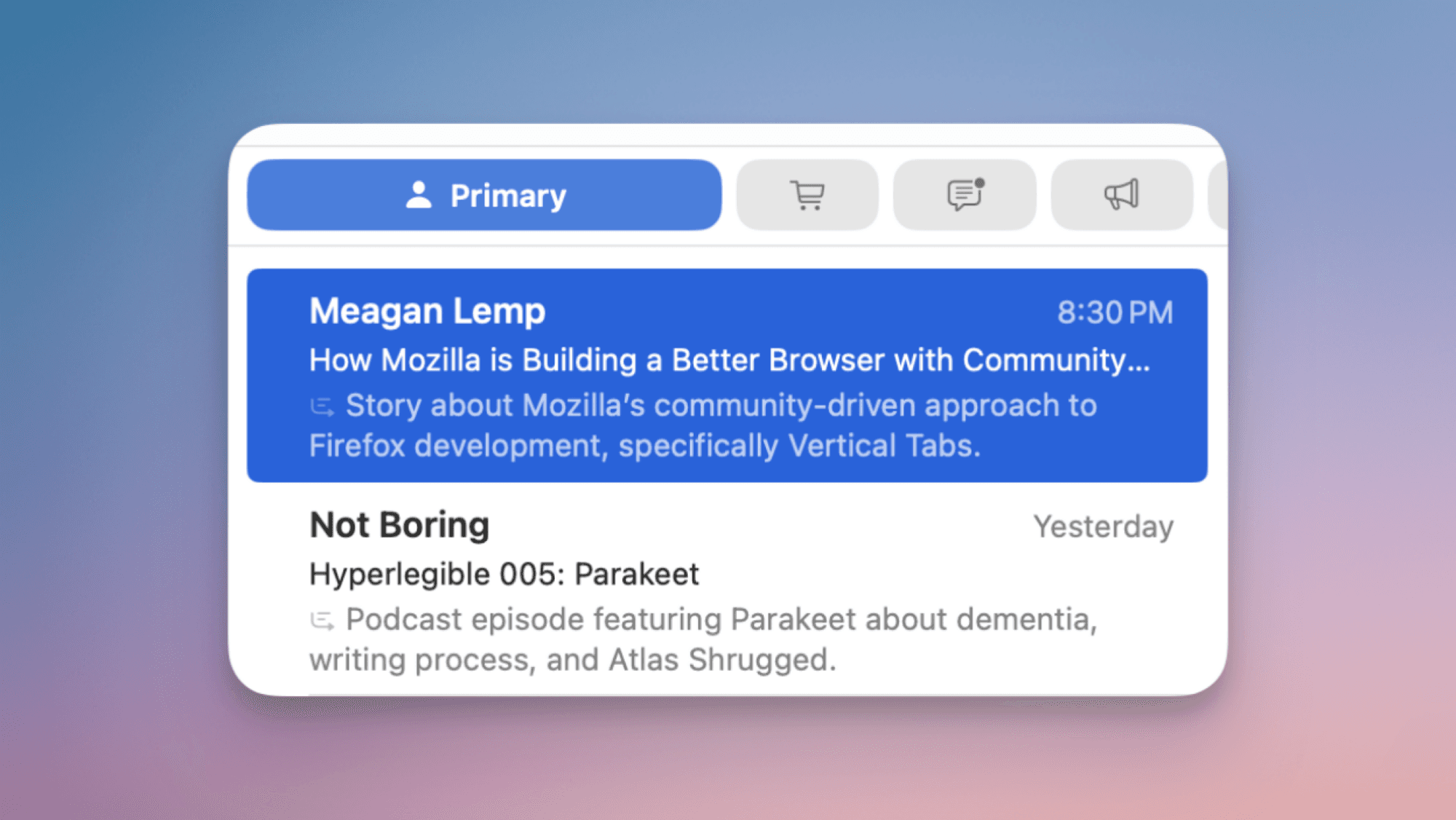
On iPhone or iPad, swipe to the end of the Category tabs to find the All Mail tab. This shows every email in one list. To disable categories entirely, tap the three dots at the top of the screen and switch to List View.
On Mac, click the three-dot Menu button in the top toolbar and uncheck Show Mail Categories. Your inbox returns to the chronological stream you remember.
Customize Swipe Gestures for Your Workflow
Swipe gestures are one of Mail's best timesavers. Swipe left or right on any email to reveal quick actions: set a reminder, mark as read, archive. A short swipe shows all options. A full swipe triggers the primary action immediately.
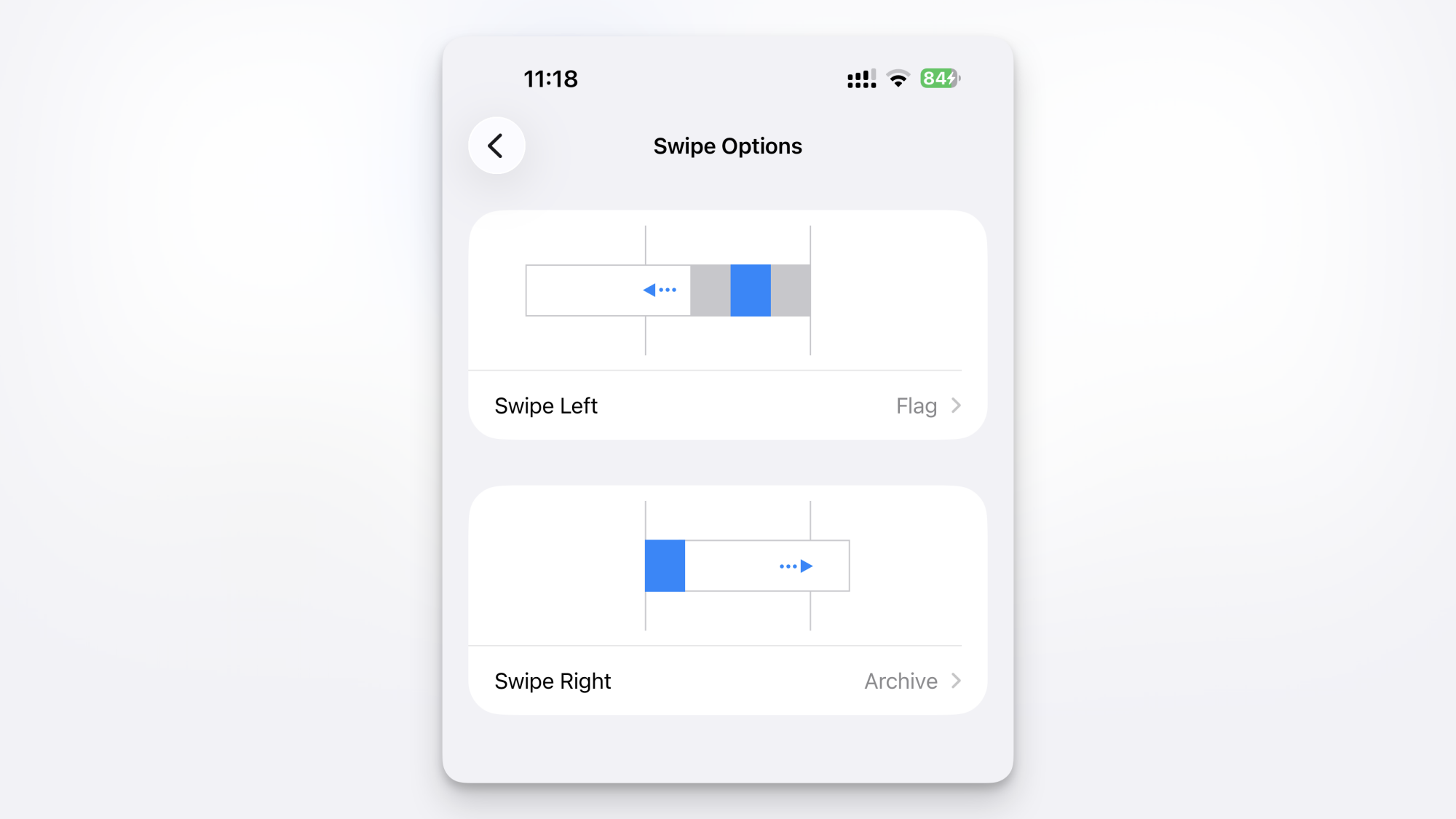
The default actions aren't always what you want. To change them, go to Settings > Mail > Swipe Options. You can set Swipe Left and Swipe Right independently. Choose from Mark as Read, Flag, Move Message, or Archive.
If you use a Flag and Archive system, set left swipe to Flag and right swipe to Archive. Processing your inbox becomes a matter of quick thumb movements. No taps, no menus.
Use Remind Me to Push Emails Into the Future
Not every email needs your attention right now. The Remind Me feature lets you snooze messages until you're ready to deal with them.
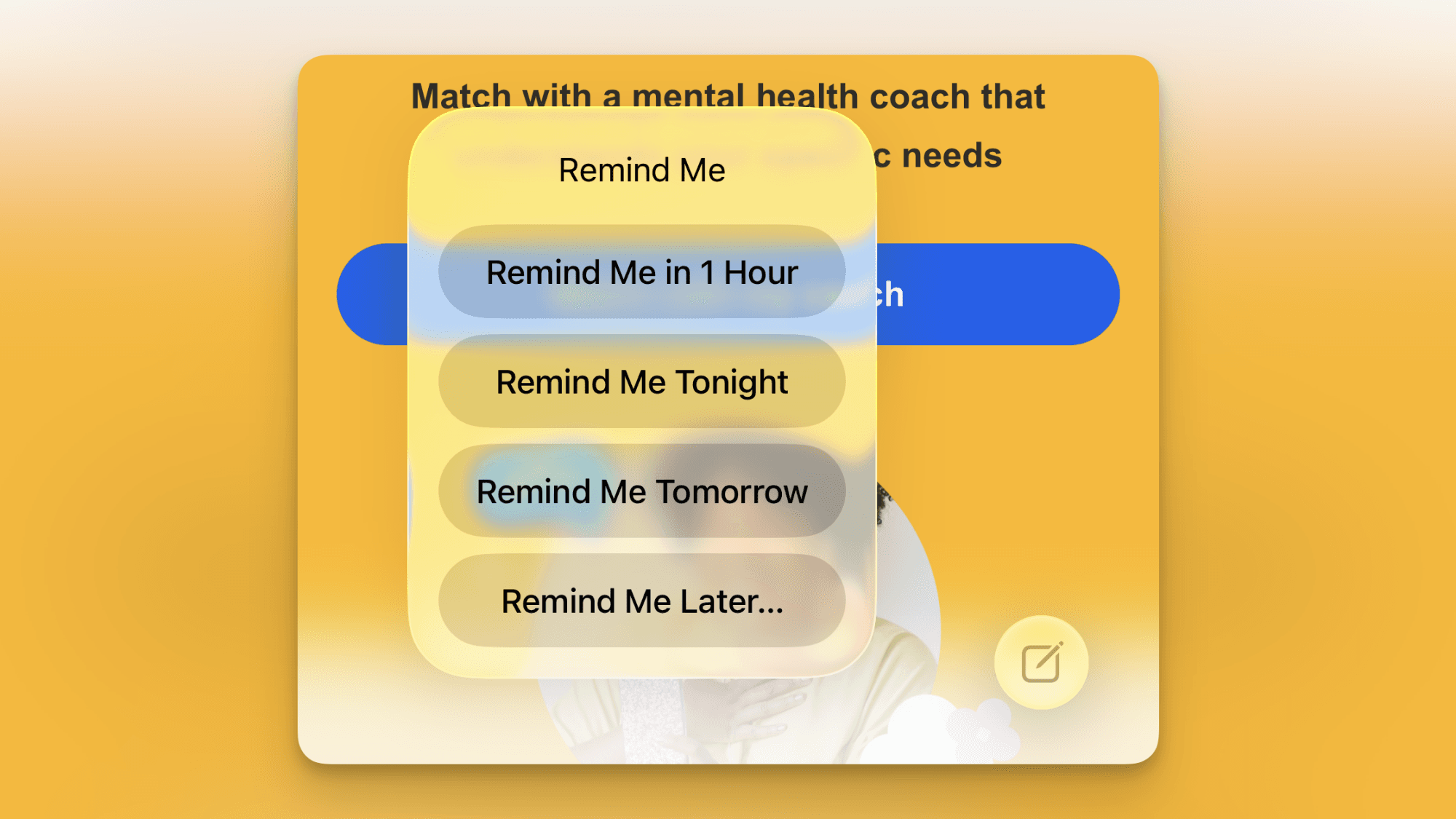
When viewing an email, tap the Reply button and choose Remind Me. Pick from preset options: one hour, in the evening, the next day. Or set a custom time. The email disappears from your inbox and resurfaces when you specified.
You can also access Remind Me by swiping right on an email in the inbox. This is faster when triaging a long list of messages.
Flag Emails and Filter by Flags
Flags are a simple way to mark emails that need follow-up. But many users flag messages and then forget about them because they're mixed in with everything else.
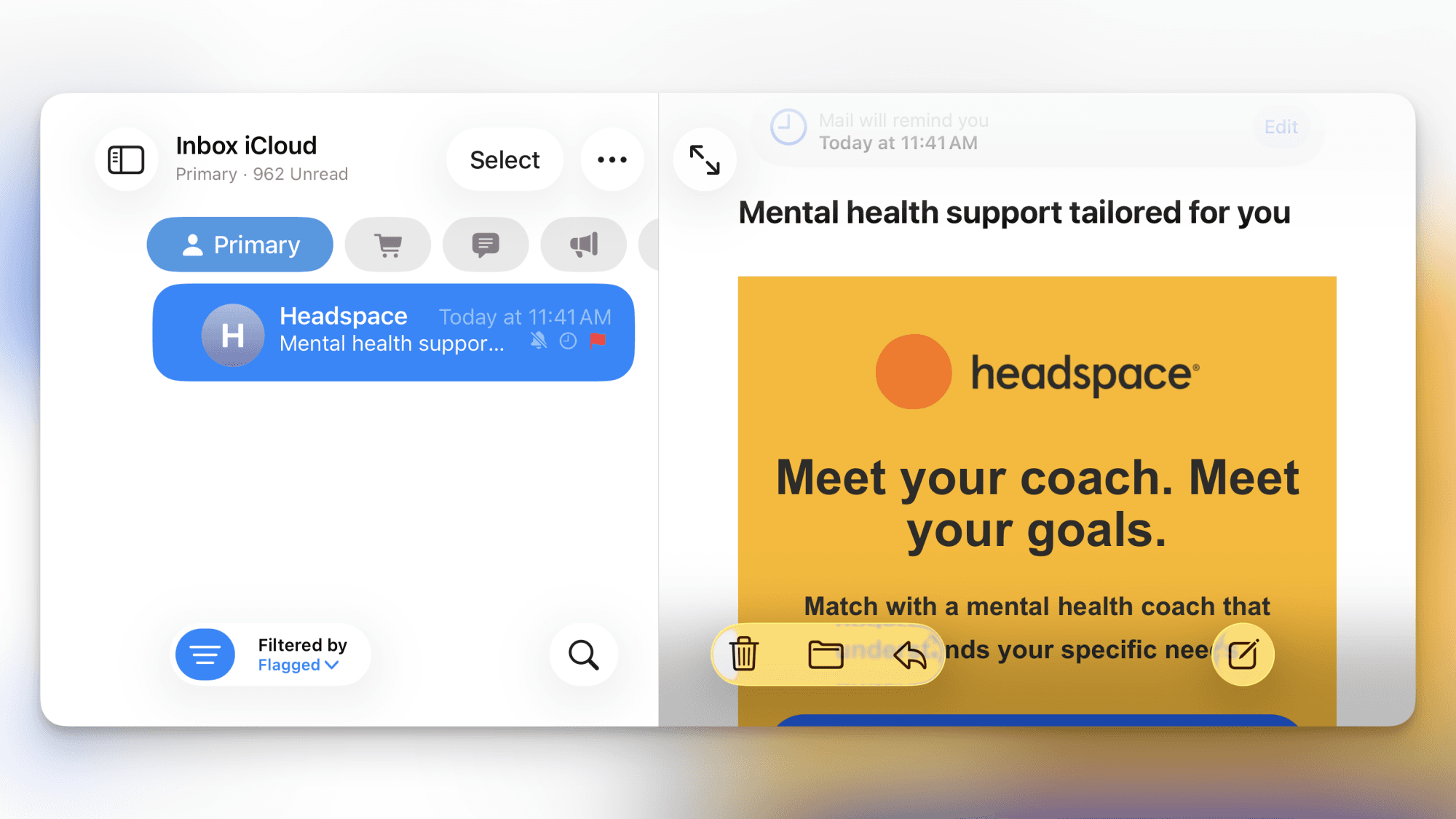
Use the Flagged mailbox in the sidebar to see only your flagged messages. On iPhone, this appears in your Mailboxes list. On Mac, it's in the sidebar under Favorites. Combine flags with colors for additional categorization if you need more granularity.
Hide My Email for Signups and Newsletters
If you have an iCloud+ subscription, you get access to Hide My Email. This feature generates random email addresses that forward to your real inbox.
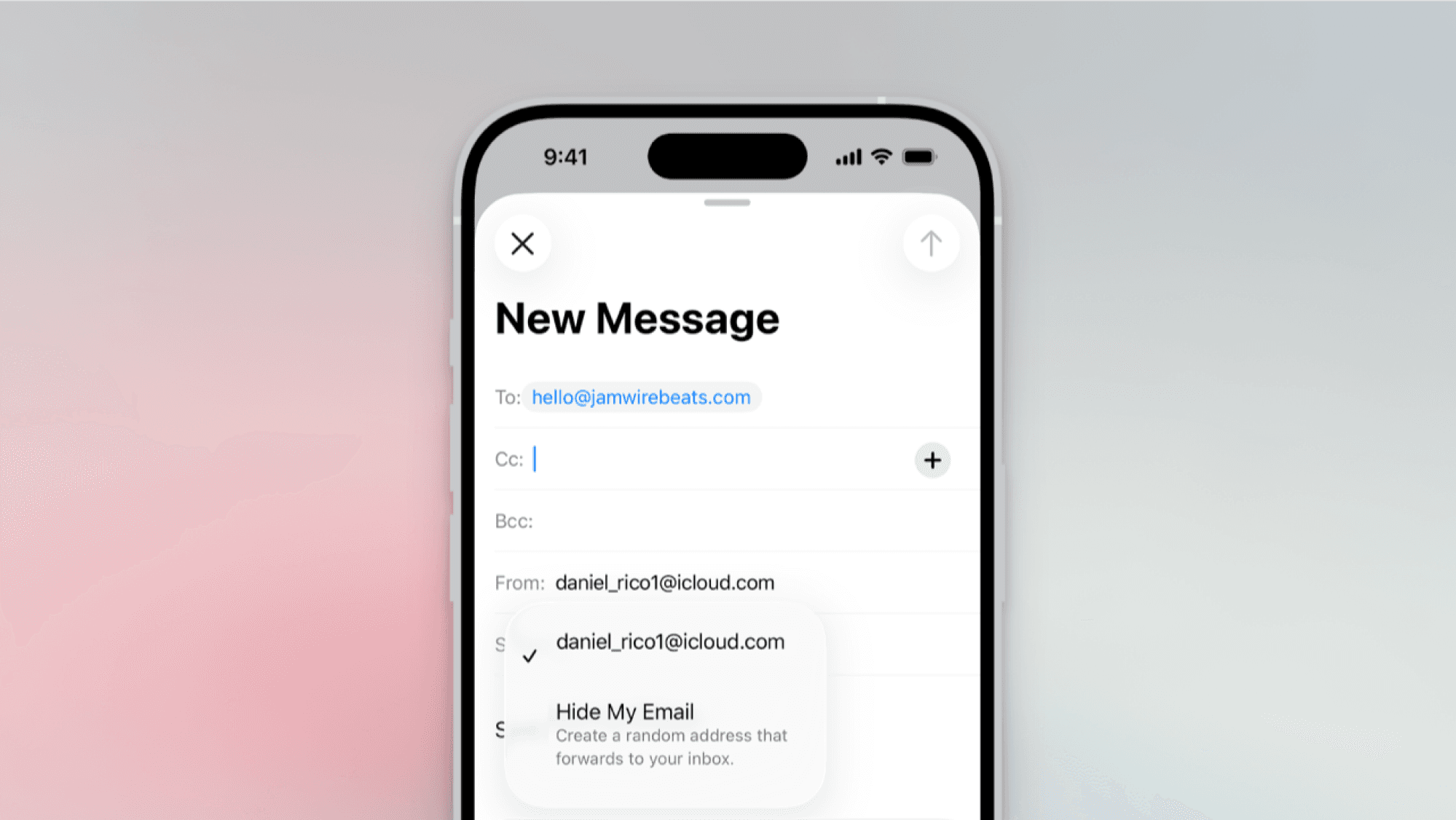
Use it when signing up for services, entering contests, or subscribing to newsletters you're not sure about. If spam starts arriving, disable that specific address. Your real email stays private.
Undo Send Before It's Too Late
Apple added Undo Send to Mail a few years ago. After hitting send, you have a brief window to pull the message back. The default delay is 10 seconds, but you can extend it.
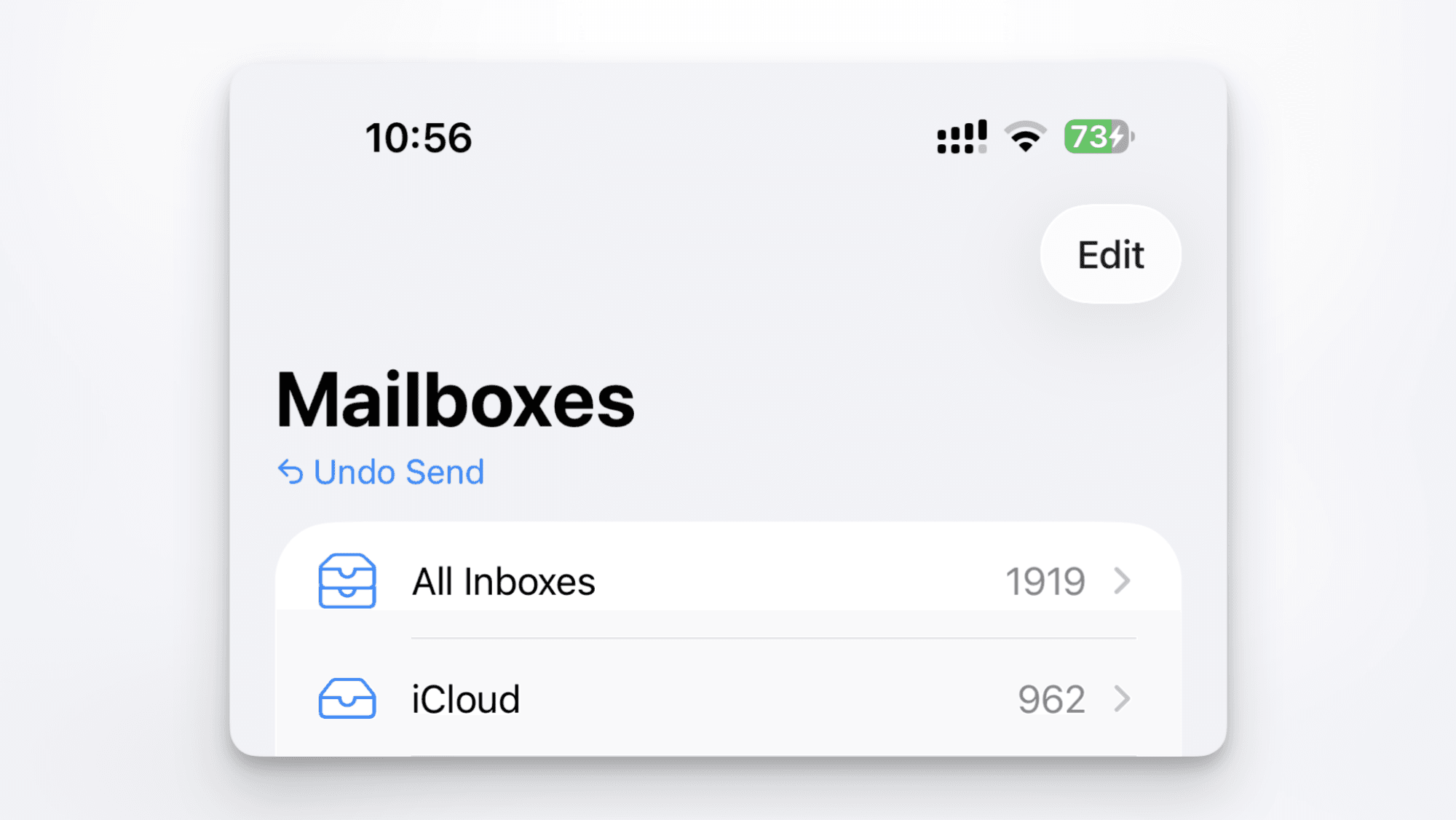
Go to Settings > Mail > Undo Send Delay. Options include 10 seconds, 20 seconds, or 30 seconds. Choose the longest option if you want maximum time to catch mistakes. An Undo button appears at the bottom of the screen immediately after sending.
Create Smart Mailboxes on Mac
Smart Mailboxes are automated folders that populate based on rules you define. They're available only on Mac, but they're worth using if you spend time at a desktop.
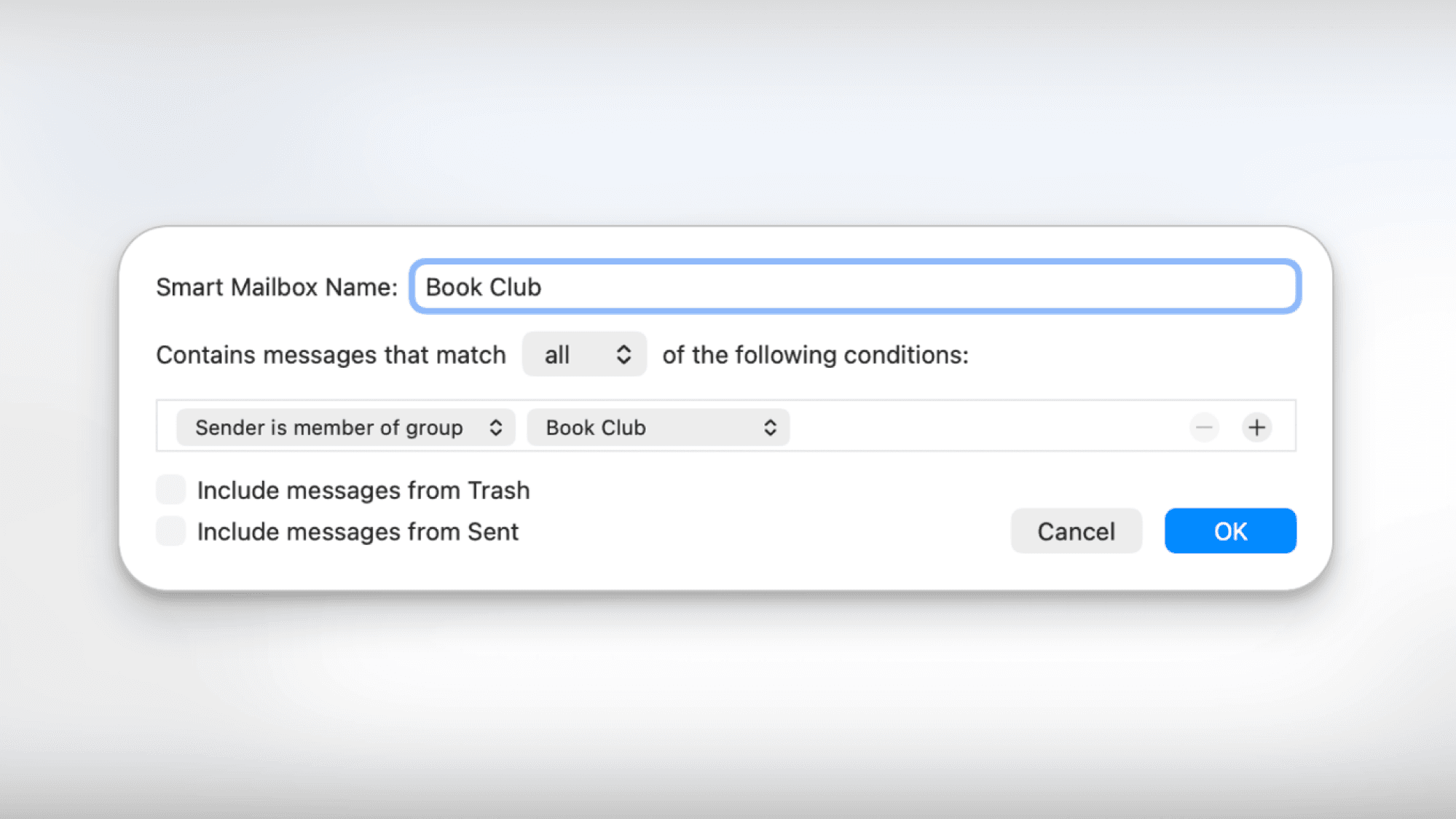
Go to Mailbox > New Smart Mailbox in the menu bar. Set conditions like sender, subject line, date received, or whether the message is flagged. The Smart Mailbox updates automatically as matching emails arrive.
Example use: create a Smart Mailbox for emails from your boss that you haven't replied to. Or one for invoices received in the last 30 days. The possibilities depend on your workflow.
Block Specific Senders or Domains
If you're receiving unwanted email from a specific address, you can block it directly in Mail. Open a message from the sender, tap or click on their name, and choose Block this Contact.
For iCloud Mail users, you can also create rules in iCloud Settings on the web. This lets you block entire domains or automatically move certain messages to trash.
Logicity's Take
Frequently Asked Questions
How do I turn off email categories in Apple Mail?
On iPhone or iPad, tap the three dots at the top of your inbox and switch to List View. On Mac, click the Menu button in the toolbar and uncheck Show Mail Categories.
Can I change what happens when I swipe on an email in Apple Mail?
Yes. Go to Settings > Mail > Swipe Options. You can set left and right swipes to Mark as Read, Flag, Move Message, or Archive.
What is the Remind Me feature in Apple Mail?
Remind Me lets you snooze an email until later. The message disappears from your inbox and reappears at the time you set, like one hour, the next morning, or a custom date.
How long do I have to undo a sent email in Apple Mail?
The default is 10 seconds, but you can extend it to 30 seconds in Settings > Mail > Undo Send Delay.
What is a Smart Mailbox in Apple Mail for Mac?
A Smart Mailbox is an automated folder that collects emails matching rules you define. It updates automatically as new matching messages arrive.
Another workflow optimization for professionals who want to work smarter
Need Help Implementing This?
Source: Lifehacker
Expansion of 'Limit Precise Location' Privacy Feature
Apple has expanded the 'Limit Precise Location' privacy feature in iOS 26.5 to include the iPhone 17e and several international carriers. This update allows more users to hide their exact coordinates from cellular carriers, a capability previously restricted to a few device models and Boost Mobile in the U.S.
Huma Shazia
Senior AI & Tech Writer
Produced with AI assistance and reviewed by the Logicity editorial team. Learn more in our Editorial Policy.