Key Takeaways
- Windows File Explorer's core design hasn't changed meaningfully since Windows 7
- Sigma File Manager offers project-focused workflows, tagging, and faster navigation
- The app is free and open-source, making it accessible for anyone frustrated with Explorer
File Explorer: Better, But Still Stuck in 2009
Microsoft has had over a decade to rethink how Windows users manage their files. What we got instead is incremental polish on a foundation that dates back to Windows 7.
To Microsoft's credit, File Explorer has picked up useful features in recent years. Tabs finally arrived in Windows 11. The ribbon toolbar got simplified. OneDrive integration tightened. These are real improvements. You might try a dozen alternative file managers and still come back to File Explorer because it's now more tolerable.
But that's a low compliment.
Open File Explorer today and you'll notice it still carries the weight of software built on top of software built on top of software. The navigation panel is rigid. Previewing a file means hoping the Preview Pane cooperates. Search is technically present but slow and unreliable enough that most people just open Everything or use the Start menu instead.
The interface communicates no real sense of what you're doing or where your most important work lives. At its core, File Explorer is still a directory browser with a toolbar. Its basic logic hasn't moved far beyond the Windows 7 era.
Sigma File Manager: What Modern File Management Looks Like
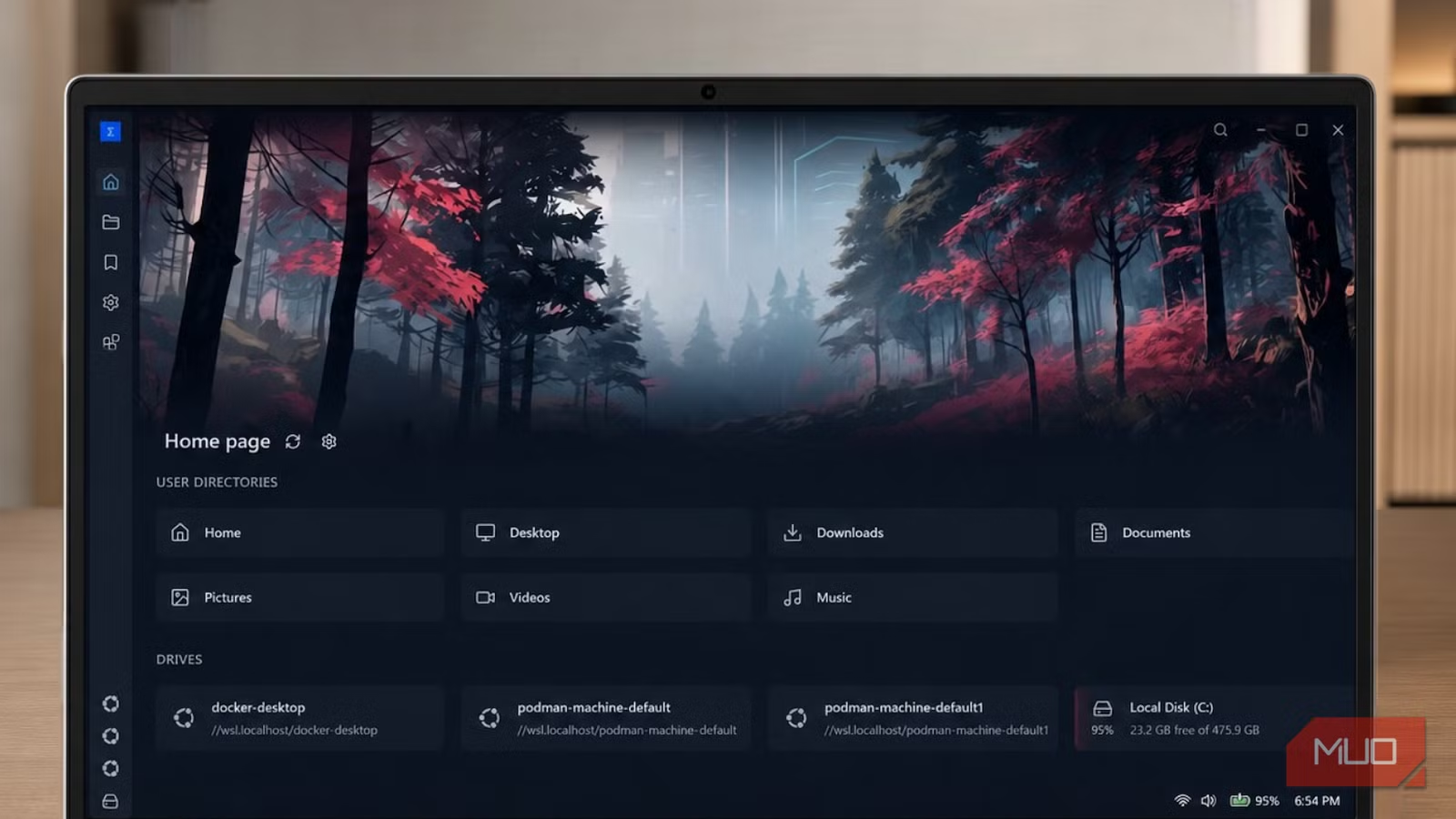
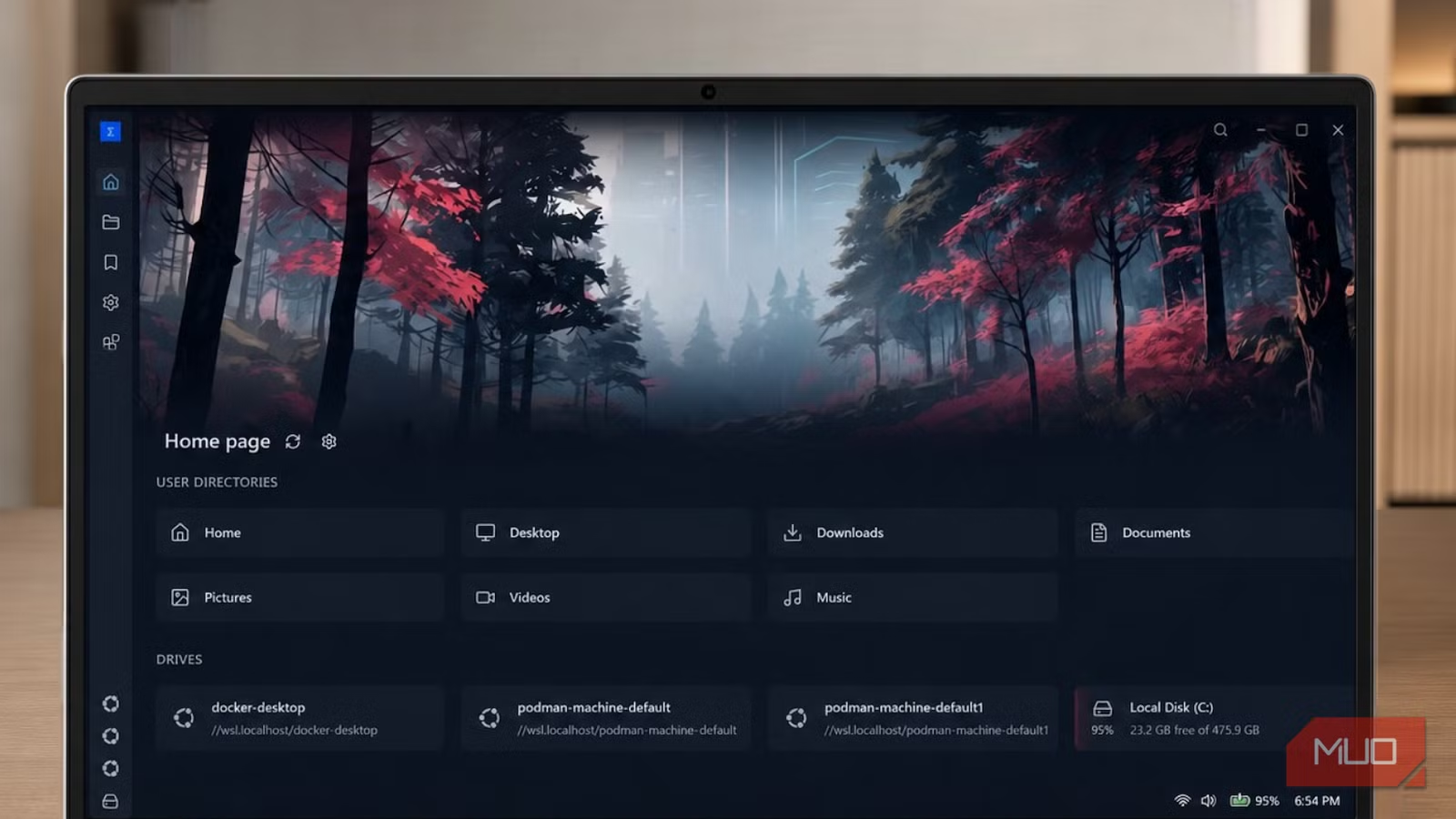
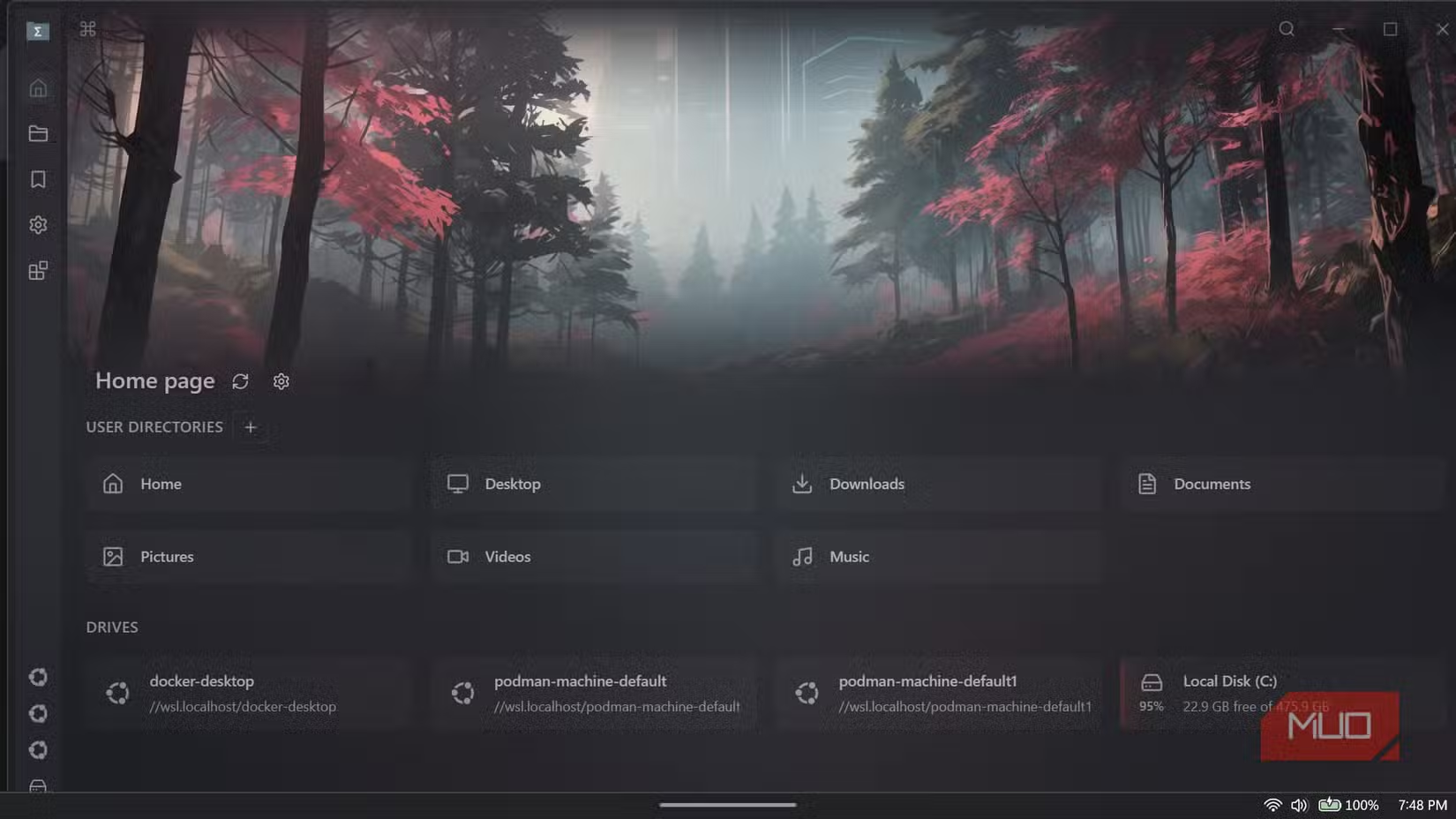
This is where Sigma File Manager enters the picture. It's a free, open-source app that makes Microsoft's conservatism even more glaring.
Many of the workflows people want around File Explorer already exist in Sigma. Better tabs. Faster project switching. Tagging support. These aren't exotic features. They're table stakes for how people actually work with files in 2026.
The difference is philosophy. File Explorer treats every folder the same. A folder of tax documents from 2019 gets the same interface as the project you're actively building. Sigma treats your file system as a workspace, not just a hierarchy of directories.
Key Features That Set Sigma Apart
- Project-focused navigation that surfaces your active work
- Tagging system for organizing files across folders
- Faster, more reliable search than Explorer's built-in option
- Cleaner interface that removes legacy UI clutter
- Open-source codebase, so it's free and transparent
Sigma isn't a perfect replacement for everyone. Some workflows depend on Explorer's deep Windows integration. But for day-to-day file management, it demonstrates what's possible when you start fresh instead of layering features onto a 15-year-old foundation.
More free alternatives to commercial software
Should You Switch?
The case for trying Sigma is simple: it's free, and you can run it alongside File Explorer. You don't have to commit to anything. Use it for a week on your active projects and see if the workflow improvements stick.
The case against switching entirely is equally simple: some Windows features assume Explorer is your default. Certain context menu integrations, shell extensions, and system operations may not work the same way. For those moments, you'll still reach for Explorer.
✅ Pros
- • Free and open-source
- • Project-focused navigation beats Explorer's rigid structure
- • Built-in tagging system
- • Faster search than Explorer
❌ Cons
- • Some Windows shell integrations may not work
- • Learning curve if you're deeply habituated to Explorer
- • Smaller community than mainstream tools
The real takeaway isn't about Sigma specifically. It's about what Sigma reveals. Microsoft has had years to modernize how we work with files. Third-party developers, working for free, have shown what's possible. That gap is the story.
Logicity's Take
Frequently Asked Questions
Frequently Asked Questions
Is Sigma File Manager really free?
Yes. Sigma File Manager is free and open-source. You can download it, use it, and even inspect or modify the code if you want.
Can I use Sigma File Manager alongside Windows File Explorer?
Absolutely. Sigma doesn't replace Explorer. You can run both and use whichever fits the task at hand.
Does Sigma File Manager work on Windows 10 and Windows 11?
Sigma is designed for modern Windows versions, including Windows 10 and Windows 11.
Will Sigma File Manager break any Windows features?
No. Since it runs alongside Explorer rather than replacing it, your existing Windows integrations stay intact. Some shell extensions may not appear in Sigma's interface, but Explorer remains available for those cases.
Need Help Implementing This?
Source: MakeUseOf
Manaal Khan
Tech & Innovation Writer
Produced with AI assistance and reviewed by the Logicity editorial team. Learn more in our Editorial Policy.