Key Takeaways
- Notion Agent can now take multi-step actions across pages, databases, and connected apps like Slack and Jira
- Business and Enterprise teams can create Custom Agents that run on schedules or triggers
- The AI can generate content, answer questions about your workspace, and build databases from short descriptions
Notion AI started as a lightweight chatbot that helped with writing and answered basic questions about your pages. That version still exists, but Notion has added something more useful: an agent that can actually do work inside your workspace.
The AI can now build databases from short descriptions, adjust views and filters, reorganize messy notes into sections, and pull answers from connected tools like Slack, Jira, Google Drive, and Salesforce. If you use Notion for project management, trip planning, or as a CRM, here's how the AI features work.
What Is Notion AI?
Notion AI is a collection of AI features built into Notion's workspace. The core is an AI assistant you can chat with to get answers about your docs and take actions directly in them. It includes a text generator you can prompt to create, edit, summarize, and translate content, including within databases.
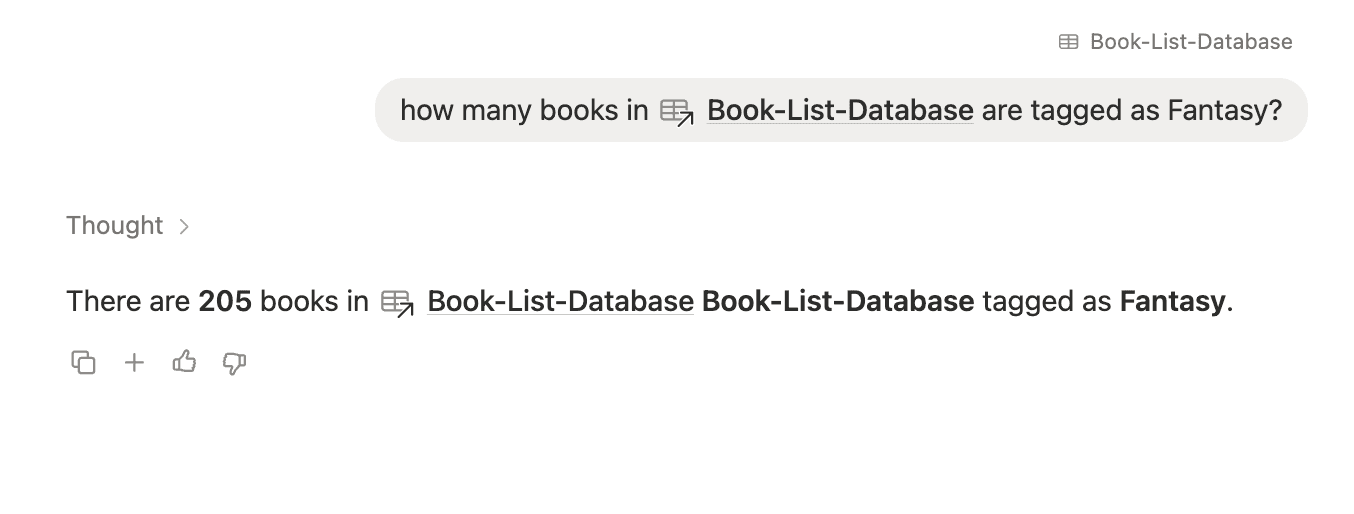
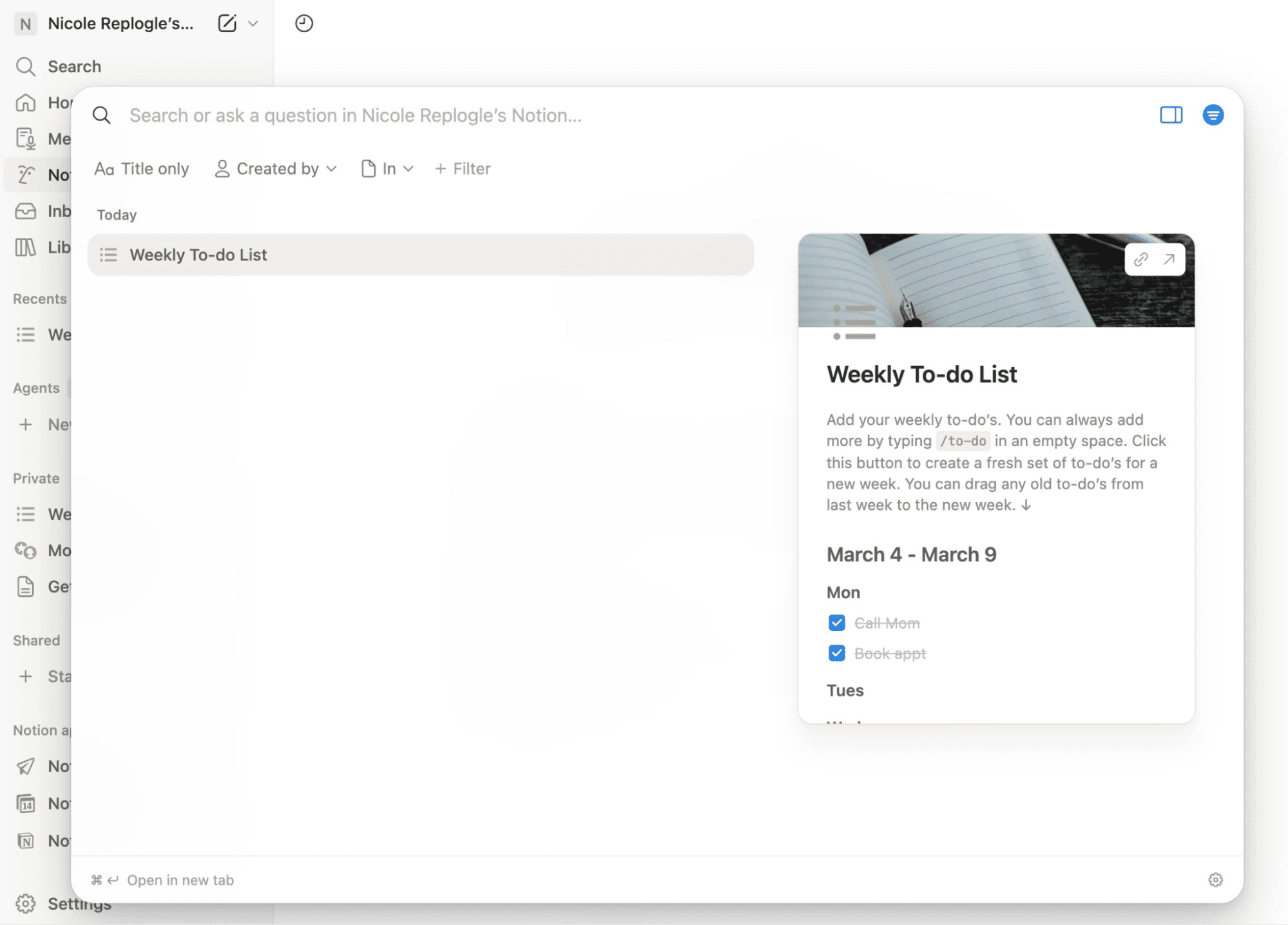
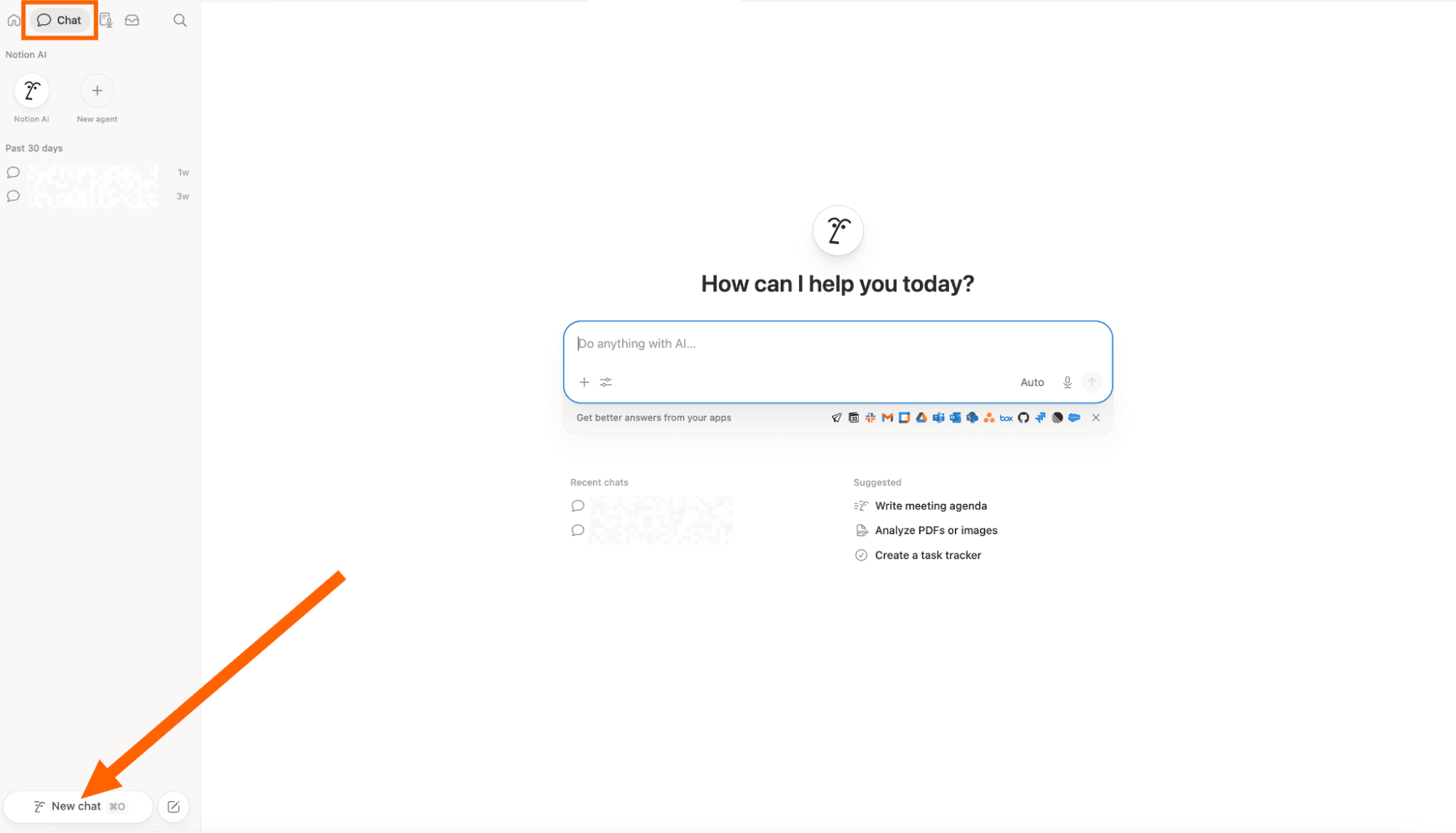
You can access a Q&A-style chat in the AI sidebar, which lets you ask questions about your workspace from a dedicated tab. The AI pulls from your pages, databases, version history, and comments to answer questions. It can also search the web, though workspace owners can turn this off in settings.
Notion AI Agents: The Big Upgrade
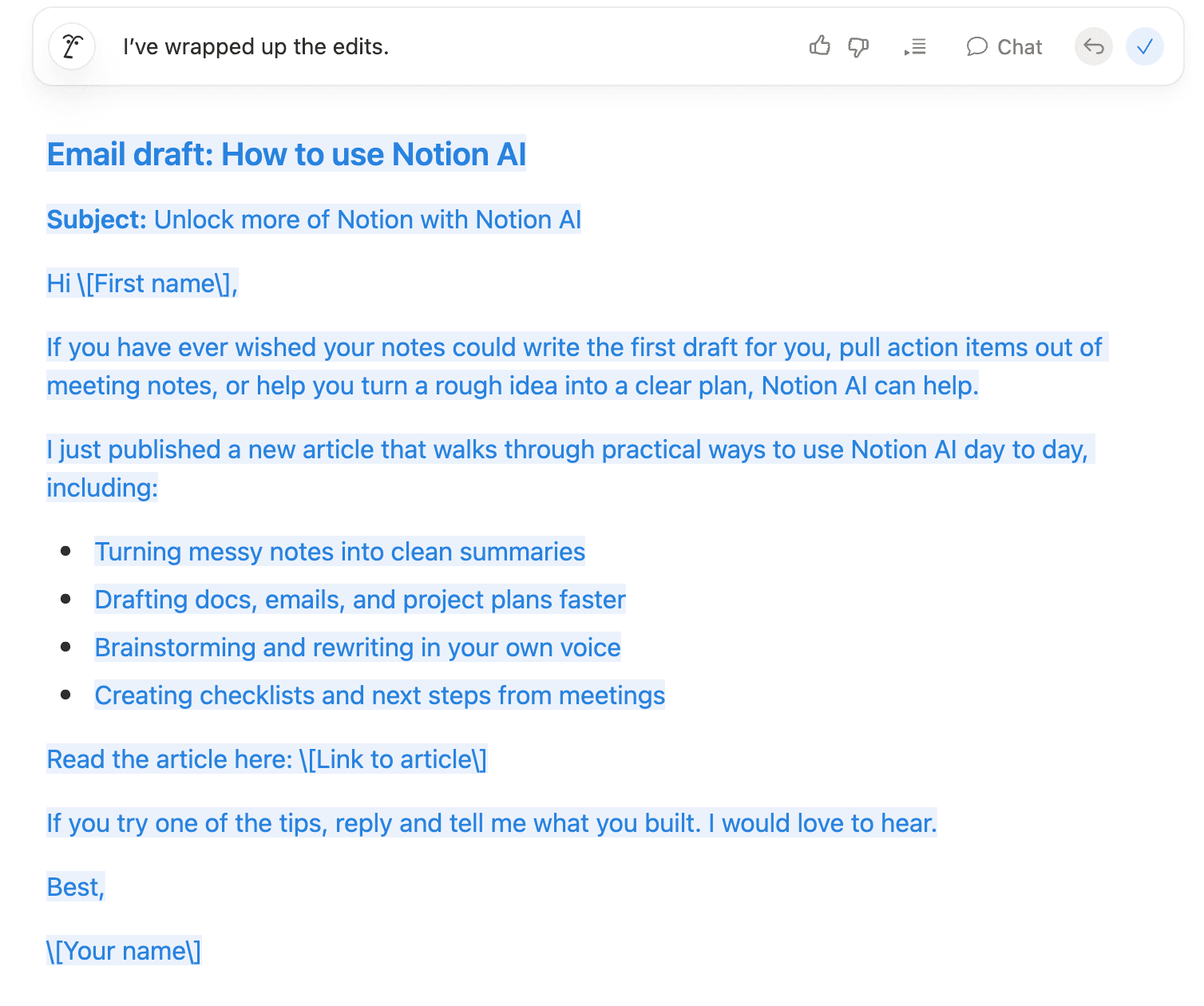
The most significant addition is Notion Agent. Instead of just answering questions, the agent can take multi-step actions using your pages, databases, and connected apps. It operates with the same permissions as your account, and you can undo any changes it makes.
What can the agent actually do? It can build a database from a short description, adjust views and filters on existing databases, and reorganize a messy notes page into structured sections. When you have AI connectors enabled, it can also pull answers from connected tools like Slack.
Custom Agents for Teams
Teams on Business and Enterprise plans get access to Custom Agents. These are shared automations that run on schedules or triggers inside Notion and connected tools. You can scope access page by page, which means different agents can have different levels of access to your workspace.
Core Notion AI Features
Write and Edit
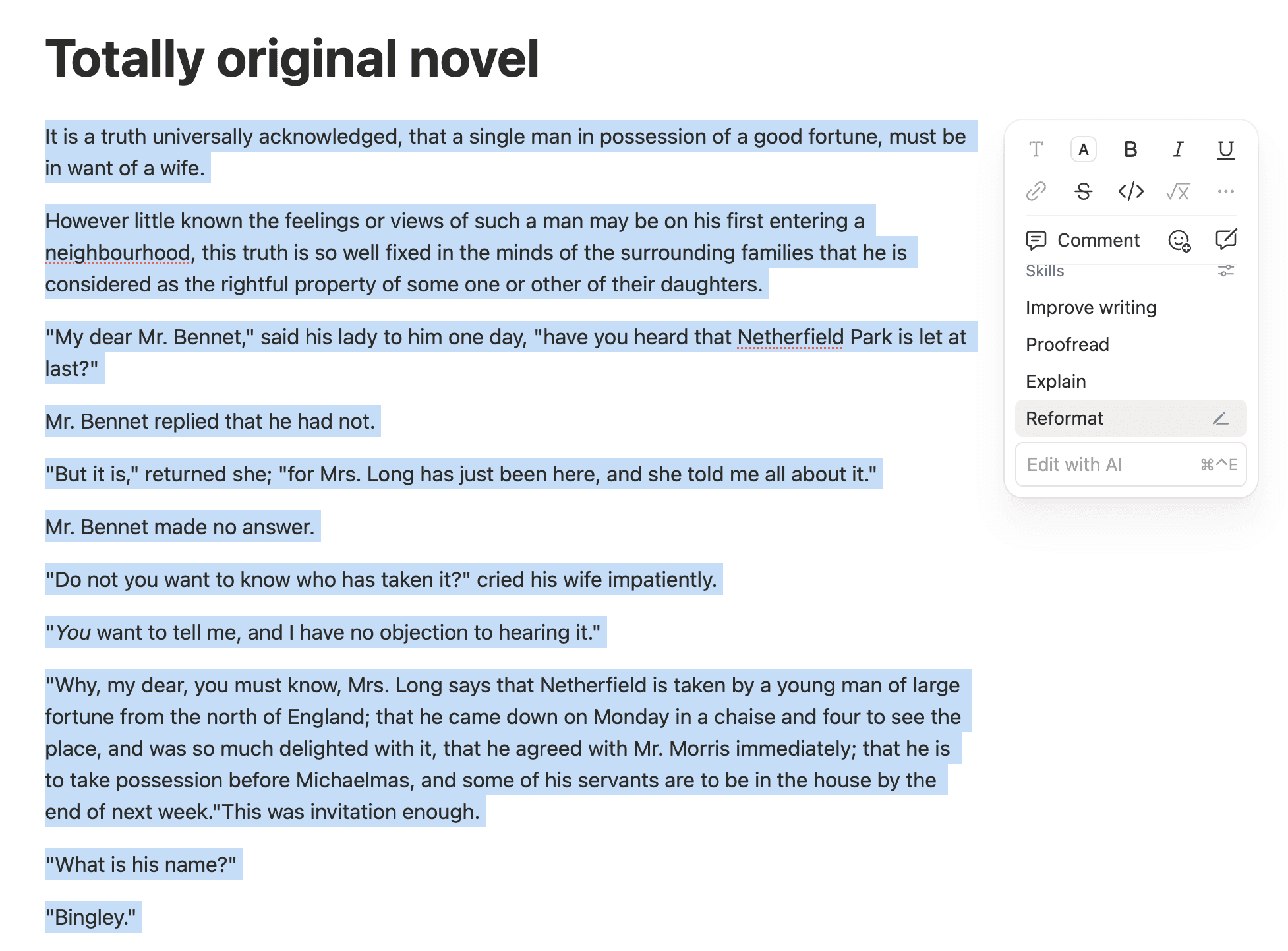
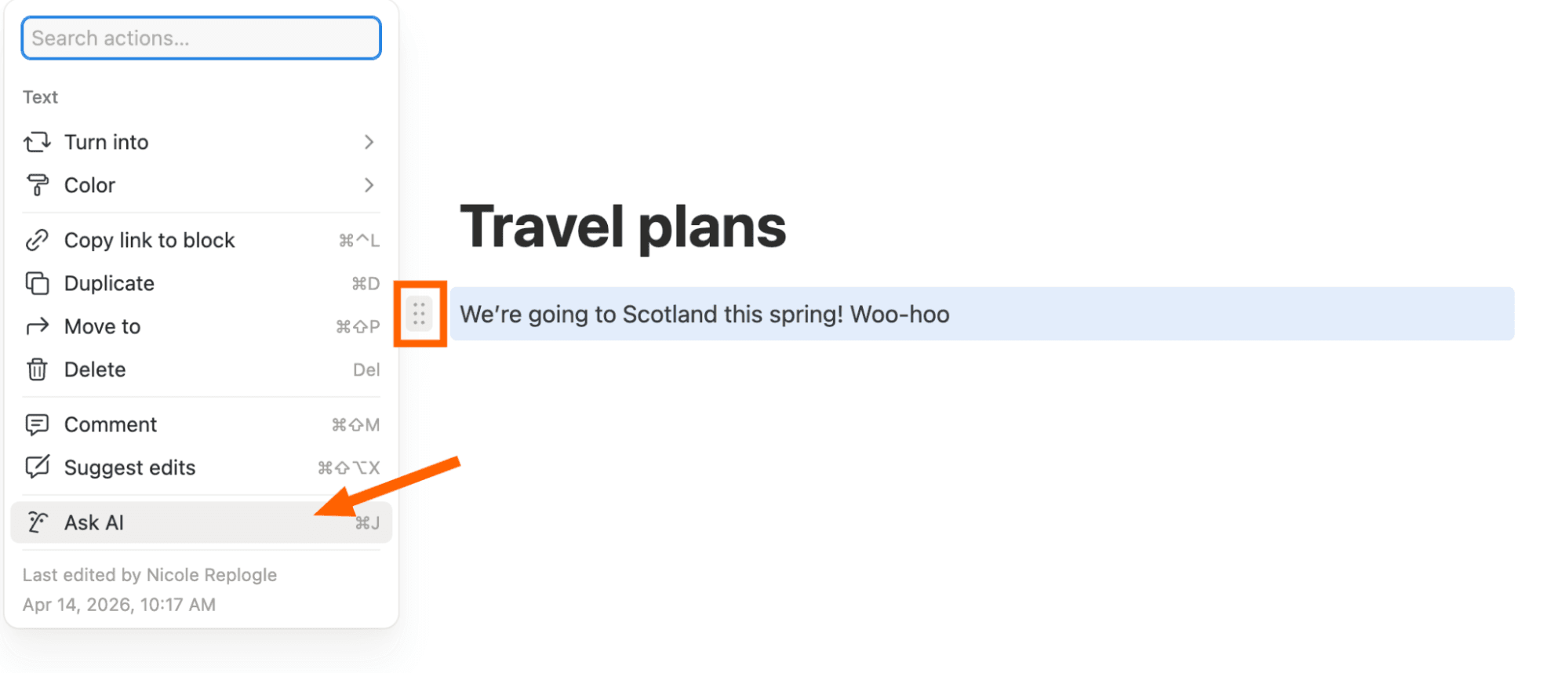
Notion AI can generate new content, improve existing writing, fix grammar and spelling, change tone, translate text, or make content shorter or longer. This is available inline on any block in your workspace.
Answer Questions About Your Workspace
Ask in chat, and Notion AI will pull from your pages, databases, version history, and comments. On the Business plan with connectors enabled, it can also pull from connected apps like Slack, Jira, Google Drive, and Salesforce.
Build and Edit Databases
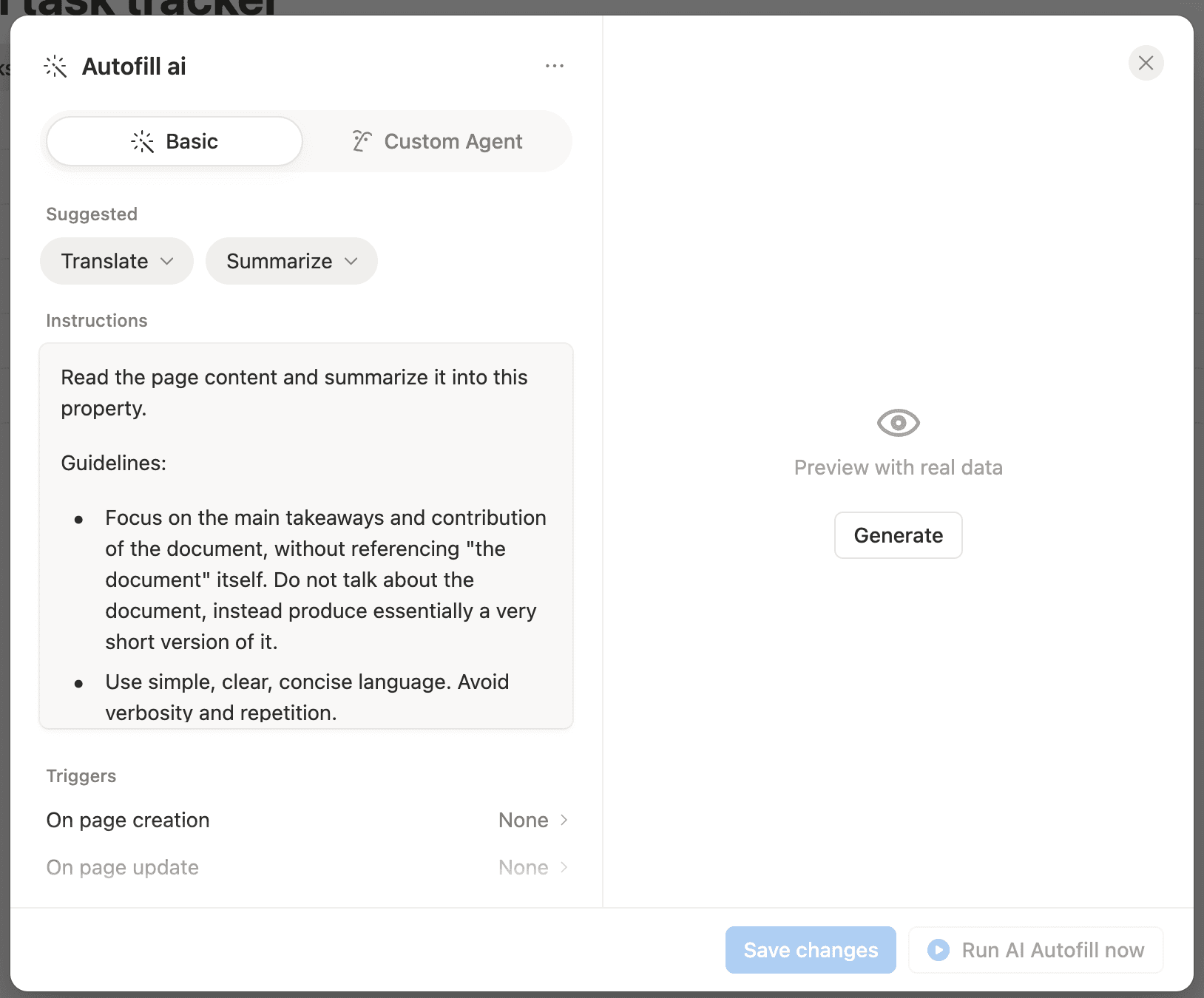
This is where the agent capabilities shine. You can describe what you want, and Notion AI will create a database with appropriate properties, views, and filters. You can also ask it to modify existing databases by adjusting views or adding new properties.
Use Cases for Notion AI
Trip Planning
Notion's multi-select properties work well for trip planning because you can assign multiple tags to properties like locations and food categories. The AI makes it faster to pull information you've buried in a detailed itinerary.
Project Management
The agent can reorganize messy project notes into sections, build tracking databases from descriptions, and pull status updates from connected tools. If you're using Notion alongside Jira or Slack, the AI connectors let you query across all of them.
CRM and Sales
When connected to Salesforce, Notion AI can pull customer data into your workspace. You can ask questions about deals, contacts, or accounts without switching between apps.
How to Start Using Notion AI
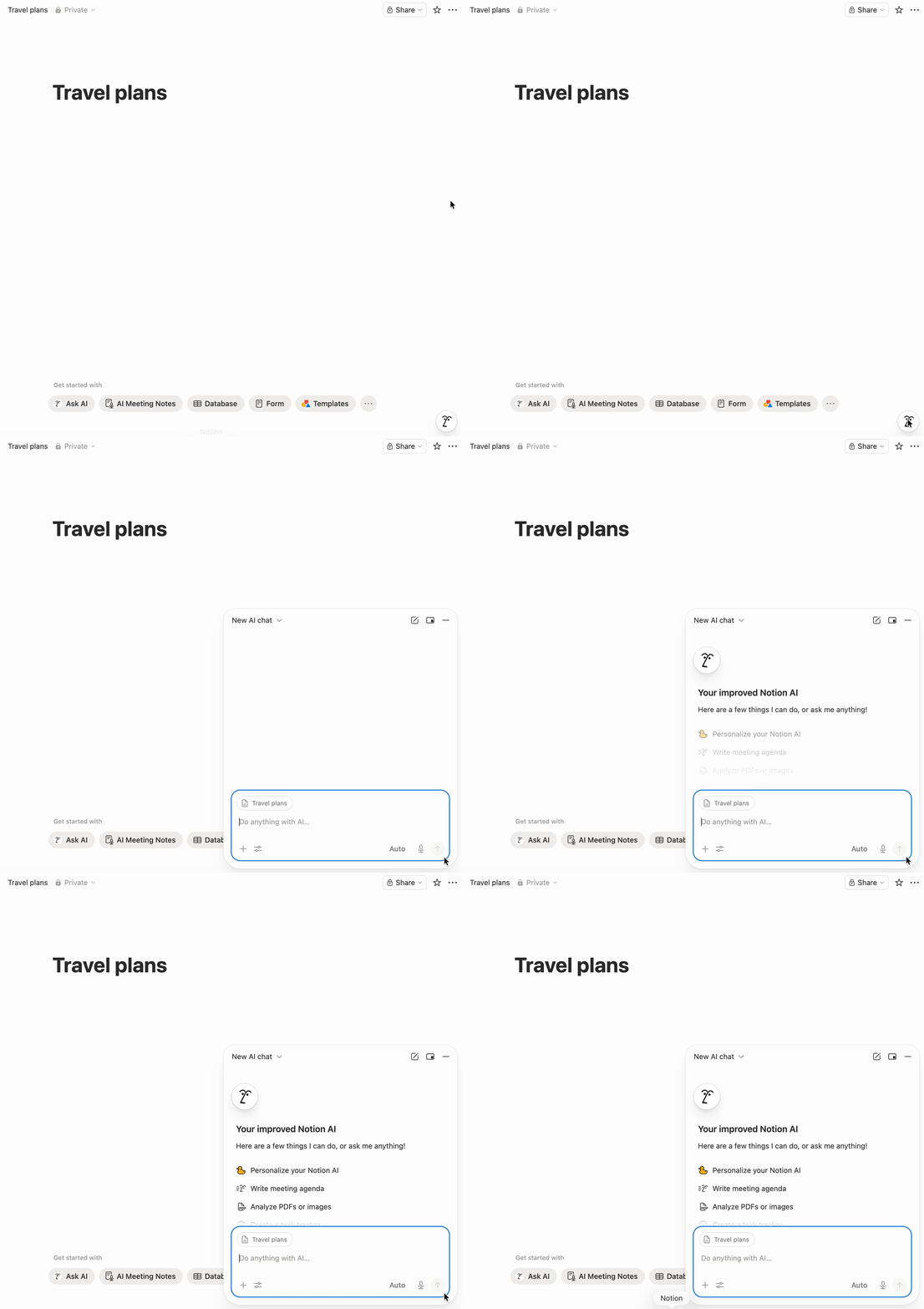
- Open any Notion page and look for the AI button in the toolbar or use the keyboard shortcut to open the AI sidebar
- Type a question about your workspace or a command for what you want to create
- Review the AI's response or action, then confirm or undo as needed
- For Business and Enterprise teams: set up AI connectors in settings to enable queries across Slack, Jira, Google Drive, and Salesforce
The inline text tools appear when you highlight any text or add a new block. You can access the Q&A sidebar from the dedicated tab on the right side of your workspace.
✅ Pros
- • Agent can take multi-step actions across pages and databases
- • Connects to external tools like Slack, Jira, and Salesforce
- • Custom Agents allow scheduled automations
- • All changes can be undone
❌ Cons
- • Custom Agents limited to Business and Enterprise plans
- • Connectors require additional setup
- • Web search feature may need to be disabled for privacy
Logicity's Take
Frequently Asked Questions
Is Notion AI free?
Notion AI is available as an add-on to Notion plans. Pricing varies by plan tier, and some features like Custom Agents require Business or Enterprise plans.
Can Notion AI access my connected apps?
Yes, with AI connectors enabled on Business plans. It can pull data from Slack, Jira, Google Drive, and Salesforce.
What can Notion Agent actually do?
It can build databases from descriptions, adjust views and filters, reorganize pages into sections, and take multi-step actions using your pages and connected apps.
Can I undo changes made by Notion AI?
Yes, all changes made by Notion Agent can be undone. The agent operates with your account's permissions.
Does Notion AI search the web?
Yes, it can search the web when answering questions. Workspace owners can disable this feature in settings.
For those using Notion for travel planning, see how the industry is evolving
Need Help Implementing This?
Source: The Zapier Blog
Manaal Khan
Tech & Innovation Writer
Produced with AI assistance and reviewed by the Logicity editorial team. Learn more in our Editorial Policy.