Key Takeaways
- Samsung pre-installs over a dozen apps that run background processes, drain battery, and slow down budget phones
- You can remove bloatware using ADB (Android Debug Bridge) without rooting or voiding your warranty
- The Disable option in Settings only hides apps but leaves them consuming resources on your phone
Digvijay Kumar had owned his budget Galaxy phone for three years. The first few months were fine. Then it got sluggish. He spent half an hour removing Samsung's pre-installed apps using a laptop, a USB cable, and a few terminal commands. No rooting. No voided warranty. He says he should have done it the week he bought the phone.
What bloatware actually does to your phone
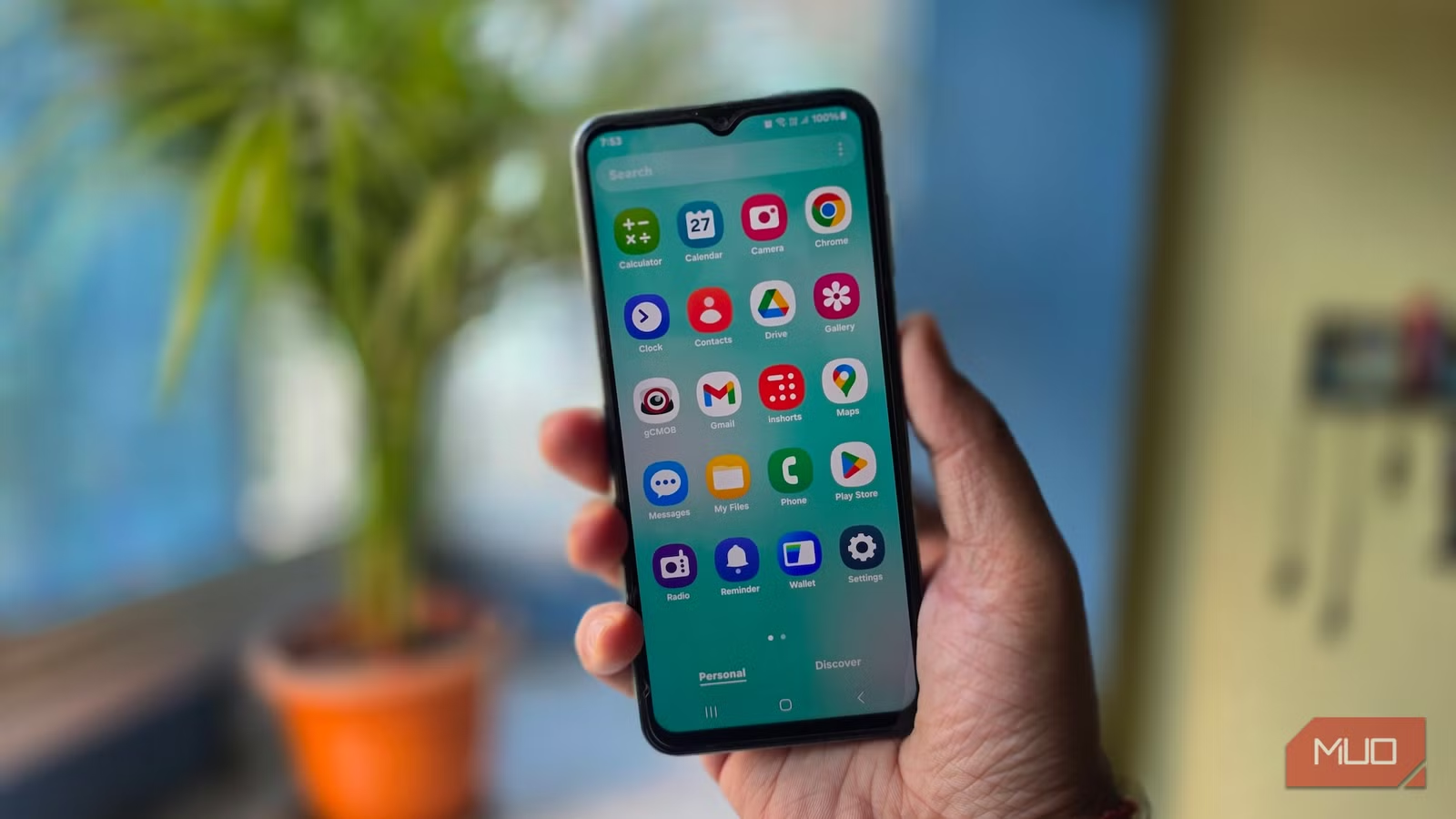
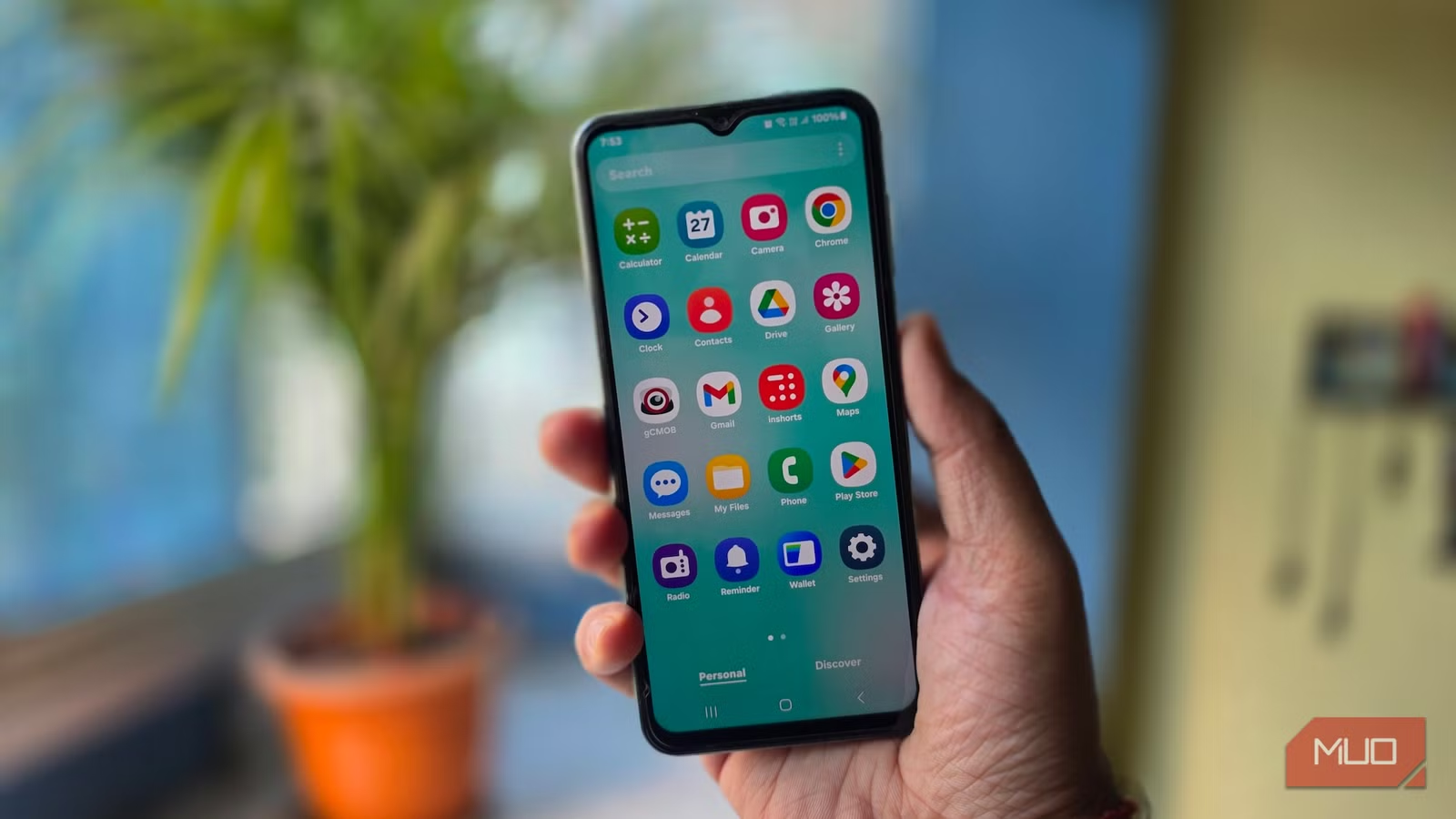
Every Galaxy phone ships with apps you didn't choose. Kumar counted over a dozen in his app drawer. Then came the duplicates: Samsung Internet next to Chrome, Samsung Messages doing the same job as Google Messages, a separate Galaxy Store when the Play Store was already there.
These apps don't wait for you to open them. They refresh automatically, sync data, pull updates, and request permissions in the background. On budget phones with 4 or 6GB of RAM, that activity slows down the processor. You tap an app and wait a beat too long. You type a message and the keyboard lags. By midday, the battery dips into the red despite barely using the phone.
Samsung ships these apps through partnerships and licensing deals that generate revenue before you even power on the phone. You paid for the hardware, but some of that power is already tied up running software you didn't select. On Samsung phones, you can't uninstall most of these apps through Settings.
The Disable option isn't enough
Tap and hold on Gaming Hub or Samsung Max and there's no Uninstall button. Samsung only offers Disable through Settings. This hides the app from your drawer but leaves it on your phone. The app files remain. Background services may still run. Storage stays occupied.
Kumar put up with the sluggishness for months, assuming that's how cheaper phones aged. When he investigated what was hogging resources, the hardware wasn't the problem. The bloatware was.
Using ADB to remove apps without root
To actually remove pre-installed apps, Kumar used ADB (Android Debug Bridge). It's a free command-line tool that lets you communicate with your phone from a computer. No root access needed. No warranty voided.
The process requires a laptop with ADB installed, a USB cable, and Developer Options enabled on your phone. Once connected, terminal commands let you uninstall any app, including system apps Samsung won't let you touch through the normal interface.
Which apps to remove
The safest targets are duplicate apps where Google alternatives exist: Samsung Internet, Samsung Messages, Samsung Email, Galaxy Store. Gaming Hub, Samsung Max, and other promotional apps are also good candidates.
- Samsung Internet (if you use Chrome)
- Samsung Messages (if you use Google Messages)
- Galaxy Store (if you use Play Store)
- Samsung Email (if you use Gmail)
- Gaming Hub
- Samsung Max
- Bixby-related apps (if you don't use the assistant)
Be careful with core system apps. Removing some Samsung services can break features like Samsung Pay or camera functions. Research each package name before uninstalling.
The result: a faster phone
After the cleanup, Kumar reports his phone felt new again. Apps opened faster. The keyboard kept up with his typing. Battery lasted longer through the day. The improvement came not from new hardware but from freeing up resources that bloatware had been consuming for three years.
Logicity's Take
Before you start
- Back up your phone. ADB commands can't be undone without a factory reset.
- Install ADB on your computer (available for Windows, Mac, and Linux).
- Enable Developer Options on your Galaxy (tap Build Number seven times in Settings > About Phone).
- Enable USB Debugging in Developer Options.
- Connect your phone via USB and authorize the computer when prompted.
- Research each package name before removing. Some Samsung apps are dependencies for core features.
Another tool for taking control of your devices without relying on manufacturer defaults
Frequently Asked Questions
Will removing Samsung bloatware void my warranty?
No. Using ADB to uninstall apps doesn't require root access and doesn't modify system partitions. Your warranty remains intact.
Can I reinstall apps I removed with ADB?
Yes. You can reinstall removed apps through the Play Store if they're available there, or by doing a factory reset to restore all original apps.
Is it safe to remove any Samsung app?
Not all of them. Some Samsung apps are dependencies for core phone functions. Removing the wrong package can break features like Samsung Pay, the camera, or system settings. Research each package name before uninstalling.
Why can't I just disable Samsung apps in Settings?
Disabling hides the app from your drawer but leaves files on your phone. Background services may still run, and storage remains occupied. ADB actually removes the app.
How much performance improvement should I expect?
Results vary by phone and how many apps you remove. Users with budget phones (4-6GB RAM) typically see the biggest improvements in app launch speed, keyboard responsiveness, and battery life.
Need Help Implementing This?
Source: MakeUseOf
Manaal Khan
Tech & Innovation Writer
Produced with AI assistance and reviewed by the Logicity editorial team. Learn more in our Editorial Policy.






