Key Takeaways
- Windows stores all driver versions in C:\Windows\System32\DriverStore\FileRepository and never deletes old ones
- Gaming PCs with frequent GPU updates can accumulate 10-30GB of obsolete driver files
- The folder is access-restricted, so you need special tools or commands to clean it safely
Your Windows PC has been quietly hoarding driver files since the day you installed it. Every graphics card update, every printer driver, every network adapter patch gets saved to a protected system folder. Windows never prompts you to clean it up.
The result? A hidden folder that can balloon to 30GB on gaming PCs. On a 256GB SSD, that's over 10% of your total storage consumed by files your system will likely never use again.
Why Windows Keeps Every Driver You've Installed
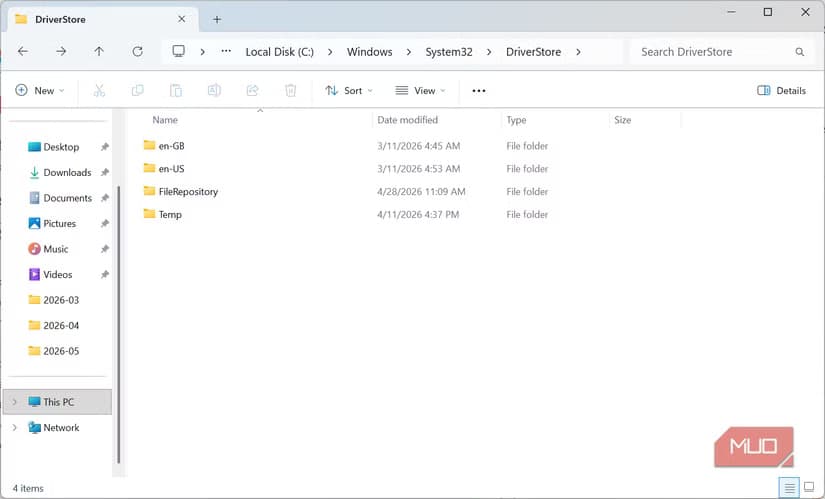
The folder in question is called DriverStore, located at C:\Windows\System32\DriverStore\FileRepository. It serves a legitimate purpose: when a driver update breaks something, Windows can roll back to a previous version without needing an internet connection.
The problem is the cleanup policy. Or rather, the complete absence of one. Old driver versions stick around indefinitely, even after you've successfully updated dozens of times.
NVIDIA and AMD graphics drivers are the worst offenders. A single GPU driver package can exceed 1GB. If you update your graphics drivers every month or two, you're adding gigabytes of obsolete files each year. Audio, chipset, and network drivers contribute smaller amounts, but they add up.
How Big Is Your DriverStore?
Navigate to C:\Windows\System32\DriverStore\FileRepository in File Explorer and check the folder size. Here's what the numbers typically mean:
| PC Profile | Typical DriverStore Size |
|---|---|
| Light use (1-2 years, mostly built-in drivers) | 2-5GB |
| Regular use (2-4 years, occasional driver updates) | 5-10GB |
| Long-term or gaming PC (frequent GPU updates) | 10-30GB+ |
Under 5GB is normal for everyday systems. Between 5GB and 10GB is worth investigating if you update drivers regularly. Over 10GB almost certainly means you're carrying significant dead weight.
The Problem: You Can't Just Delete These Files
The FileRepository folder is access-restricted. You can't drag files to the Recycle Bin. Windows protects it for good reason: deleting the wrong driver could break your system. You need tools that understand which drivers are safe to remove.
Another system maintenance issue affecting storage and security
Method 1: Using Driver Store Explorer
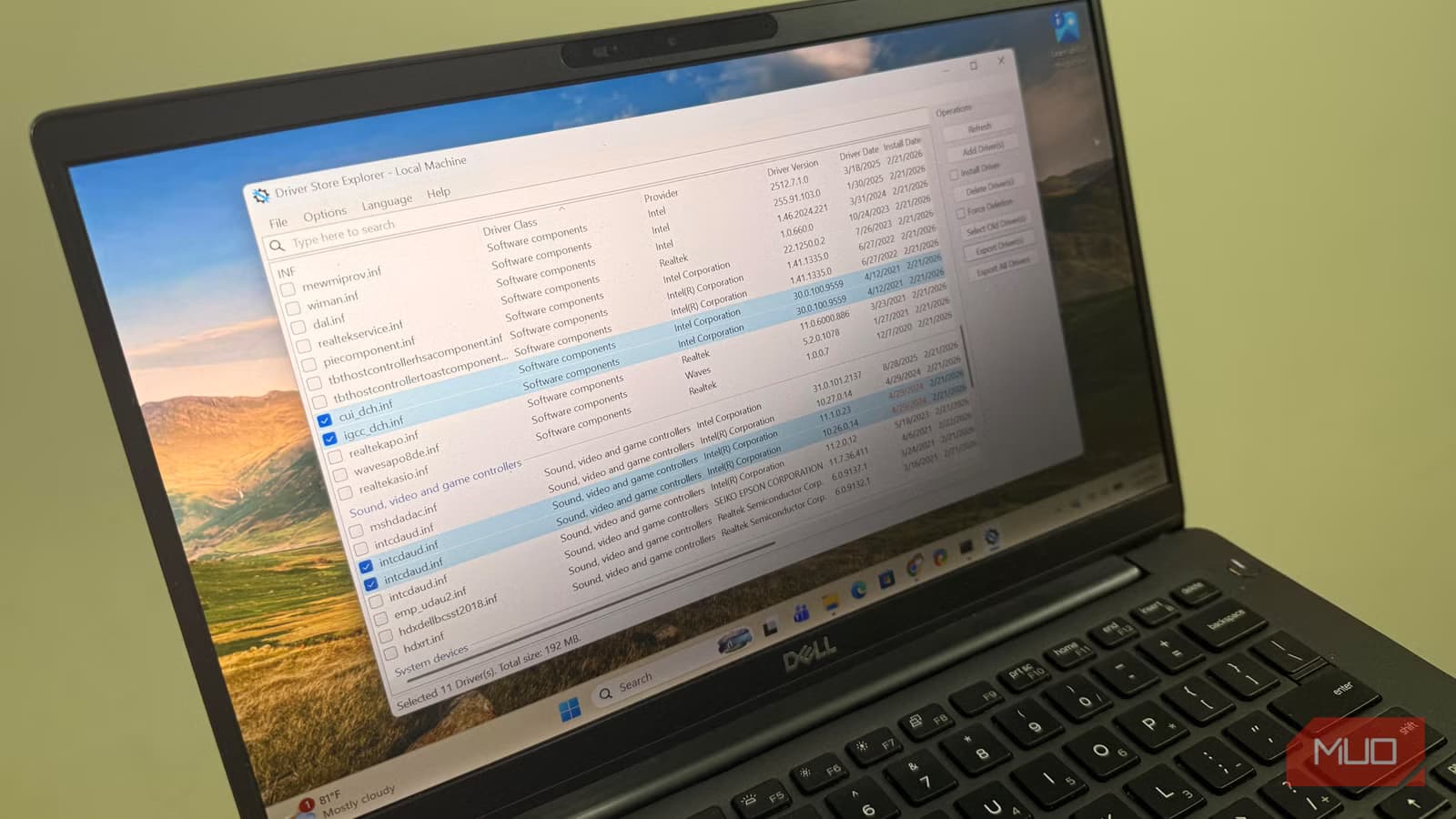
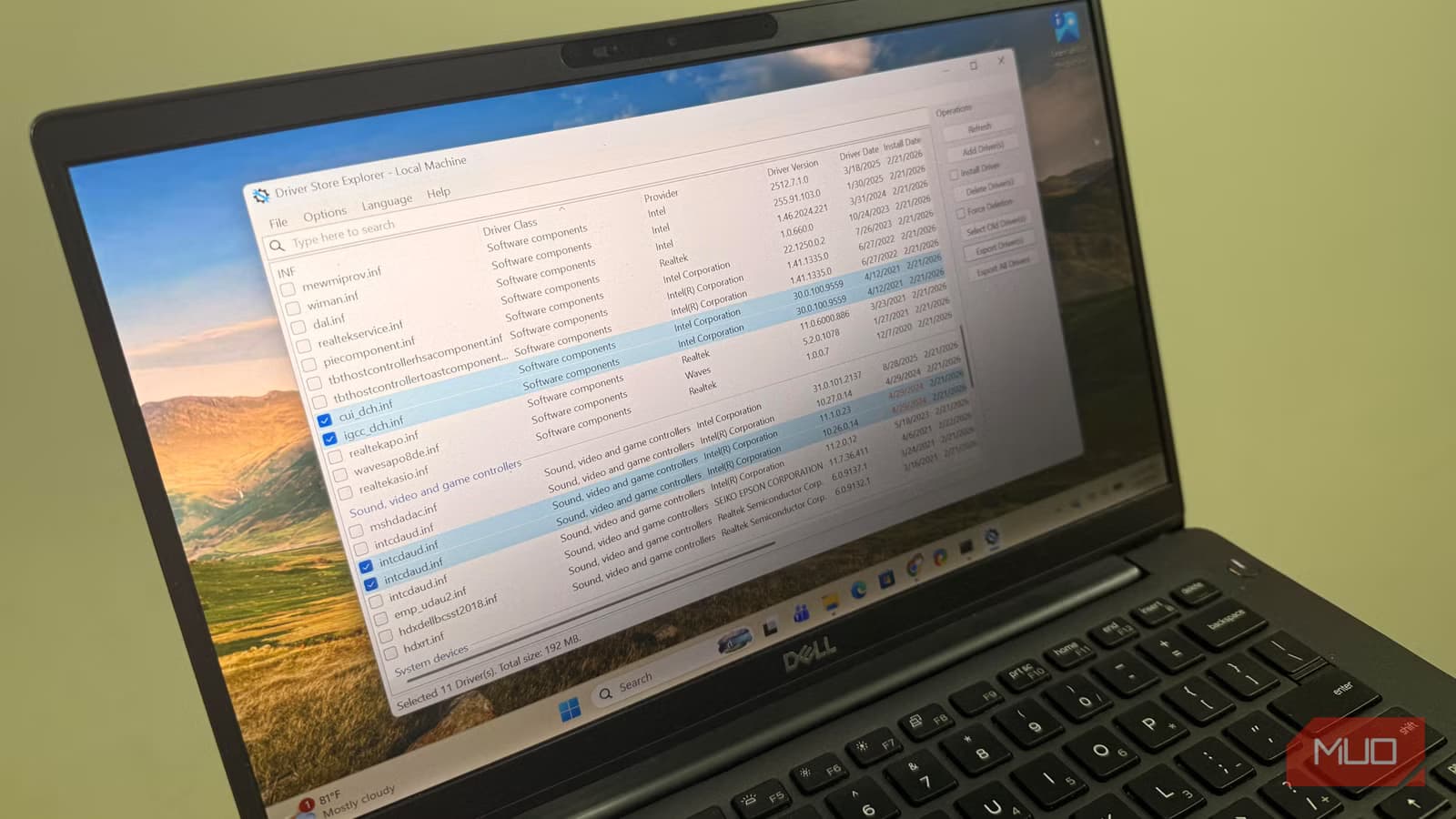
Driver Store Explorer is a free, open-source tool that provides a visual interface for managing the DriverStore. It shows which drivers are installed, which versions exist, and which are safe to remove.
- Download Driver Store Explorer from its GitHub releases page
- Run the application as administrator
- Sort by driver name to group versions together
- Select older versions of drivers you want to remove (keep the newest)
- Click Delete to remove selected drivers
The tool flags which drivers are currently in use, so you won't accidentally remove something your system needs right now.
Method 2: Using PnPUtil Commands
Windows includes a built-in command-line tool called PnPUtil that can list and remove drivers. This method doesn't require downloading anything.
Open PowerShell or Command Prompt as administrator and run:
pnputil /enum-driversThis lists all third-party drivers in the store. Each driver has an OEM name (like oem45.inf) and shows whether it's currently in use.
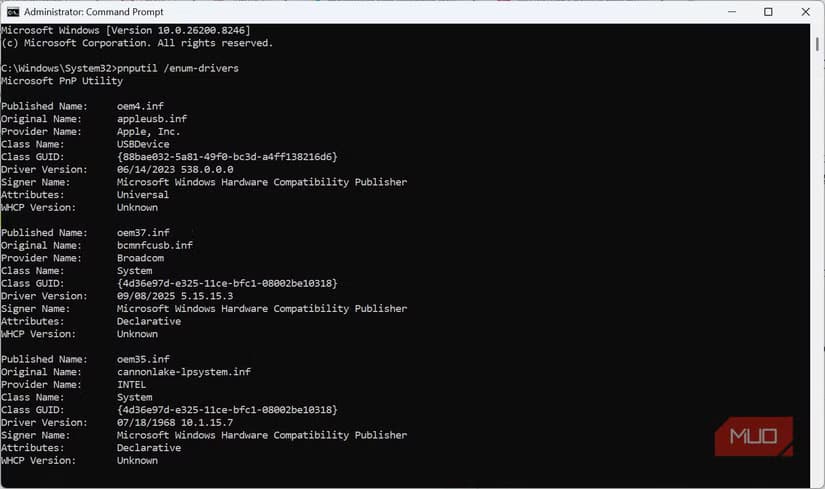
To remove a specific driver that's no longer needed:
pnputil /delete-driver oem45.infReplace oem45.inf with the actual driver name from your list. Only delete drivers you've confirmed are old versions of something already updated.
What About Disk Cleanup?
Windows Disk Cleanup has an option for "Device driver packages" in the extended view (run as administrator). However, it's more conservative than the methods above. It only removes drivers that Windows is certain are safe to delete, which often means it leaves the largest offenders untouched.
It's worth running Disk Cleanup first since it's built-in and safe. But for serious space recovery, especially on gaming PCs, you'll need Driver Store Explorer or manual PnPUtil commands.
Before You Clean: A Warning
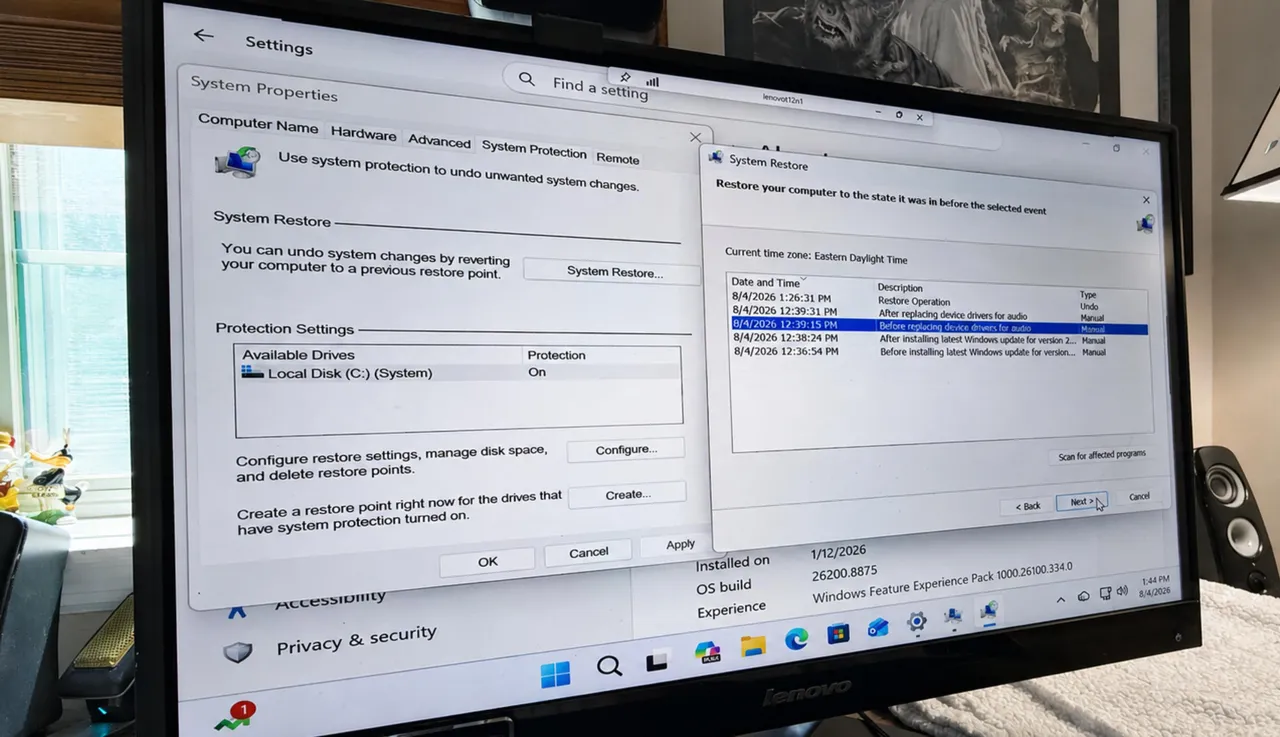
- Create a system restore point before removing any drivers
- Keep the newest version of each driver, even if you're not currently using that hardware
- If you're unsure about a driver, leave it alone
- GPU drivers are the safest targets since they're frequently updated and easy to reinstall
If something goes wrong, you can always download drivers again from the manufacturer's website. The risk is inconvenience, not disaster. But having a restore point makes recovery much faster.
Logicity's Take
Frequently Asked Questions
Is it safe to delete old drivers from the DriverStore?
Yes, as long as you keep the newest version of each driver and don't remove drivers currently in use. Tools like Driver Store Explorer show which drivers are active.
Will deleting old drivers break Windows?
No, if you follow the proper process. The DriverStore is a backup repository. Your current drivers are loaded from other locations. Worst case, you'd need to reinstall a driver from the manufacturer.
Why doesn't Windows clean this up automatically?
Microsoft prioritizes reliability over disk space. Keeping old drivers ensures rollback always works. There's no automated cleanup because Microsoft can't know which old drivers you might need.
How often should I clean the DriverStore?
Once a year is reasonable for most users. If you update GPU drivers monthly, consider cleaning every 6 months. Light users may never need to bother.
Does this affect Windows Update drivers?
Yes. Drivers installed via Windows Update are stored here too. The same cleanup methods apply.
Need Help Implementing This?
Source: MakeUseOf
Huma Shazia
Senior AI & Tech Writer
Produced with AI assistance and reviewed by the Logicity editorial team. Learn more in our Editorial Policy.