Key Takeaways
- Pixel 11's HiLight only works face-down and responds to favorite contact calls plus Gemini interactions
- AodNotify creates a customizable notification light around your camera cutout or screen perimeter
- The app works on Pixel, Samsung, OnePlus, and all other Android devices with separate versions for each
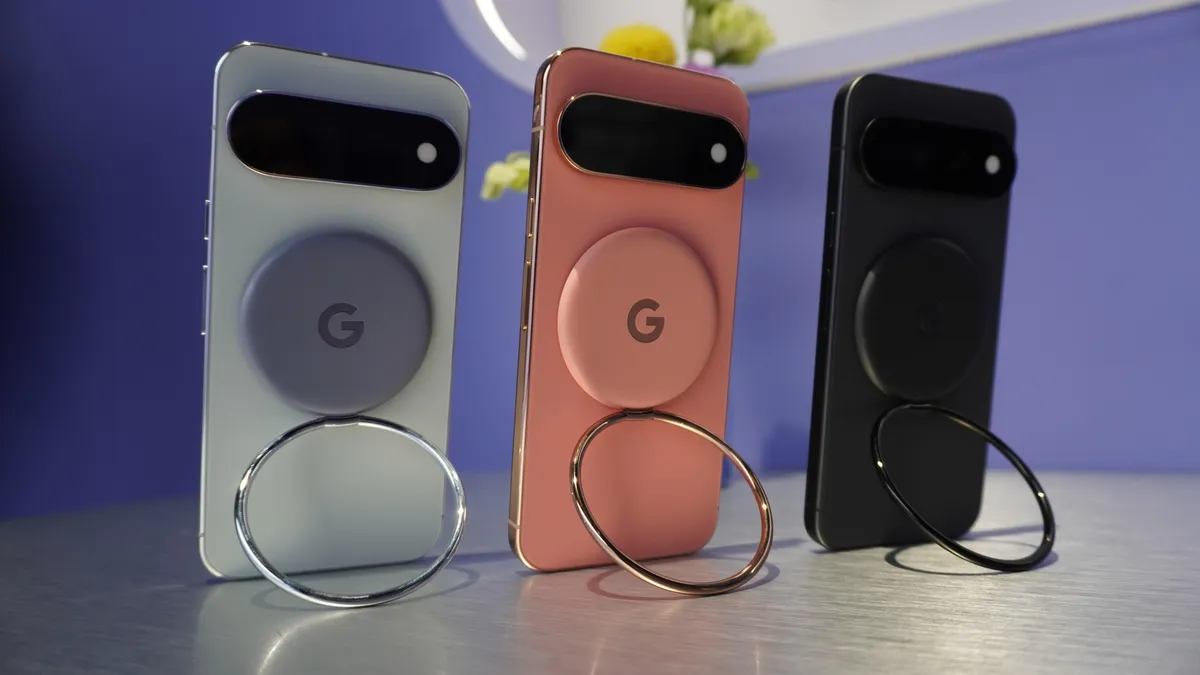
Google's Pixel 11 series launched this week with HiLight, a strip of LED lights built into the camera bar that glows when you get calls from favorite contacts or interact with Gemini. The feature sounds useful until you read the fine print: it only works when the phone is face-down, and it ignores every other notification type. You can get more flexible notification lighting on any Android phone right now using a third-party app called AodNotify.
The Pixel 11 lineup starts at $899 for the base model, $1,099 for the Pro, and $1,299 for the new Pro Fold. Google framed HiLight as a marquee feature, but its limitations make it a callback to the LED notification lights Android abandoned years ago, except less capable. AodNotify fills that gap by turning your screen into a configurable notification indicator that works with any app.
What Pixel 11 HiLight actually does
HiLight activates only when your Pixel 11 sits face-down on a surface. The LEDs on the camera bar then glow in two scenarios: incoming calls from contacts you've marked as favorites (works with Google's Phone app and WhatsApp), and active Gemini interactions where the light pulses to show the assistant is listening, processing, or responding.
That's the entire feature set. No support for other messaging apps. No alerts for calendar events, email, or Slack. No indication of pending notifications when you walk back to your desk. Google hasn't announced plans to expand HiLight's scope, so what you see at launch is what you get.
How AodNotify works
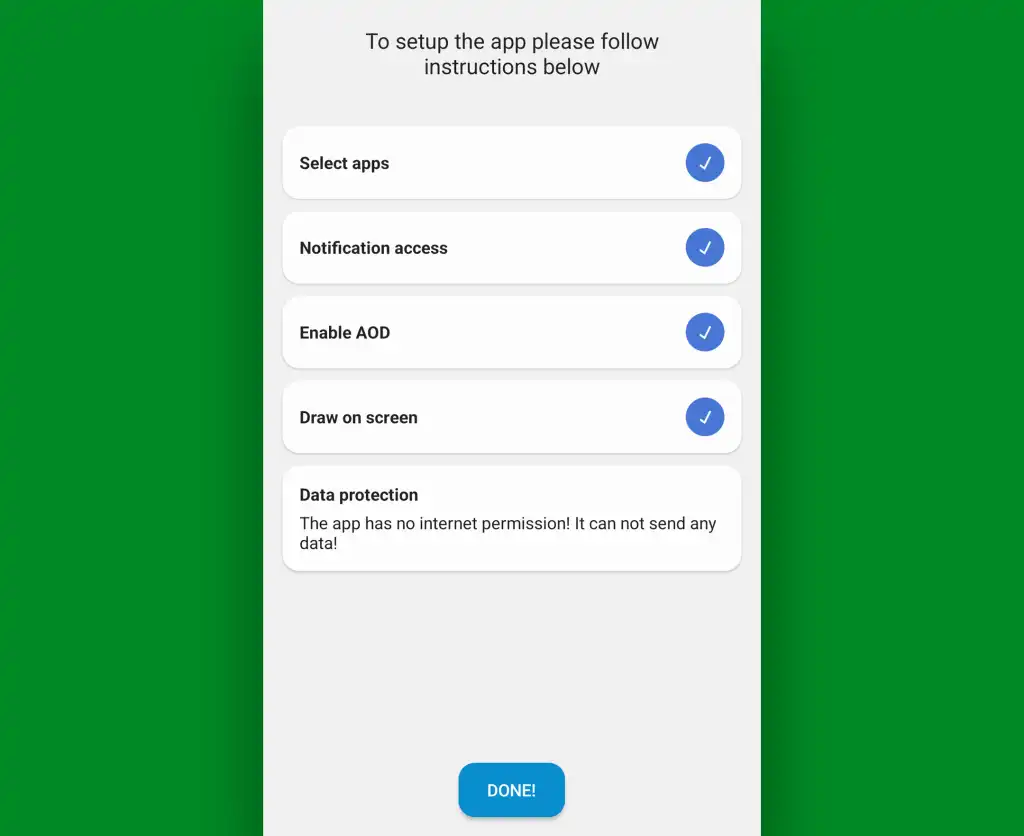
AodNotify creates a software-based notification light using your phone's display. The app can illuminate the area around your front camera cutout, or project a border light around your entire screen perimeter. Both effects appear when the screen is on and when it's off, using the always-on display capability most modern Android phones include.
The key difference from HiLight: AodNotify responds to any notification from any app. You configure which apps trigger the light, assign colors per app or contact, and set schedules for when the feature activates. A Slack message can glow blue while a calendar reminder pulses orange.
Install the right version for your phone
AodNotify ships as separate apps optimized for different Android manufacturers. Each version accounts for the display characteristics and always-on display implementations specific to that hardware.
- Pixel phones: Search "AodNotify for Pixel" on the Play Store
- Samsung Galaxy devices: Search "AodNotify for Samsung"
- OnePlus phones: Search "AodNotify for OnePlus"
- All other Android brands: Search "AodNotify" (the generic version)
The base app is free with ads. A one-time purchase removes ads and unlocks additional customization options including animation styles and battery-saving modes.
Configure your notification light
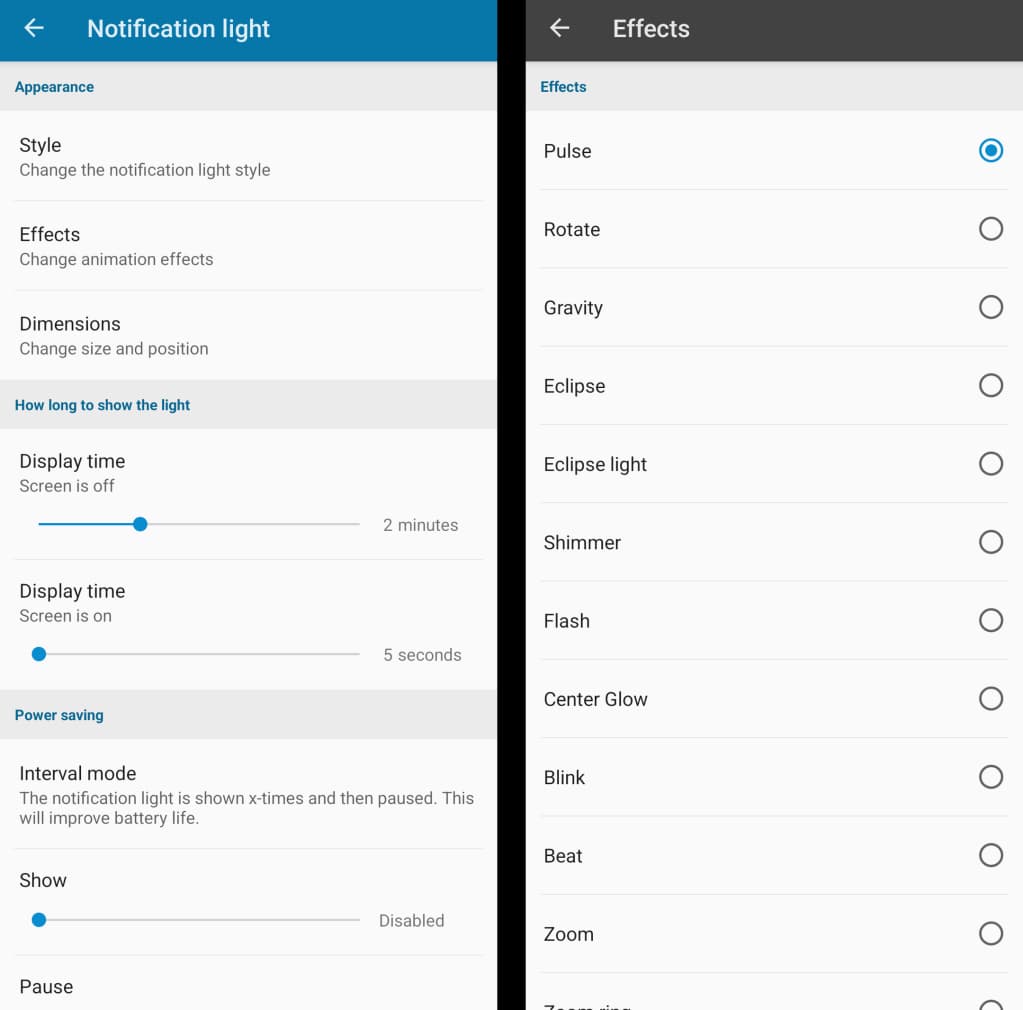
After installation, AodNotify requests notification access, which Android requires for any app that reads your alerts. Grant the permission, then choose your light style: camera cutout ring, screen edge border, or a smaller dot indicator. Each style has animation options ranging from steady glow to pulsing or breathing effects.
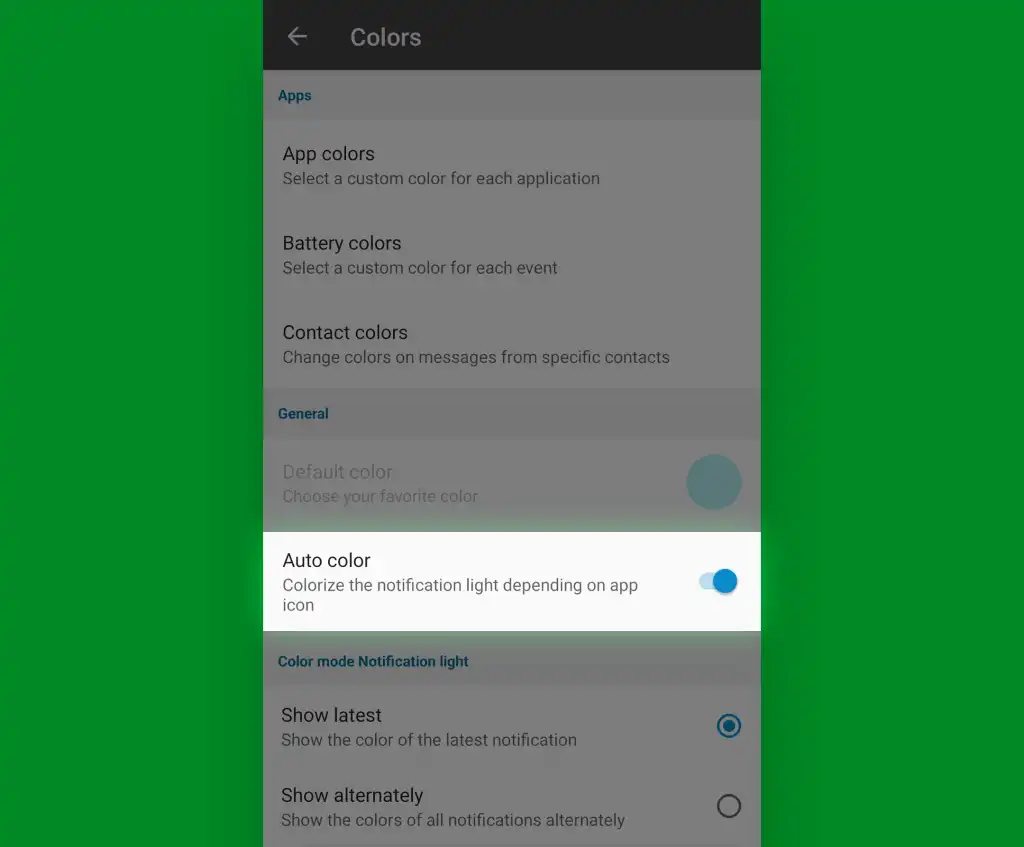
The app's strength is per-app customization. Open the Apps section, select any installed application, and assign it a specific color. You can also set priority levels so high-importance apps produce brighter or longer-lasting lights while low-priority notifications get subtle indicators.
For contact-specific colors similar to HiLight's favorite contacts feature, enable the Contacts integration. AodNotify can pull colors from your contacts' profile photos automatically, or you can manually assign colors to specific people.
Battery and always-on display considerations
AodNotify uses your phone's always-on display, which most Android devices have supported since 2018. If your phone lacks always-on display capability, the notification light only appears when the screen is actively on.
Battery impact varies by phone and settings. OLED screens light only the pixels needed for the notification indicator, which keeps drain minimal. The app includes scheduling options to disable the light during sleeping hours or when battery drops below a threshold you set.
Logicity's Take
HiLight looks like a hardware differentiator for Pixel 11, but its current restrictions make it a proof of concept more than a productivity feature. IT teams evaluating the Pixel 11 for enterprise deployment should know that third-party apps already deliver more complete notification management. For organizations standardized on tools like [Slack](https://logicity.in/r/slack) or [Intercom](https://logicity.in/r/intercom), AodNotify's per-app configurability matters more than Google's two-app limitation.
Hardware accessories for the Pixel 11 launch
Why this matters for enterprise Android deployments
LED notification lights disappeared from Android hardware because always-on displays seemed like a superior replacement. But always-on displays demand active attention. You have to read text. A color-coded glow tells you everything at peripheral glance: urgent call, team message, calendar alert.
Google bringing back the concept in HiLight suggests the company recognizes this. The implementation is conservative, limited to scenarios where false positives are unlikely to annoy users. AodNotify takes the opposite approach, handing full control to the user at the cost of initial setup time.
For employees who live in meetings and can't constantly check their phones, a persistent visual indicator reduces the urge to pick up the device. That's a small productivity gain multiplied across every interruption.
Frequently Asked Questions
Does AodNotify drain battery significantly?
On OLED phones, impact is minimal because only a small ring of pixels illuminates. LCD phones may see higher drain since the entire backlight must activate.
Will AodNotify work on older Android versions?
The app requires Android 8.0 or later. Always-on display features need Android 9.0+.
Can I use AodNotify and Pixel 11 HiLight together?
Yes. AodNotify shows on the front display while HiLight uses LEDs on the back. They operate independently.
Does the app work with Do Not Disturb mode?
AodNotify respects your Do Not Disturb settings. If an app is silenced by DND, its notification won't trigger a light.
Need Help Implementing This?
Setting up AodNotify across a device fleet? Contact your MDM provider about pushing notification access permissions during enrollment. For Pixel-specific deployments, Android Enterprise provides granular control over which apps receive notification listener access.
Source: Computerworld
Manaal Khan
Tech & Innovation Writer
Produced with AI assistance and reviewed by the Logicity editorial team. Learn more in our Editorial Policy.