Key Takeaways
- RAND, RANDBETWEEN, and RANDARRAY are volatile functions that recalculate on every sheet change, so convert to static values immediately with Ctrl+Shift+V.
- RANDARRAY can populate entire ranges from a single formula, but only works outside Excel tables.
- The SORTBY + RANDARRAY combo is the cleanest way to shuffle existing lists without helper columns.
Excel's built-in randomization functions can generate test numbers, shuffle existing lists, and build mock datasets in seconds. Most users never touch them, defaulting to manual data entry or copying sample data from elsewhere. That's a waste. RAND, RANDBETWEEN, and RANDARRAY handle the tedious work of populating prototypes, testing formulas, and simulating scenarios without exposing real data.
There's a catch. All three functions are volatile. They recalculate every time anything in the workbook changes. You enter a value in cell Z99, and your entire test dataset shifts. This trips up beginners constantly. The fix: after generating your random values, copy the range and paste as values only (Ctrl+Shift+V). That freezes the output.
How do you generate random decimals with RAND?
RAND is the simplest option. Type =RAND() into a cell and hit Enter. You get a decimal between 0 and 1. That's useful for probability simulations, weighted scoring, or any model that needs fractional values.
If you're working inside an Excel table (created with Ctrl+T), entering the formula in one cell auto-fills the entire column. In a standard range, drag the fill handle down to extend it.
When should you use RANDBETWEEN for whole numbers?
RANDBETWEEN returns integers within a specified range. Need mock employee IDs? Invoice numbers? Random quantities between 1 and 500? This is your function.
The syntax: =RANDBETWEEN(1000, 9999) produces a random four-digit number. Both endpoints are inclusive. Like RAND, it's volatile and recalculates on every change, so paste as values once you're done.
What makes RANDARRAY different from RAND and RANDBETWEEN?
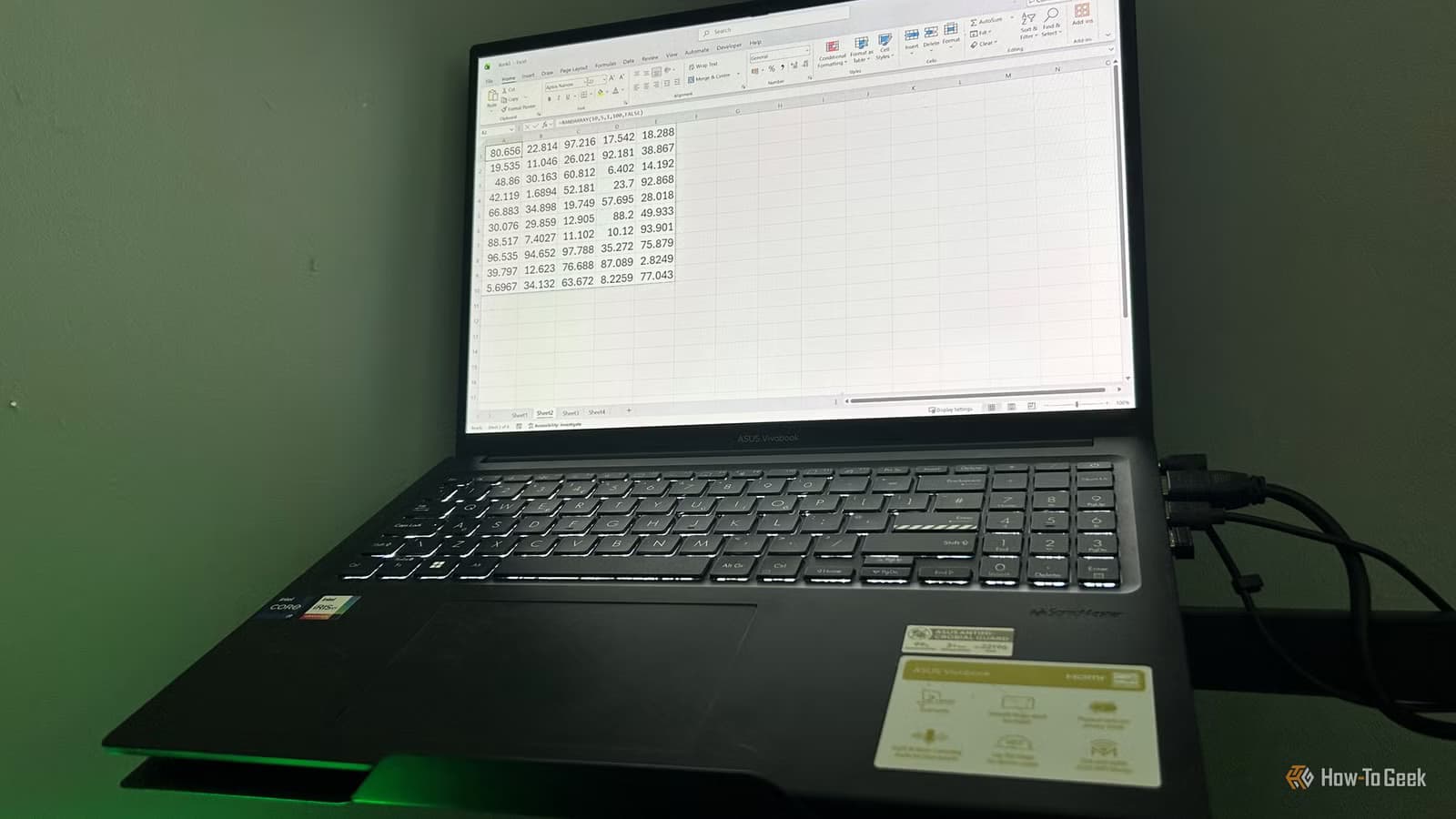
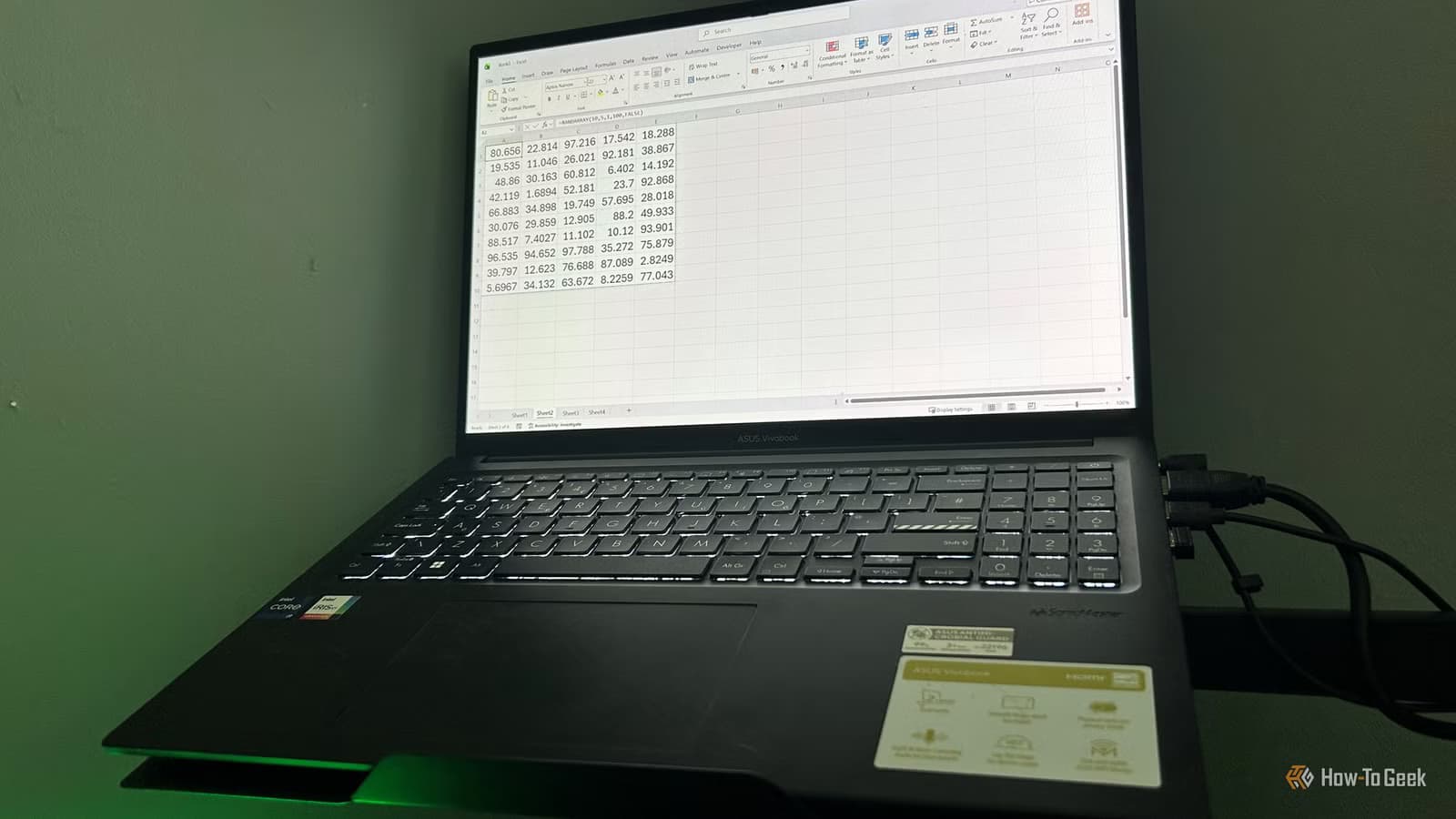
RANDARRAY does what the other two can't: it outputs an entire array of random values from a single formula. You specify rows, columns, minimum, maximum, and whether you want integers or decimals.
Example: =RANDARRAY(10, 5, 1, 100, TRUE) creates a 10-row, 5-column array of whole numbers between 1 and 100. The results spill into adjacent cells automatically.
One limitation: RANDARRAY is a dynamic array function and won't work inside Excel tables. Use a regular worksheet range with enough empty cells for the output to spill.
“The power of Excel isn't just in calculating rows; it's in the ability to simulate entire scenarios in seconds using simple randomization functions.”
— Bill Jelen, Author & Microsoft MVP (MrExcel)
How do you shuffle an existing list in Excel?
Generating random numbers is half the equation. Shuffling existing data, like assigning tickets to team members or randomizing a presentation order, requires a different approach.
The classic method: add a helper column filled with RAND values, then sort your data by that column. It works, but the Reddit r/excel community has a cleaner alternative. Use =SORTBY(range, RANDARRAY(ROWS(range))) instead. This formula sorts your list by a random array without creating a separate column. It's also non-volatile after initial calculation, so the data won't jump around.
Why does volatility matter for test data?
Volatile functions recalculate on every workbook change. That's fine during initial generation. It's a problem when you're testing formulas that reference those random values. Your test inputs keep changing, making debugging impossible.
The solution is always the same: generate your random data, select it, copy, then paste as values (Ctrl+Shift+V). Now you have static test data you can rely on.
“Randomization is the first step in moving from static reporting to dynamic, predictive modeling.”
— Leila Gharani, Excel Instructor
Practical applications for data professionals
These functions aren't just for playing around. They solve real problems.
- Dashboard prototyping: populate charts with realistic-looking data before connecting to live sources.
- Formula testing: generate edge cases (zero values, large numbers, negatives) to stress-test your calculations.
- Training datasets: create dummy records for teaching without exposing sensitive information.
- Random sampling: select a subset of rows from a larger dataset for quality checks or audits.
- Scheduling: randomize shift assignments or meeting orders to eliminate bias.
With over 1.2 billion monthly active Microsoft Office users, Excel remains the default tool for rapid data prototyping. These randomization functions are among the most practical, yet underused, features in its 500+ function library.
Another productivity tool comparison for developers who want faster workflows.
Frequently Asked Questions
Why do my random numbers keep changing in Excel?
RAND, RANDBETWEEN, and RANDARRAY are volatile functions. They recalculate whenever the workbook updates. To freeze the values, copy the cells and paste as values only using Ctrl+Shift+V.
Can I use RANDARRAY inside an Excel table?
No. RANDARRAY is a dynamic array function and doesn't work inside structured tables. Use a regular worksheet range with enough empty cells for the output to spill.
What's the best way to shuffle a list without a helper column?
Use =SORTBY(range, RANDARRAY(ROWS(range))). This sorts your list by a random array in a single formula, without creating a separate column of RAND values.
How do I generate random numbers between two specific values?
Use RANDBETWEEN(min, max) for integers, such as =RANDBETWEEN(1, 100). For decimals within a range, use =RAND()*(max-min)+min.
Are Excel's random numbers truly random?
They're pseudorandom, generated by an algorithm. For most testing, prototyping, and simulation purposes, they're random enough. For cryptographic applications, they're not.
Logicity's Take
Excel's randomization functions are underrated for a reason: they require one extra step that most users skip. Generate, then immediately paste as values. Skip that, and your test data becomes unreliable noise. The SORTBY + RANDARRAY method for shuffling is the cleaner approach that the Excel community has quietly standardized on, but it rarely appears in official Microsoft documentation. If you're building prototypes or testing formulas regularly, memorize Ctrl+Shift+V. It's the difference between a useful tool and a frustrating one.
Need Help Implementing This?
Want guidance on building Excel prototypes, automating test data generation, or integrating randomization into your data workflows? Reach out to Logicity's team for hands-on support.
Source: How-To Geek
Manaal Khan
Tech & Innovation Writer
Produced with AI assistance and reviewed by the Logicity editorial team. Learn more in our Editorial Policy.