Key Takeaways
- AppControl maintains a rolling 72-hour log of CPU, RAM, disk, GPU, and temperature data
- The app is free and comes from GlassWire's development team
- Historical tracking helps identify processes that spike resources when you're away from your PC
The Problem With Real-Time Only
Task Manager is the first thing most Windows users open when something goes wrong. It shows CPU spikes, memory hogs, and runaway processes in real time. But real time is the problem.
By the time you notice your PC is sluggish and hit Ctrl+Shift+Esc, the culprit process may have already finished its work. Task Manager has no memory. It shows you what's happening now, not what happened 10 minutes ago when your system suddenly lagged during a video call.
“Task Manager tells you what is happening now, but it's useless for understanding what happened ten minutes ago when your PC suddenly lagged. We built AppControl to be the black box recorder for your Windows system.”
— Jon Hundley, Lead Developer of AppControl and co-founder of GlassWire
That's the gap AppControl fills. The free Windows utility logs system performance continuously, keeping a rolling 72-hour record of CPU, RAM, disk, GPU, and temperature data. Think of it as a flight recorder for your PC.
How the History Feature Works
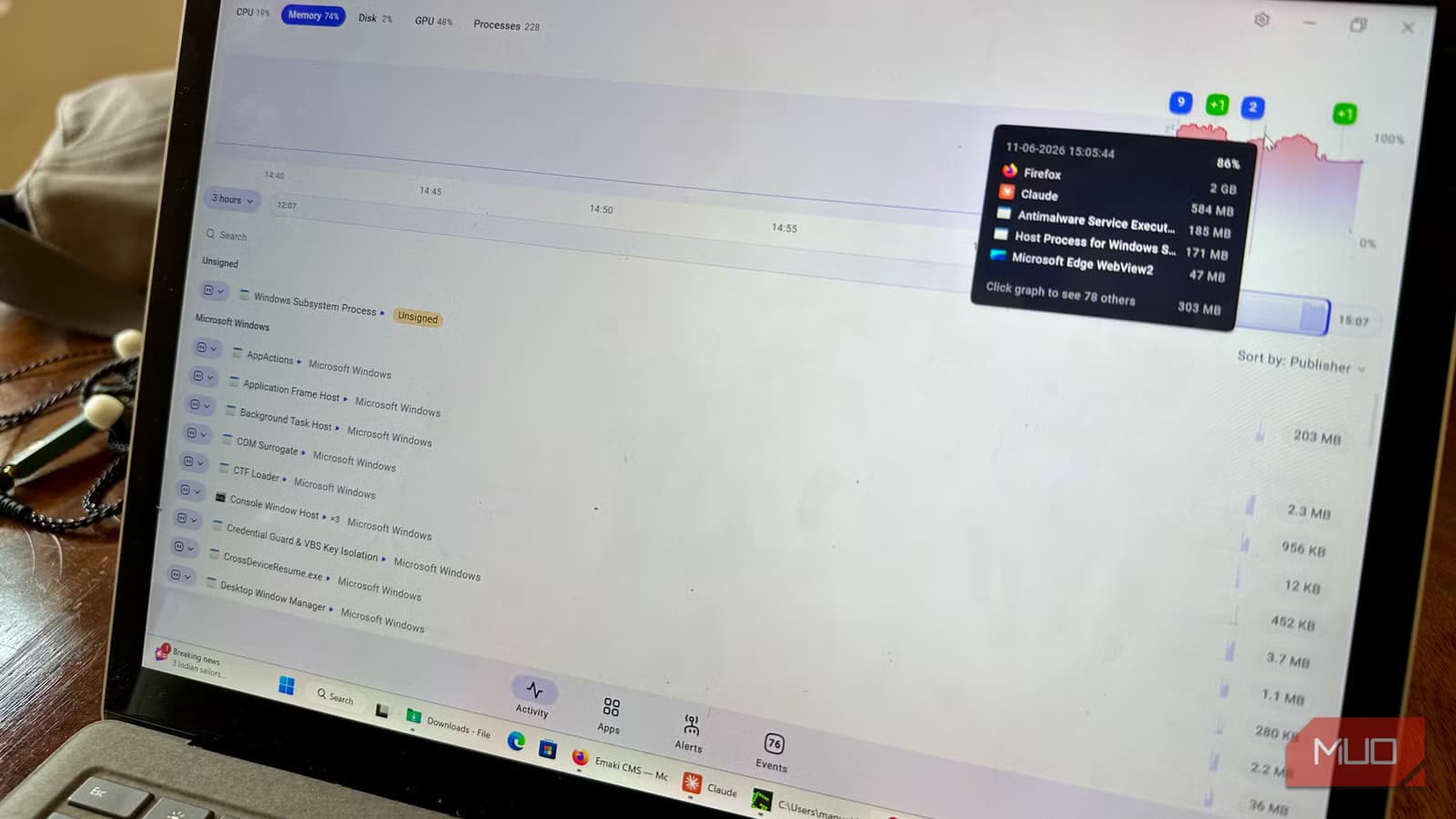
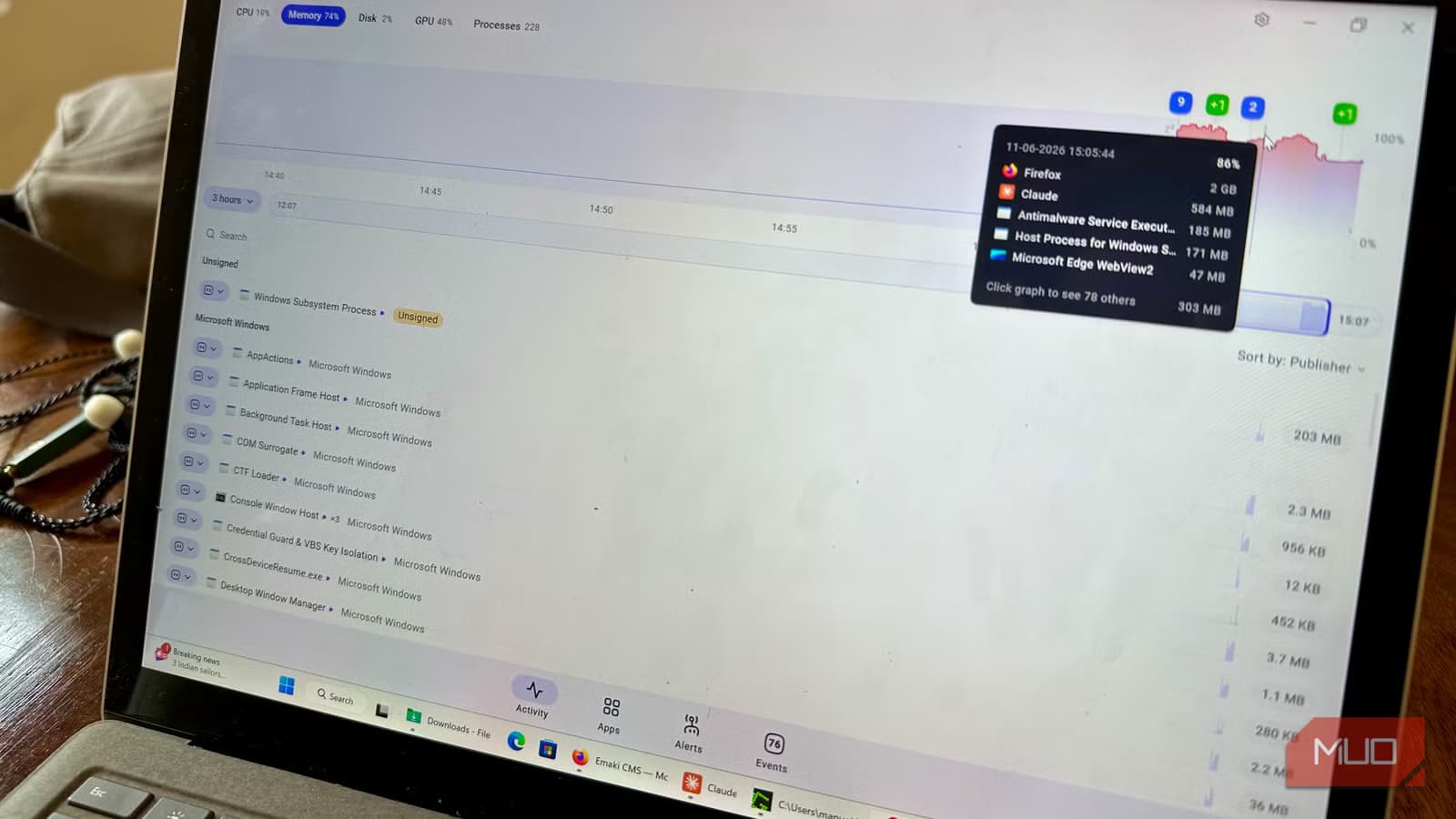
AppControl's main interface centers on an Activity tab with a timeline graph. You can choose which component to track (CPU, RAM, Disk, or GPU) and click anywhere on the timeline to see which processes were consuming resources at that exact moment.
A slider below the graph lets you adjust the time window. The default view shows the last five minutes, but you can expand it to 3 hours, 1 day, or the full 3-day history. You can also resize the slider to zoom in on specific periods.
This solves a specific frustration: identifying sneaky processes that fire up when your PC is idle. Backup utilities, update services, or malware often wait until you step away. With AppControl, you can scroll back to 3 AM and see exactly what was running.
Who Actually Needs This
The obvious use case is troubleshooting intermittent slowdowns. If your PC occasionally freezes and you've never caught the culprit in Task Manager, historical logging gives you something to analyze after the fact.
IT teams supporting remote workers will find this useful too. Instead of asking users to describe what they saw, you can review AppControl's logs to identify the actual process responsible for a performance complaint.
The app also helps identify patterns. Maybe a specific process consistently spikes your CPU every day at 2 PM. Real-time tools won't catch that unless you happen to be watching at exactly the right moment.
How It Compares to Power User Alternatives
AppControl isn't the first Task Manager alternative. Power users have long relied on Microsoft's own Process Explorer (part of Sysinternals) and the open-source System Informer. Both offer more granular process details than Task Manager.
But neither provides historical tracking. Process Explorer shows deep technical data about running processes, but like Task Manager, it's real-time only. AppControl's main advantage is the 72-hour logging that these established tools lack.
| Feature | Task Manager | Process Explorer | AppControl |
|---|---|---|---|
| Real-time resource view | Yes | Yes | Yes |
| Historical performance log | No | No | 72 hours |
| Process tree view | Basic | Detailed | Yes |
| Built into Windows | Yes | No | No |
| Price | Free | Free | Free |
The trade-off: Process Explorer and System Informer give more control over individual processes (handle inspection, DLL listings, etc.). AppControl focuses on the timeline view and ease of use rather than deep technical drilling.
The GlassWire Connection
AppControl comes from the team behind GlassWire, a network monitoring tool that's been around since 2014. GlassWire built its reputation on visualizing network activity over time, so the historical approach in AppControl follows the same philosophy.
This matters for the "why is it free?" question. GlassWire has a freemium model with paid tiers for advanced features. AppControl appears to be following the same playbook, building an audience with a genuinely useful free tool.
Reddit's Verdict
Communities on r/Windows11 and r/software have been generally positive about AppControl. The clean interface and "set it and forget it" logging gets praise. Users note it's useful for troubleshooting without needing deep technical knowledge.
The main criticism: power users who already rely on Process Explorer or System Informer don't see enough reason to switch. These tools offer more granular process control, even if they lack historical data.
AppControl currently ranks as the top-requested "Task Manager alternative" on Windows-focused subreddits in Q2 2026, though that's partly driven by newness and active discussion rather than long-term adoption data.
Getting Started
AppControl is a free download for Windows. Once installed, it runs in the background and starts logging immediately. The interface defaults to the Activity tab where you can explore the timeline.
- Download AppControl from the GlassWire website
- Install and launch the app
- Navigate to the Activity tab
- Select which resource to track (CPU, RAM, Disk, or GPU)
- Use the timeline slider to adjust your view window
The app also includes AI features for identifying unusual activity, though the source notes these "don't feel forced, unlike most other apps nowadays." The core value remains the simple historical logging.
Related Windows security and system monitoring topic
✅ Pros
- • 72-hour performance history fills a real gap in Windows tools
- • Free with no feature restrictions mentioned
- • Clean interface accessible to non-technical users
- • Backed by established GlassWire development team
❌ Cons
- • Less granular process control than Process Explorer or System Informer
- • Requires running continuously in background
- • Relatively new, limited long-term track record
Frequently Asked Questions
Is AppControl free?
Yes, AppControl is currently free to download and use on Windows with no mentioned feature restrictions.
How long does AppControl keep performance history?
AppControl maintains a rolling 72-hour (3-day) log of CPU, RAM, disk, GPU, and temperature data.
Does AppControl replace Task Manager?
It can supplement Task Manager by adding historical tracking, but Task Manager remains useful for immediate process management like ending tasks.
Who makes AppControl?
AppControl comes from the team behind GlassWire, a network monitoring tool that's been active since 2014.
How is AppControl different from Process Explorer?
Process Explorer offers more granular process inspection but only shows real-time data. AppControl's main advantage is the 72-hour historical log.
Logicity's Take
Need Help Implementing This?
Source: MakeUseOf
Manaal Khan
Tech & Innovation Writer
Produced with AI assistance and reviewed by the Logicity editorial team. Learn more in our Editorial Policy.