Key Takeaways
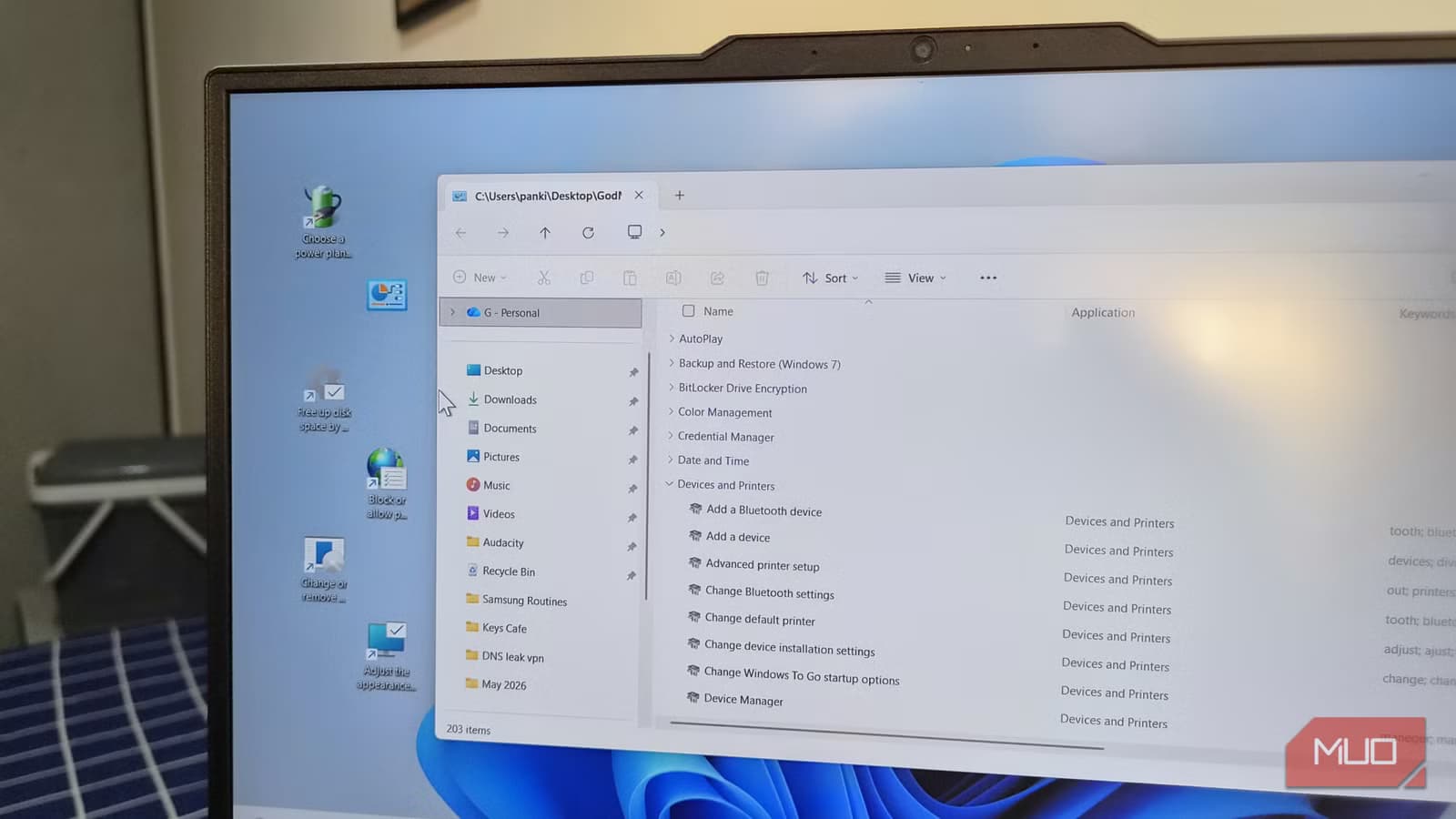
- God Mode creates a single folder containing 200+ Windows settings in one scrollable list
- CLSID codes are unique identifiers that have worked since 1995 and still function in modern Windows
- These tricks require no third-party software, just renaming a folder with a specific code
Windows has three places most people go to change settings: the Settings app, Control Panel, and Task Manager. But Microsoft has buried a fourth layer beneath these. A set of special folder commands gives you direct access to administrative tools, network panels, and configuration screens that would otherwise take multiple clicks to reach.
These shortcuts use Class Identifiers, or CLSIDs. These are alphanumeric codes the Windows Registry uses to identify system components. By creating a folder with a specific CLSID string as its name, you build a direct portal to deep-level Control Panel applets. The technique has worked since roughly 1995, and Microsoft still supports it in the latest Windows 11 builds.
God Mode: The Master Settings Dashboard
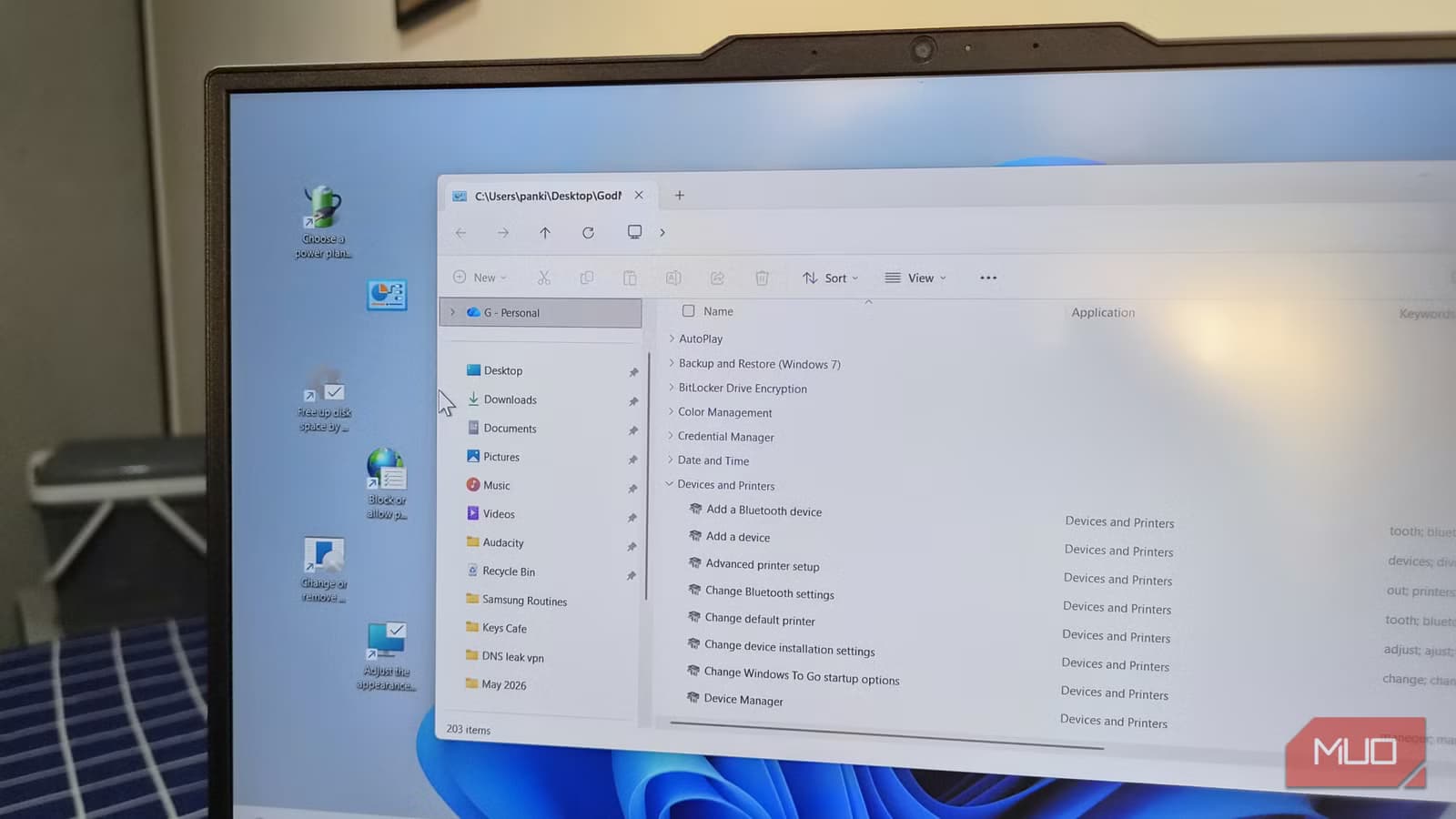
The name sounds dramatic, but God Mode is simply a folder that displays every administrative setting Windows offers in one scrollable list. Power plans, firewall rules, user accounts, display options, and more. All in a single view, organized into sections like "Date and Time" and "Network and Sharing."
To create it, right-click your desktop and select New > Folder. Rename the folder to exactly this string: GodMode.{ED7BA470-8E54-465E-825C-99712043E01C}
Press Enter. The folder icon changes to a Control Panel icon. Double-click it, and you get access to over 200 configuration options without switching between Settings, Control Panel, and system menus.
The Hidden Network Connections Panel
The modern Settings app gives you a simplified view of your network connections. It works fine for toggling Wi-Fi or checking your connection status. But when you need to change adapter settings, configure static IPs, or troubleshoot driver issues, the simplified interface gets frustrating.
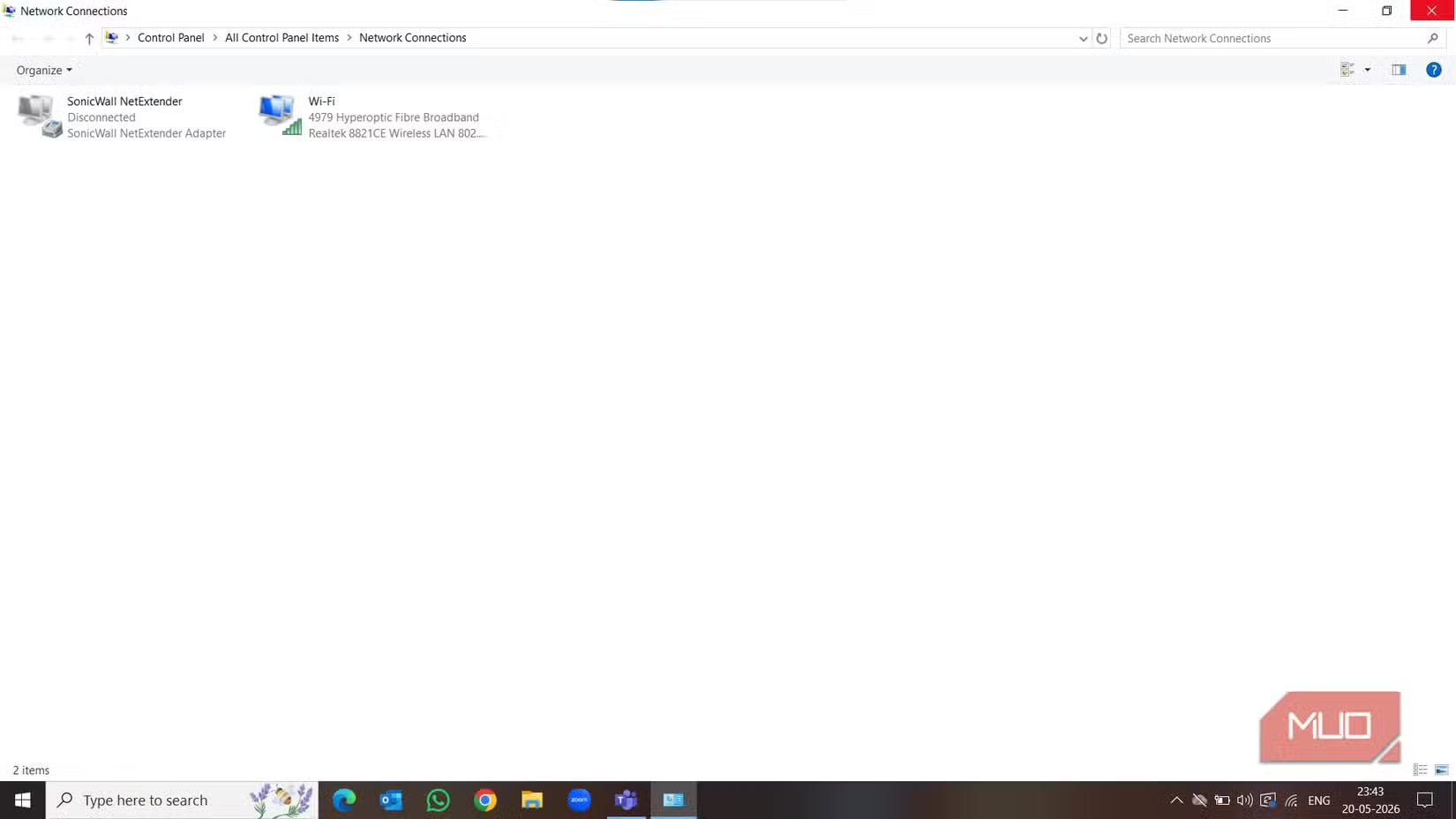
The classic Network Connections panel still exists. It shows all your network adapters in a detailed view with right-click access to properties, diagnostics, and advanced configuration. Microsoft just stopped putting it in obvious places.
You can access it by pressing Win+R and typing ncpa.cpl. Or create a folder shortcut using the CLSID method for one-click access from your desktop.
The Startup Folder
Task Manager shows you what programs run at startup. But it does not let you add new programs to that list. The Startup folder does. Any shortcut you drop into this folder launches automatically when you sign in.
Press Win+R and type shell:startup to open your personal Startup folder. For system-wide startup items that apply to all users, type shell:common startup instead.
This is useful for launching productivity tools, VPN clients, or custom scripts without configuring them in each application's settings.
Event Viewer Access
When Windows crashes or an app fails silently, the Event Viewer logs what happened. It records system errors, security events, and application crashes with timestamps and error codes. This is the first place to check when troubleshooting mysterious problems.
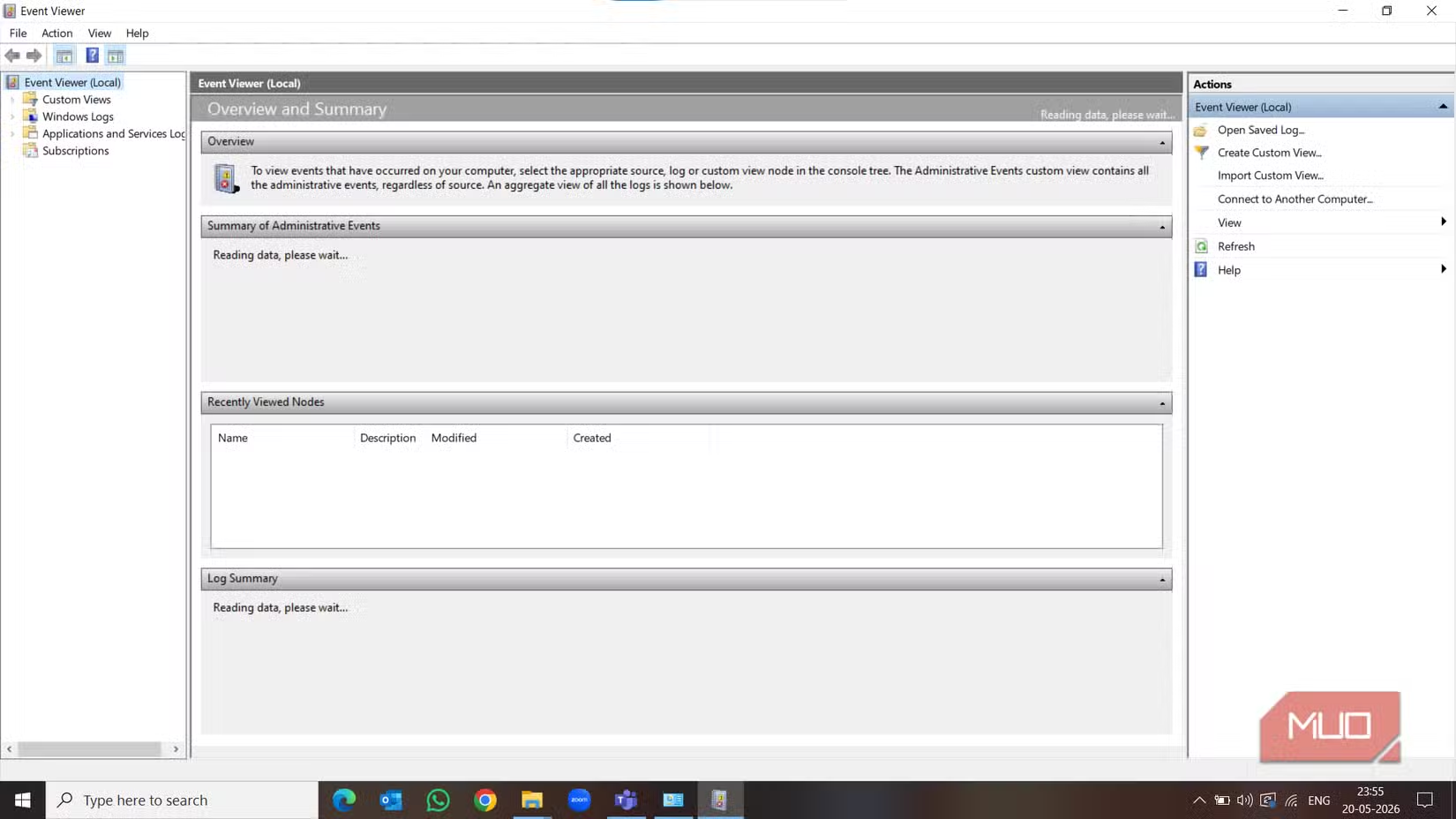
Press Win+R and type eventvwr.msc to open it. The logs can be dense, but filtering by "Error" or "Critical" levels helps you find the relevant entries quickly.
File History Recovery
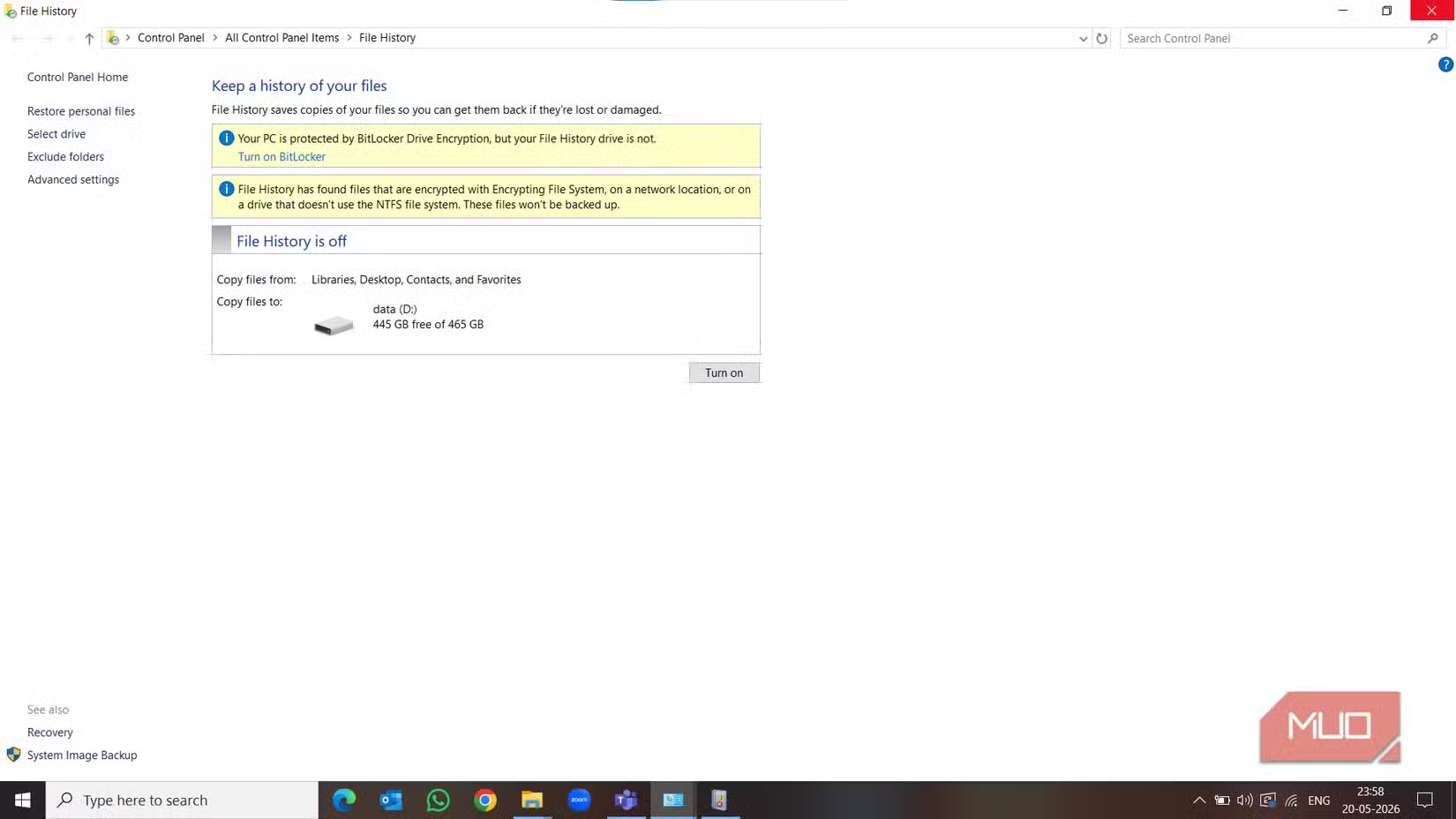
If you have File History enabled, Windows keeps backup copies of your files on an external drive. But finding and restoring those backups through the Settings app takes too many clicks.
Type "File History" in the Start menu search and select "Restore your files with File History." This opens a visual timeline where you can browse previous versions of any backed-up folder and restore individual files with one click.
Why These Tricks Still Work
Microsoft has been pushing users toward the modern Settings app since Windows 10. But the underlying Control Panel infrastructure never went away. The CLSID system dates back to 1995, and Microsoft maintains backward compatibility for it.
Power users on forums like ElevenForum and Reddit's r/Windows11 view these shortcuts as essential productivity tools. Casual users are often surprised they exist at all. Microsoft does not advertise them because they want users in the new Settings interface. But for anyone who needs deeper access, the old navigation layer remains fully functional.
Logicity's Take
More hidden power-user features in another operating system
System administration tips for technical users
Frequently Asked Questions
Is Windows God Mode safe to use?
Yes. God Mode is not a hack or exploit. It simply displays existing Windows settings in a single folder view. Microsoft has supported this CLSID shortcut since Windows Vista.
Do these folder tricks work on Windows 11?
Yes. The CLSID system and shell commands work on Windows 10 and Windows 11. Microsoft maintains backward compatibility for these features.
Can I delete the God Mode folder without affecting my system?
Yes. The folder is just a shortcut to existing settings. Deleting it removes the shortcut but does not change any system configuration.
Why does Microsoft hide these settings panels?
Microsoft has been transitioning users to the modern Settings app since Windows 10. The classic Control Panel applets remain for compatibility but are no longer prominently featured in the interface.
Need Help Implementing This?
Source: MakeUseOf
Huma Shazia
Senior AI & Tech Writer
Produced with AI assistance and reviewed by the Logicity editorial team. Learn more in our Editorial Policy.