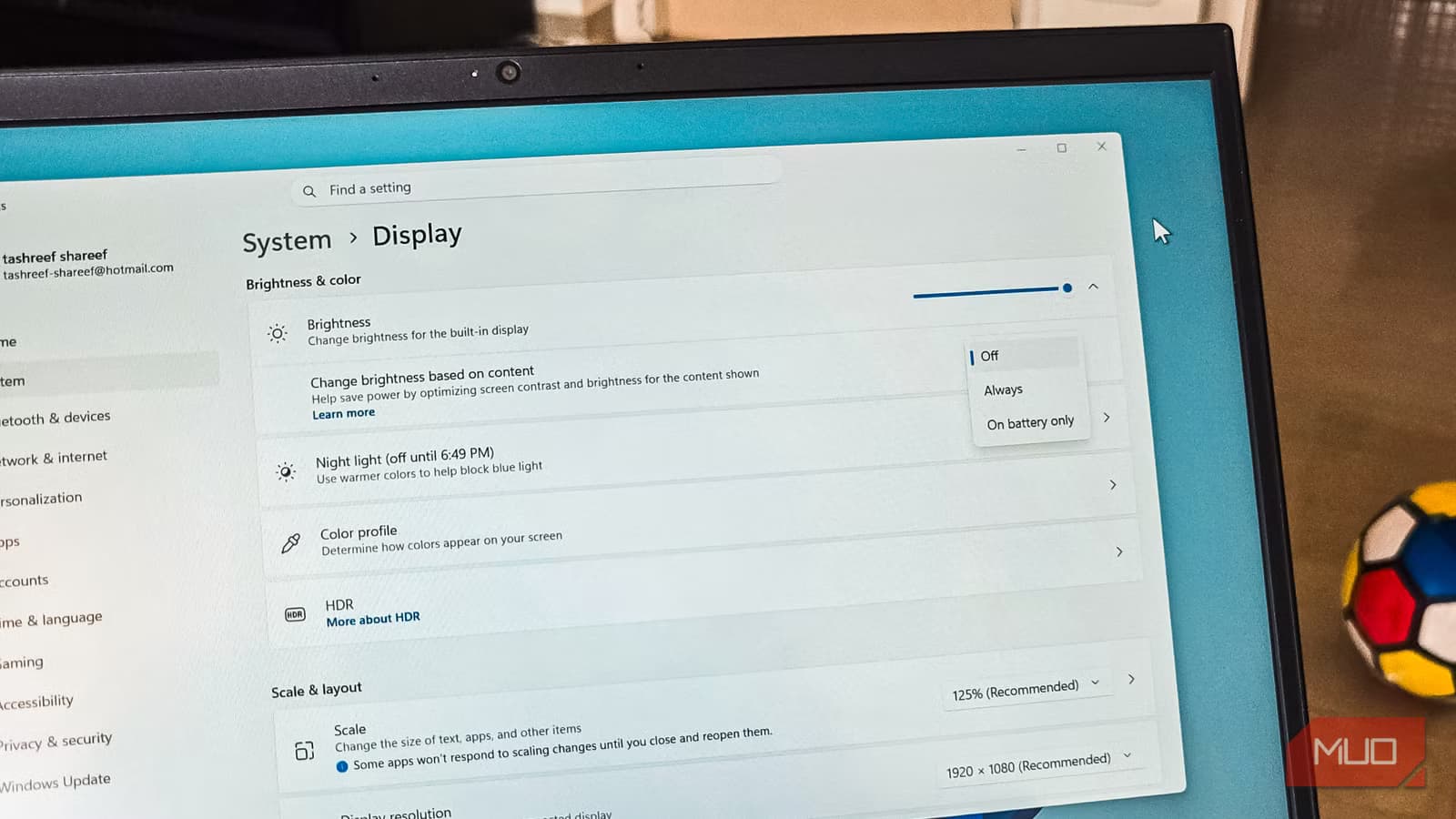
Key Takeaways
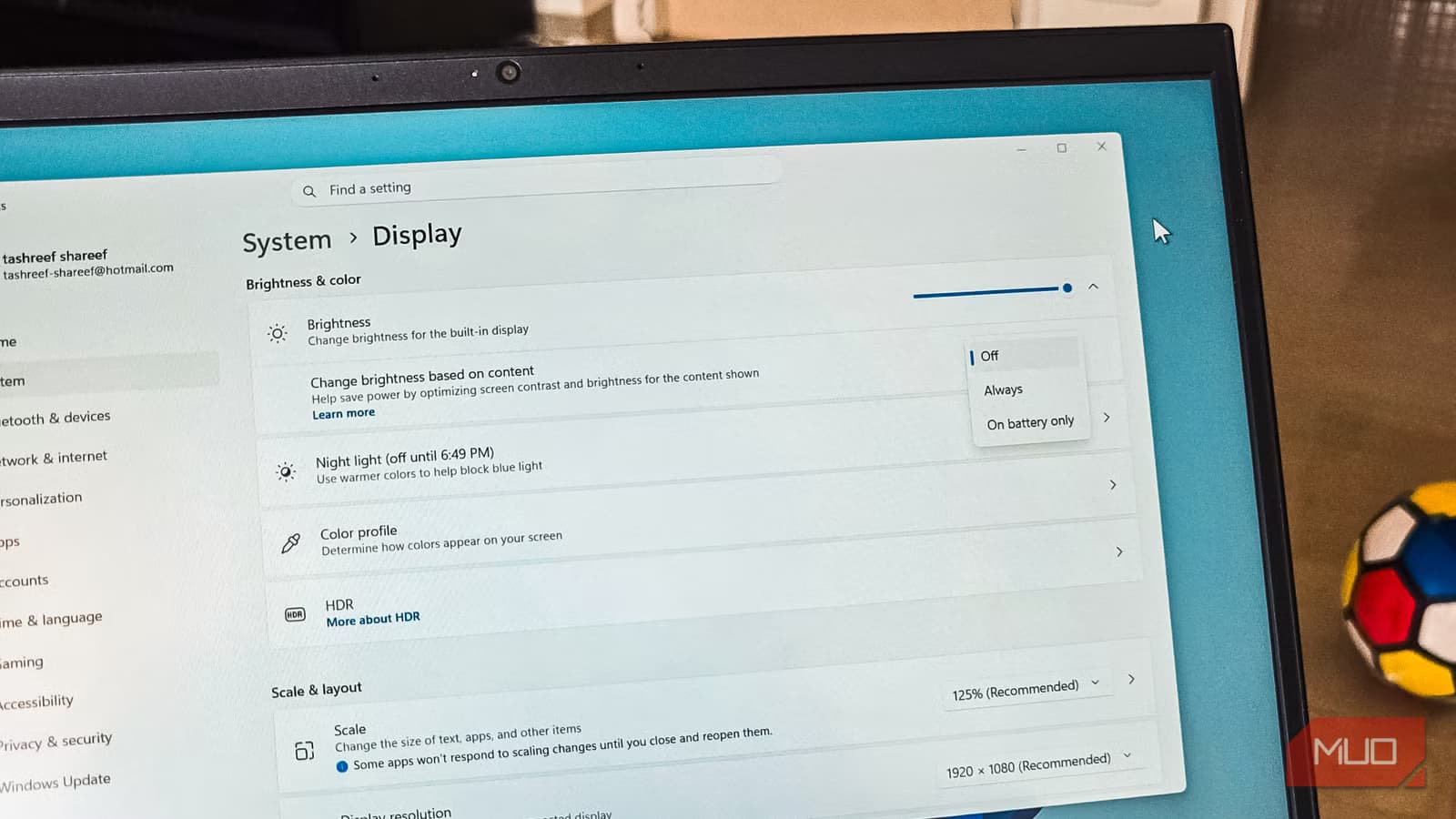
- Startup apps like Teams, Spotify, and OneDrive launch by default and consume resources even when you don't use them
- Transparency and animation effects tax your GPU and CPU during basic tasks with no visible benefit
- Switching from Balanced to Best Performance power mode unlocks CPU speed your system already has
Your hardware is fine. Your RAM is adequate. You upgraded to Windows 11 expecting a smoother experience. Instead, boot times stretched. Apps felt laggy. The Start menu took a second longer to appear.
You're not imagining it. Windows 11 ships with default settings that prioritize aesthetics and background services over raw performance. The operating system loads apps you never asked for, renders visual effects you don't notice, and throttles your CPU even when you could use the extra speed.
The good news: five settings changes can fix most of this. None require technical expertise. All take less than ten minutes combined.
Why Windows 11 Feels Slower Than Windows 10
Windows 11 uses a modern UI architecture called XAML/WinUI 3. This framework makes menus look sleek and consistent. It also consumes more resources than the legacy Windows 10 approach.
Microsoft also enabled Virtualization-based Security (VBS) by default on many Windows 11 installations. VBS isolates sensitive processes in a hardware-protected container. It improves security but costs about 5% performance in gaming scenarios, according to benchmarks.
“The Windows 11 Start menu is quirkily bad... if data suggests the software you build frustrates a significant percentage of users, it means there's work left to be done.”
— Andy Young, Former Senior Software Engineer at Microsoft
With 400 million monthly active users as of 2024, Windows 11 adoption continues. But many users report the same frustration: their hardware didn't change, yet everything feels heavier.
1. Kill Unnecessary Startup Apps
Every time you boot your PC, Windows 11 launches a list of apps before you reach the desktop. Spotify, OneDrive, Microsoft Teams, and others load automatically whether you need them or not. Each adds a few seconds to boot time and keeps consuming memory afterward.
Press Ctrl + Shift + Esc to open Task Manager. Click the Startup tab. You'll probably find apps there you didn't know were running.
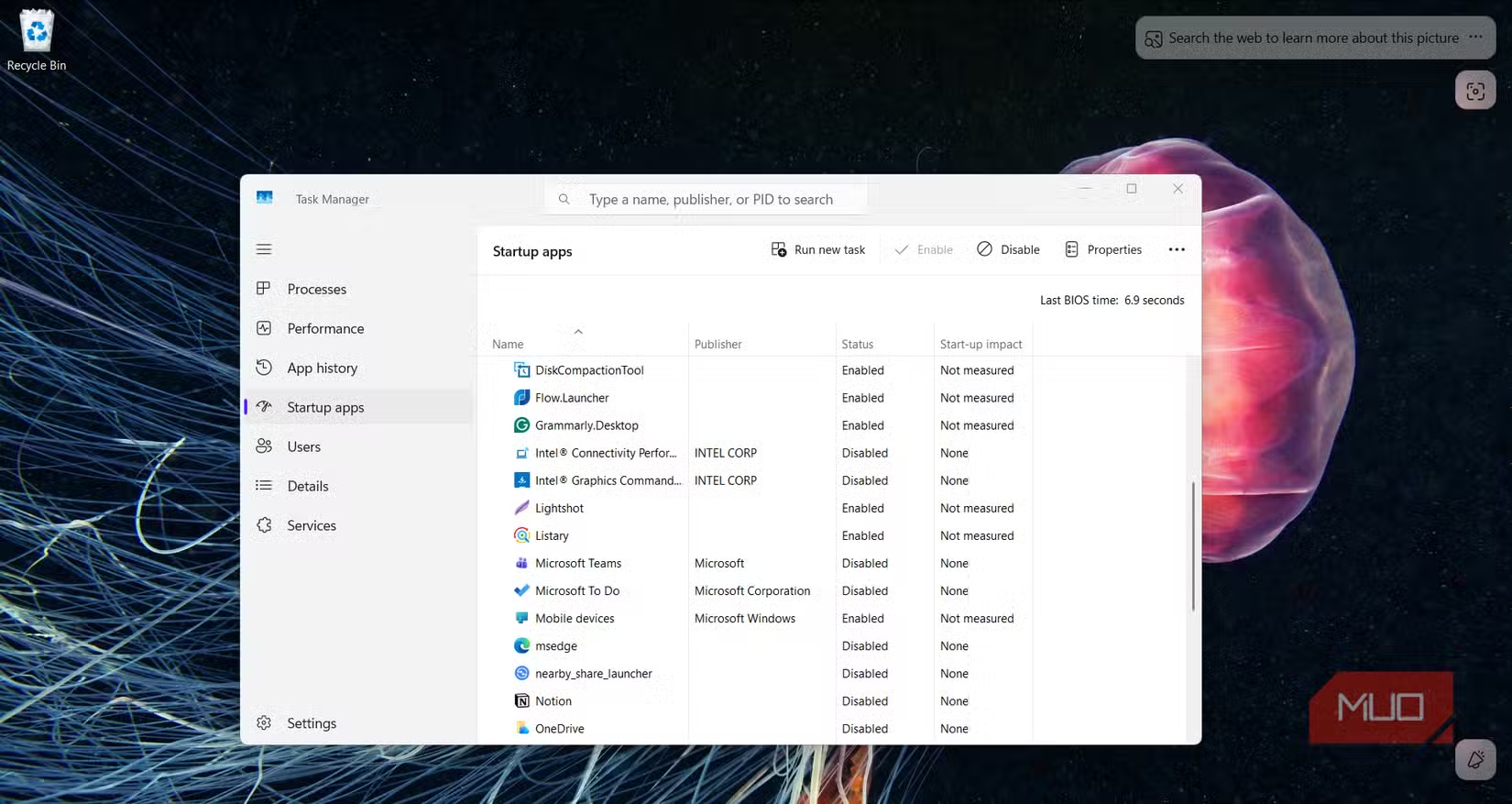
Right-click any app you don't need immediately at boot and select Disable. Keep essentials like your antivirus. Disable everything else. You can still launch these apps manually when you need them.
The impact is immediate. Your next restart will be noticeably faster.
2. Disable Visual Effects You Don't See
Windows 11 renders transparency effects, smooth animations, fade-ins on menus, and tooltip animations constantly. Your GPU and CPU work to display these even during basic tasks like opening File Explorer.
You probably don't notice most of these effects in daily use. But your hardware notices the workload.
Go to Settings > Accessibility > Visual effects. You'll find toggles for transparency and animation effects. Turn both off.
For more control, search for "Adjust the appearance and performance of Windows" in the Start menu. This opens a panel where you can disable every visual effect individually. A good approach: turn off everything except "Smooth edges of screen fonts" to keep text readable.
3. Switch to Best Performance Power Mode
Windows 11 defaults to Balanced power mode on most systems. This setting tells your CPU to hold back even when you could use full speed. It's designed to save energy and reduce heat.
If you're plugged in at a desk, you're sacrificing performance for no benefit.
Go to Settings > System > Power & battery. Look for Power mode and switch it to Best performance. On laptops, you can set different modes for plugged-in versus battery operation.
This change lets your CPU run at its actual speed instead of artificially limiting itself.
4. Limit Delivery Optimization Bandwidth
Windows 11 uses a feature called Delivery Optimization to download updates. By default, it can also upload update data to other PCs on your network or across the internet. This consumes bandwidth in the background without asking.
Go to Settings > Windows Update > Advanced options > Delivery Optimization. You can disable uploading to other PCs entirely, or limit the bandwidth Windows uses for downloads and uploads.
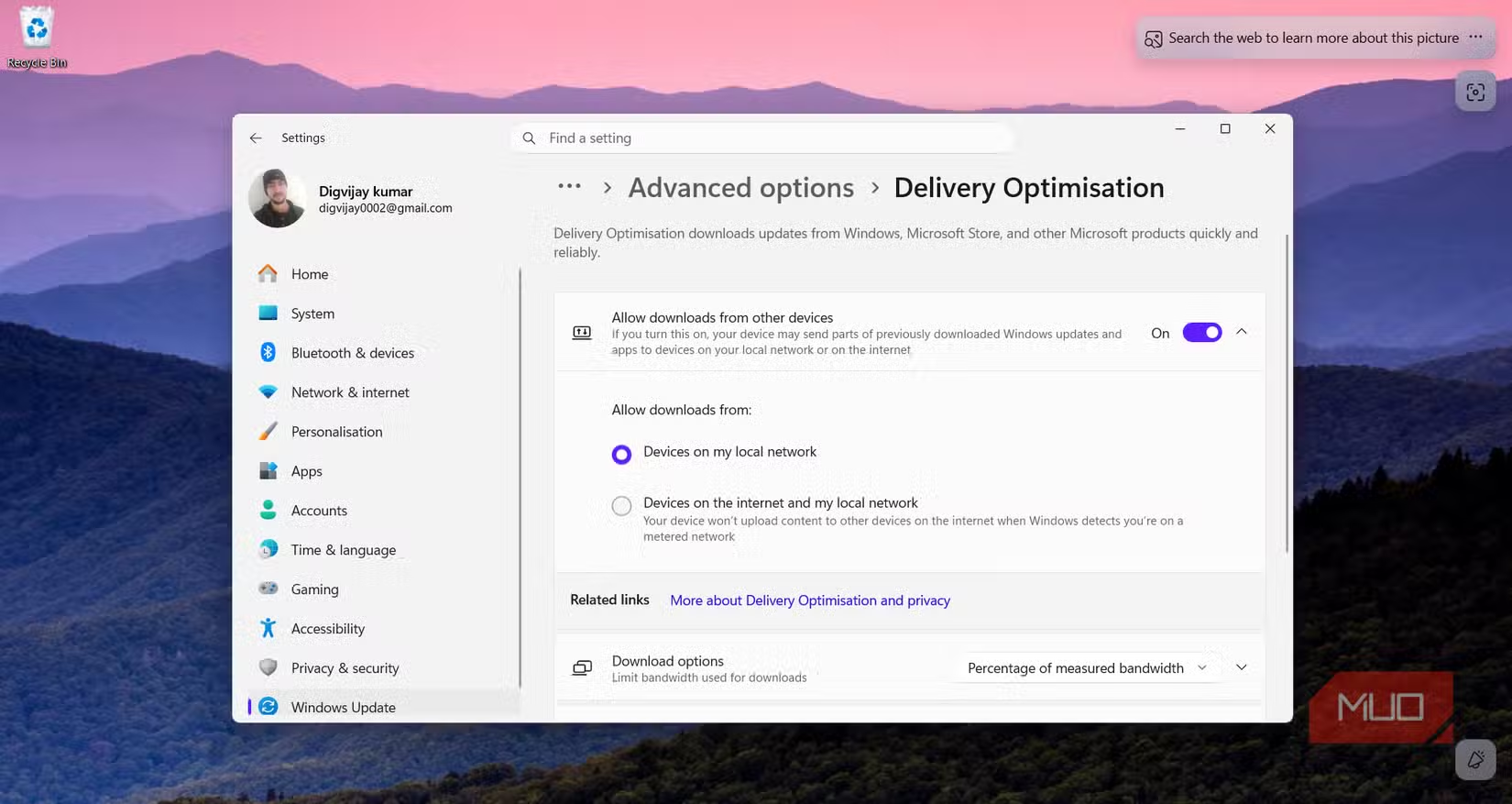
If your internet connection feels sluggish during Windows Update activity, this setting is often the cause.
5. Enable Hardware-Accelerated GPU Scheduling
This setting lets your GPU handle its own memory management instead of passing requests through the CPU first. It reduces latency in graphics-heavy applications and games.
Go to Settings > System > Display > Graphics > Change default graphics settings. Toggle on "Hardware-accelerated GPU scheduling" if your graphics card supports it.
Not all systems support this feature. If you don't see the option, your GPU driver may need an update, or your hardware may not be compatible.
The Context Menu Problem Microsoft Won't Fix
One performance issue you can't fix easily: the new right-click context menu. Windows 11 replaced the instant classic menu with a slower, truncated version. You now need to click "Show more options" to see the full menu.
Reddit and Hacker News threads overflow with registry hacks to force the Windows 10 menu back. The consensus among users: Windows 11 is "Windows 10 in a heavy, non-removable skin" that requires more clicks to complete the same tasks.
One viral comparison on X showed a 1990s Windows NT machine opening basic apps faster than a modern Windows 11 system. The thread struck a nerve because it matched what many users experienced daily.
What About VBS? Should You Disable It?
Virtualization-based Security protects your system from kernel-level attacks. It's a legitimate security feature. Disabling it recovers about 5% gaming performance but exposes your system to certain exploit categories.
For most users, the five settings above provide meaningful speed improvements without touching security features. If you're a gamer chasing every frame, you can research VBS disabling separately. Just understand the tradeoff.
Related analysis of Microsoft software tradeoffs
Logicity's Take
Frequently Asked Questions
Does Windows 11 actually run slower than Windows 10?
Yes, by default. Windows 11 uses a heavier UI framework and enables more background services. The same hardware often feels slower until you adjust settings.
Will disabling visual effects make Windows 11 look ugly?
You'll lose transparency and smooth animations. The interface still looks modern but feels more responsive. Most users don't notice the visual differences in daily use.
Is it safe to disable startup apps?
Yes. Disabling startup apps doesn't uninstall them. You can still launch them manually. Keep security software enabled but disable convenience apps like Spotify or Teams.
Should I disable Virtualization-based Security for better performance?
Only if you understand the security tradeoff. VBS costs about 5% gaming performance but protects against kernel-level attacks. Most users should leave it enabled.
Why did Microsoft make Windows 11 slower by default?
Microsoft prioritized security features and visual consistency over raw speed. The new UI architecture looks uniform across devices but consumes more resources than Windows 10's approach.
Need Help Implementing This?
Source: MakeUseOf
Manaal Khan
Tech & Innovation Writer
Produced with AI assistance and reviewed by the Logicity editorial team. Learn more in our Editorial Policy.