Key Takeaways
- Windows Sandbox lets you test suspicious apps in an isolated environment that wipes itself clean after each use
- BitLocker encrypts your entire drive, protecting data even if your laptop is stolen
- Hyper-V provides full virtual machine capabilities for running other operating systems alongside Windows
Windows Sandbox: Test Apps Without Risk
Windows Sandbox is one of the most helpful features in Windows 11 Pro, and one of the most overlooked. It creates a temporary virtual machine that runs completely separate from your main Windows installation. Every time you open it, you get a clean slate. When you close it, everything gets wiped.
This solves a common problem: testing software you don't fully trust. Downloaded a utility from a site you've never heard of? Launch it in Sandbox first. If the app behaves suspiciously or installs unwanted components, close the Sandbox and it's gone. Your main system stays untouched.
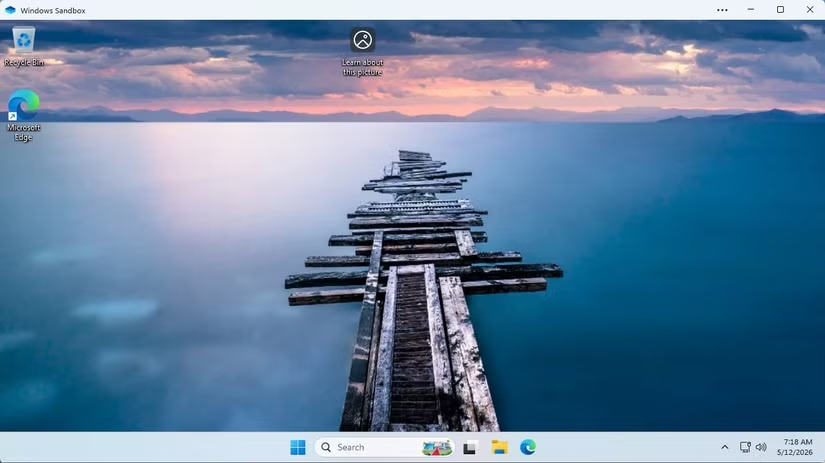
The Sandbox also works as a troubleshooting tool. When an app misbehaves and you can't figure out why, testing it in Sandbox removes all the variables. No custom settings, no conflicting software, no registry tweaks from years of use. If the app works fine in Sandbox but fails on your main system, you've narrowed the problem to something in your configuration.
To enable Windows Sandbox, search for "Turn Windows features on or off" in the Start menu. Check the box for Windows Sandbox and restart your PC. After that, you can launch it from the Start menu like any other app.
BitLocker: Full Disk Encryption
BitLocker encrypts your entire drive. If someone steals your laptop, they can't access your files by removing the hard drive and plugging it into another computer. Without your password or recovery key, the data is unreadable.
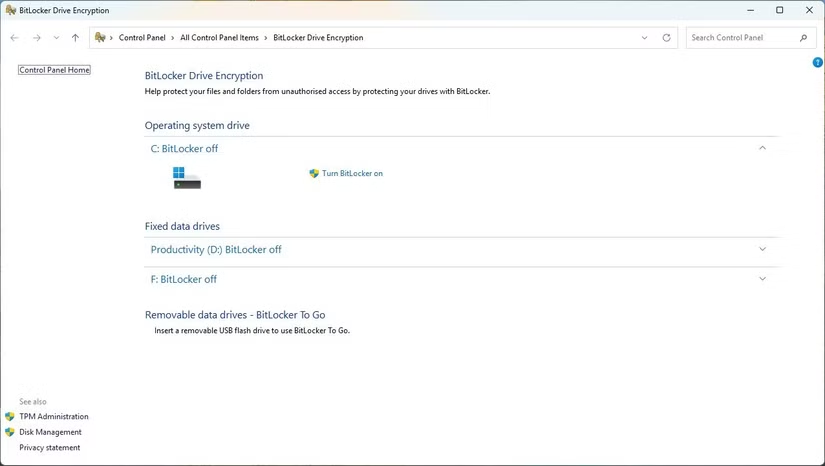
Windows 11 Home lacks this feature. You can use third-party encryption tools, but BitLocker integrates directly with Windows and works seamlessly with TPM chips for hardware-based security. Setup takes a few clicks: right-click your drive in File Explorer, select "Turn on BitLocker," and follow the prompts.
Save your recovery key somewhere safe. Microsoft offers to back it up to your Microsoft account, but you can also print it or save it to a USB drive. Lose the recovery key and forget your password, and you lose access to your data permanently.
Hyper-V: Run Full Virtual Machines
Hyper-V is Microsoft's hypervisor technology, and it lets you run complete operating systems inside virtual machines. Unlike Sandbox, which only runs Windows and resets every time, Hyper-V VMs are persistent. You can install Linux, older Windows versions, or experimental builds and keep them running as long as you want.
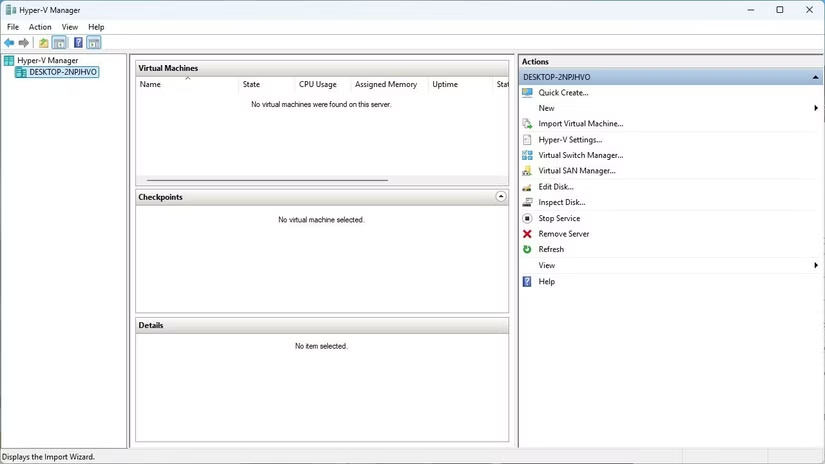
Developers use Hyper-V to test software across different environments. IT professionals use it to simulate network configurations. Hobbyists use it to experiment with new operating systems without buying extra hardware.
Enable Hyper-V the same way as Sandbox: search for "Turn Windows features on or off," check the Hyper-V box, and restart. The Hyper-V Manager app will appear in your Start menu, where you can create and manage virtual machines.
Remote Desktop Host
Windows 11 Home can connect to other computers via Remote Desktop. Windows 11 Pro can be connected to. That distinction matters if you want to access your home PC from elsewhere.
With Pro, you can enable Remote Desktop in Settings under System > Remote Desktop. Once enabled, you can connect from any device running the Remote Desktop app. This includes phones, tablets, Macs, and other Windows PCs.
For security, Remote Desktop works best over a VPN or with additional authentication measures. Exposing it directly to the internet is risky.
Group Policy Editor
The Group Policy Editor gives you fine-grained control over Windows settings that the regular Settings app doesn't expose. Want to disable specific features, enforce security policies, or customize behavior at a level beyond what Microsoft's UI allows? Group Policy is the tool.
Type "gpedit.msc" in the Start menu to launch it. The interface looks dated, but the power is real. You can control everything from Windows Update behavior to which apps can run at startup to how the taskbar behaves.
Home users can apply some registry tweaks manually, but Group Policy makes complex configurations manageable and reversible.
Logicity's Take
How to Check If You Have Windows 11 Pro
Press Windows + I to open Settings, then go to System > About. Under "Windows specifications," you'll see your edition listed. If it says "Windows 11 Pro," you have access to all these features. If it says "Windows 11 Home," you can upgrade through the Microsoft Store, though the price varies by region.
Another tool for power users who want more from their existing software
Frequently Asked Questions
Is Windows 11 Pro worth the upgrade from Home?
If you test unfamiliar software, need full disk encryption, or want to run virtual machines, yes. Sandbox, BitLocker, and Hyper-V justify the cost for power users. For basic web browsing and Office work, Home is sufficient.
Does Windows Sandbox slow down my computer?
It uses system resources while running, but closes cleanly without lingering effects. On modern hardware with 8GB+ RAM, the impact is minimal during use and zero when closed.
Can I lose data if I enable BitLocker?
Only if you lose your recovery key and forget your password. Save the recovery key to your Microsoft account, a USB drive, or print it. Without it, encrypted data is permanently inaccessible.
What's the difference between Windows Sandbox and Hyper-V?
Sandbox creates a temporary Windows environment that resets every time. Hyper-V runs persistent virtual machines that can use any operating system. Sandbox is simpler for quick testing. Hyper-V is more powerful for ongoing development or experimentation.
Do I need to buy separate licenses for Hyper-V virtual machines?
Hyper-V itself is free with Windows 11 Pro. However, operating systems running inside VMs need their own valid licenses. Windows VMs require separate Windows licenses. Linux VMs are typically free.
Need Help Implementing This?
Source: How-To Geek
Huma Shazia
Senior AI & Tech Writer
Produced with AI assistance and reviewed by the Logicity editorial team. Learn more in our Editorial Policy.