Key Takeaways
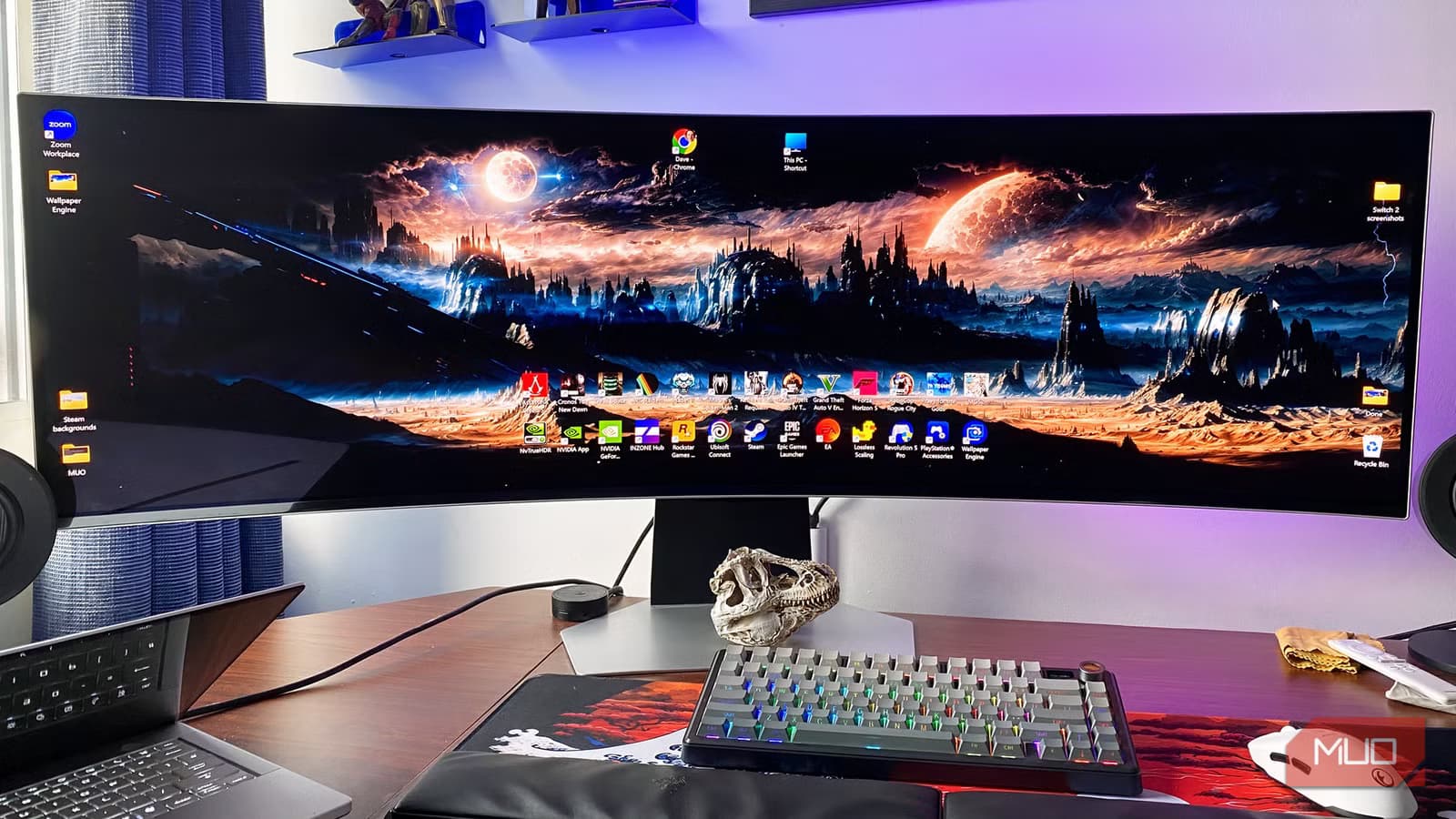
- Windows 11 was primarily designed with SDR in mind, making HDR performance inconsistent
- Refresh rate and resolution settings have more daily impact than HDR capabilities
- Before upgrading to an HDR monitor, calibrate your current display settings properly
HDR on Windows 11 has a reputation problem. For browsing and gaming, it often looks worse than standard SDR content. Microsoft built its latest OS primarily with SDR in mind, and the current PC monitor market is flooded with subpar HDR implementations that don't justify the premium.
Before you spend money chasing an HDR-compatible display, there are five settings on your current monitor that deserve your attention first. Getting these right will improve your daily experience far more than any HDR toggle.
1. Refresh Rate: The Setting Most People Get Wrong
Your monitor's refresh rate affects everything you do on your PC. Whether you're gaming, scrolling through documents, or navigating browser tabs, higher hertz means smoother motion and more responsive input.
Here's the problem: Windows doesn't always default to your monitor's maximum refresh rate. You might own a 120Hz or 240Hz display but still be running at 60Hz because you never checked the settings. The best 120Hz gaming monitors offer response times under 0.01ms, making gameplay feel incredibly responsive. But none of that matters if your system is stuck at half the available refresh rate.
To check this, go to Settings > System > Display > Advanced display. Confirm the refresh rate matches your monitor's maximum capability. This takes ten seconds and makes a bigger difference than any HDR setting.
2. Screen Resolution: Don't Leave Pixels on the Table
Similar to refresh rate, Windows sometimes fails to detect your monitor's native resolution automatically. Running a 4K display at 1080p wastes pixels you already paid for. Running a 1440p monitor at a non-native resolution creates blurry text and fuzzy icons.
Check Settings > System > Display and confirm your resolution matches your monitor's native spec. If you're unsure what that is, check your monitor's documentation or look up the model number. Native resolution should always be your baseline.
3. Color Accuracy: What Your Eyes Actually Notice
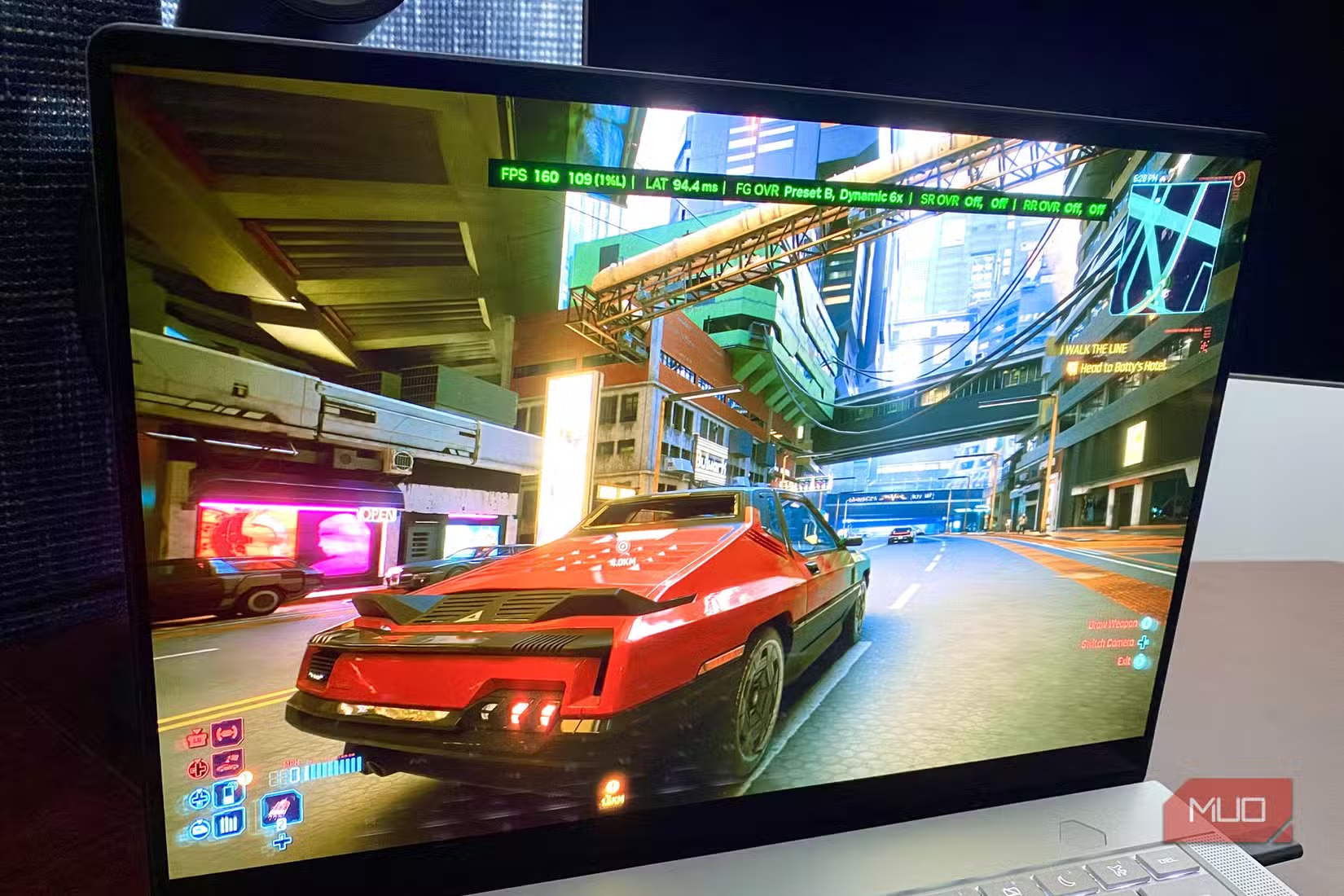
Color accuracy matters more than HDR for most daily tasks. A well-calibrated SDR display will show photos, videos, and documents more accurately than a poorly calibrated HDR panel showing washed-out highlights.
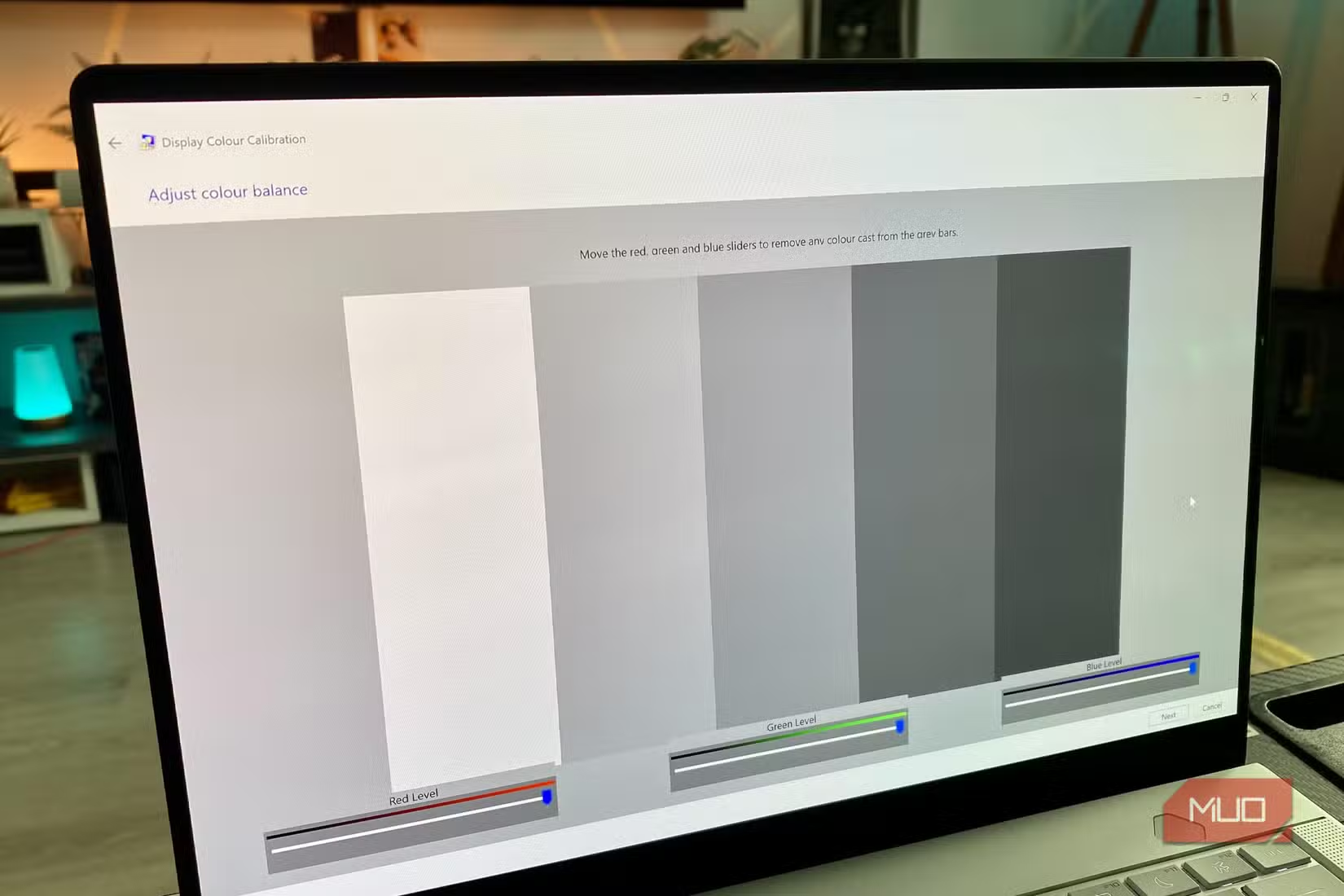
Windows 11 includes a built-in color calibration tool. Search for "Calibrate display color" in the Start menu. The wizard walks you through adjusting gamma, brightness, contrast, and color balance. It's not a replacement for a hardware colorimeter, but it's free and makes a noticeable difference.
If your monitor came with an ICC profile from the manufacturer, install it. These profiles tell Windows how your specific panel reproduces color, resulting in more accurate output across all applications.
4. DPI Scaling: Readable Text Without Squinting
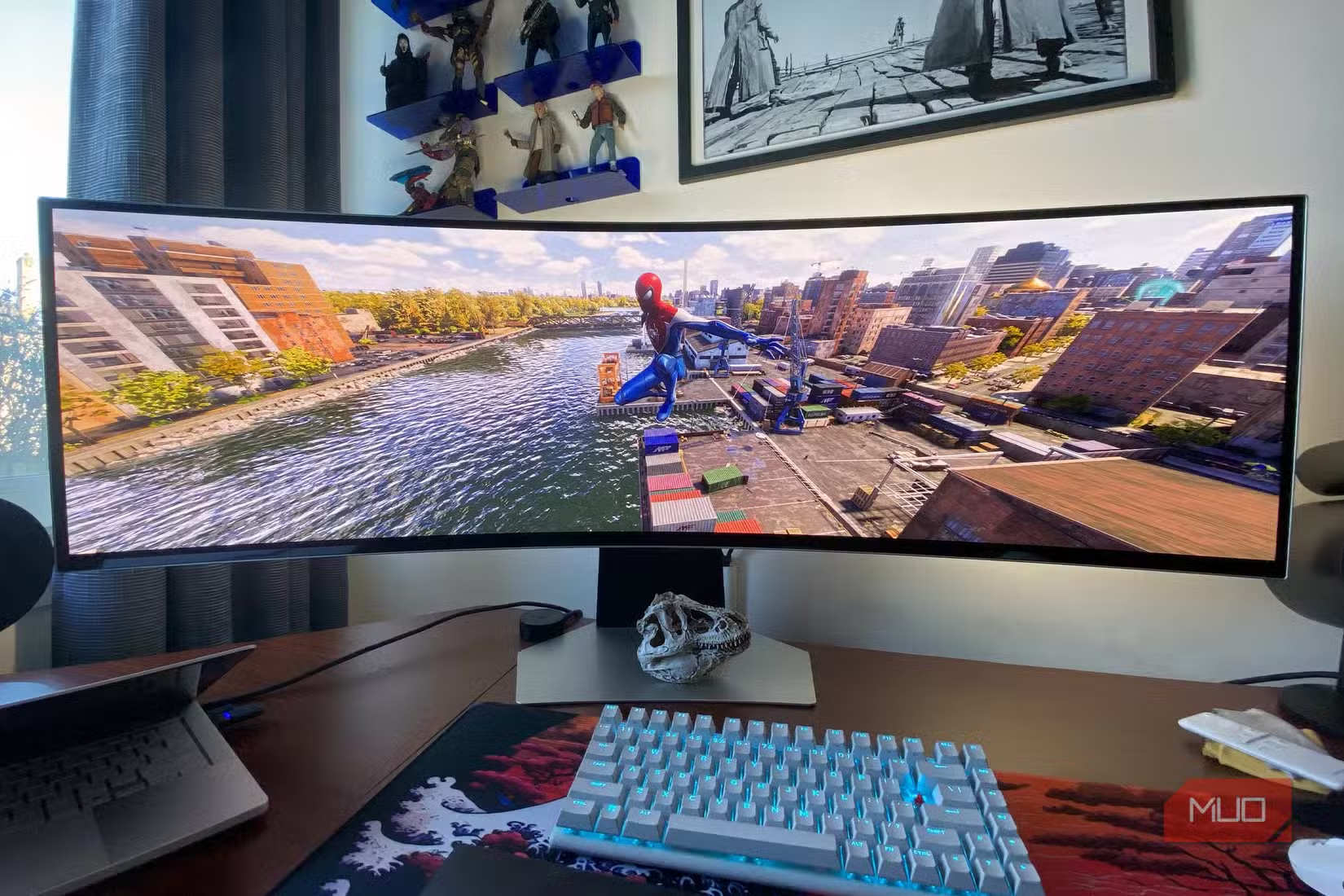
High-resolution displays pack more pixels into the same physical space. Without proper scaling, text and UI elements become tiny. Windows handles this through DPI scaling, which enlarges interface elements to remain readable.
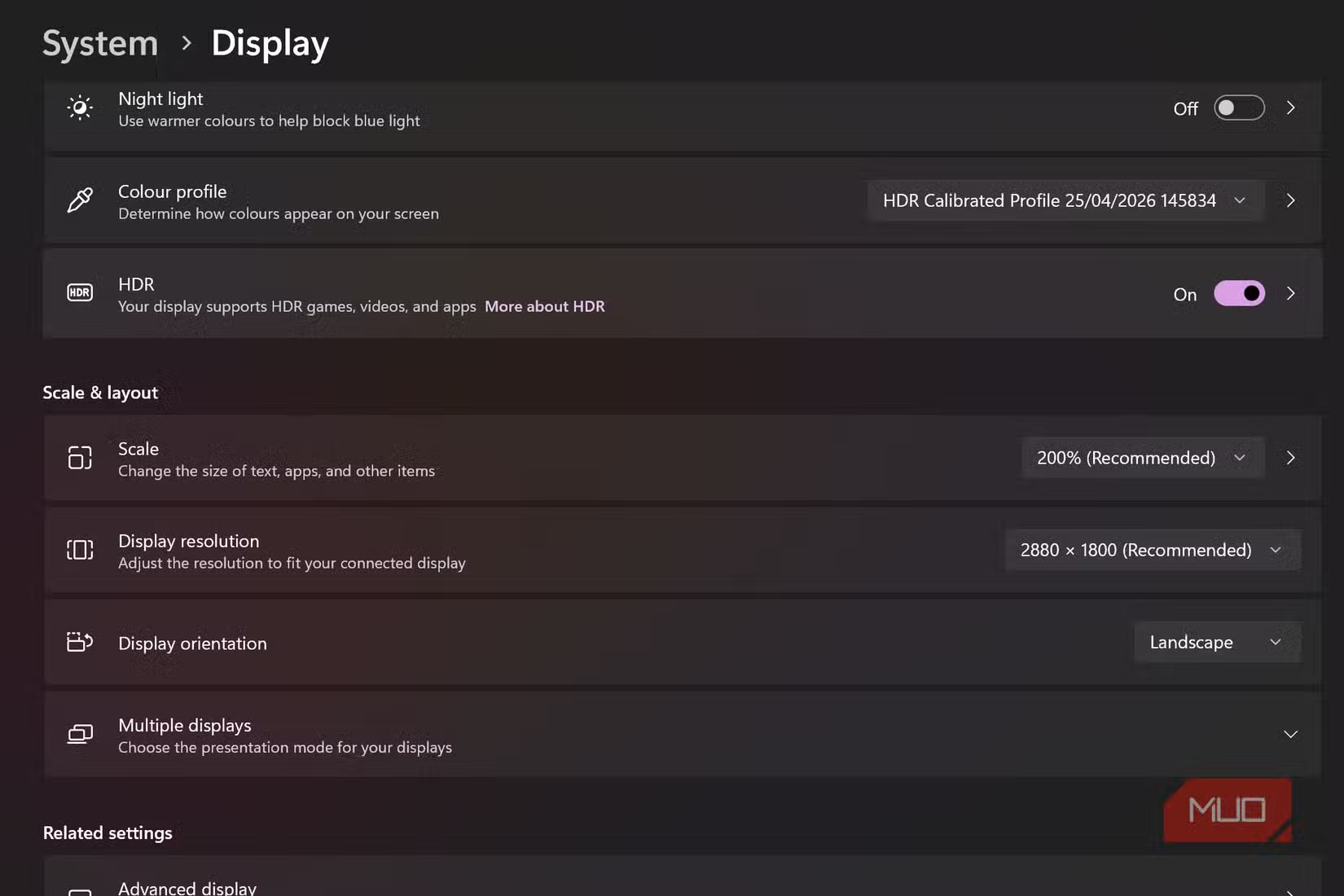
Go to Settings > System > Display > Scale. Windows recommends a percentage based on your resolution and display size, but you can adjust it. If you're leaning in to read text, increase the scale. If everything feels cramped, bump it up. There's no wrong answer here. Pick what's comfortable for your eyes and viewing distance.
5. Brightness and Contrast: The Foundations
HDR promises better brightness and contrast, but if your basic brightness and contrast settings are wrong, nothing else matters. Most monitors ship with brightness cranked to maximum for showroom appeal. This causes eye strain during long sessions and washes out dark content.
Adjust brightness to match your room lighting. In a dim room, lower brightness prevents eye fatigue. In a bright office, you may need more brightness to counter glare. Contrast should typically stay at default or slightly reduced. Pushing it too high crushes detail in shadows and highlights.
Use your monitor's physical buttons or OSD menu for these adjustments. Windows brightness controls work, but direct monitor adjustments usually give better results.
When HDR Actually Makes Sense
HDR isn't worthless. On a high-quality OLED or Mini-LED display with proper Windows support, HDR content can look stunning. The problem is that most HDR monitors on the market don't meet the brightness and local dimming requirements to deliver a meaningful HDR experience.
If you're buying a monitor primarily for HDR, look for DisplayHDR 1000 or higher certification. Entry-level HDR 400 badges are largely marketing. These displays often struggle to produce visible HDR improvements over well-calibrated SDR.
Logicity's Take
The Bottom Line
Before you chase HDR, make sure your current setup is running at its best. Confirm your refresh rate is maxed out. Verify your resolution is native. Calibrate your colors. Adjust scaling for readability. Set brightness and contrast for your environment. These five settings affect everything you do on your PC. HDR affects a small slice of content, and on most displays, not for the better.
Another practical Windows hardware configuration guide
Frequently Asked Questions
Why does HDR look bad on Windows 11?
Windows 11 was designed primarily with SDR in mind. HDR implementation remains inconsistent, and many PC monitors lack the brightness and local dimming capabilities to deliver a proper HDR experience.
How do I check my monitor's refresh rate in Windows 11?
Go to Settings > System > Display > Advanced display. The current refresh rate is shown there, along with options to change it if your monitor supports higher rates.
What refresh rate should I use on Windows 11?
Use the highest refresh rate your monitor supports. If you have a 144Hz display, select 144Hz. Higher refresh rates provide smoother motion and more responsive input for both gaming and productivity.
Is an HDR monitor worth buying for Windows 11?
Only if you buy a high-quality panel with DisplayHDR 1000 or higher certification. Entry-level HDR 400 monitors rarely deliver meaningful HDR improvements over well-calibrated SDR displays.
How do I calibrate my monitor colors in Windows 11?
Search for 'Calibrate display color' in the Start menu. Windows includes a built-in wizard that guides you through gamma, brightness, contrast, and color balance adjustments.
Need Help Implementing This?
Source: MakeUseOf
Manaal Khan
Tech & Innovation Writer
Produced with AI assistance and reviewed by the Logicity editorial team. Learn more in our Editorial Policy.