Key Takeaways
- Baobab provides a visual map of disk usage, making it easy to spot large files and folders
- BleachBit safely removes cached packages, old kernels, and temporary files that accumulate over time
- Linux keeps old kernel versions by default, each taking about 600MB, requiring manual cleanup
The Hidden Storage Problem on Linux
Linux file systems are efficient, but they accumulate junk over time. APT package caches, orphaned configuration files, thumbnail caches, and old kernel versions all pile up silently. Unlike Windows, Linux doesn't purge these automatically. It leaves that choice to you.
The problem compounds. Every time you install or upgrade an app, the downloaded package gets cached. Flatpak runtimes stack up. Kernel updates keep older versions around as a fallback option. Before long, you're staring at a "disk full" warning with no obvious culprit.
“The most dangerous thing for a new Linux user is assuming that their disk space will magically manage itself without occasional intervention.”
— Elena Rossi, Linux Systems Administrator
Tool 1: Baobab for Visual Disk Analysis
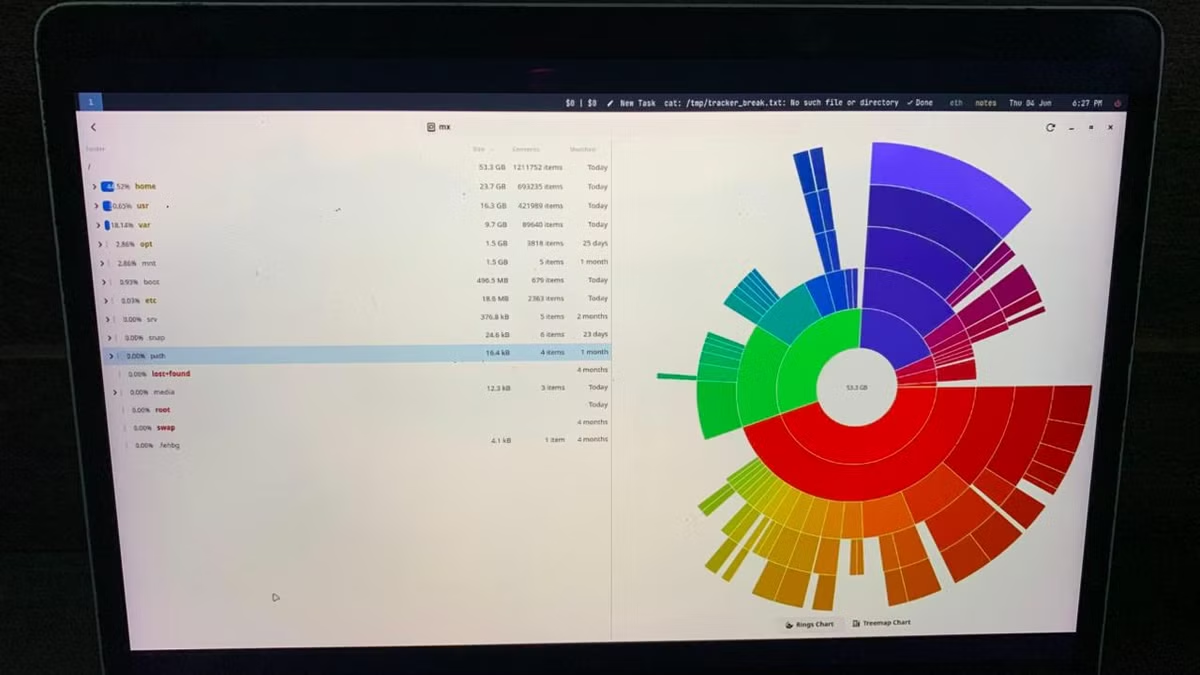
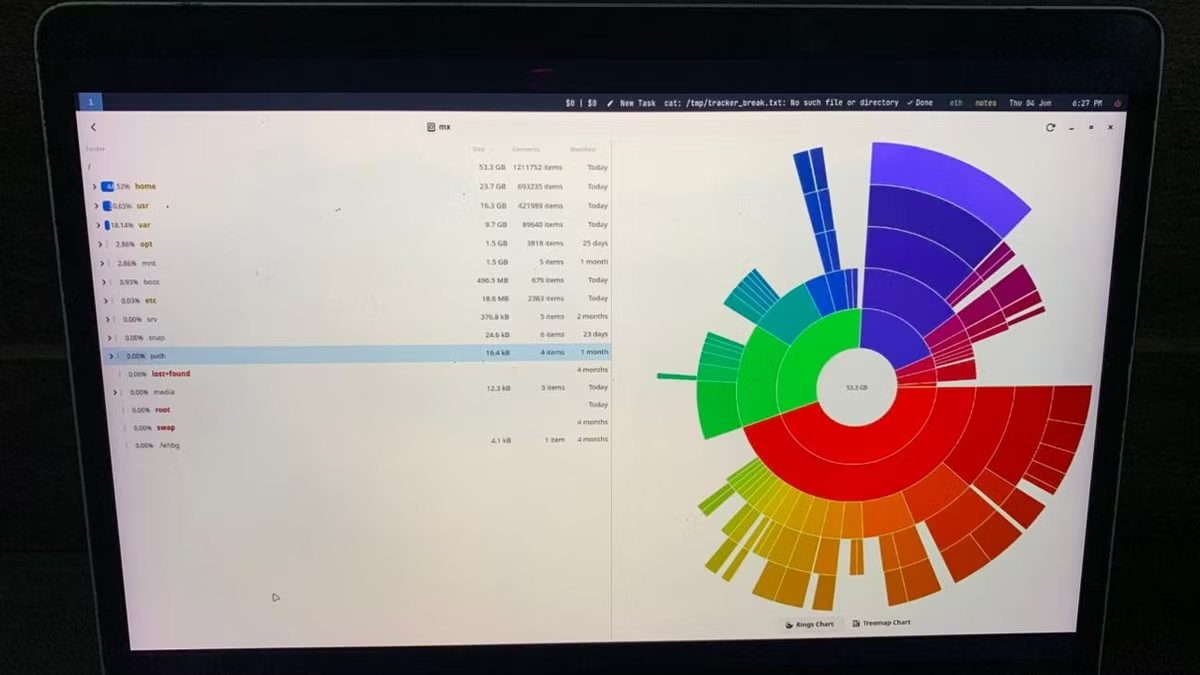
Baobab, also called Disk Usage Analyzer, ships with GNOME and provides a visual breakdown of your storage. About 70% of Linux desktop users run GNOME, so this tool is likely already installed on your system.
Open Baobab, select a directory or drive, and it scans your files. The result is a treemap or ring chart showing exactly which folders and files consume the most space. Large downloads, forgotten ISO files, bloated cache directories become immediately visible.
For terminal-first users, the community on Reddit's r/linuxquestions often suggests ncdu as a CLI alternative. It's faster for power users comfortable with keyboard navigation. But for anyone who prefers clicking to typing, Baobab is the standard recommendation.
Tool 2: BleachBit for System Cleanup
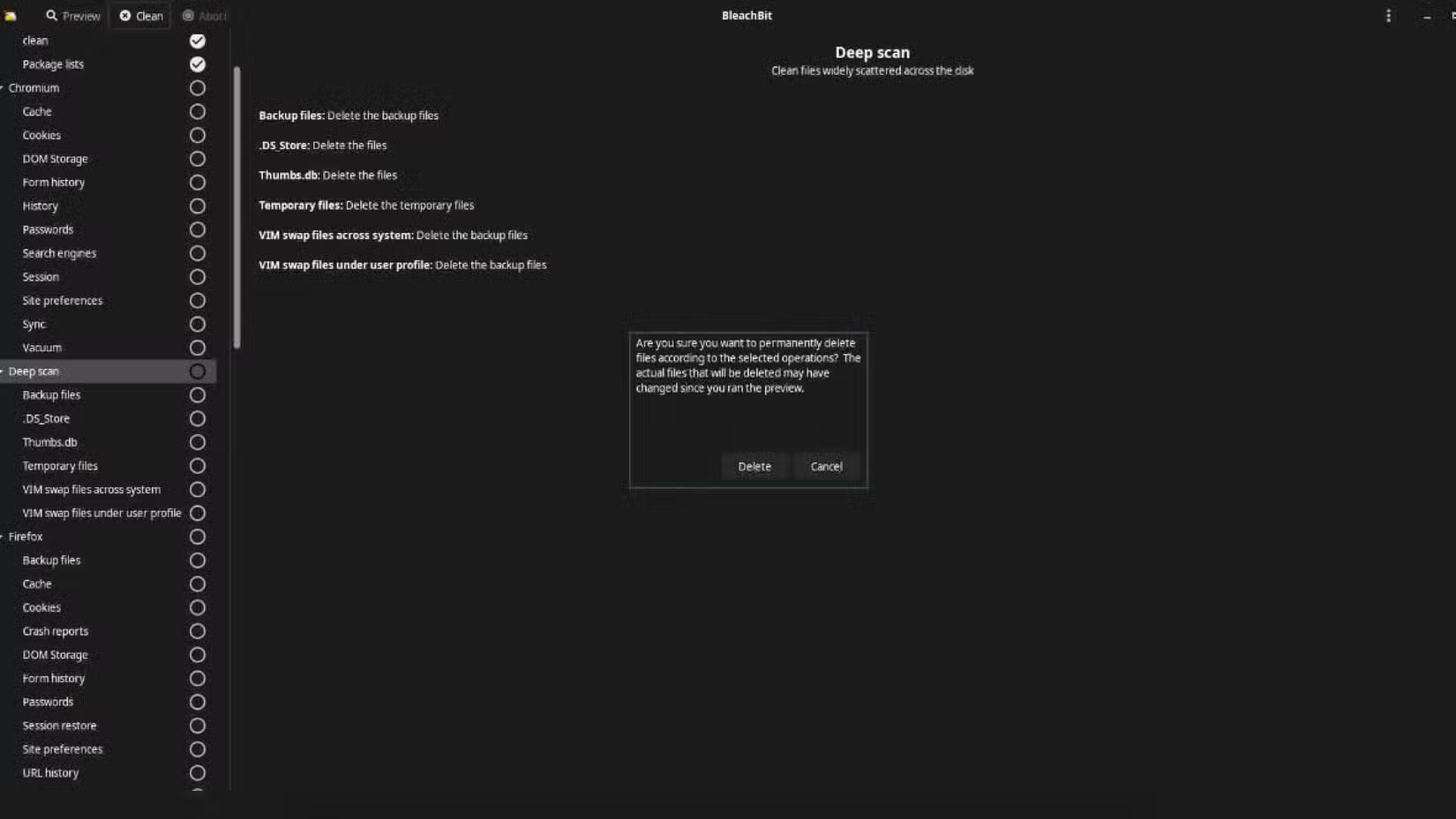
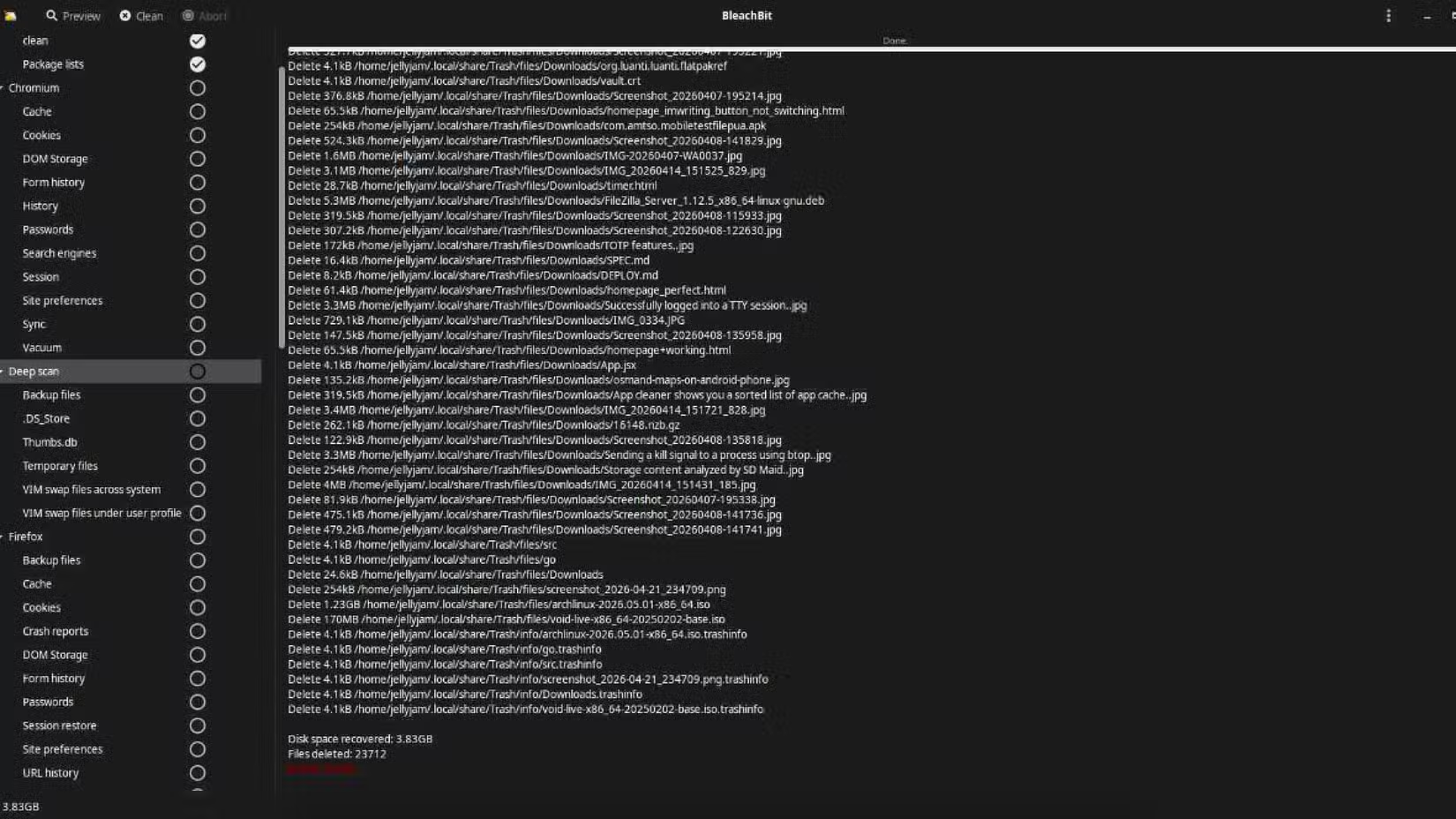
Baobab shows you what's eating space. BleachBit removes the junk safely. It targets cached packages, temporary files, browser caches, thumbnail databases, and other system clutter that builds up over months of use.
Install BleachBit from your package manager. Run it, select the categories you want to clean, and let it scan. Before deleting anything, it shows you exactly what it found and how much space you'll recover. No surprises.
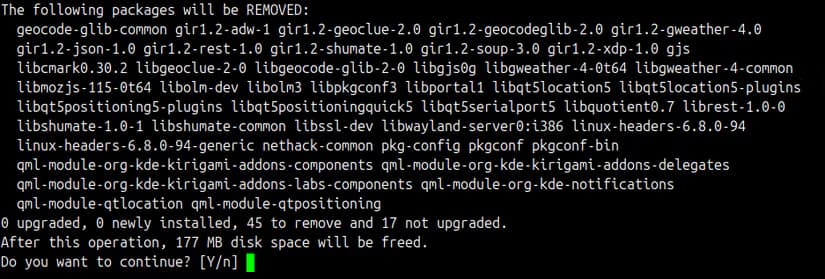
One caution from the Hacker News community: always have a recent backup before running deep-scan cleaning tools on system directories. BleachBit is safe when used correctly, but accidents happen when users check boxes they don't understand.
The Kernel Cache Problem
Here's a storage hog most users don't know about. Linux keeps old kernel versions after updates. If the new kernel breaks something, you can boot into an older one. That's useful. But each kernel takes about 600MB, and they accumulate fast.
Check your current kernel version with this command:
uname -rThen list all installed kernels:
dpkg --list | grep linux-image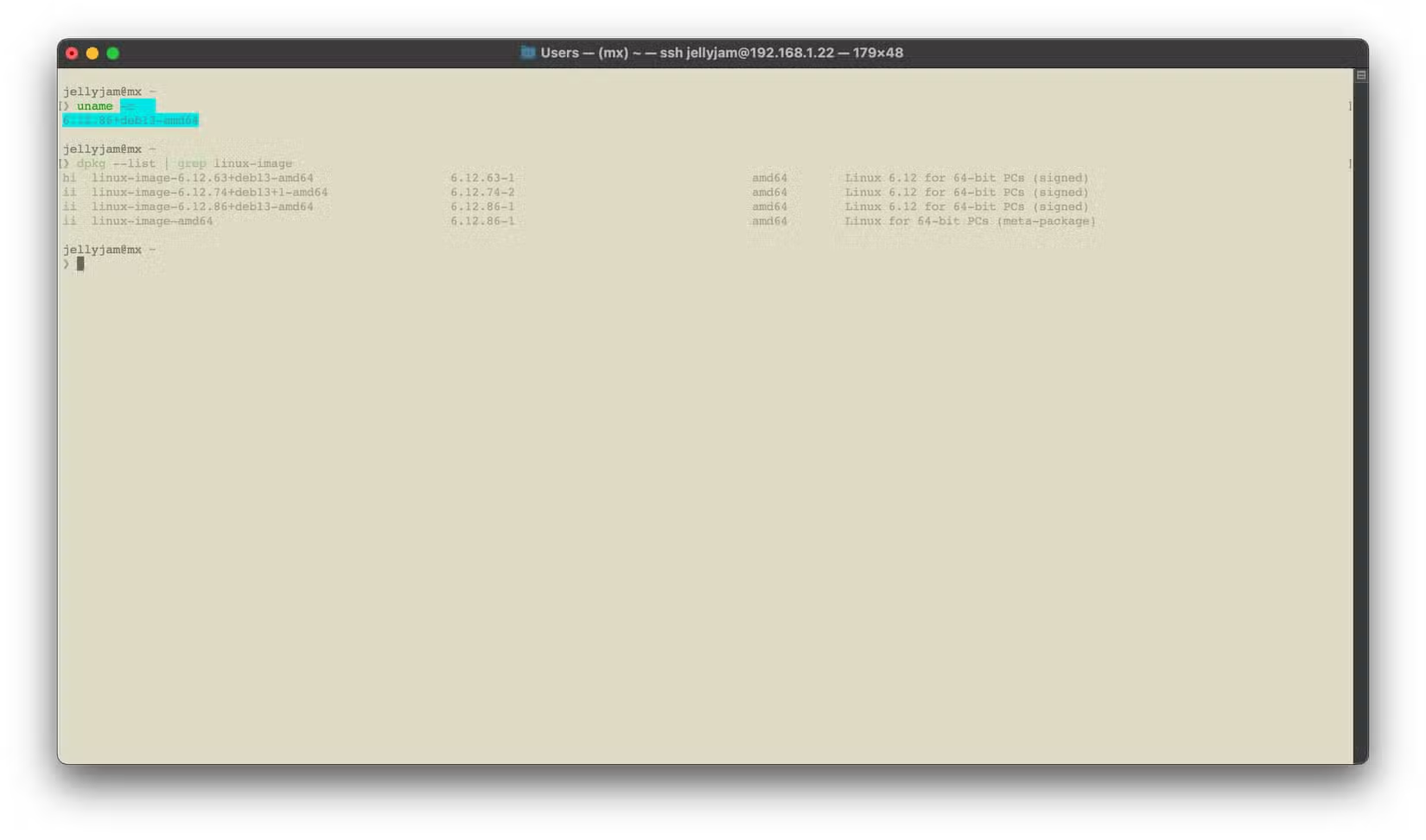
If you see five or six kernel versions, you might be wasting 3GB or more. The apt autoremove command cleans up old kernels and other orphaned packages:
sudo apt autoremove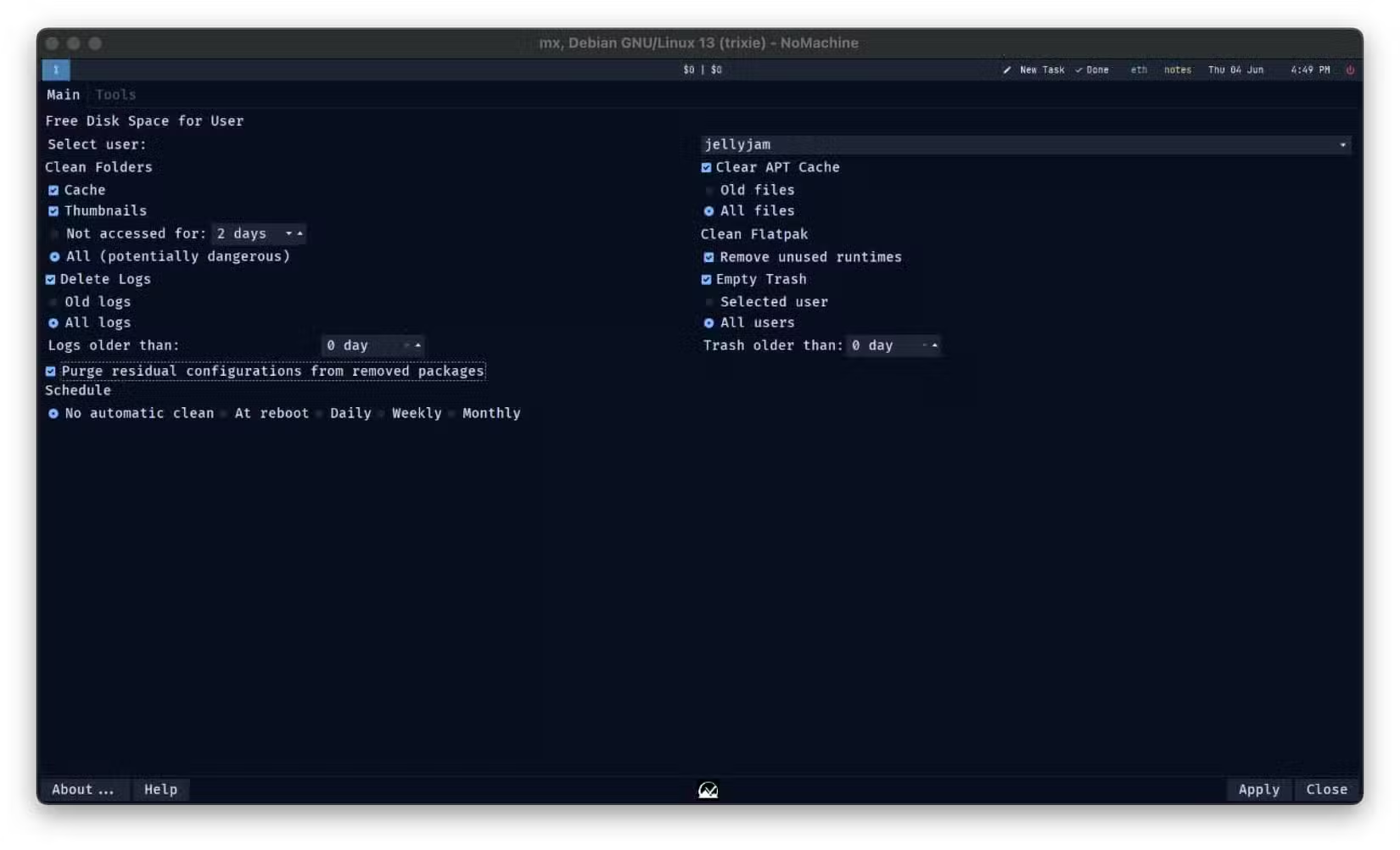
What's Safe to Delete
Two categories of files can go. First, personal files you downloaded and forgot about. Baobab helps you find these. Delete them manually like any other file.
Second, system junk. This includes:
- APT package caches (downloaded installers you already used)
- Old Flatpak runtimes (shared libraries from outdated versions)
- Thumbnail caches (preview images for files you may have deleted)
- Browser caches and temporary files
- Old kernel versions beyond the most recent backup
BleachBit handles most of this automatically. For kernel cleanup specifically, apt autoremove is the standard approach.
Five Minutes to Gigabytes
Combining visual analysis with automated cleanup typically takes about five minutes and recovers several gigabytes. Run Baobab first to understand where space is going. Then use BleachBit to clear system caches. Finish with apt autoremove for kernel cleanup.
This isn't a one-time fix. Add it to your monthly maintenance routine. Linux won't manage this for you, but with the right tools, you don't need to spend hours on it either.
Logicity's Take
Frequently Asked Questions
Is it safe to delete old Linux kernels?
Yes, as long as you keep the current kernel and one backup version. The apt autoremove command does this safely by default, only removing kernels it considers obsolete.
What's the difference between Baobab and BleachBit?
Baobab is a visual analyzer that shows you what's using space. BleachBit is a cleaner that removes system junk. Use Baobab to find personal files to delete manually, BleachBit to clear caches and temporary files.
Will BleachBit delete my personal files?
No. BleachBit targets system caches, temporary files, and application data like browser history. It won't touch your documents, photos, or other personal files unless you specifically select options that affect them.
How often should I clean up Linux storage?
Monthly is reasonable for most users. If you install and remove many packages, or if you use Flatpaks heavily, consider more frequent cleanups.
Does this work on all Linux distributions?
Baobab comes with GNOME and is available on most distributions. BleachBit is widely available in standard repositories. The apt commands shown are for Debian-based systems like Ubuntu. Other distributions have equivalent package manager commands.
Related productivity approach for managing recurring tasks
Need Help Implementing This?
Source: How-To Geek
Manaal Khan
Tech & Innovation Writer
Produced with AI assistance and reviewed by the Logicity editorial team. Learn more in our Editorial Policy.