Key Takeaways
- Use Auto Unlock to bypass your Mac password with your watch.
- Master double-tap and wrist flick gestures for one-handed control.
- Utilize the Compass Backtrack feature to navigate remote areas.
Every version of Apple hardware gets pored over, but some Apple Watch features still fly under the radar. While users often hunt for secret functions, these tools simply wait in the settings menus for discovery. If you want to get more utility out of your wrist-worn device, here are 10 lesser-known ways to customize your experience in minutes.
How can I unlock my Mac with my watch?
The Auto Unlock feature has existed since macOS Sierra, yet many skip it. It allows your Apple Watch to bypass your Mac login password automatically. A haptic click confirms your machine has opened the gate. While Touch ID on modern MacBooks has reduced its necessity, it remains essential for desktops, older hardware, or clamshell setups with external monitors. It also authenticates admin actions, mimicking Touch ID functionality.
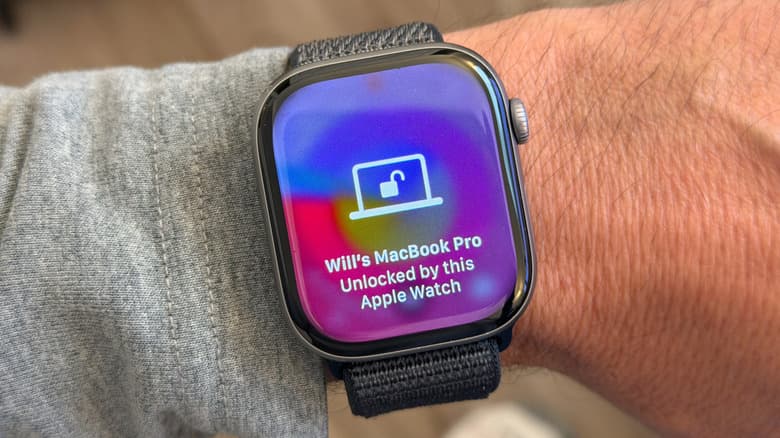
To activate this, navigate to System Settings on your Mac, select Touch ID & Password, and enable the toggle beside your watch's name. You must have Wi-Fi and Bluetooth active on both devices, be logged into the same Apple account, and have a passcode set on your watch.
Navigating with Compass Backtrack
The Compass app on the Apple Watch includes Backtrack, which records your path so you can retrace your steps if you get lost. This feature requires a Series 6 or later, or an SE model, running watchOS 10 or newer. By default, it activates automatically during workouts in remote locations. You can verify it is turned on by checking the Backtrack toggle under Settings > Compass on the watch.
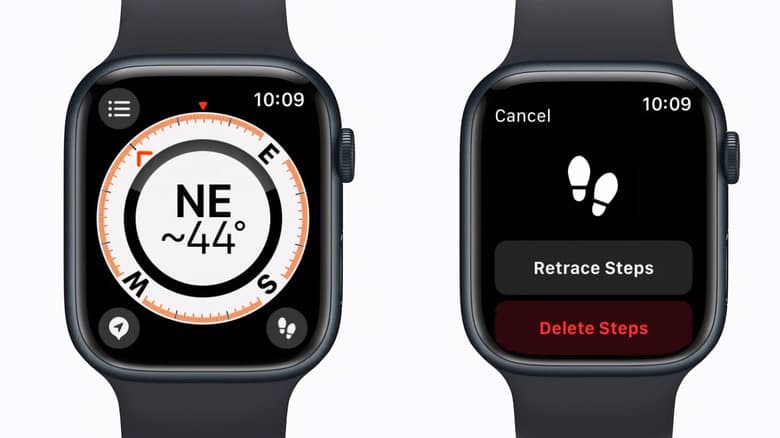
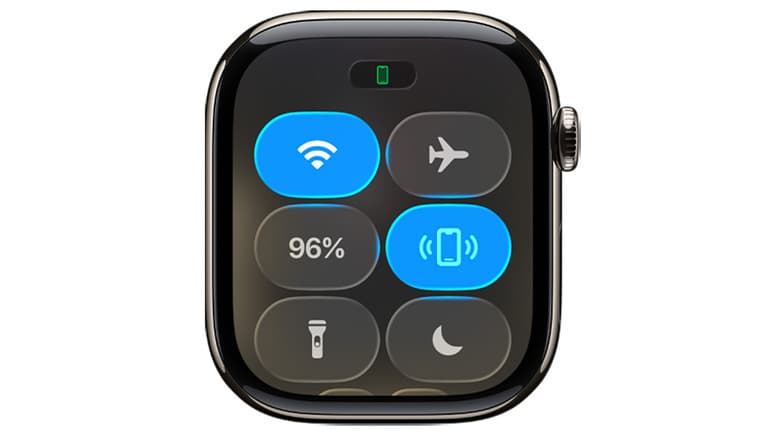
For added reliability, start it manually by adding a shortcut to your Control Center. If you own an Apple Watch Ultra, you can bind the Action button to start a record path session via Settings > Action Button. When returning, tap the pause button in the lower right corner, select Retrace Steps, and follow the directional arrow.
Mastering gestures for one-handed use
Recent watch models allow for complete one-handed control through specific gestures. The double-tap gesture, available on Series 9, SE 3, and Ultra 2 or later, lets you scroll through your Smart Stack, play or pause media, and answer calls by pinching your index finger and thumb together twice. This is particularly useful when your hands are occupied or messy.
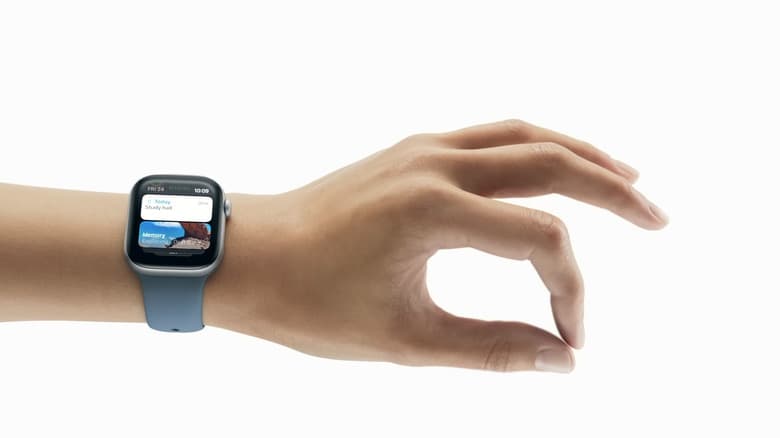
Introduced in watchOS 26, the wrist flick acts as a back button. By turning your wrist away from you and back, you can dismiss notifications, mute incoming calls, or stop timers. If you prefer older methods, Cover to Mute has been around since the first watch; covering the screen with your palm for three seconds silences an alert.
Using the watch as a remote shutter
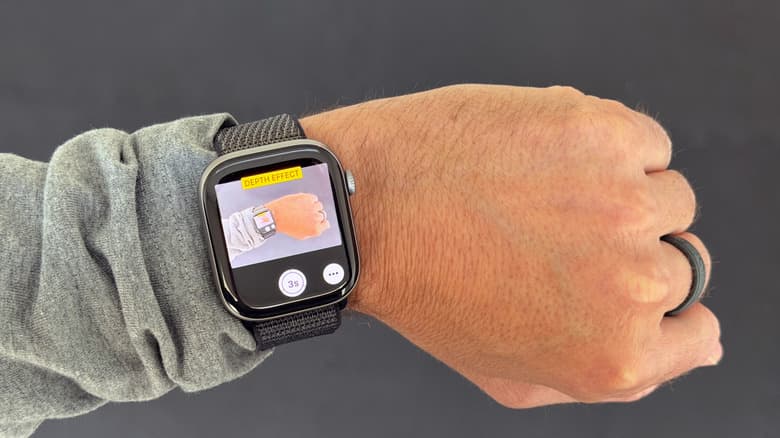
Setting up group photos or distance selfies is simple when you use your watch as a remote trigger. When you open your iPhone camera, a Smart Stack hint appears at the bottom of your watch face. Tapping this launches the Camera Remote app, allowing you to view the framing on your wrist and trigger the shutter.
Logicity's Take
These features highlight how Apple prioritizes hardware-software tight integration to solve small daily friction points. While the Apple Watch is often marketed for health, its real value for professionals lies in these high-utility, low-attention interactions that keep the phone in the pocket.
Offers context on how competing platforms are handling wearable and OS-level multitasking.
Frequently Asked Questions
Do I need a new watch for these gestures?
Double-tap and wrist flick require a Series 9, SE 3, or Ultra 2 and later.
Does Cover to Mute dismiss alerts?
No, it only mutes the alert. Wrist flick or standard dismissal is required to clear it.
Is AssistiveTouch available on all models?
It is an accessibility feature, but availability varies by hardware generation. Check your Settings menu.
Need Help Implementing This?
If you are having trouble syncing your devices or setting up custom shortcuts, check Apple's official support documentation for your specific watchOS version. Ensure all software is updated to the latest release.
Source: Engadget
Huma Shazia
Senior AI & Tech Writer
Produced with AI assistance and reviewed by the Logicity editorial team. Learn more in our Editorial Policy.