Key Takeaways
Top 10 Copilot Features in PowerPoint!🔥

- Copilot can generate first-draft presentations in minutes from prompts or existing documents
- The AI assistant works in agent mode by default, making direct edits to slides rather than just chatting
- Enterprise licensing requires separate Microsoft 365 Copilot add-on for organizations over 2,000 users
Microsoft's Copilot in PowerPoint can generate entire presentations from a prompt, pull content from Word documents, create images, and write speaker notes. For IT teams evaluating the $30 per user per month add-on, the practical question is simple: does it actually save time, and where does it still fall short?
The short answer: Copilot handles first drafts and repetitive formatting tasks well. It struggles with nuance, accuracy, and anything requiring genuine insight. Here's a breakdown of ten specific capabilities and what they mean for enterprise deployments.
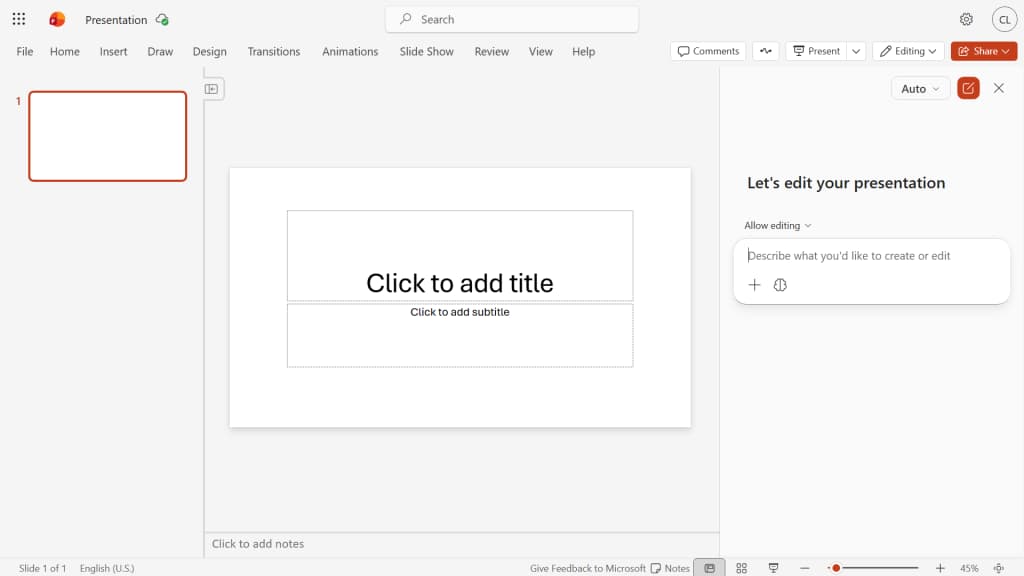
Who can actually use Copilot in PowerPoint?
Access depends on your license tier and organization size. Individual subscribers with Microsoft 365 Personal, Family, or Premium plans get Copilot access directly. Premium plan holders receive higher usage allowances and advanced features.
For enterprises, the math changes. Organizations with more than 2,000 users must purchase separate Microsoft 365 Copilot licenses on top of existing M365 subscriptions. Smaller organizations can use Copilot within M365 apps without the add-on, but with limitations on speed, usage caps, and feature availability.
You can check your access level by logging into Microsoft's Copilot Chat web hub. Look for your name in the lower left corner. "M365 Copilot (Premium)" means priority access and full features. "M365 Copilot (Basic)" means lower priority and limited capabilities. "Copilot Chat (Basic)" or no label means no in-app access, though you can still generate presentations through the Copilot Chat hub separately.
Agent mode vs. chat-only mode
By default, Copilot operates in "agent mode," meaning it can make direct changes to your presentation. It will create slides, edit text, and insert images directly into your deck. If you prefer Copilot to only suggest changes without touching your slides, click the "Allow editing" button above the chat window and switch to "Chat only."
Most of the time-saving features require agent mode. Keeping it in chat-only mode defeats much of the purpose.
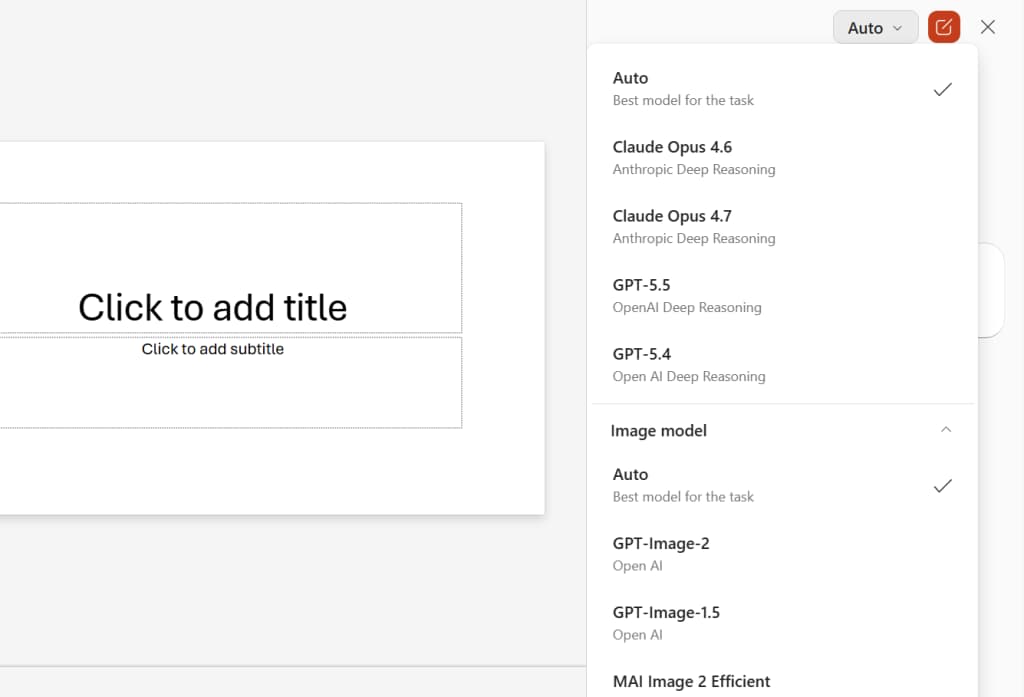
You can pick the AI model behind Copilot
Copilot isn't locked to a single AI engine. Behind the scenes, it can access different versions of OpenAI's GPT models and Anthropic's Claude. By default, Copilot selects which model to use based on your prompt. But you can override this by clicking "Auto" at the upper right of the Copilot pane and selecting a specific model from the dropdown.
This matters for IT teams because different models have different strengths. GPT-4 tends toward more creative outputs; Claude often handles longer documents more reliably. Experimenting with specific models for specific tasks can improve results.
1. Generate a presentation template with placeholder data
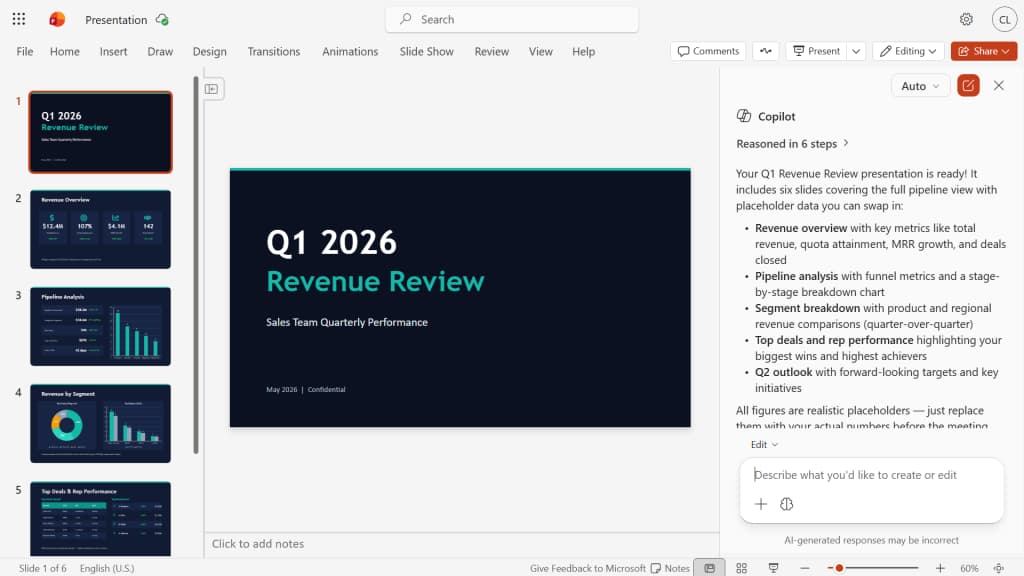
The blank-slide problem is real. Copilot addresses it by generating a complete presentation structure with placeholder content you can replace later. Start a new presentation, open the Copilot sidebar, and describe what you need.
Specificity matters. "Create a quarterly sales review" produces generic results. "Create a quarterly sales review for a SaaS company with slides for ARR growth, churn analysis, and pipeline forecast" produces something more useful.
2. Create a presentation from an existing document
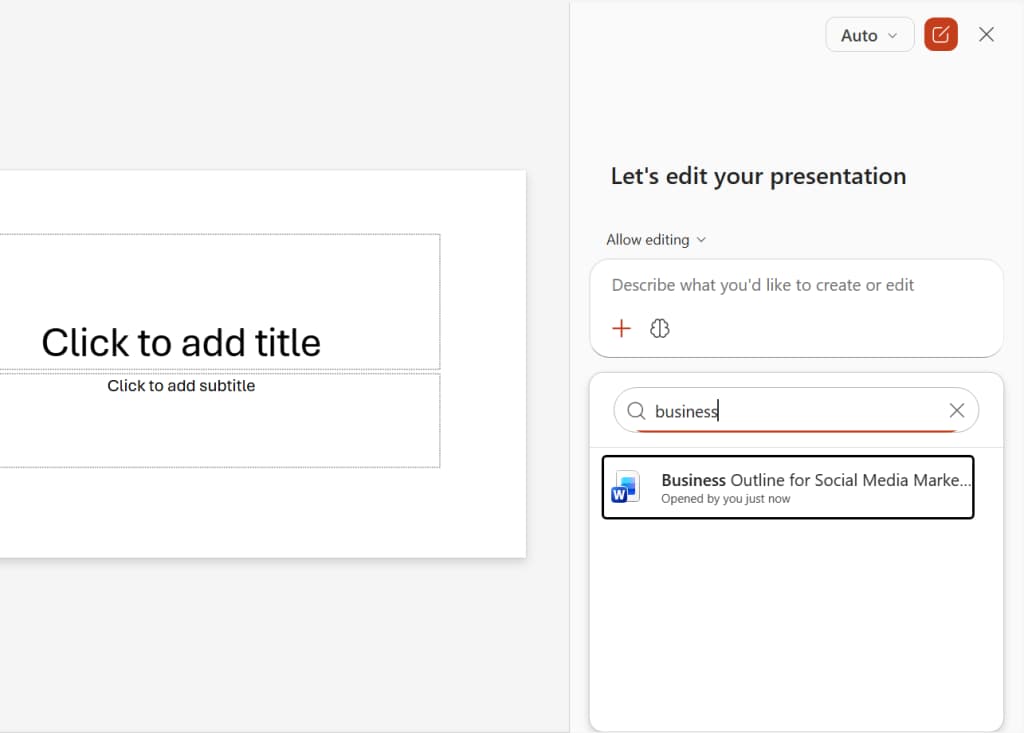
If you have a Word document, Copilot can convert it into a presentation. Attach the document to your prompt, and Copilot will extract key points, organize them into slides, and apply formatting. This works best with well-structured documents that have clear headings and sections.
The results aren't perfect. Copilot often includes too much text per slide and misses the logical flow of an argument. But as a starting point that gets you past the blank-page problem, it's faster than building from scratch.
3. Add content from spreadsheets to individual slides
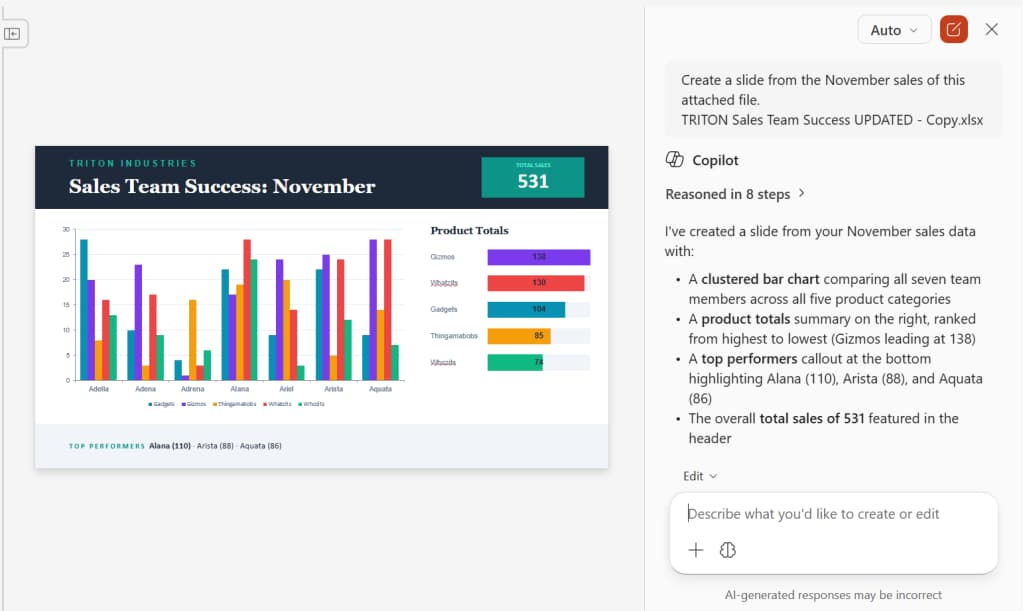
Copilot can pull data from Excel spreadsheets and create slides with charts or tables. This is particularly useful for financial presentations where the underlying data changes frequently. Instead of manually updating charts, you can ask Copilot to regenerate the slide from the updated spreadsheet.
4. Refine slide text without leaving PowerPoint
Copilot can rewrite, shorten, or expand text on your slides. Select a text block and ask Copilot to "make this more concise" or "add more detail about implementation timelines." The AI handles the editing within the slide, preserving formatting.
One warning: Copilot's rewrites tend toward corporate jargon. You'll still need to edit for voice and clarity.
5. Generate or find images
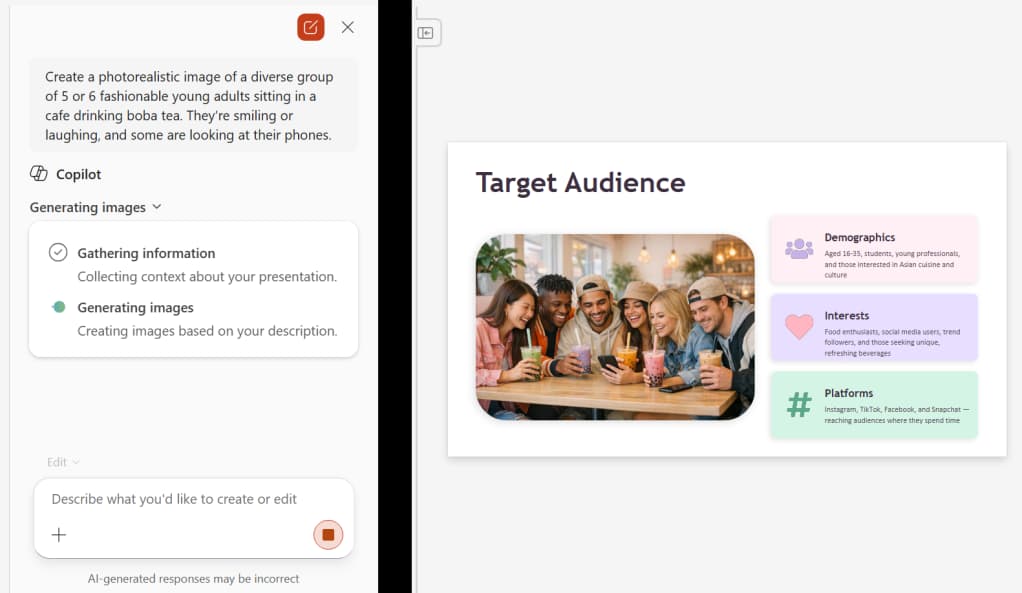
Copilot can create AI-generated images directly in PowerPoint or search for stock images that match your content. Describe what you need, and Copilot will generate options. The quality varies. Abstract concepts and illustrations work better than realistic images of specific scenarios.
6. Add relevant slides to expand a presentation
If you need to add slides on a related topic, Copilot can generate them based on the existing presentation's context. Ask for "a slide on competitor analysis" or "two slides covering implementation risks," and Copilot will create them in the style of your existing deck.
7. Summarize a presentation you didn't create
Inherited a 50-slide deck with no summary? Copilot can read the presentation and generate a summary. This is useful for executives reviewing decks before meetings or for new team members getting up to speed on existing materials.
8. Answer questions about presentation content
Copilot can answer specific questions about the slides. "What's the projected revenue for Q4?" or "Which slide covers the risk mitigation plan?" The AI parses the content and provides answers with slide references.
9. Navigate large presentations
For presentations with dozens of slides, Copilot can function as a search tool. Ask "take me to the slide about customer acquisition costs" and Copilot will navigate to the relevant slide. Faster than scrolling through thumbnails.
10. Generate speaker notes and FAQ documents
Copilot can draft speaker notes for each slide, giving presenters talking points and context beyond what's on screen. It can also generate FAQ documents anticipating questions an audience might ask about the presentation content.
Logicity's Take
For CIOs evaluating Microsoft 365 Copilot at $30/user/month, the PowerPoint features work best for high-volume presentation creators: sales teams, consultants, and analysts who build decks weekly. The ROI calculation depends on how much time your teams spend on first drafts versus refinement. Competitors like Google's Gemini in Slides, Tome, and Beautiful.ai offer alternatives with different pricing models. Google Gemini comes bundled with Workspace Enterprise, while Tome starts at $16/month. The real question isn't whether Copilot works, it's whether your organization creates enough presentations to justify the seat cost across all M365 apps.
The accuracy problem hasn't gone away
Every Copilot output needs review. The AI hallucinates statistics, invents plausible-sounding data points, and occasionally contradicts the source material it's pulling from. This isn't a PowerPoint-specific problem. It's a limitation of current generative AI.
For enterprise use, this means Copilot accelerates drafting but doesn't eliminate the review cycle. Budget time for fact-checking, especially for external-facing presentations.
Frequently Asked Questions
How much does Microsoft 365 Copilot cost for businesses?
Microsoft 365 Copilot costs $30 per user per month as an add-on to existing Microsoft 365 subscriptions. Organizations with fewer than 2,000 users may have limited access without the add-on.
Can Copilot create a PowerPoint from a Word document?
Yes. Attach a Word document to your prompt in the Copilot sidebar, and it will generate slides based on the document's content. Results work best with well-structured documents that have clear headings.
Does Copilot in PowerPoint generate accurate content?
Not reliably. Copilot can hallucinate statistics and invent data points. All AI-generated content requires human review before use, especially for external presentations.
Can I choose which AI model Copilot uses in PowerPoint?
Yes. Click the Auto button in the Copilot sidebar and select from available models including different versions of GPT and Anthropic Claude.
What's the difference between agent mode and chat-only mode?
Agent mode lets Copilot make direct edits to your presentation. Chat-only mode restricts Copilot to suggestions without modifying slides. Most time-saving features require agent mode.
Need Help Implementing This?
Planning a Microsoft 365 Copilot rollout? Logicity covers enterprise AI deployment strategies. Subscribe to our newsletter for procurement frameworks, ROI calculators, and pilot program templates.
Source: Computerworld
Manaal Khan
Tech & Innovation Writer
Produced with AI assistance and reviewed by the Logicity editorial team. Learn more in our Editorial Policy.