Why Your Phone's Battery Percentages Don't Add Up
Key Takeaways
- Battery usage percentages show each app's share of depleted battery, not total battery
- The numbers won't add up to 100% even when calculated correctly due to background processes
- Power consumption tracking is inherently imprecise across both Android and iPhone
The Math That Never Works
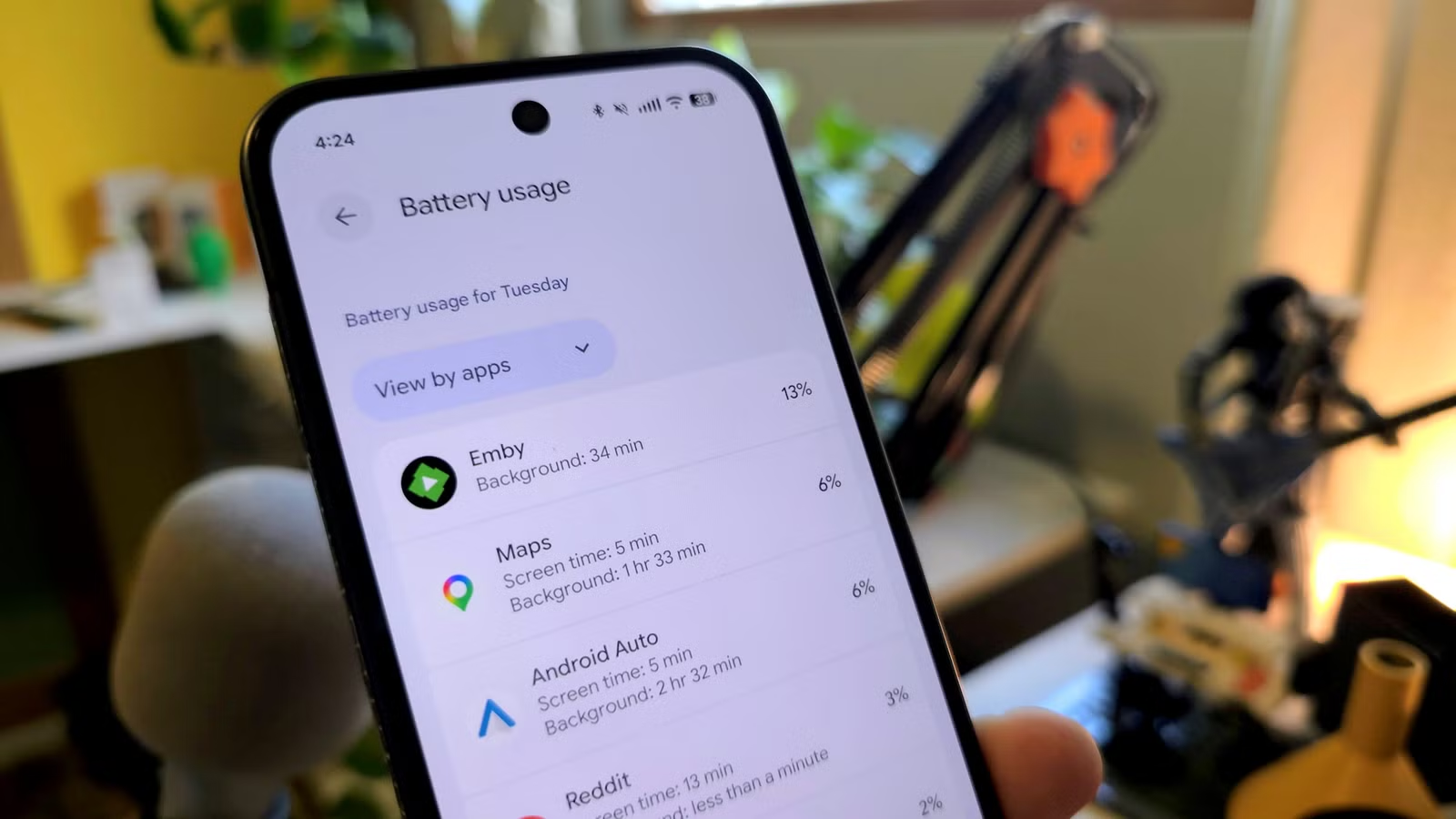
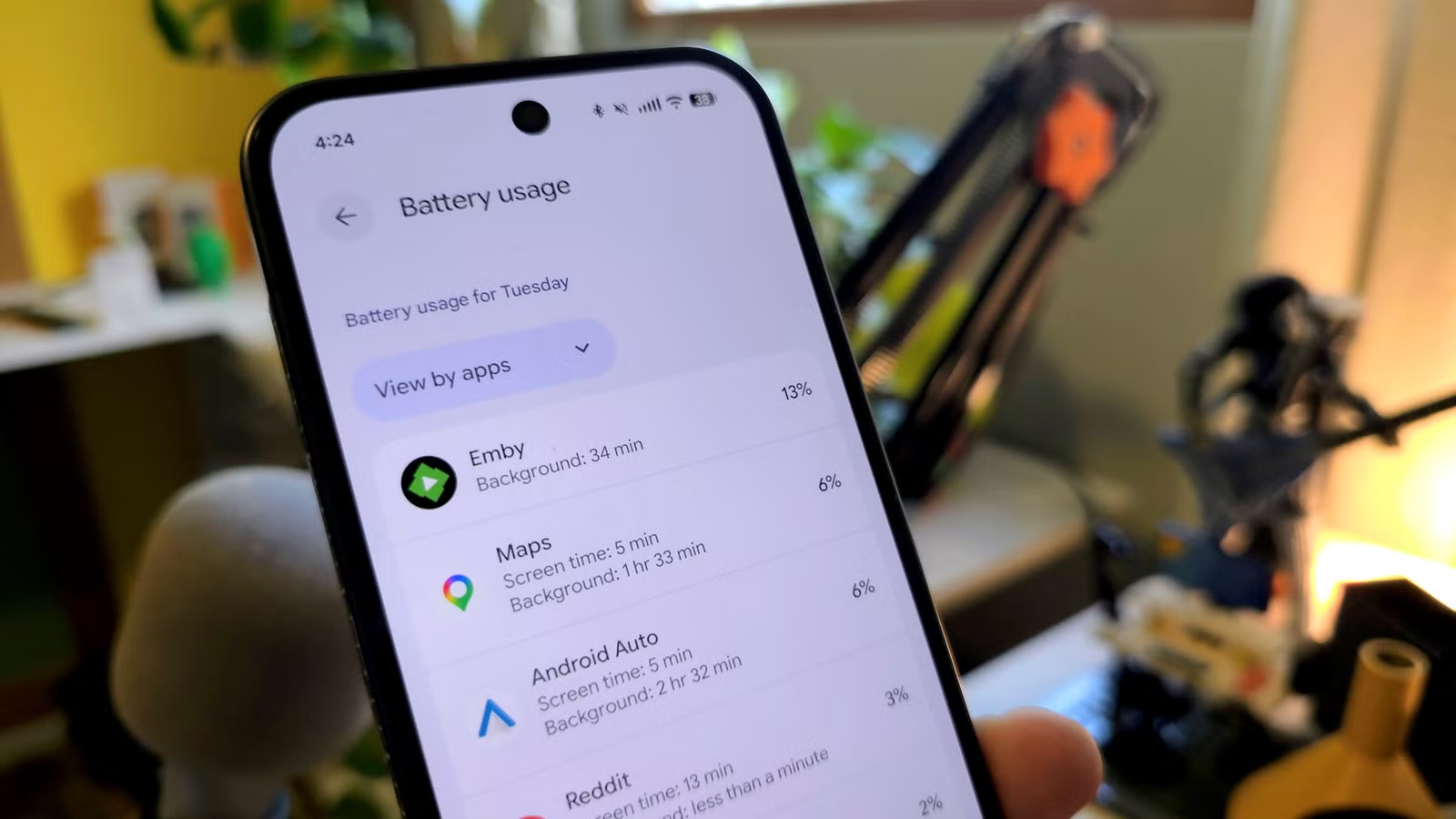
You check your phone's battery settings expecting clarity. Chrome shows 15%. Spotify shows 8%. Discord shows 13%. You start adding them up, and the total is nowhere near 100%. This isn't a bug. It's a fundamental misunderstanding of what those numbers mean.
Both Android and iPhone present battery usage as percentages next to each app. The natural assumption is that these represent slices of your phone's total battery. They don't.
What Those Percentages Actually Measure
Here's the key distinction: the percentage shown is each app's share of the battery that has been used, not the total battery capacity.
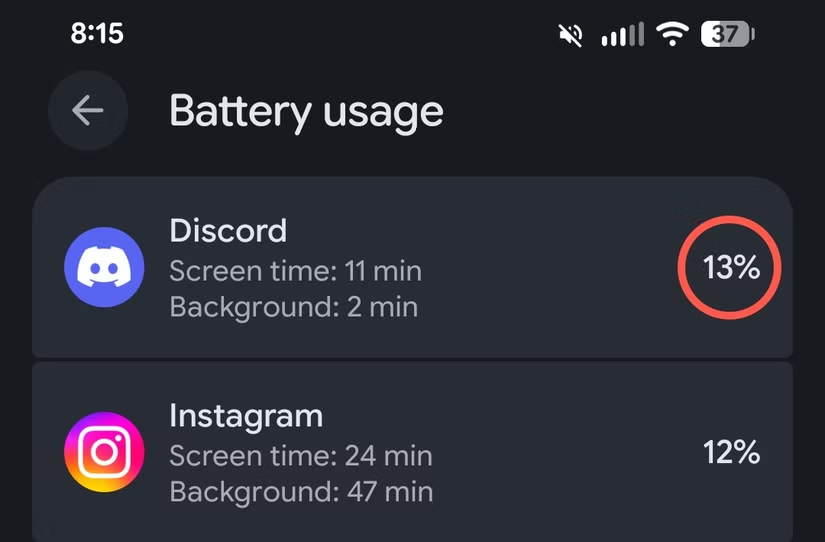
Consider an example from How-To Geek's Joe Fedewa. His phone shows Discord at 13% in battery usage. His current battery level is 37%. That means 63% of the battery has been depleted since the last full charge. Discord used 13% of that 63%, not 13% of the phone's entire battery.
In real terms, Discord consumed roughly 8% of his total battery capacity (13% of 63%). That's a significant difference from the 13% figure displayed on screen.
Where to Find These Stats
The location varies by device:
- Google Pixel: Settings > Battery > Battery usage
- Samsung Galaxy: Settings > Battery > Battery activity
- iPhone: Settings > Battery
Each shows apps ranked by their share of power consumption since your last full charge. The interface looks straightforward. The underlying calculations are not.
Why the Numbers Still Won't Add Up
Even understanding that percentages represent shares of depleted battery, you might expect them to sum to 100% of what's been used. They won't.
Power consumption is a complex matter. Your phone runs dozens of background processes that don't appear as discrete apps in battery stats. The display itself consumes significant power but may be attributed differently across activities. Cellular and Wi-Fi radios draw power continuously. The CPU handles tasks that span multiple apps.
Attribution is inherently imprecise. When you stream a video, should the battery drain count toward the streaming app, the display, the Wi-Fi radio, or the video decoder? Different operating systems make different choices, and none can be perfectly accurate.
What You Can Actually Learn From Battery Stats
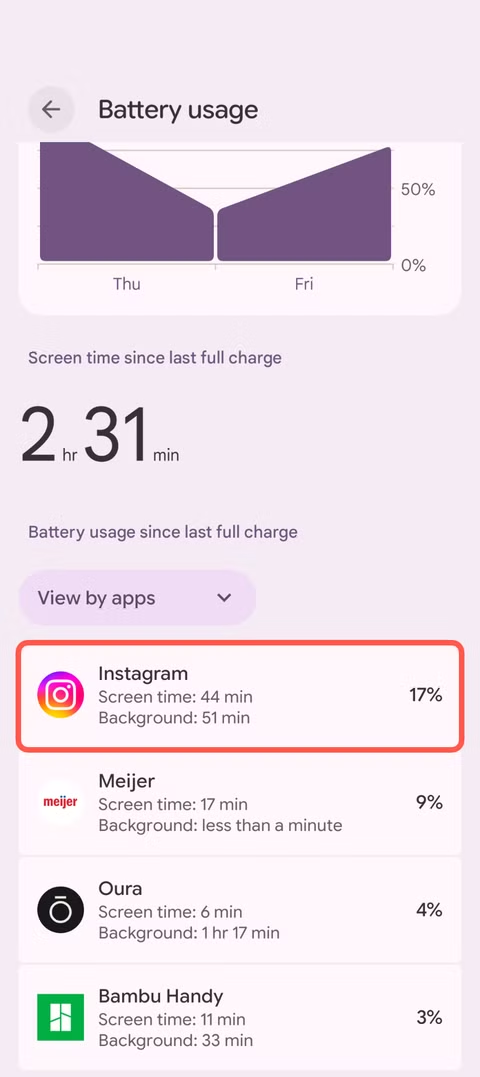
Despite their limitations, battery usage stats remain useful for identifying relative drains. If one app consistently appears at the top of the list, it's consuming more power than your other apps. The absolute percentage matters less than the ranking.
Look for apps that appear high on the list despite minimal use. A weather widget showing 12% when you barely glance at it suggests aggressive background activity. A game showing 25% after two hours of play is expected.
The stats also help identify sudden changes. If an app that previously used minimal power suddenly climbs the rankings, a recent update may have introduced inefficient code or new background processes.
Logicity's Take
Practical Steps to Reduce Drain
Once you identify high-drain apps, you have options. On Android, you can restrict background activity for specific apps in their battery settings. On iPhone, disable Background App Refresh for apps that don't need constant updates.
Location services are a common culprit. Apps with "always on" location access drain battery even when you're not using them. Switch to "only while using" for apps that don't need constant positioning.
Push notifications from dozens of apps means dozens of wake events per hour. Audit which apps actually need real-time alerts and disable notifications for the rest.
If battery concerns are pushing you toward a phone change, consider this alternative approach
Frequently Asked Questions
Why don't my phone's battery percentages add up to 100%?
The percentages show each app's share of depleted battery, not total battery. Additionally, background system processes, display usage, and radio activity aren't always attributed to specific apps.
How do I find battery usage stats on my phone?
On Pixel, go to Settings > Battery > Battery usage. On Samsung, it's Settings > Battery > Battery activity. On iPhone, check Settings > Battery.
Which apps drain the most battery?
Apps with heavy screen time, constant location access, or aggressive background refresh typically drain the most. Social media apps, navigation, and streaming services are common culprits.
How can I reduce battery drain from specific apps?
Restrict background activity in the app's battery settings, disable location access or set it to 'only while using,' and turn off unnecessary push notifications.
Need Help Implementing This?
Source: How-To Geek
Huma Shazia
Senior AI & Tech Writer
مقالات ذات صلة
تصفح الكل
5 إعدادات في متصفحك تسرّب بياناتك حتى مع تفعيل VPN
ماذا لو أخبرتك أن متصفحك المفضل يسلّم عنوان IP الحقيقي وموقعك الفعلي وعادات تصفحك لأي موقع يطلبها، حتى مع تفعيل VPN؟ هذا بالضبط ما يحدث لملايين المستخدمين يومياً، ومنهم من يكتشف ذلك بالصدفة عند إجراء
كيف تعرض شاشة هاتف Android على التلفزيون مجاناً باستخدام Google Cast
هل تبحث عن طريقة لعرض شاشة هاتف Android على التلفزيون دون دفع أموال لتطبيقات مليئة بالإعلانات أو شراء كابلات HDMI؟ الحل موجود فعلياً داخل هاتفك: ميزة Google Cast المدمجة في نظام Android 16 تتيح لك بث
4 تطبيقات سامسونج تستحق البقاء على هاتفك Galaxy
يأتي هاتف Galaxy الجديد محملاً بأكثر من 50 تطبيقاً مُثبتاً مسبقاً، وليست جميعها ضرورية. لكن وسط هذا الكم من التطبيقات، تبرز أربعة تطبيقات سامسونج تستحق فعلاً أن تبقى على جهازك — بل قد تفضّلها على بدائ

استدعاءات يونيو 2026 للسيارات: Ford وHonda وToyota تسحب ملايين المركبات من الأسواق
سجّلت الهيئة الوطنية الأمريكية لسلامة المرور على الطرق السريعة NHTSA أكثر من 300 استدعاء للسلامة شملت أكثر من 100 شركة مصنّعة منذ بداية عام 2026، لكن استدعاءات يونيو 2026 للسيارات جاءت الأضخم والأخطر.
اقرأ أيضاً
iQOO Z11i يظهر في الصين: هاتف vivo Y60 بثوب جديد وبطارية 6,500 مللي أمبير
بدأت iQOO بالتشويق لهاتفها الجديد Z11i في السوق الصينية، ليُضاف إلى عائلة Z11 المتنامية التي باتت تضم نماذج عدة. الهاتف يأتي ببطارية ضخمة سعة 6,500 مللي أمبير، لكن تسريبات من منصة Weibo تشير إلى أنه ق

Honor Watch 6: بطارية تدوم 35 يوماً في ساعة تزن 68 غراماً فقط
كشفت Honor عن ساعتها الذكية الجديدة Honor Watch 6، وهي تطرح سؤالاً مباشراً على منافسيها: كيف تحشرون بطارية بسعة 980mAh في ساعة لا يتجاوز وزنها مع السوار 68 غراماً، وتجعلونها تدوم 35 يوماً كاملة؟ هذا ل
الإمارات تحظر وسائل التواصل الاجتماعي على من هم دون 15 عاماً: أول دولة عربية تتخذ هذه الخطوة
في خطوة تاريخية تضع الإمارات في طليعة الدول العربية، أعلنت الحكومة الإماراتية حظر وسائل التواصل الاجتماعي على الأطفال دون 15 عاماً حظراً فعلياً، لتصبح بذلك أول دولة عربية تتخذ إجراءً بهذا الحجم لحماية