أبرز النقاط
- ميزة USB battery saver في ويندوز قد تقطع اتصال الأقراص الخارجية أثناء نقل الملفات الكبيرة
- تعطيل إعداد واحد في إعدادات USB يحل المشكلة في معظم الحالات
- المشكلة ليست في العتاد غالباً بل في إدارة الطاقة العدوانية لنظام التشغيل
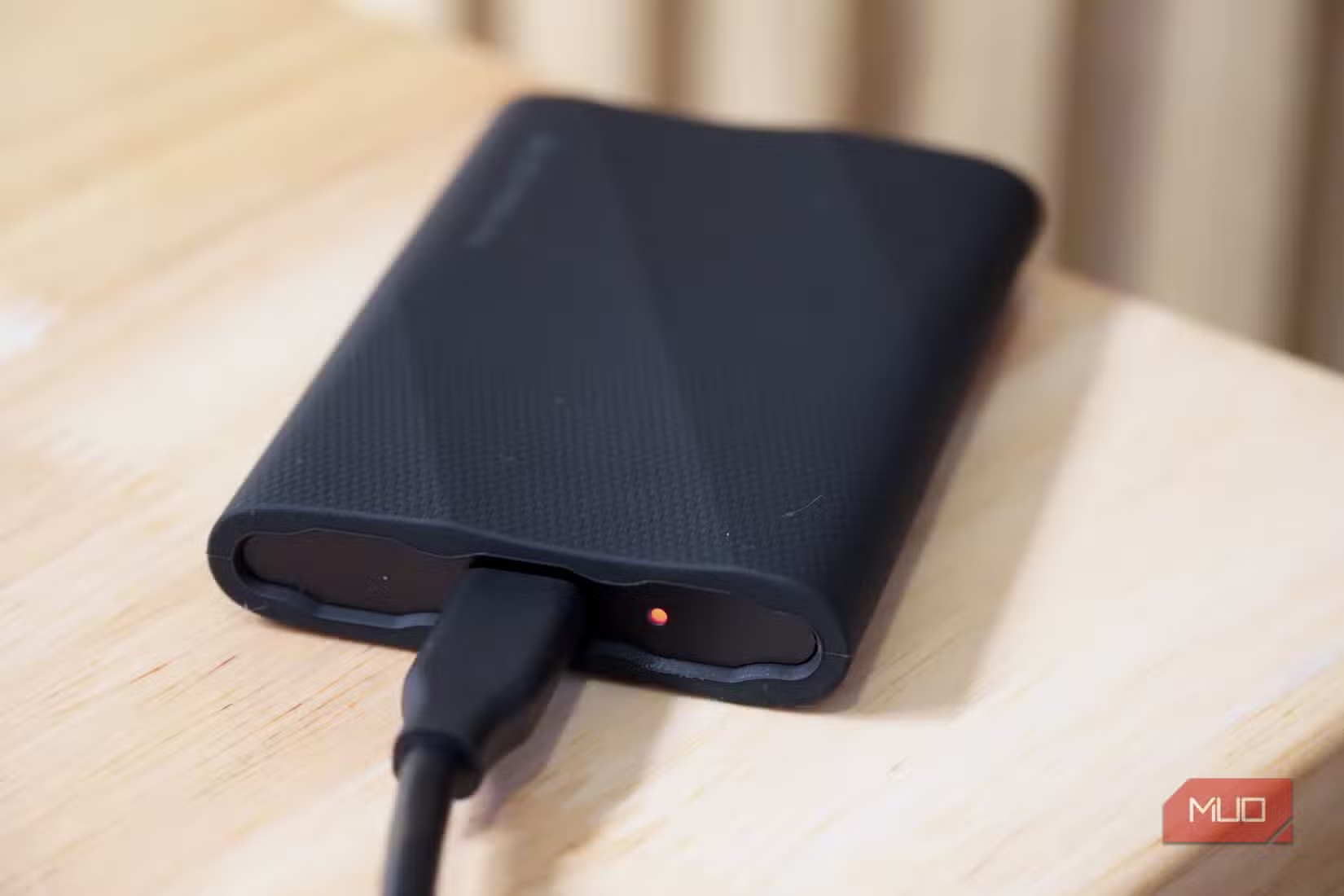
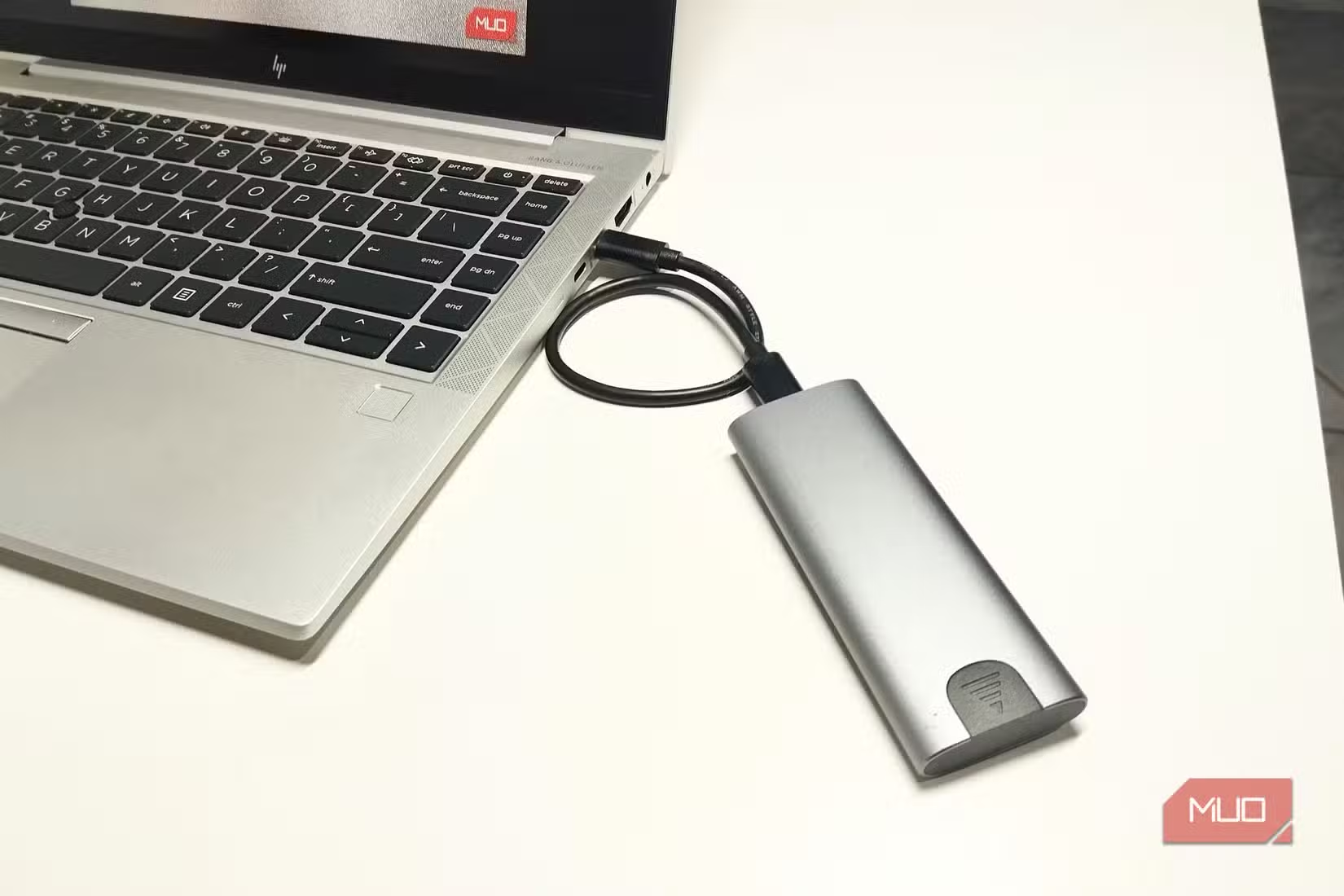
إذا كنت تنقل ملفات ضخمة إلى قرص NVMe خارجي ثم يختفي فجأة من مستكشف الملفات، فالمشكلة على الأرجح ليست في الكابل ولا في القرص — بل في ويندوز نفسه. إعداد واحد مدفون في خيارات الطاقة يُدعى USB battery saver قد يكون السبب وراء انقطاع الأقراص الخارجية في ويندوز، وتعطيله لا يستغرق أكثر من دقيقة.
ما الذي يفعله إعداد توفير طاقة USB بالضبط؟
تعمل ميزة USB battery saver — المعروفة أيضاً باسم USB Selective Suspend في إصدارات ويندوز الأقدم — في الخلفية لمراقبة نشاط منافذ USB. حين يرى النظام أن جهازاً معيناً غير نشط، يضعه في وضع طاقة منخفضة لتوفير استهلاك البطارية.
الفكرة منطقية للأجهزة الطرفية العادية: الفأرة والكاميرا ولوحة المفاتيح لا تحتاج طاقة كاملة طوال الوقت. لكن أقراص SSD وحاويات NVMe الخارجية لا تتواصل مع ويندوز بالطريقة ذاتها. أثناء نقل الملفات الكبيرة، تحدث فترات توقف قصيرة طبيعية يفسّرها النظام خطأً على أنها خمول، فيقطع الطاقة عن المنفذ.
كيف تبدو المشكلة عملياً؟
تظهر الأعراض وكأنها عطل في العتاد: القرص يختفي من File Explorer في منتصف عملية النقل، أو تفشل عملية النسخ بصمت دون رسالة خطأ واضحة، أو تسمع صوت فصل USB الشهير ثم يعود القرص بعد ثوانٍ كأن شيئاً لم يحدث.
هذا السلوك يدفع كثيرين إلى تبديل الكابلات أو تجربة منافذ مختلفة أو حتى شراء قرص جديد. لكن الدليل الحاسم يكمن في سرعة عودة القرص: لو كان القرص تالفاً فعلاً، لما عاد بهذه السهولة. ما يحدث هو انقطاع لحظي في الطاقة يتبعه تعافٍ فوري.
كيف تعطّل إعداد USB battery saver في ويندوز 11؟
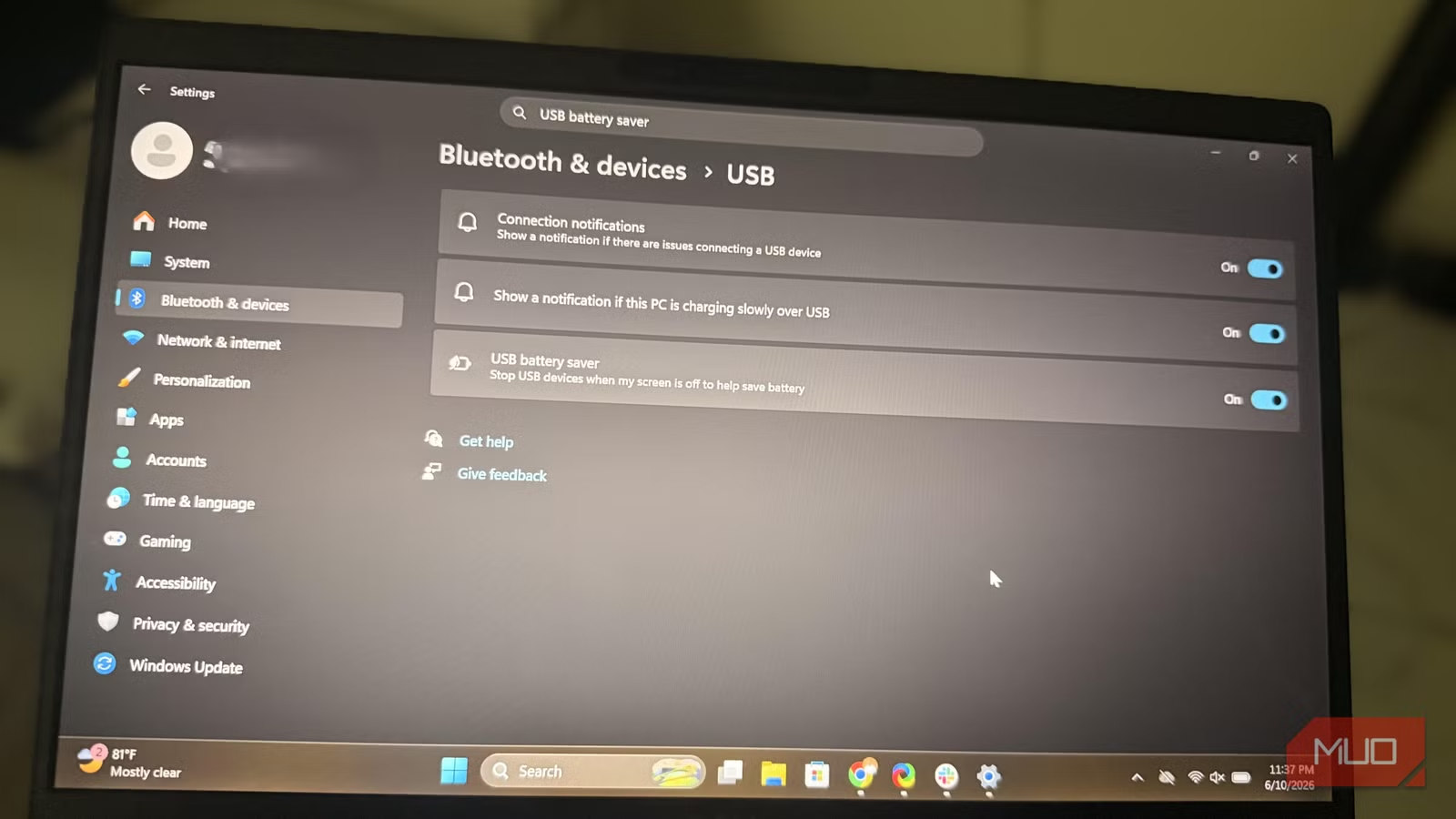
الخطوة الأولى بسيطة: افتح الإعدادات (Settings)، ثم انتقل إلى Bluetooth & devices ومنها إلى USB، وأوقف تشغيل خيار USB battery saver.
في إصدارات ويندوز 11 الأقدم أو ويندوز 10، الإعداد يحمل اسم USB Selective Suspend ويوجد في لوحة التحكم. اضغط Win + R واكتب control powercfg.cpl ثم Enter. انقر على Change plan settings بجوار خطة الطاقة النشطة، ثم Change advanced power settings. وسّع USB settings ثم USB selective suspend setting، وغيّر الخيارين On battery وPlugged in إلى Disabled، ثم اضغط Apply وOK.
- افتح Device Manager من قائمة ابدأ
- وسّع قسم Universal Serial Bus Controllers
- لكل USB Root Hub: انقر بالزر الأيمن واختر Properties
- انتقل إلى تبويب Power Management
- أزل علامة الصح من Allow the computer to turn off this device to save power
- كرر العملية لجميع إدخالات USB Root Hub
لماذا تحتاج إلى تعطيل الإعدادين معاً؟
قد يبدو الإعدادان متطابقين، لكنهما يعملان على مستويين مختلفين. إعداد USB battery saver في تطبيق الإعدادات يتحكم في سلوك النظام العام، بينما إعداد Power Management في Device Manager يتحكم في سلوك كل متحكم USB بشكل فردي. تعطيل أحدهما دون الآخر قد لا يحل المشكلة بالكامل.
هل يؤثر تعطيل هذا الإعداد على عمر البطارية؟
على الحواسيب المحمولة، نعم، قد تلاحظ انخفاضاً طفيفاً في عمر البطارية إذا كانت لديك أجهزة USB متعددة موصولة باستمرار. لكن على الحواسيب المكتبية، التأثير معدوم عملياً — الطاقة الموفرة لا تُذكر مقارنة باستهلاك النظام الكلي.
الأهم من ذلك: ما قيمة توفير بضعة ميلي واط إذا كان الثمن فقدان بيانات أثناء نقل ملفات حيوية؟ لمستخدمي الحواسيب المحمولة الذين يعملون على ملفات كبيرة، يمكن إنشاء خطة طاقة مخصصة تعطّل هذا الإعداد فقط عند التوصيل بالكهرباء.
رأي Logicity
المفارقة أن ويندوز يحاول حماية عمر البطارية لكنه يعرّض سلامة البيانات للخطر. هذا الإعداد الافتراضي العدواني قد يكون منطقياً في 2010 حين كانت أقراص USB الخارجية بطيئة نسبياً، لكنه يتعارض مع واقع 2026 حيث تنقل أقراص NVMe الخارجية بيانات بسرعات تتجاوز 2000 ميغابايت/ثانية. على Microsoft إعادة النظر في آلية اكتشاف الخمول لتمييز وحدات التخزين عن الأجهزة الطرفية العادية.
الأسئلة الشائعة
هل تعطيل USB battery saver يحل مشكلة انقطاع الأقراص الخارجية نهائياً؟
في معظم الحالات نعم، خاصة إذا كان القرص يعود سريعاً بعد الانقطاع. لكن إذا استمرت المشكلة، قد يكون السبب عطلاً فعلياً في الكابل أو المنفذ أو القرص نفسه.
هل هذا الإعداد موجود في ويندوز 10 أيضاً؟
نعم، لكنه يحمل اسم USB Selective Suspend ويوجد في خيارات الطاقة المتقدمة ضمن لوحة التحكم وليس في تطبيق الإعدادات الحديث.
هل يؤثر تعطيل الإعداد على أداء الأجهزة الأخرى مثل الفأرة ولوحة المفاتيح؟
لا، هذه الأجهزة ستعمل بشكل طبيعي. الفرق الوحيد أنها ستستهلك طاقة أكثر قليلاً حين لا تكون قيد الاستخدام، وهو تأثير ضئيل على الحواسيب المكتبية.
لماذا لا تظهر رسالة خطأ واضحة عند انقطاع القرص؟
لأن ويندوز يعامل الانقطاع كحدث طاقة طبيعي وليس خطأً. النظام يفترض أن الجهاز دخل وضع السكون بشكل صحيح، لذا لا يعرض تحذيراً.
هل تؤثر هذه المشكلة على أقراص HDD الخارجية أم SSD فقط؟
تؤثر على كليهما، لكنها أكثر شيوعاً مع أقراص SSD وNVMe بسبب سرعات النقل العالية التي تتضمن فترات توقف قصيرة يفسرها النظام خطأً كخمول.
هل تحتاج مساعدة في التطبيق؟
إذا واجهت صعوبة في تطبيق هذه الخطوات أو استمرت مشكلة انقطاع الأقراص الخارجية رغم تعطيل الإعدادات، تواصل مع فريق Logicity للحصول على دعم تقني مخصص أو استشارة حول بنية التخزين المناسبة لاحتياجاتك.
فاطمة الزهراء
كاتبة تقنية متخصصة في الذكاء الاصطناعي
أُنتِج هذا المقال بمساعدة الذكاء الاصطناعي وراجعه فريق التحرير في لوجيسيتي. اعرف المزيد في سياسة التحرير.