6 PowerShell Commands That Fix Common Windows 11 Problems
Key Takeaways
- The winget upgrade --all command updates most apps on your PC with a single line
- Always run PowerShell as administrator for these commands to work
- PowerShell often fixes issues faster than navigating Windows 11's nested menus
PowerShell sits quietly in every Windows 11 installation, capable of fixing problems that would otherwise require twenty clicks through nested Settings menus. Most users never touch it. That's a mistake.
The command-line tool can repair corrupted system files, restart network adapters, update every app on your machine, and run disk checks. The best part: you can copy and paste these commands without understanding what each flag does. Run the command, watch it work, get back to your actual job.
Here are six commands that solve the most common Windows 11 headaches.
First: Always Run PowerShell as Administrator
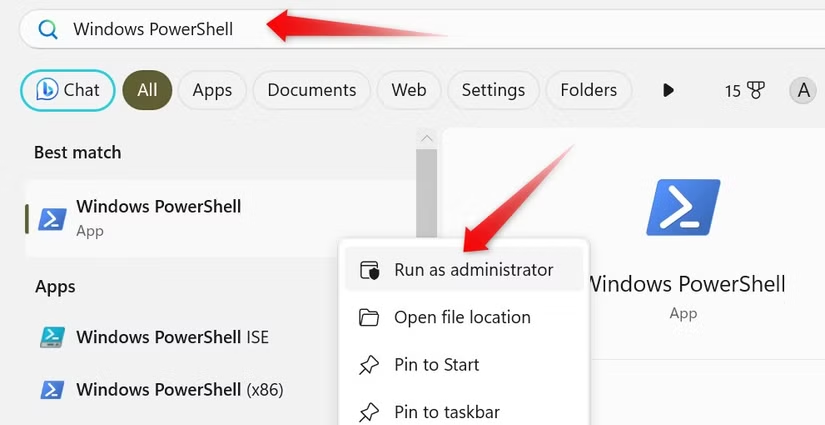
Most of these commands require admin privileges. Without them, you'll see permission errors and nothing will happen. To launch PowerShell correctly, search for "PowerShell" in the Start Menu, right-click the result, and select "Run as administrator." Do this once, and you're ready for everything below.
1. Update All Your Apps with Winget
Outdated apps cause more problems than most people realize. They crash, they conflict with Windows updates, they create security holes. The winget command-line tool can update most apps on your system with a single command.
winget upgrade --allWinget will scan your installed applications and update each one sequentially. The process takes a few minutes depending on how many apps need updates. Fair warning: some apps will pop up installer windows that need manual confirmation. Stay near your keyboard.
Winget cannot update every app. Some proprietary software uses custom update mechanisms that winget can't touch. But it handles the majority of applications, and running this command weekly keeps your system current without manual effort.
2. Check Your Network Configuration
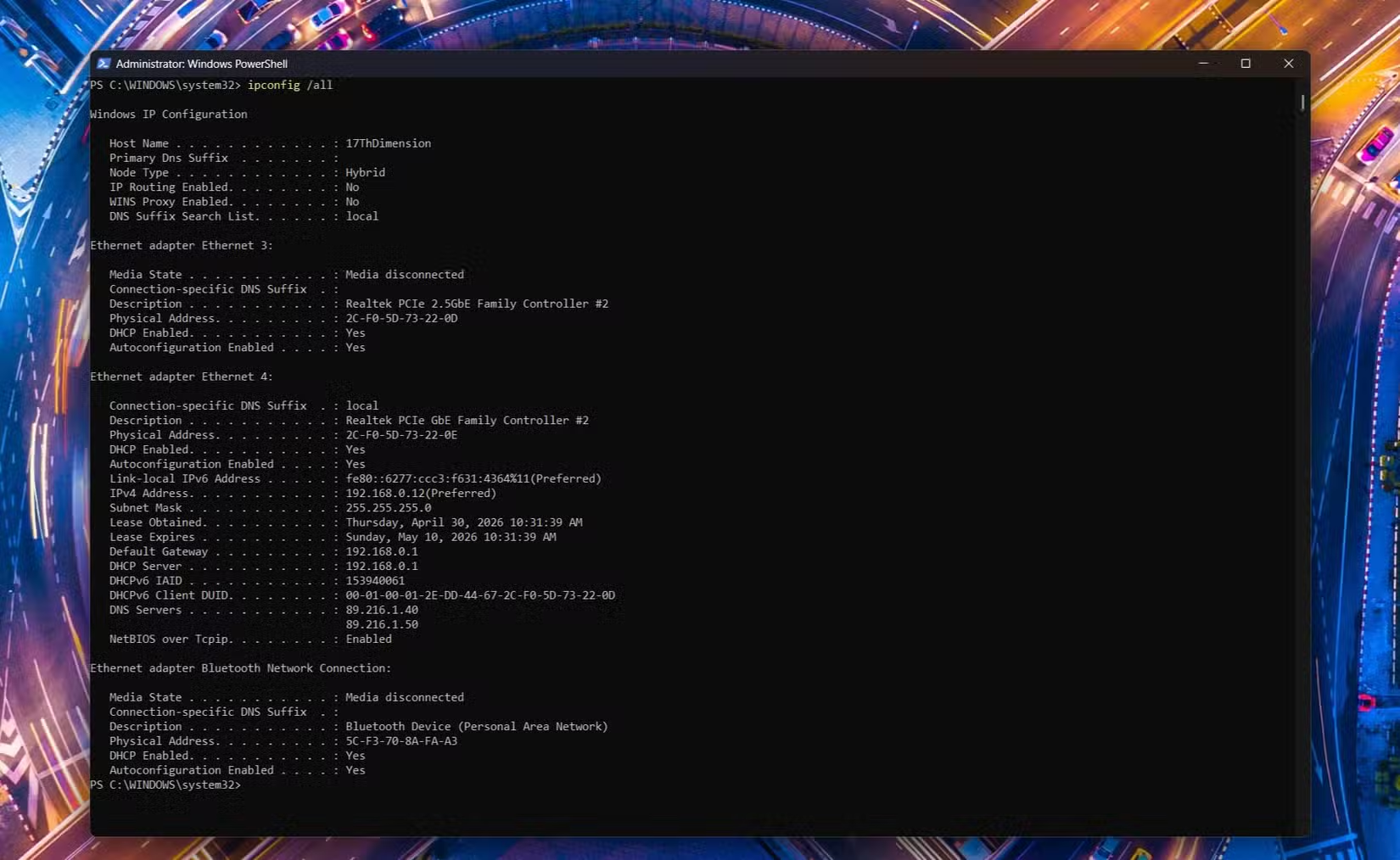
When your internet stops working, the first step is understanding what Windows thinks is happening. The ipconfig command shows your current network configuration, including IP addresses, default gateways, and DNS servers.
ipconfig /all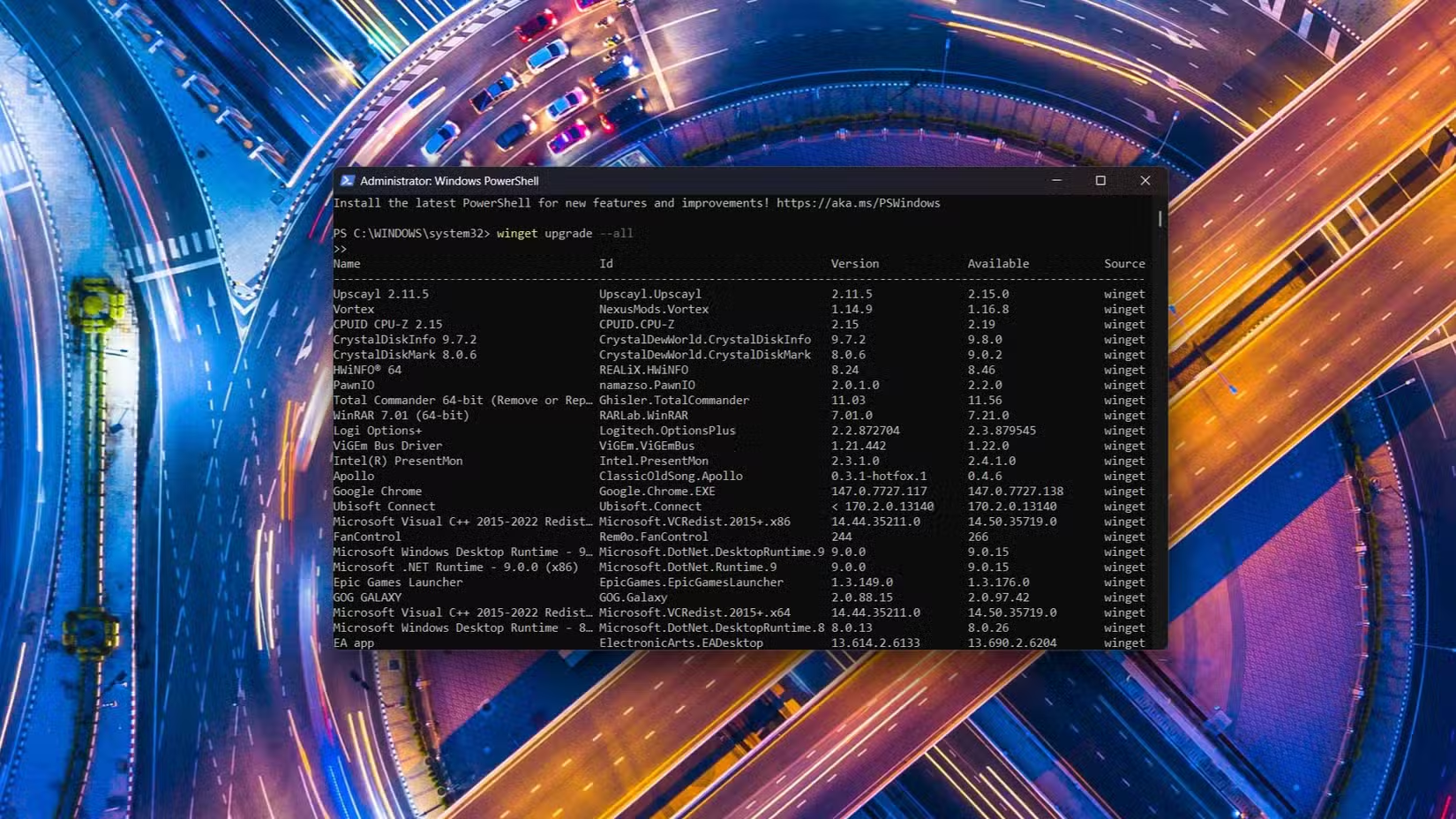
If you see "169.254.x.x" as your IP address, your computer isn't getting an address from your router. That points to a DHCP problem. If the default gateway is blank, you're not connected to any network. This diagnostic information tells you whether the problem is your computer, your router, or your ISP.
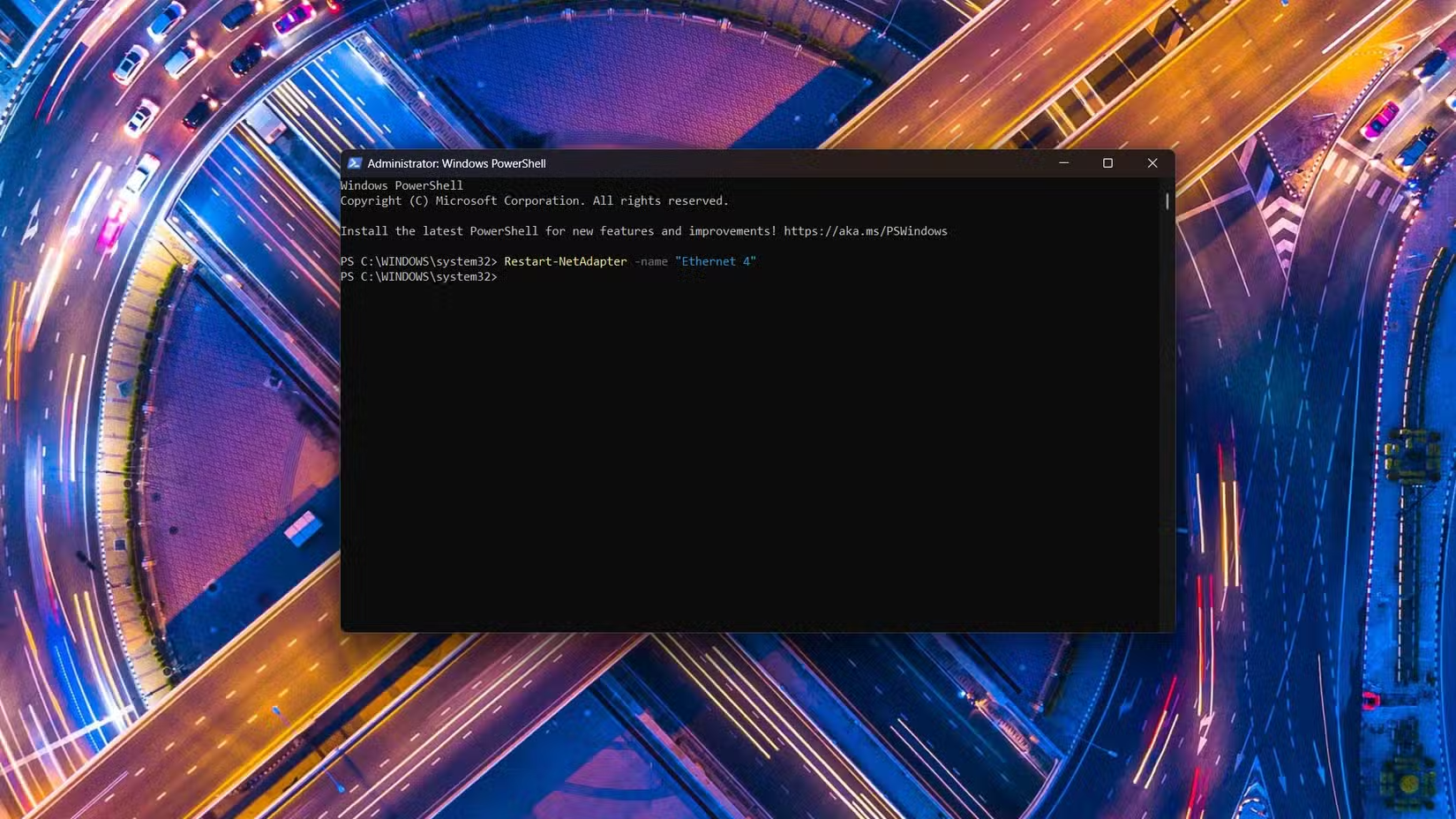
3. Restart Your Network Adapter
The classic "turn it off and on again" fix works for network adapters too. Instead of unplugging cables or rebooting your entire computer, you can restart just the network adapter.
Restart-NetAdapter -Name "Wi-Fi"Replace "Wi-Fi" with your adapter's name. If you're using Ethernet, try "Ethernet" instead. To see all adapter names on your system, run Get-NetAdapter first. This command drops your connection for a few seconds while the adapter reinitializes, then reconnects automatically.
4. Check Your Disk for Errors
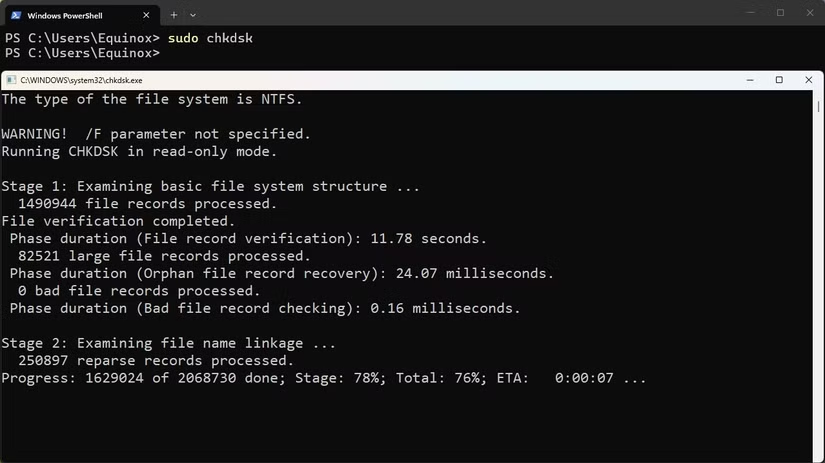
When Windows behaves strangely, corrupted disk sectors are sometimes the culprit. The chkdsk command scans your drive and repairs file system errors.
Code sample: chkdsk C: /f /r
The /f flag fixes errors on the disk. The /r flag locates bad sectors and recovers readable information. If you run this on your system drive (usually C:), Windows will ask to schedule the scan for the next restart. That's normal. The scan runs before Windows fully loads.
A full chkdsk scan can take anywhere from a few minutes to over an hour, depending on your drive size and speed. SSDs finish quickly. Traditional hard drives take longer.
5. Repair Corrupted System Files
Windows system files can become corrupted through bad updates, malware, or sudden power loss. The System File Checker scans all protected system files and replaces corrupted ones with cached copies.
Code sample: sfc /scannow
The scan takes 10 to 30 minutes. When it finishes, you'll see one of three messages: no integrity violations found, some files were repaired, or some files could not be repaired. If SFC can't fix the corruption, you'll need to run the DISM tool next.
6. Fix the Windows Image with DISM
DISM (Deployment Image Servicing and Management) repairs the Windows image that SFC uses as its reference. If SFC reports files it cannot repair, DISM can often fix the underlying image.
Code sample: DISM /Online /Cleanup-Image /RestoreHealth
This command downloads fresh copies of corrupted components from Windows Update. It requires an internet connection and can take 15 to 45 minutes. After DISM completes, run sfc /scannow again to verify everything is fixed.
Bonus: Debloating Windows 11
Windows 11 ships with apps you never asked for and may never use. Removing this bloatware can speed up your system and eliminate some bugs caused by Microsoft's bundled software. Several PowerShell-based debloating scripts exist in the community, though you should research any script before running it on your machine.
The safest approach: use winget to uninstall specific apps you've identified as unnecessary. This is slower but less risky than automated scripts that might remove something you actually need.
Logicity's Take
Frequently Asked Questions
Do I need to memorize these PowerShell commands?
No. Save this article or keep a text file with the commands you use most. Copy and paste is the intended workflow.
Will these commands work on Windows 10?
Most of them, yes. The sfc, chkdsk, DISM, and ipconfig commands work on Windows 10. Winget is available on Windows 10 but may require manual installation on older versions.
Can PowerShell commands damage my computer?
The commands listed here are safe and commonly used for troubleshooting. However, PowerShell is powerful. Never run commands from untrusted sources without understanding what they do.
Why does PowerShell need administrator privileges?
These commands modify system files, restart hardware, and access protected areas of Windows. Standard user permissions don't allow those operations.
More power-user tips for getting professional results from consumer software
Need Help Implementing This?
Source: How-To Geek
Manaal Khan
Tech & Innovation Writer
مقالات ذات صلة
تصفح الكل
5 إعدادات في متصفحك تسرّب بياناتك حتى مع تفعيل VPN
ماذا لو أخبرتك أن متصفحك المفضل يسلّم عنوان IP الحقيقي وموقعك الفعلي وعادات تصفحك لأي موقع يطلبها، حتى مع تفعيل VPN؟ هذا بالضبط ما يحدث لملايين المستخدمين يومياً، ومنهم من يكتشف ذلك بالصدفة عند إجراء

كيف تعرض شاشة هاتف Android على التلفزيون مجاناً باستخدام Google Cast
هل تبحث عن طريقة لعرض شاشة هاتف Android على التلفزيون دون دفع أموال لتطبيقات مليئة بالإعلانات أو شراء كابلات HDMI؟ الحل موجود فعلياً داخل هاتفك: ميزة Google Cast المدمجة في نظام Android 16 تتيح لك بث

4 تطبيقات سامسونج تستحق البقاء على هاتفك Galaxy
يأتي هاتف Galaxy الجديد محملاً بأكثر من 50 تطبيقاً مُثبتاً مسبقاً، وليست جميعها ضرورية. لكن وسط هذا الكم من التطبيقات، تبرز أربعة تطبيقات سامسونج تستحق فعلاً أن تبقى على جهازك — بل قد تفضّلها على بدائ

استدعاءات يونيو 2026 للسيارات: Ford وHonda وToyota تسحب ملايين المركبات من الأسواق
سجّلت الهيئة الوطنية الأمريكية لسلامة المرور على الطرق السريعة NHTSA أكثر من 300 استدعاء للسلامة شملت أكثر من 100 شركة مصنّعة منذ بداية عام 2026، لكن استدعاءات يونيو 2026 للسيارات جاءت الأضخم والأخطر.
اقرأ أيضاً

iQOO Z11i يظهر في الصين: هاتف vivo Y60 بثوب جديد وبطارية 6,500 مللي أمبير
بدأت iQOO بالتشويق لهاتفها الجديد Z11i في السوق الصينية، ليُضاف إلى عائلة Z11 المتنامية التي باتت تضم نماذج عدة. الهاتف يأتي ببطارية ضخمة سعة 6,500 مللي أمبير، لكن تسريبات من منصة Weibo تشير إلى أنه ق

Honor Watch 6: بطارية تدوم 35 يوماً في ساعة تزن 68 غراماً فقط
كشفت Honor عن ساعتها الذكية الجديدة Honor Watch 6، وهي تطرح سؤالاً مباشراً على منافسيها: كيف تحشرون بطارية بسعة 980mAh في ساعة لا يتجاوز وزنها مع السوار 68 غراماً، وتجعلونها تدوم 35 يوماً كاملة؟ هذا ل

الإمارات تحظر وسائل التواصل الاجتماعي على من هم دون 15 عاماً: أول دولة عربية تتخذ هذه الخطوة
في خطوة تاريخية تضع الإمارات في طليعة الدول العربية، أعلنت الحكومة الإماراتية حظر وسائل التواصل الاجتماعي على الأطفال دون 15 عاماً حظراً فعلياً، لتصبح بذلك أول دولة عربية تتخذ إجراءً بهذا الحجم لحماية