Key Takeaways
How to Use Your TV as a Computer Monitor - Updated 2020
- HDMI is the fastest, most reliable connection method for using a TV as a monitor
- Wireless options like AirPlay and Chromecast work but introduce noticeable input lag
- Samsung and LG TVs offer remote PC access apps for cable-free permanent setups
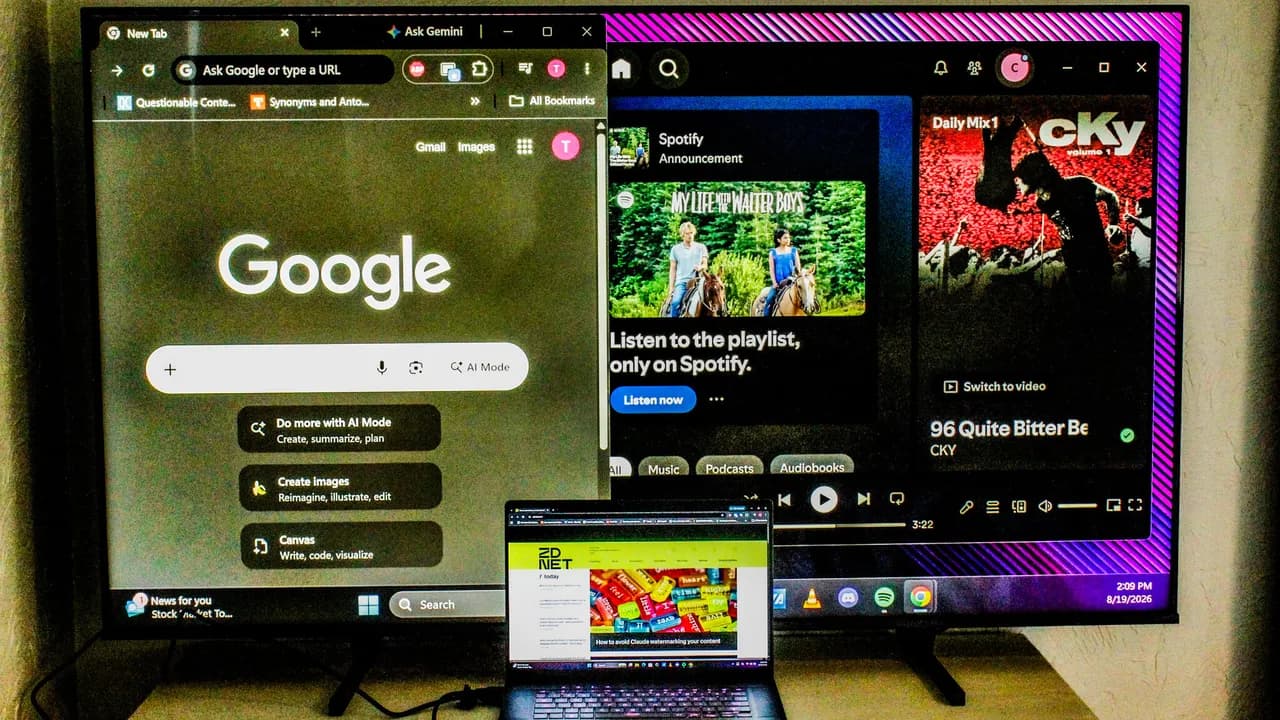
A 50-inch 4K TV costs $200 to $400. A 32-inch 4K monitor runs $300 to $600. If you have a TV sitting unused, or just want a bigger display without spending anything, you can connect it to your laptop or desktop in minutes. The process works on Windows, Mac, ChromeOS, and Linux.
Modern TVs have closed most gaps that once made them poor monitor substitutes. Input lag on gaming TVs in Game Mode now sits at 5 to 15 milliseconds, approaching dedicated monitor response times. Refresh rates of 120Hz are standard on mid-range models. The main question is how you want to connect: wired for reliability, or wireless for convenience.
The HDMI cable method
This is the fastest and most reliable option. Plug one end of an HDMI cable into your computer, the other into your TV. Select the correct HDMI input on your TV. You now have a mirrored or extended display.
If your laptop only has USB-C or Thunderbolt ports, pick up a USB-C-to-HDMI adapter. DisplayPort users need a DisplayPort-to-HDMI adapter. Both cost around $10 to $15. One limitation: since the TV still uses HDMI, you will not get the same data transfer speeds as a native DisplayPort or Thunderbolt monitor.
Once connected, set your TV to PC Mode or Game Mode in its picture settings. This disables post-processing that adds lag and adjusts color handling for desktop use.
Wireless screen mirroring
Most smart TVs support AirPlay (for Apple devices) or Chromecast (for Android, Windows, and ChromeOS). This lets you cast your screen without any cables.
The tradeoff is performance. Both your TV and computer must compress, transmit, and decompress video in real time. Expect noticeable input lag and occasional resolution drops. Wireless mirroring works for presentations, video playback, or casual browsing. It does not work well for gaming or precise cursor work.
Remote PC access on Samsung and LG TVs
Newer Samsung and LG televisions include built-in remote PC access apps. These connect to your computer over your home network using its IP address. Enable remote access in your computer's settings, then enter the IP address in the TV's app.
This method is more permanent than screen mirroring. Your TV becomes a thin client that can access your desktop even when you are across the room. Lag is higher than a direct HDMI connection but often lower than generic wireless casting.
How to find your computer's IP address
You will need your computer's local IP address for the remote access option. Here is how to find it on each platform:
- Windows: Press the Windows key, type cmd, open Command Prompt, type ipconfig and press Enter. Look for the IPv4 address. Or go to Settings > Network & Internet > Wi-Fi or Ethernet > Select your network > Scroll to IP address.
- Mac: Apple menu > System Settings > Network > Wi-Fi or Ethernet > Details. Your IP address is listed there.
- ChromeOS: Click the clock, select Wi-Fi or Ethernet, click Information. Your IP address appears in the panel.
- Linux (GUI): Settings > Wi-Fi or Network > Click the gear icon next to your connection. Linux (Terminal): Run hostname -I or ip addr and locate your active network interface.
Which method should you choose?
For daily use, HDMI wins. The connection is instant, the lag is imperceptible, and you avoid network variability. Keep an adapter in your bag if your laptop lacks HDMI.
Wireless mirroring suits occasional use: throwing a video on the big screen, presenting slides, or sharing your display with a room. Do not expect it to feel like a primary monitor.
Remote PC access lands in between. If you own a compatible Samsung or LG TV and want a semi-permanent setup without running cables across the room, the built-in app is worth configuring.
Logicity's Take
TVs now match monitors on specs that matter: resolution, refresh rate, input lag. The main gap is pixel density. A 50-inch 4K TV has 88 pixels per inch. A 27-inch 4K monitor has 163 PPI. Text looks sharper on the smaller screen. For coding or spreadsheet work up close, a monitor still wins. For video editing, dashboards, or any task where you sit a few feet back, a TV is a legitimate choice.
Frequently Asked Questions
Will using a TV as a monitor damage my eyes?
No. Eye strain comes from brightness, contrast settings, and viewing distance, not the display type. Adjust brightness to match your room and sit at a comfortable distance.
Can I use a TV as a second monitor while keeping my main monitor?
Yes. Connect both displays, then configure your OS display settings to extend your desktop across both screens.
Why does my TV look blurry when connected to my PC?
The TV may be set to a resolution lower than its native panel. Go to your computer's display settings and select the TV's native resolution, typically 3840x2160 for 4K TVs.
Is there input lag when using a TV as a monitor?
With HDMI and Game Mode enabled, input lag on modern TVs ranges from 5 to 15 milliseconds, comparable to budget gaming monitors. Wireless connections add noticeably more lag.
Need Help Implementing This?
If your team is configuring remote work setups or standardizing display configurations across an office, drop us a line at hello@logicity.in. We can connect you with IT consultants who specialize in endpoint management.
Source: Latest news
Manaal Khan
Tech & Innovation Writer
Produced with AI assistance and reviewed by the Logicity editorial team. Learn more in our Editorial Policy.