Key Takeaways
- USB tethering connects your phone directly to your router's USB port for automatic failover
- USB-C to Ethernet adapters provide the most stable connection for backup internet
- Router-level backup keeps all your smart home devices online without changing Wi-Fi credentials
That old Android phone in your drawer can keep your entire home network online when your ISP fails. ZDNET's Adrian Kingsley-Hughes tested three methods for connecting an Android phone directly to a router, turning mobile data into a whole-home backup connection. The best part: your smart home devices, security cameras, and work computers stay connected without touching a single Wi-Fi setting.
The context matters. Record-breaking heat in the UK, with temperatures hitting 99.1°F (37.3°C), has been knocking out power and phone lines. Cables expand, sag, and fail. Kingsley-Hughes reports needing his power station more in recent days than all winter. Climate patterns suggest this problem will get worse, not better.
Why hotspotting your phone isn't enough
The obvious solution is to turn on your phone's hotspot when internet dies. But this creates a cascade of problems. Every device connected to your home Wi-Fi goes dark. Your smart thermostat, security cameras, NAS drives, and work machines all lose connectivity. You'd need to manually connect each device to the phone's hotspot network.
You could set your hotspot SSID and password to match your home network credentials. But then both networks run simultaneously when your main connection returns, causing conflicts. The real solution is feeding mobile data directly into your router, so all devices stay connected to the same network they always use.
Option 1: USB tethering to your router
Check the back of your router. See a USB port? Most routers have one, originally designed for network-attached storage or printers. It can also accept a tethered smartphone connection.
Connect your Android phone to the router's USB-A port using a USB-A-to-USB-C cable. On the phone, navigate to Settings, then Network & internet, then Hotspot & tethering. Toggle USB tethering on. The phone shares its mobile data connection over the USB cable, and your router treats it as a WAN source.
This method has limitations. Not every router supports USB tethering as a WAN input. Some only recognize storage devices on their USB ports. You'll need to check your router's documentation or simply test it.
Option 2: Wi-Fi WAN (router as client)
Some routers can connect to an upstream Wi-Fi network as their WAN source instead of using a physical cable. If yours supports this, you enable your phone's regular hotspot, then configure the router to connect to it as a client.
This approach adds latency compared to a wired connection. Wi-Fi is also more prone to interference. But it works without any cables and doesn't require your router to have a USB port.
Option 3: USB-C to Ethernet adapter
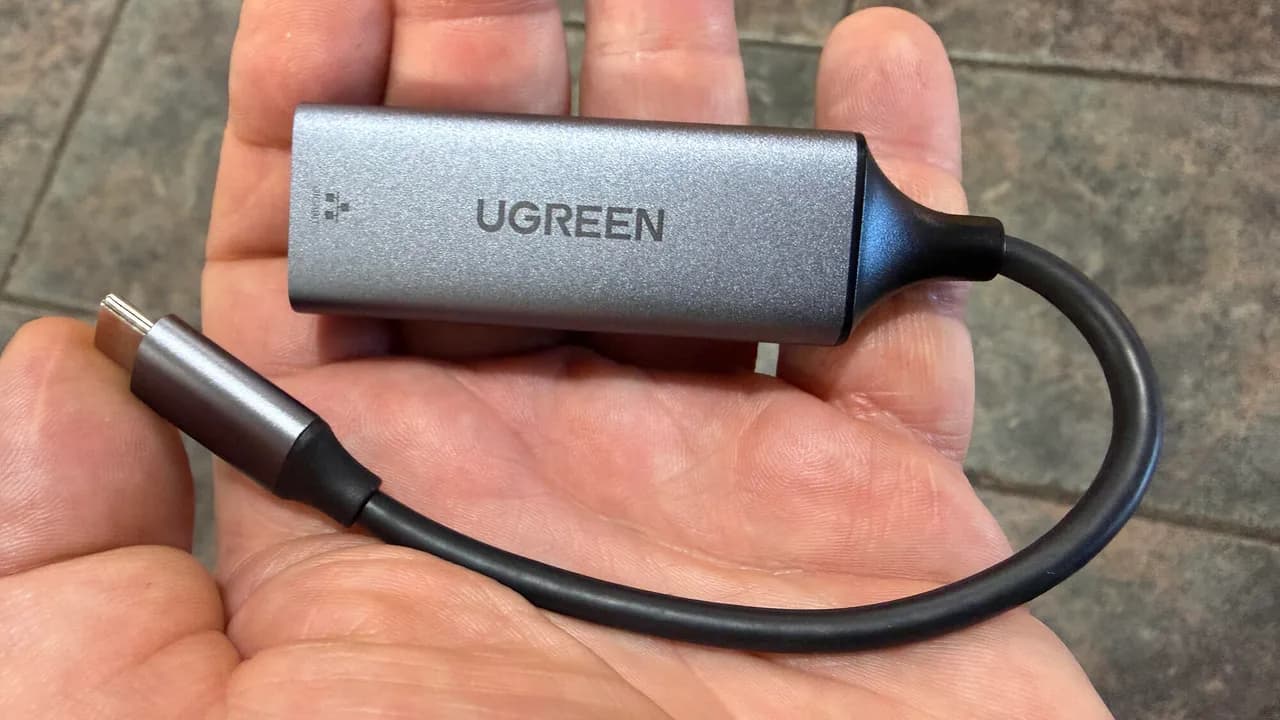
Kingsley-Hughes calls this the best method. A USB-C to Ethernet adapter plugs into your phone's charging port and provides a standard RJ45 Ethernet jack. You run an Ethernet cable from the adapter directly into your router's WAN port.
On the phone, you still enable USB tethering in Settings. But the connection travels over Ethernet, which provides lower latency and more stable throughput than Wi-Fi or USB. Most adapters cost between $15 and $30. This method works with any router that has an Ethernet WAN port, which is essentially all of them.
The setup requires your phone to stay plugged in, so position it near your router and keep it charging. An old phone works perfectly for this, since it can stay dedicated to the task without interrupting your daily driver.
What about automatic failover?
The catch with all three methods: most consumer routers don't automatically switch between WAN sources. When your main connection dies, you may need to unplug the primary WAN cable and connect the phone, or manually change settings in your router's admin panel.
Higher-end routers and dedicated failover devices like GL.iNet travel routers support automatic WAN failover. If seamless backup matters to you, that hardware investment might be worth it. Otherwise, having the phone pre-configured and ready to plug in still beats manually reconnecting every device to a hotspot.
Logicity's Take
For remote workers and small offices, router-level backup beats device-level hotspotting every time. The USB-C to Ethernet approach Kingsley-Hughes recommends runs about $20 for the adapter, plus whatever your carrier charges for mobile data. Compare that to dedicated LTE failover routers from Peplink ($200-$600) or Cradlepoint ($400+). The phone method won't auto-switch, but it costs a fraction of the price and repurposes hardware you already own. If your work depends on internet uptime, even a manual 30-second failover process beats waiting hours for your ISP.
Frequently Asked Questions
Does USB tethering work with all routers?
No. Some routers only recognize USB storage devices on their USB ports. Check your router's documentation for USB WAN or USB tethering support. If unsure, the Ethernet adapter method works with any router.
How much mobile data does backup internet use?
It depends entirely on your connected devices. Video calls, streaming, and cloud syncs consume significant data. Smart home devices use relatively little. Most US carriers cap hotspot data at 15-50 GB monthly, so monitor usage carefully.
Can I use an iPhone instead of Android?
iPhones support USB tethering, but the USB-C to Ethernet approach has more limited support on iOS. Android offers more flexibility for this use case.
Will my phone overheat running as a backup router?
Extended tethering can warm your phone, especially older models. Keep the phone in a cool, ventilated location near your router. Using a phone you no longer carry daily reduces wear on your primary device.
Need Help Implementing This?
Contact Logicity's consulting team for help designing a resilient home office or small business network with automatic failover capabilities.
Source: Latest news
Manaal Khan
Tech & Innovation Writer
Produced with AI assistance and reviewed by the Logicity editorial team. Learn more in our Editorial Policy.