Key Takeaways
How to Fix WiFi Dead Zones in Your House
- Samsung Connectivity Labs is a hidden diagnostic tool in Galaxy phones running OneUI 6.0 or newer that maps Wi-Fi signal strength in real-time
- The tool helped identify a 100 Mbps download speed improvement by relocating a desk to a stronger signal zone
- Non-Samsung users can use free alternatives like WiFiman from Ubiquiti for similar functionality
Samsung's Connectivity Labs, a hidden diagnostic utility buried in Galaxy phones, can map your home's Wi-Fi signal strength in real-time and pinpoint exactly where your connection drops. For anyone struggling with spotty home office Wi-Fi, this free tool might save you from an unnecessary ISP upgrade.
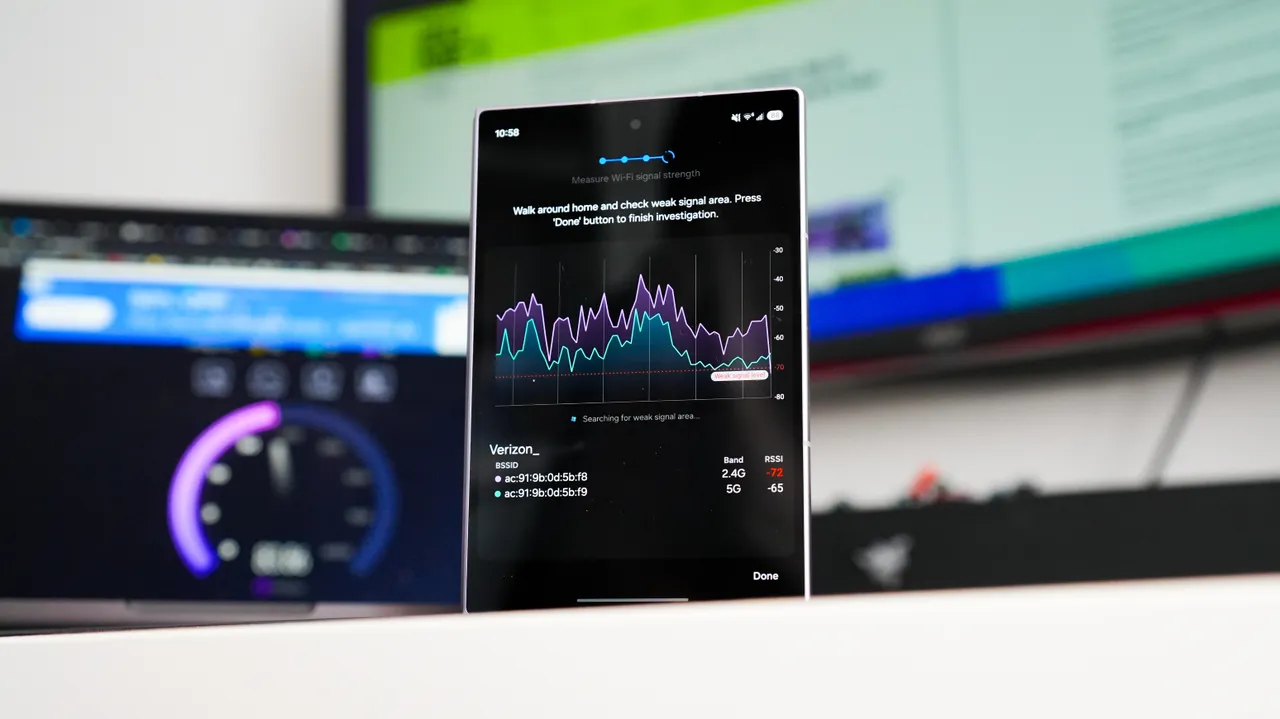
Kerry Wan, a ZDNet senior editor, recently used the tool to diagnose a six-year-old problem: his desktop sat in a Wi-Fi dead zone. After mapping his 100 sq ft office, he found the 5 GHz signal at his desk dropped as low as -80 dBm (poor), while a cabinet in the opposite corner received -40 to -60 dBm (good to excellent). Swapping the furniture positions netted him roughly 100 Mbps more download speed and 50 Mbps more upload speed.
How to unlock Connectivity Labs on your Galaxy phone
The feature ships on any Galaxy device running OneUI 6.0 or newer, but Samsung keeps it hidden by default. To enable it, open your Wi-Fi settings, tap the three-dot menu, select Intelligent Wi-Fi, then tap the version number seven times. A notification confirms "Connectivity Labs enabled," and a new menu appears beneath the version number.
Inside, you'll find a suite of diagnostic utilities. The most useful for home office troubleshooting is the real-time Wi-Fi strength meter, which generates a heatmap as you walk around your space. Signal strength readings between -30 dBm and -50 dBm indicate excellent connectivity. Readings from -60 dBm to -70 dBm are adequate for browsing. Anything below -70 dBm is poor.
What the signal data actually tells you
In Wan's case, his 2.4 GHz signal (used by smart plugs, lights, and cameras) performed fine across the room. The 5 GHz band, which handles higher-bandwidth tasks like video calls and large file transfers, showed the real problem. It dropped severely near his desk but stayed strong in the opposite corner.
This distinction matters. Most home routers broadcast both bands, and your devices often switch between them automatically. If your video calls keep freezing, the issue might be 5 GHz dead spots, not your overall internet speed. The tool isolates which band is failing and where.
Comparing Samsung and Google's latest wearable hardware
What if you don't have a Samsung phone?
Google Pixel and iPhone users lack a native equivalent, but free third-party apps fill the gap. WiFiman, built by networking hardware company Ubiquiti, offers a similar interface with download/upload speed tests and signal strength tracking throughout your home. It can also label and log readings for different rooms, which Connectivity Labs doesn't do.
| Feature | Samsung Connectivity Labs | WiFiman (Ubiquiti) |
|---|---|---|
| Price | Free | Free |
| Platform | Galaxy phones (OneUI 6.0+) | Android, iOS |
| Real-time signal heatmap | Yes | Yes |
| Speed test | Yes | Yes |
| Room labeling/logging | No | Yes |
| Cellular diagnostics | Yes | No |
For most users, either tool provides enough data to identify dead zones and test whether moving furniture, adding a mesh node, or repositioning a router solves the problem.
Why this matters before calling your ISP
When Wan first contacted Verizon about his connection issues, the support call immediately pivoted to upselling a more expensive Fios plan. This is standard practice. ISPs often push upgrades before troubleshooting local issues like router placement or device positioning.
Mapping your signal strength first gives you data to push back. If your plan promises 300 Mbps and you're getting 200 Mbps at your desk but 290 Mbps in another room, the problem isn't the plan. It's your desk.
Samsung's broader strategic moves in semiconductors and connectivity
Is this just Wi-Fi Verbose Logging with a nicer interface?
Android's developer options include Wi-Fi Verbose Logging, which tracks connection activity in granular detail. Connectivity Labs overlaps in some areas, like detecting signal strength fluctuations. But the key difference is usability. Verbose Logging dumps raw data into system logs. Connectivity Labs visualizes it in real-time as you walk around, making it practical for non-developers to act on.
Logicity's Take
For IT teams managing hybrid workforces, tools like Connectivity Labs highlight a persistent blind spot: employee home networks. Companies pay for collaboration tools like [Slack](https://logicity.in/r/slack) and video platforms, but call quality still depends on whether someone's desk sits near a microwave. Ubiquiti's WiFiman is the better choice for systematic logging across multiple locations. For quick personal diagnostics, Samsung's built-in tool saves time. Neither replaces a proper mesh system like Eero or Google Nest WiFi for homes with structural dead zones.
Disclosure
Some links in this post are affiliate links — Logicity earns a commission if you sign up, at no extra cost to you. We only link products we have used or actively recommend.
Frequently Asked Questions
Which Samsung phones support Connectivity Labs?
Any Galaxy phone running OneUI 6.0 or newer includes Connectivity Labs. This covers most Samsung devices released from 2023 onward.
Can I use Connectivity Labs on a Samsung tablet?
The feature is primarily designed for Galaxy phones. Samsung tablets running OneUI 6.0 may include it, but availability varies by model.
What is a good Wi-Fi signal strength in dBm?
-30 to -50 dBm is excellent. -60 to -70 dBm is adequate for basic browsing. Below -70 dBm typically causes lag and disconnects.
Does WiFiman work on iPhone?
Yes, WiFiman from Ubiquiti is available as a free download on both iOS and Android.
Will mapping my Wi-Fi fix dead zones?
It identifies where dead zones exist. Fixing them may require repositioning your router, moving your workspace, or adding a mesh Wi-Fi node.
Need Help Implementing This?
If your organization needs help optimizing remote work connectivity or evaluating enterprise networking solutions, contact Logicity's consulting team for guidance on infrastructure planning and vendor selection.
Source: Latest news
Manaal Khan
Tech & Innovation Writer
Produced with AI assistance and reviewed by the Logicity editorial team. Learn more in our Editorial Policy.