Key Takeaways
iOS 26 Magnifier App Tips & Tricks! Hidden iPhone Tool You Should Be Using
- The Magnifier app can read text aloud and transcribe captured images
- Custom activities let you save settings for specific use cases like restaurants
- The Detect feature enables voice descriptions of scenes and text
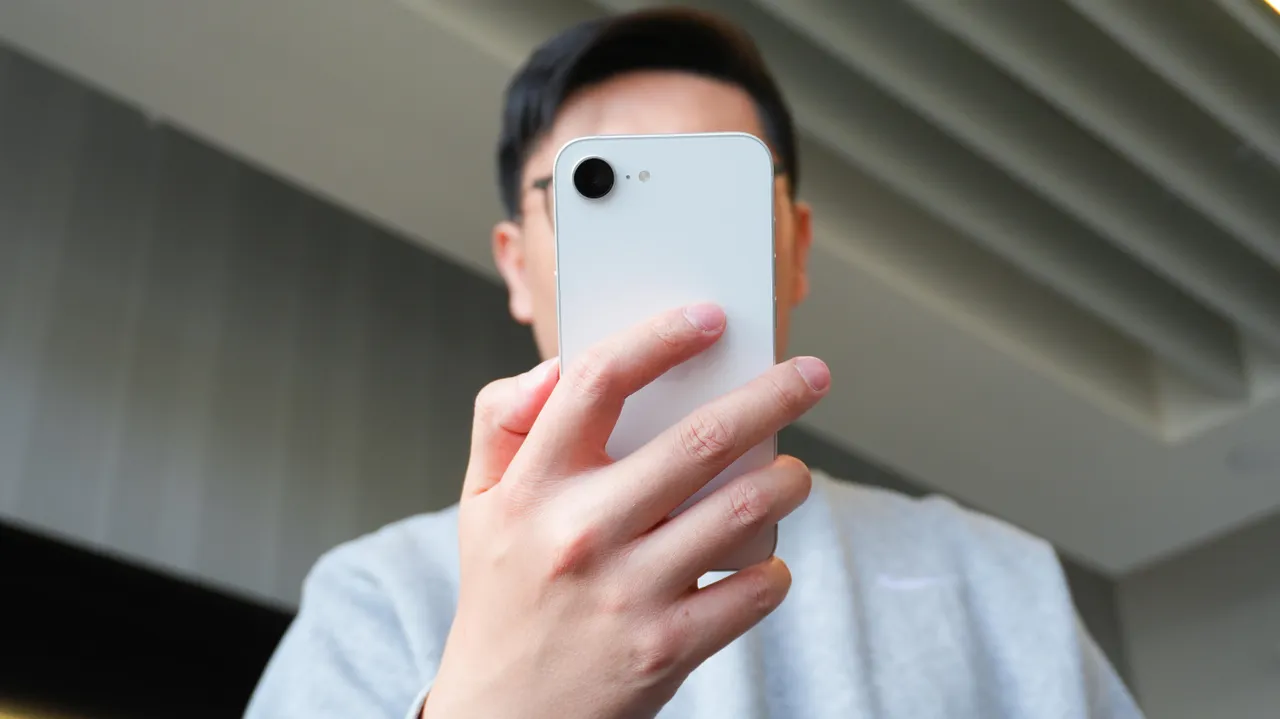
The Magnifier app on your iPhone is not just a digital magnifying glass. It reads text aloud, transcribes captured images, and lets you save custom presets for situations like squinting at restaurant menus. Apple has shipped this tool since iOS 10, but most users have never opened it.
Here's how to actually use it, beyond the basic zoom.
How to find and open Magnifier
The app comes preinstalled. Swipe down from your home screen to open search, type "Magnifier," and tap the black square icon with the gray magnifying glass. Once open, slide the yellow dot left or right to zoom in or out on whatever your camera sees.
That's the baseline. But the app's real utility sits in features Apple tucked behind taps.
Using Reader mode to transcribe and hear text
Point your camera at a medicine bottle or a contract's fine print, then tap Capture. A Reader button appears at the bottom right. Tap it.
The app transcribes the captured text into plain, readable type. Hit the play button and your iPhone reads it aloud. This is faster than zooming in and panning across lines, and it works for anyone who needs audio instead of visual output.
You can also share or save the captured image directly from this screen.
Enabling the Detect feature
Apple hides one of Magnifier's most useful tools by default. Open the app, tap Settings in the bottom right, and look at the list. You'll see Activities and Capture marked as Shown, but Detect is set to Hidden.
- Tap Detect in the Settings list
- Toggle "Show in Control Panel" on
- Return to the main screen — Detect now appears at the bottom
Press and hold Detect to access three options: Text, Scenes, and Point & Speak. Enable Text, tap Detect, and your phone starts reading whatever it sees, automatically. Enable Scenes, and it describes what's happening on screen in plain language. This is aimed at users with vision impairments, but it's useful for anyone multitasking.
Saving custom activities for specific situations
The Activities feature lets you save Magnifier presets. Say you always use the app at restaurants, where menus are dim and text is small. You can build a mode for exactly that.
- In Magnifier, tap Activities in the bottom left
- Tap Save As New Activity
- Name it (e.g., "Restaurant") and pick an icon
- Set your Primary Controls — Zoom and Flashlight work well together here
- Add secondary controls like Brightness, Contrast, or Filters as needed
Now when you open Magnifier in a dark restaurant, your saved activity loads with everything pre-configured. No fiddling.
Logicity's Take
Magnifier is the kind of utility Apple ships and forgets to explain. It's been around since 2016 and became a standalone app in iOS 14 (2020). Most users don't know it exists because Apple buries it under accessibility instead of featuring it as a core camera function. For anyone reading contracts, prescription labels, or conference badges, this is faster than asking someone or pulling up the camera and pinching to zoom.
Other controls worth knowing
Beyond Zoom and Flashlight, you can toggle Focus Lock (keeps the focal point stable), switch between front and rear Cameras, apply color Filters for contrast, and adjust Brightness. The Capture Mode setting controls what happens when you snap an image.
Magnifier is also available on iPad and, as of 2025, macOS. The iOS version remains the most polished.
Android users have a similar Google Magnifier app — see what's coming to Pixel hardware
Frequently Asked Questions
Is the Magnifier app the same as zooming in the Camera app?
No. Magnifier is a dedicated tool with additional controls for brightness, contrast, filters, and text-to-speech. The Camera app only zooms.
Does Magnifier work on Android?
Android has a separate Google Magnifier app with similar functionality. It's not preinstalled on all devices.
Can Magnifier read text aloud?
Yes. Use the Capture and Reader features, or enable the Detect function for automatic text-to-speech.
How do I add Magnifier to Control Center?
Go to Settings > Control Center, scroll to Magnifier, and tap the plus button. You can then swipe down and tap to open it instantly.
Need Help Implementing This?
Logicity covers the tools, workflows, and decisions tech teams face daily. Subscribe to our newsletter for more practical guides.
Source: Latest news
Manaal Khan
Tech & Innovation Writer
Produced with AI assistance and reviewed by the Logicity editorial team. Learn more in our Editorial Policy.