Key Takeaways
- Netflix dynamically adjusts your stream quality based on network conditions, often without notification
- Hidden keyboard shortcuts and menu options reveal your actual streaming bitrate and resolution on any device
- Netflix targets 8 Mbps for 4K content, while competitors like Apple TV+ push above 30 Mbps
You're paying for Netflix's 4K tier. But are you actually getting 4K? The answer might surprise you. Netflix uses variable bitrate encoding across all its streams, meaning the service makes real-time decisions about your picture quality based on network conditions, device capabilities, and content complexity. Sometimes those decisions work against you.
The good news: Netflix has built-in diagnostic tools on every platform that reveal exactly what quality you're receiving. The bad news: accessing them sometimes requires connecting a keyboard to your TV. Here's how to check your actual stream quality on any device.
Why Netflix Throttles Your Picture Quality
Like every major streaming service, Netflix prioritizes uninterrupted playback over maximum quality. The platform uses "dynamic, content-aware" encoding that breaks videos into individual shots and optimizes compression based on visual complexity. A static dialogue scene needs less bandwidth than a fast-paced action sequence.
Netflix formerly capped 4K content at around 16 Mbps. Improved encoding efficiency has dropped that to approximately 8 Mbps for most content. The company targets a VMAF (Video Multi-method Assessment Fusion) score of 95, which they consider "visually lossless." In practice, this means Netflix will choose a lower bitrate if their AI determines you won't notice the difference.
“There is a clear gap in perceived sharpness between Netflix and competitors like Apple TV+, which frequently push bitrates above 30 Mbps, leaving Netflix looking 'softer' in complex scenes.”
— Vincent Teoh, Display Technology Analyst & HDTVTest Founder
This aggressive compression can cause visible artifacts. Dark scenes with lots of motion are particularly vulnerable to macroblocking, those blocky patches that appear when compression struggles to keep up with visual complexity.
How to Check Your Stream Quality on Desktop
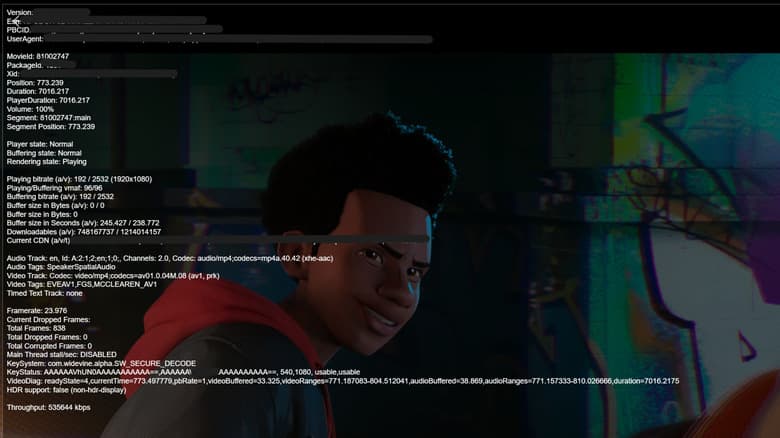
The easiest way to verify your Netflix quality is on a Mac or Windows computer. While watching any movie or show, press Ctrl + Alt + Shift + D. This surfaces a diagnostic overlay with detailed information about your current stream.
The overlay displays several technical metrics, but focus on two: bitrate and frame rate. The bitrate tells you what resolution is actually being delivered. The frame rate reveals whether you're losing frames during playback.
For a newer movie on a 4K plan, you should see a resolution of 3840 × 2160 and a frame rate around 23.9 or 24 frames per second. If you're seeing 1920 × 1080 instead, Netflix has downgraded your stream, whether due to network conditions, device limitations, or the content itself not being available in 4K.
Checking Quality on Smart TVs
Smart TVs require a different approach. Some TV remotes include an info button that surfaces basic stream information when pressed during playback. Check your remote for a button labeled "Info" or displaying an "i" icon.
If your remote lacks this option, you can connect a Bluetooth keyboard to your TV and press F4 during playback. Yes, connecting a keyboard to your television feels ridiculous. But it works, and it's the only way to access these diagnostics on many smart TV platforms.
The TV diagnostic overlay displays less information than the desktop version, but you'll still see the key metrics: current resolution and bitrate.
Related: Using AI to optimize your TV picture settings automatically
Checking Quality on Mobile Devices
Mobile devices work differently. You won't get live stream information, but you can check what quality Netflix is capable of delivering to your specific device.
Open the Netflix app and navigate to the My Netflix tab. Go to app settings and select Playback Specification. This screen shows the maximum resolution and HDR capabilities Netflix can deliver to your phone or tablet. If your device supports 4K HDR but you're on a lower-tier plan, this is where you'll see the mismatch.
What the Numbers Should Look Like
Here's what to expect when everything is working correctly:
- 4K content: 3840 × 2160 resolution at approximately 8-16 Mbps
- 1080p content: 1920 × 1080 resolution at approximately 3-6 Mbps
- Frame rate: 23.9-24 fps for most films, 29.97-30 fps for some TV content
- Dolby Atmos audio: up to 640 kbps when available
If you're paying for the 4K tier but consistently seeing 1080p resolution, the culprit is usually one of three things: your network can't sustain the required bandwidth, your device doesn't support 4K playback, or Netflix has determined the content itself isn't available in 4K.
Diagnosing Quality Problems
Once you've accessed the diagnostic overlay, you can determine why your quality might be lower than expected.
Network issues show up as fluctuating bitrates that never stabilize at 4K levels. If your bitrate bounces between 2-4 Mbps, your internet connection is the bottleneck. Netflix recommends at least 25 Mbps for 4K streaming, though real-world usage often requires more headroom.
Device limitations appear as a consistent cap below 4K. Some older smart TVs and streaming devices simply can't decode 4K streams, even if connected to a 4K display. The playback specification screen on mobile devices makes these limitations explicit.
Content limitations are trickier. Not everything on Netflix is available in 4K. Older catalog titles and some licensed content may only exist in 1080p or lower. The diagnostic overlay will show you're getting the maximum available quality, even if that's not 4K.
The Broader Quality Debate
Home theater enthusiasts have long debated Netflix's aggressive compression strategy. Reddit communities like r/hometheater frequently compare Netflix's "softer" image quality to higher-bitrate competitors like Apple TV+ or physical Blu-ray discs.
The frustration is understandable. Even paying for the premium 4K tier doesn't guarantee a high-fidelity image. Netflix's approach prioritizes efficiency over absolute quality, which makes sense for a global streaming service managing billions of hours of playback. But for viewers with high-end displays and robust internet connections, it can feel like paying for quality they're not receiving.
Logicity's Take
Frequently Asked Questions
Does Netflix automatically downgrade video quality?
Yes. Netflix uses variable bitrate encoding that adjusts quality in real-time based on your network conditions, device capabilities, and content complexity. The service prioritizes uninterrupted playback over maximum quality.
What keyboard shortcut shows Netflix quality on PC?
Press Ctrl + Alt + Shift + D while watching any content on Mac or Windows to display the diagnostic overlay showing current bitrate, resolution, and frame rate.
Why is my Netflix 4K looking blurry?
Several factors can cause this: insufficient network bandwidth (Netflix recommends 25 Mbps for 4K), device limitations that prevent 4K decoding, content that isn't available in 4K, or Netflix's compression algorithms prioritizing stability over sharpness.
What bitrate should Netflix 4K be?
Netflix 4K content typically streams at 8-16 Mbps, depending on scene complexity. This is significantly lower than competitors like Apple TV+, which can exceed 30 Mbps.
How do I check Netflix quality on a smart TV?
Press the info button on your TV remote during playback, or connect a Bluetooth keyboard and press F4. This displays current resolution and bitrate information.
Need Help Implementing This?
Source: Engadget
Manaal Khan
Tech & Innovation Writer
Produced with AI assistance and reviewed by the Logicity editorial team. Learn more in our Editorial Policy.