Key Takeaways
- Wireless Power Sharing turns your Galaxy phone into a portable charger for other devices
- Notification History keeps a 24-hour log of every alert, including accidentally dismissed ones
- Samsung disables many power-user features by default to simplify onboarding and save battery
Samsung ships its Galaxy phones with some of the best features turned off. The company prioritizes a clean first-run experience and battery conservation over discoverability, which means millions of users never find capabilities already built into their devices. A few minutes in the settings menu changes that.
With more than 290 million Galaxy smartphones shipped globally in 2023, Samsung remains the world's largest Android manufacturer. Yet even longtime owners miss features like reverse wireless charging, notification logging, and edge panels because they require manual activation. Here's what to enable.
Wireless Power Sharing: your phone becomes a charger
Modern Galaxy phones double as portable wireless charging pads. A colleague's phone dying before a meeting? Your wireless earbuds out of juice at the airport? Place the device on the back of your Galaxy and it draws power directly from your battery.
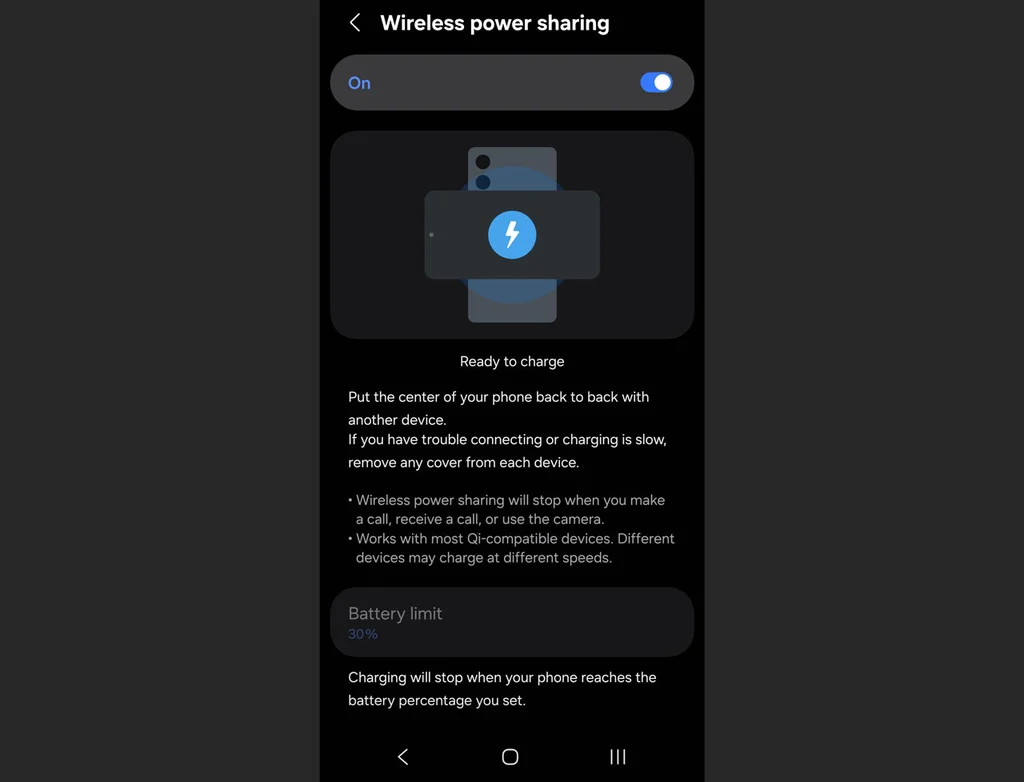
To enable it: open Settings, scroll to Battery, tap Wireless Power Sharing, and toggle it on. Flip your phone face-down and place the other device on its back. The feature outputs around 4.5W on most S-series models, enough to top off earbuds or give a phone a quick boost. Samsung keeps it off by default because it drains your own battery faster.
Notification History: stop losing dismissed alerts
You swipe away a notification without reading it, then realize a second later it was the delivery confirmation you were waiting for. On a stock Galaxy, that alert is gone. Notification History fixes this by logging every notification for 24 hours.
Navigate to Settings, tap Notifications, select Advanced settings, then Notification history, and flip the toggle. From that point on, every alert appears in a chronological log you can revisit anytime. Accidentally dismissed messages, delivery updates, calendar reminders: all recoverable.
Why Samsung hides features by default
Samsung's One UI interface, built on Android 14, includes dozens of optional capabilities. Disabling them out of the box serves two purposes. First, it simplifies onboarding for less technical users who would otherwise face a cluttered settings menu. Second, it extends battery life. Features like Wireless Power Sharing, always-on displays, and background sync all consume power.
The tradeoff is discoverability. Power users and professionals often buy Galaxy hardware specifically for these capabilities, then never find them. Samsung's approach contrasts with Apple's more opinionated defaults, where most features ship enabled. Neither strategy is objectively better, but Samsung's requires active exploration.
Galaxy AI adds more hidden toggles
The 2024 introduction of Galaxy AI across the S24 series and subsequent devices compounded this pattern. Features like Circle to Search, Live Translate, and Generative Edit require manual activation or specific gestures users won't discover organically. Samsung claims these AI capabilities now run on over 200 million devices, but usage rates remain unclear.
TM Roh, President of Samsung's Mobile eXperience Business, called Galaxy AI "the beginning of a new era in mobile experiences" at the S24 launch. That era, for many users, won't begin until they dive into their settings.
Logicity's Take
For AI builders shipping mobile features, Samsung's approach is a cautionary tale. Powerful capabilities buried in settings menus don't get used. The company's discoverability problem mirrors a broader pattern in enterprise software: feature-rich tools that underperform simpler alternatives because users never find the functionality. If you're building AI features for mobile, consider progressive disclosure over hidden toggles. Surface capabilities contextually, when users are most likely to need them, rather than requiring a settings expedition.
Frequently Asked Questions
Does Wireless Power Sharing work with any device?
It works with any Qi-compatible device, including most wireless earbuds, smartwatches, and smartphones from other manufacturers. The receiving device must support wireless charging.
How long does Notification History store alerts?
Samsung's Notification History retains notifications for 24 hours. After that window, dismissed alerts are permanently deleted.
Does enabling these features drain battery faster?
Wireless Power Sharing directly drains your battery to charge another device. Notification History has negligible impact since it only logs data that already passes through the system.
Which Galaxy phones support these features?
Wireless Power Sharing is available on Galaxy S10 and newer flagship models. Notification History is available on most devices running One UI 3.0 or later.
Need Help Implementing This?
Building mobile AI features that users actually discover? Our team covers product design patterns and mobile UX research. Subscribe to Logicity for weekly analysis on shipping AI products that get used.
Source: Fast Company / Doug Aamoth
Huma Shazia
Senior AI & Tech Writer
Produced with AI assistance and reviewed by the Logicity editorial team. Learn more in our Editorial Policy.