Samsung Finder vs Google Search Bar: A Better Way to Search
Key Takeaways
- Samsung Finder searches inside apps, not just app names
- You can find contacts, settings, and documents directly from the home screen
- Enable it by turning on 'Show Finder on Home screen' in app drawer settings
The Google Search Bar Problem
The Google search bar sits front and center on every Android home screen. On Samsung Galaxy phones, it's the default. You can open apps, run web searches, and access Google Lens. That's about it.
The bar won't search your phone's settings. It can't find contacts. It won't surface documents stored locally. For something you tap multiple times a day, it does surprisingly little beyond web searches.
The suggestions aren't particularly useful either. Instead of showing apps based on your usage patterns, it displays recent web searches. That's rarely what you need when you're trying to quickly launch something on your device.
What Samsung Finder Does Differently
Samsung's Finder is built into One UI, but it's hidden by default. Most Galaxy owners never discover it. That's a shame, because it's genuinely more capable than Google's search bar.
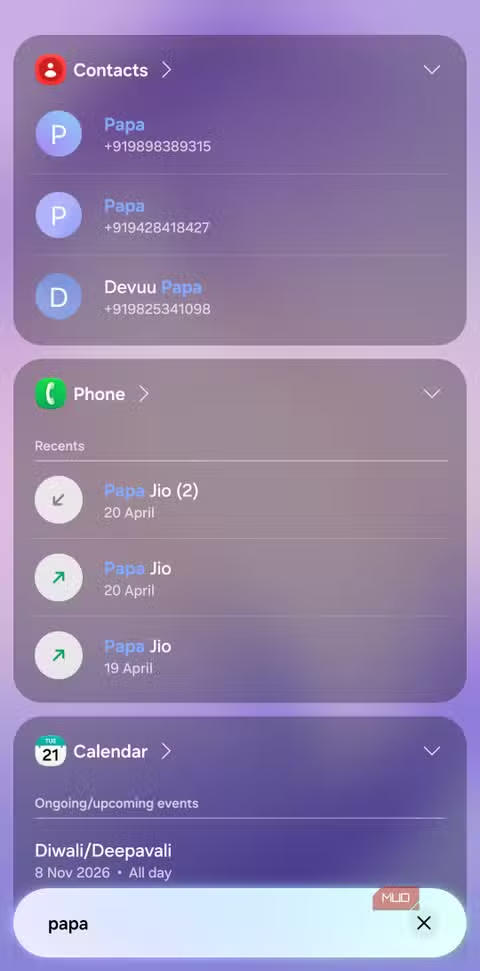
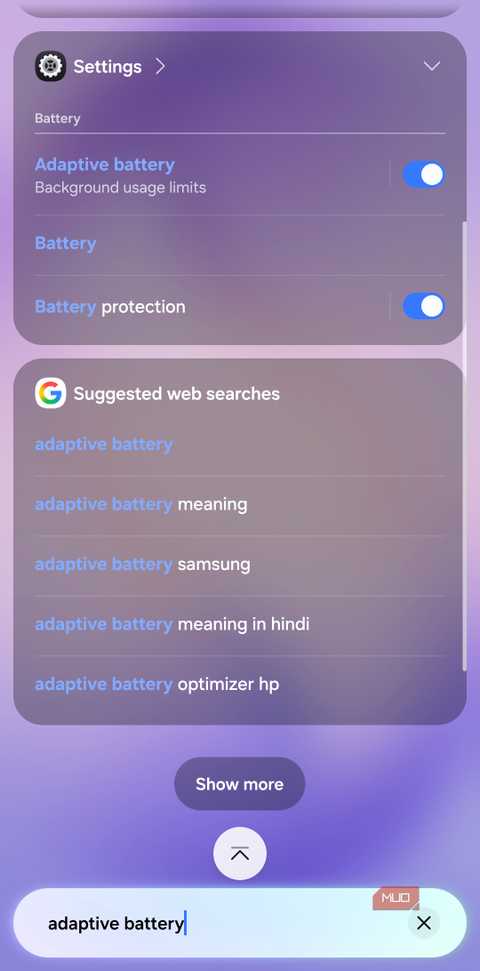
Finder searches inside apps, not just app names. Search for WhatsApp, and you'll see recent chats alongside the app icon. Search for a contact name, and their information appears instantly. You can jump directly to specific settings without navigating through menus.
Documents and files are searchable too. If you downloaded a PDF three months ago and forgot where it went, Finder will locate it. The search pulls from your entire device, not just a web index.
How to Enable Finder on Your Home Screen
By default, Finder lives in the app drawer. You have to swipe up, then tap the search field. That's one step too many for a feature you'll use constantly.
To add Finder to your home screen:
- Swipe up to open the app drawer
- Tap the three-dot menu in the top right corner
- Select Settings or Home screen settings
- Turn on 'Show Finder on Home screen'
- Return to your home screen
You'll now see a Finder option at the bottom of your home screen. Tap it, and the search interface appears immediately.
More ways to customize your Android experience
What About the Google Search Bar?
You can remove the Google search bar widget from your home screen entirely. Long-press it, then drag to Remove. The widget disappears, freeing up space.
Google Search still works normally through the browser or the Google app. You're not losing functionality. You're just replacing a limited widget with a more capable one.
If you later want the Google bar back, long-press an empty area on your home screen, tap Widgets, and find the Google Search bar under the Google section.
When Finder Falls Short
Finder isn't perfect for everything. Web searches still route through your default browser, and the results aren't as rich as Google's. If you primarily use the home screen bar for web searches, you might miss Google's integration.
Google Lens access also requires an extra step. The Google bar has a dedicated Lens button. With Finder, you'll need to open the Google app or camera separately.
For on-device search, though, Finder wins clearly. Finding settings, contacts, files, and in-app content justifies the switch for most users.
More hidden features in your daily tech
✅ Pros
- • Searches inside apps, not just app names
- • Finds contacts, settings, and files directly
- • Shows recent searches alongside app suggestions
- • Built into One UI, no third-party app needed
❌ Cons
- • Web search results less rich than Google's
- • No direct Google Lens shortcut
- • Hidden by default, requires manual setup
Logicity's Take
Frequently Asked Questions
Does Samsung Finder work on all Galaxy phones?
Finder is part of One UI and available on Galaxy phones running One UI 3.0 and later. This includes most Galaxy devices from 2021 onward.
Can I use both Google Search and Finder on my home screen?
Yes. You can keep the Google search bar widget and add Finder. However, this takes up more home screen space. Most users find one or the other sufficient.
Does Finder send my searches to Samsung?
Finder primarily searches on-device content. Web searches route through your default browser. Check Samsung's privacy settings in Finder to control data sharing preferences.
Can Finder search inside all apps?
Finder can search inside many apps, but coverage depends on how each app handles indexing. Messaging apps, contacts, and Samsung's own apps work well. Some third-party apps have limited support.
Need Help Implementing This?
Source: MakeUseOf
Huma Shazia
Senior AI & Tech Writer
اقرأ أيضاً

رأي مغاير: كيف يؤثر اختراق الأمن الداخلي الأميركي على شركاتنا الخاصة؟
في ظل اختراق عقود الأمن الداخلي الأميركي مع شركات خاصة، نناقش تأثير هذا الاختراق على مستقبل الأمن السيبراني. نستعرض الإحصاءات الموثوقة ونناقش كيف يمكن للشركات الخاصة أن تتعامل مع هذا التهديد. استمتع بقراءة هذا التحليل العميق

الإنسان في زمن ما بعد الوجود البشري: نحو نظام للتعايش بين الإنسان والروبوت - Centre for Arab Unity Studies
في هذا المقال، سنناقش كيف يمكن للبشر والروبوتات التعايش في نظام متكامل. سنستعرض التحديات والحلول المحتملة التي تضعها شركات مثل جوجل وأمازون. كما سنلقي نظرة على التوقعات المستقبلية وفقًا لتقرير ماكنزي

إطلاق ناسا لمهمة مأهولة إلى القمر: خطوة تاريخية نحو استكشاف الفضاء
تعتبر المهمة الجديدة خطوة هامة نحو استكشاف الفضاء وتطوير التكنولوجيا. سوف تشمل المهمة إرسال رواد فضاء إلى سطح القمر لconducting تجارب علمية. ستسهم هذه المهمة في تطوير فهمنا للفضاء وتحسين التكنولوجيا المستخدمة في استكشاف الفضاء.