5 Windows 11 Features to Disable for Nearly 1GB Free RAM
Key Takeaways
- Hiding widgets from the taskbar does not stop background processes. You need to uninstall the WebExperience package via PowerShell.
- OneDrive syncing starts automatically before you open any files, consuming RAM even when unused.
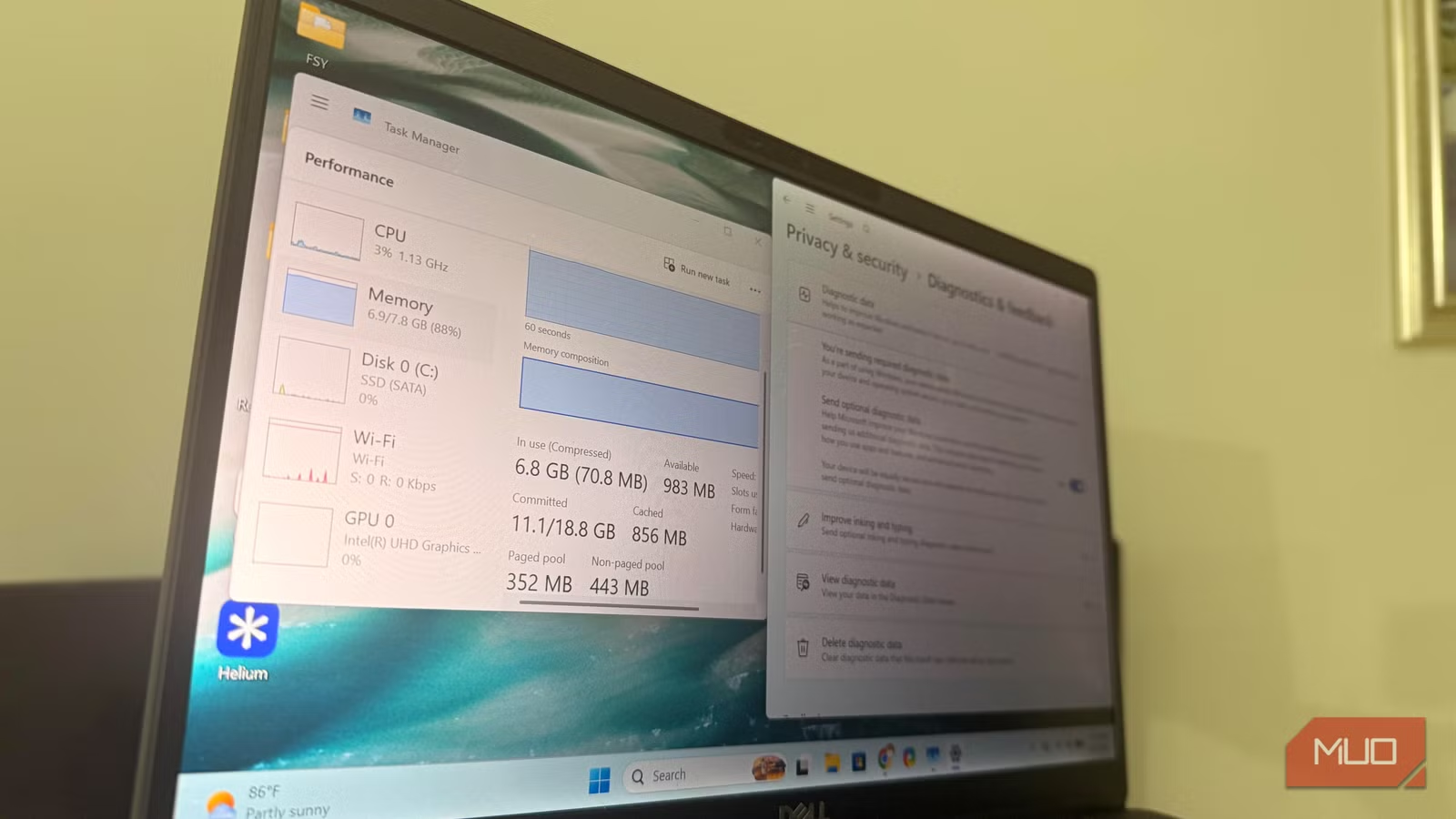
- Disabling five default features increased idle RAM from 510MB to 1.6GB on an 8GB laptop.
The Problem: Windows 11 Defaults Eat Your Memory
Your Windows 11 PC might feel sluggish despite decent hardware. The bottleneck is not your processor or SSD. It is the operating system itself.
MakeUseOf writer Afam Onyimadu tested this on a laptop with 8GB of RAM. Before changes, his idle RAM sat at around 510MB. After disabling five default features, it jumped to 1.6GB. That is roughly a 1GB gain from removing what he calls "corporate bloat" tied to Microsoft's ecosystem and telemetry services.
Feature 1: Widgets (The Hidden Memory Hog)
Most people remove widgets from the taskbar and assume they are gone. Onyimadu made the same mistake. He did not use the weather cards or MSN headlines, so he hid the icon. Problem solved, right?
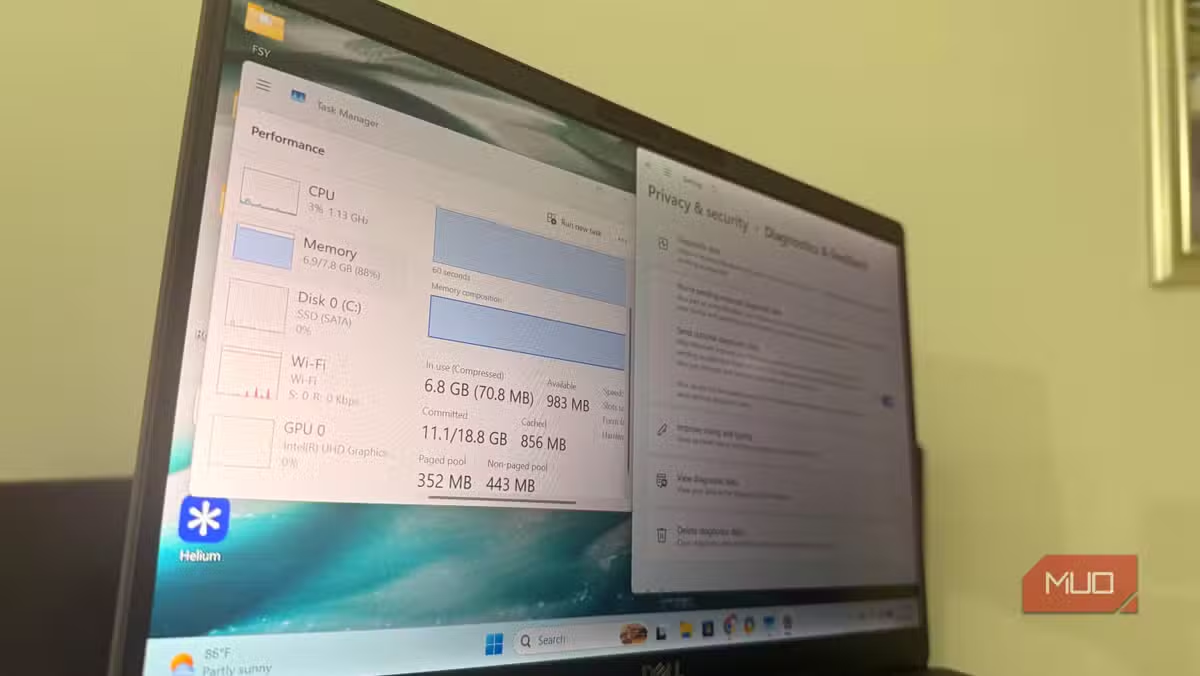
Wrong. Task Manager showed Microsoft web-related processes running even when he had not opened anything. Hiding a feature on Windows does not stop it from running.
Widgets are part of Microsoft's broader web experience system. They use Edge WebView2 components to power live content like news and weather. Removing the taskbar icon leaves the background behavior intact.
How to Actually Remove Widgets
To fully disable widgets, you need to uninstall the package via PowerShell:
Get-AppxPackage *WebExperience* | Remove-AppxPackageLaunch PowerShell with admin privileges and run this command. Onyimadu reports this freed about 100 to 150MB. Not dramatic on its own, but it set the pattern for what followed.
Feature 2: OneDrive Background Sync
OneDrive starts syncing before you touch a file. It runs automatically at startup and keeps working in the background whether you use cloud storage or not.
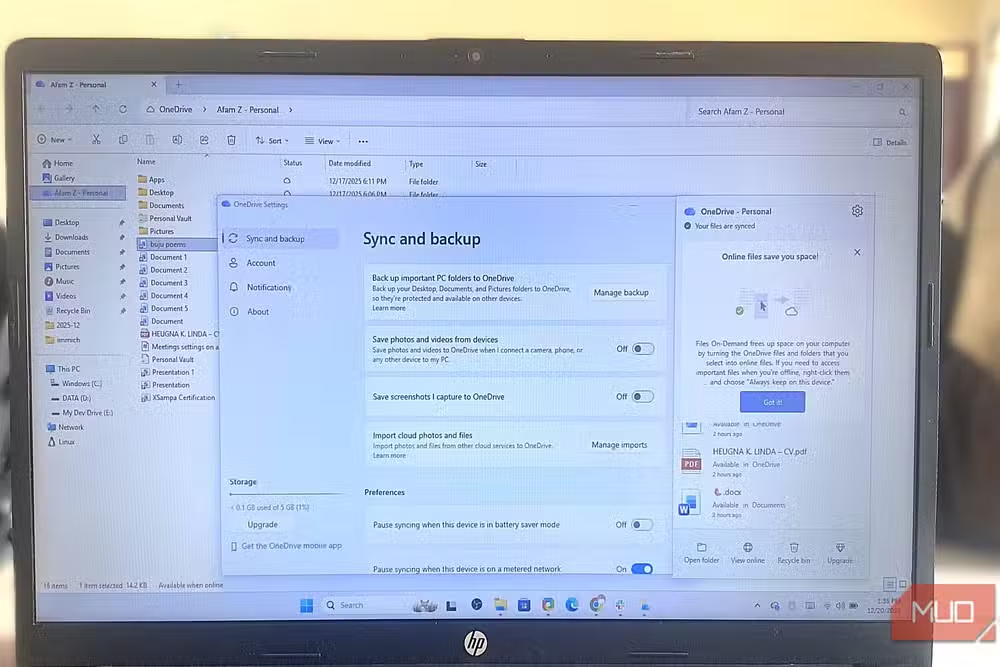
If you store files locally or use a different cloud service, OneDrive is consuming RAM for nothing. You can disable it by right-clicking the OneDrive icon in the system tray, opening Settings, and unchecking "Start OneDrive automatically when I sign in to Windows."
Feature 3: Startup Apps You Never Launched
Windows 11 allows apps to register themselves for startup without asking. Check Task Manager's Startup tab. You will likely find apps you have never consciously opened loading every time you boot.
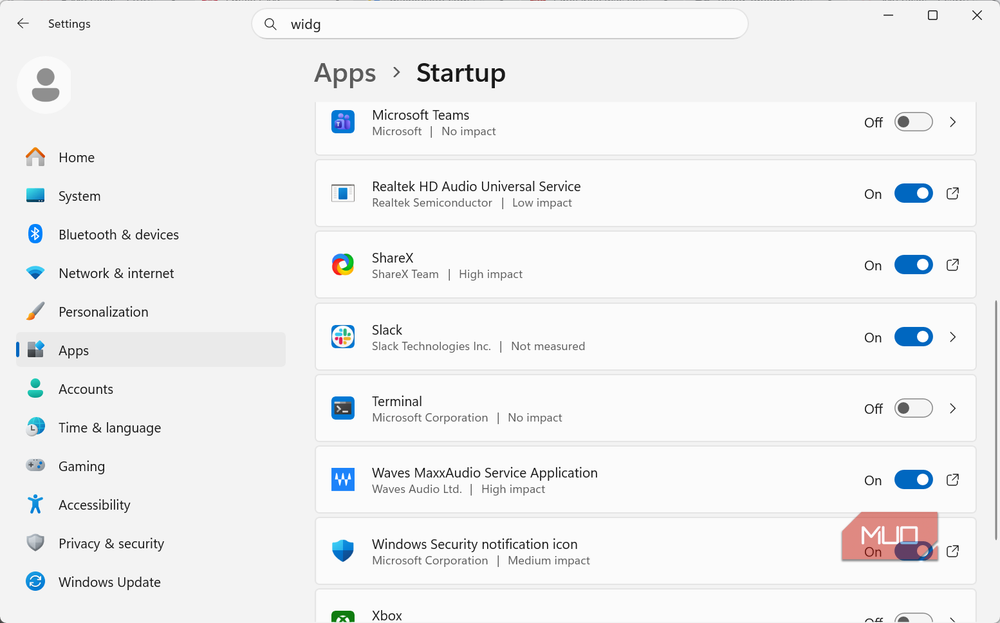
Right-click each unnecessary app and select Disable. Common offenders include manufacturer utilities, game launchers, and communication apps that do not need to run constantly.
Feature 4: Diagnostics and Telemetry
Windows collects diagnostic data by default. This telemetry runs continuously, reporting usage patterns back to Microsoft. For most users, the privacy tradeoff is not worth the RAM cost.
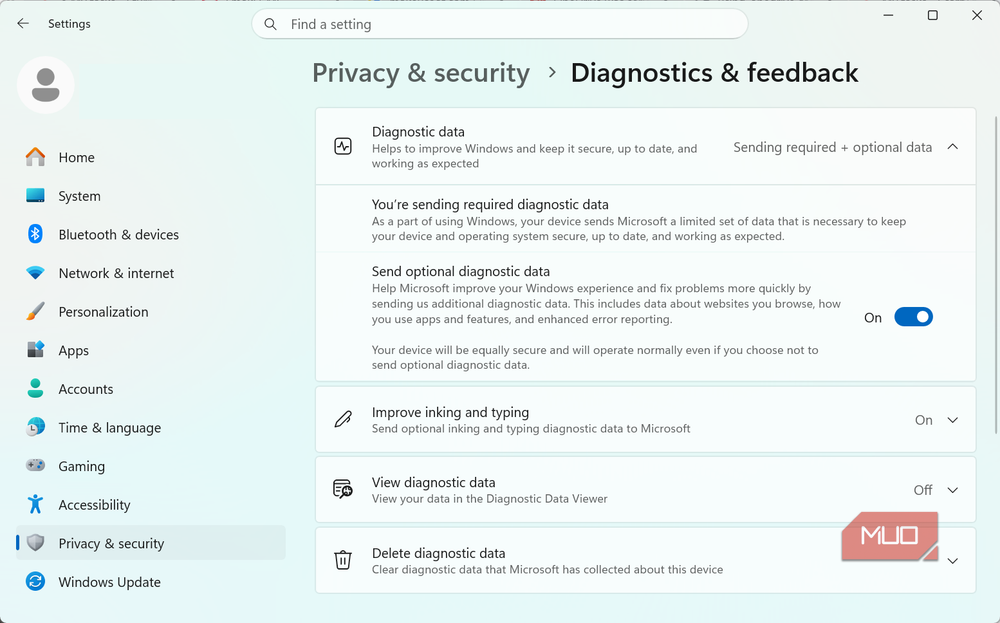
Go to Settings, then Privacy and Security, then Diagnostics and Feedback. Set diagnostic data to "Required" instead of "Optional." You can also disable "Improve inking and typing" and "Tailored experiences."
Feature 5: Background Apps
Windows 11 lets apps run in the background by default. Some need this capability. Most do not.
Navigate to Settings, then Apps, then Installed Apps. Click the three-dot menu next to each app and select Advanced Options. Under Background App Permissions, change "Let this app run in background" to Never for apps you only use on demand.
Logicity's Take
What to Expect After These Changes
Onyimadu describes his laptop as going from "background-heavy into a leaner setup." The numbers back this up. His idle RAM went from 510MB available to 1.6GB available. That extra headroom makes a noticeable difference when running multiple browser tabs or switching between apps.
These changes are reversible. If you need a feature back, you can re-enable it through Settings or reinstall the widget package via the Microsoft Store.
Another guide on optimizing default software settings for better performance
Similar walkthrough for disabling background services on Samsung devices
Frequently Asked Questions
Will disabling these Windows 11 features break anything?
No. These are convenience features, not system requirements. You lose widget cards, automatic cloud sync, and some telemetry. Core Windows functions remain intact.
How much RAM can I free up by disabling Windows 11 defaults?
Results vary by system. In this test on an 8GB laptop, idle RAM increased from 510MB to 1.6GB. That is roughly 1GB freed.
Can I undo these changes if needed?
Yes. Startup apps can be re-enabled in Task Manager. OneDrive can be turned back on. Widgets can be reinstalled from the Microsoft Store.
Why does hiding widgets not actually disable them?
Widgets use Edge WebView2 components that run independently of the taskbar icon. Removing the icon hides the interface but leaves background processes running.
Should I disable all startup apps?
No. Keep security software and drivers. Disable game launchers, chat apps, and manufacturer utilities you do not use constantly.
Need Help Implementing This?
Source: MakeUseOf
Huma Shazia
Senior AI & Tech Writer
اقرأ أيضاً

رأي مغاير: كيف يؤثر اختراق الأمن الداخلي الأميركي على شركاتنا الخاصة؟
في ظل اختراق عقود الأمن الداخلي الأميركي مع شركات خاصة، نناقش تأثير هذا الاختراق على مستقبل الأمن السيبراني. نستعرض الإحصاءات الموثوقة ونناقش كيف يمكن للشركات الخاصة أن تتعامل مع هذا التهديد. استمتع بقراءة هذا التحليل العميق

الإنسان في زمن ما بعد الوجود البشري: نحو نظام للتعايش بين الإنسان والروبوت - Centre for Arab Unity Studies
في هذا المقال، سنناقش كيف يمكن للبشر والروبوتات التعايش في نظام متكامل. سنستعرض التحديات والحلول المحتملة التي تضعها شركات مثل جوجل وأمازون. كما سنلقي نظرة على التوقعات المستقبلية وفقًا لتقرير ماكنزي

إطلاق ناسا لمهمة مأهولة إلى القمر: خطوة تاريخية نحو استكشاف الفضاء
تعتبر المهمة الجديدة خطوة هامة نحو استكشاف الفضاء وتطوير التكنولوجيا. سوف تشمل المهمة إرسال رواد فضاء إلى سطح القمر لconducting تجارب علمية. ستسهم هذه المهمة في تطوير فهمنا للفضاء وتحسين التكنولوجيا المستخدمة في استكشاف الفضاء.