Key Takeaways
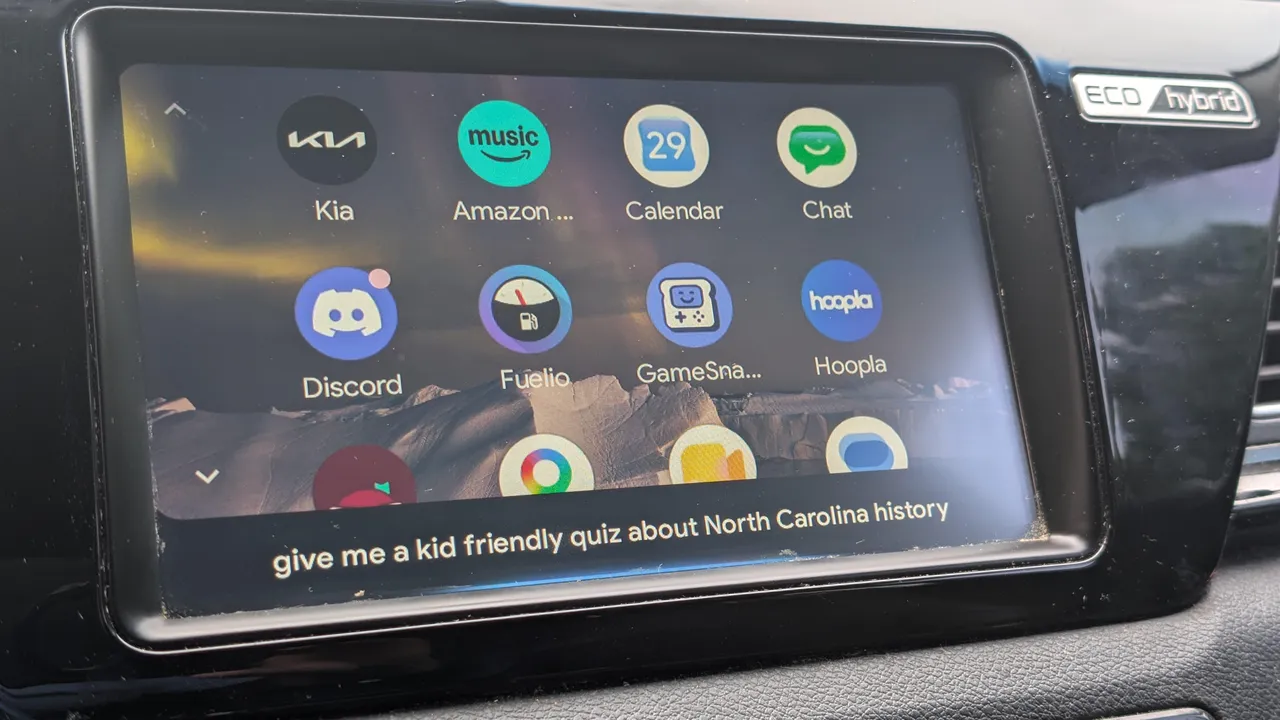
- Android Auto routines chain multiple actions (texts, navigation, smart home, media) into one voice command or tap
- Routines trigger via voice, Bluetooth connection, or a dedicated launcher shortcut
- Automations reduce distracted driving by handling tasks before you're on the road
Android Auto now supports chained automations that let drivers bundle texts, navigation, smart home commands, and media playback into a single voice prompt or tap. The feature works through Gemini and can trigger automatically when your phone connects to your car's Bluetooth, turning repetitive pre-drive rituals into a one-second task.
The routines aren't new to Android. Google has offered automation through Assistant for years. What's changed is how well these routines integrate with the in-car interface. You can pin a shortcut directly on the Android Auto launcher or set Bluetooth connection as the trigger, so the routine fires the moment you get in.
What can an Android Auto routine actually do?
A routine chains together any Gemini-compatible action. The practical list includes sending pre-written texts with your ETA, starting navigation to a saved location, playing a specific playlist or podcast, toggling smart home devices (lights, thermostats, robot vacuums), reading calendar events aloud, and enabling driving mode to silence notifications.
ZDNET contributor Artie Beaty shared three routines he uses daily. His "Heading home" routine texts his wife with an ETA, navigates home, sets the AC to 72 degrees, turns on the porch light, and starts a wind-down playlist. His morning "Start my drive" routine reads his calendar, gives a weather forecast, turns off the house lights, and starts the robot vacuum. A third routine for picking up his kids sends a text, navigates home, tells a joke, and switches to a kids playlist.
None of these actions are new individually. The value is bundling them so you're not fumbling with your phone while the car is moving.
How to set up Android Auto routines
Open your phone's Settings app and search for "routines." The results will appear under Assistant, even though Gemini now handles execution. You'll see default routines like Bedtime, Commuting home, and Good morning. The fastest path is to edit one of these rather than start from scratch.
Tap a routine to modify its actions. You can add, remove, or reorder steps. The trigger defaults to a voice command ("Hey Google, let's go to work"), but you can also set "Connect to Bluetooth" as the trigger if you want the routine to fire automatically when you get in the car.
To add a shortcut on the Android Auto launcher, search for "Android Auto" in Settings, tap "Additional settings in the app," then "Customize Launcher." Choose "Add a shortcut to the launcher" and select "A Gemini action." Enter the command you want Gemini to execute. It can be as simple as "Close the garage door" or as complex as "Close the garage, read my messages, turn off porch light, read my calendar events."
Why this matters for distracted driving
The safety argument is straightforward. Every interaction that doesn't require looking at a screen or typing while driving is a potential accident avoided. AAA research consistently shows that even hands-free cognitive distractions increase crash risk, but physical distractions, looking away and reaching for controls, are worse. Routines shift those interactions to before you start moving.
Google says Android Auto is compatible with over 150 million cars globally and more than 500 vehicle models. About 70% of new vehicles sold in the US now ship with Android Auto support built in. That's a large installed base, yet most users never touch the routines feature.
Limitations to know
Routines depend on your phone's connectivity. If you're in an area with poor cell service, actions that require internet, like sending texts with ETA or controlling cloud-connected smart home devices, may fail or lag. Local actions (playing downloaded music, enabling driving mode) work fine offline.
Gemini's voice recognition has improved, but it still fumbles on unusual names, especially for contacts. Test your routines before relying on them for time-sensitive messages.
Finally, not every smart home device integrates smoothly. Google Home-compatible devices work best. If your smart thermostat or lights use a different ecosystem, you may need to route commands through Zapier or Make to bridge the gap, though that adds complexity.
Disclosure
Some links in this post are affiliate links — Logicity earns a commission if you sign up, at no extra cost to you. We only link products we have used or actively recommend.
Logicity's Take
Android Auto routines are useful, but they're also a signal of where Google wants to go: deeper integration between your phone, car, and home. Apple's CarPlay offers similar Shortcuts integration, though Android's Bluetooth-trigger option gives it an edge for fully hands-free activation. For fleet managers or companies with field teams, this feature could reduce phone handling during drives, a liability and compliance win. The setup takes 10 minutes; the payoff is daily.
Frequently Asked Questions
Can Android Auto routines work without internet?
Some actions work offline (playing downloaded media, enabling driving mode), but most smart home controls and texts with ETA require a cellular or Wi-Fi connection.
Do Android Auto routines work with Apple CarPlay?
No. Android Auto routines are exclusive to Android phones. Apple users can set up similar automations using Siri Shortcuts within CarPlay.
How many actions can I chain in one routine?
Google doesn't publish a hard limit. Users have reported chaining 10+ actions successfully, though very long routines may take several seconds to execute.
Will routines drain my phone battery faster?
The battery impact is minimal since the phone is typically charging via USB when connected to Android Auto. Background sync for smart home commands uses negligible power.
Explores how companies position AI features effectively, relevant as Google integrates Gemini deeper into Android Auto
Need Help Implementing This?
Setting up Android Auto routines is straightforward for individual users, but rolling them out across a fleet or sales team requires documentation and testing. If you're managing mobile devices at scale, reach out to discuss automation playbooks for your team.
Source: Latest news
Manaal Khan
Tech & Innovation Writer
Produced with AI assistance and reviewed by the Logicity editorial team. Learn more in our Editorial Policy.