Windows 11 God Mode: How to Create One-Click Setting Shortcuts
Key Takeaways
- God Mode consolidates all Windows 11 system settings into a single searchable folder
- You can drag settings from God Mode to your desktop to create one-click shortcuts
- Pin the God Mode folder to your taskbar for quick access from any screen
Microsoft has a settings problem. Windows 11 splits system options between the modern Settings app and the legacy Control Panel, with some buried three or four menus deep. Finding the printer queue settings or power management options means clicking through multiple screens, often only to get redirected to a different app halfway through.
God Mode fixes this by putting every system setting in one folder. But you can make it even faster by turning your most-used options into desktop shortcuts.
What God Mode Actually Does
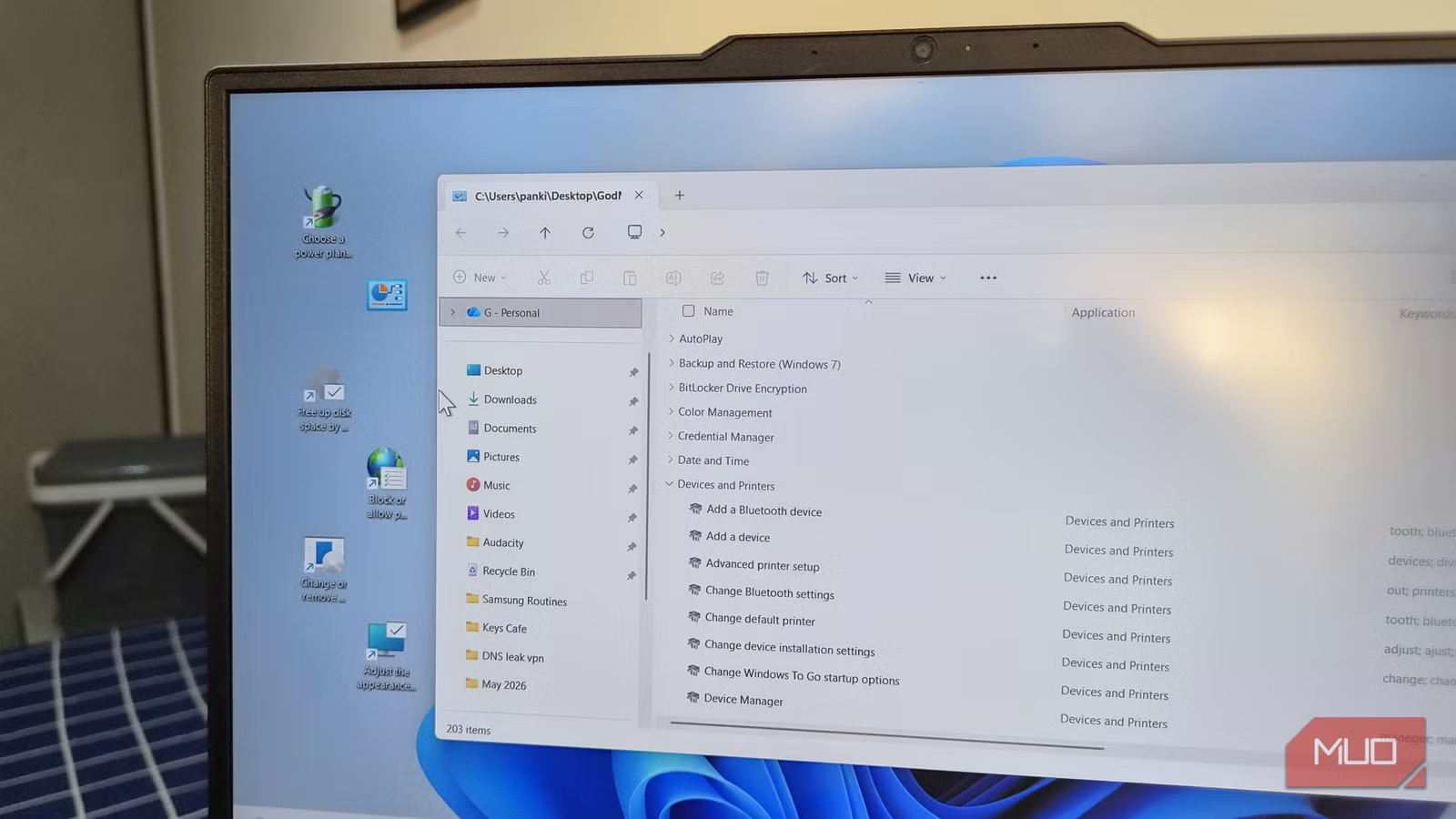
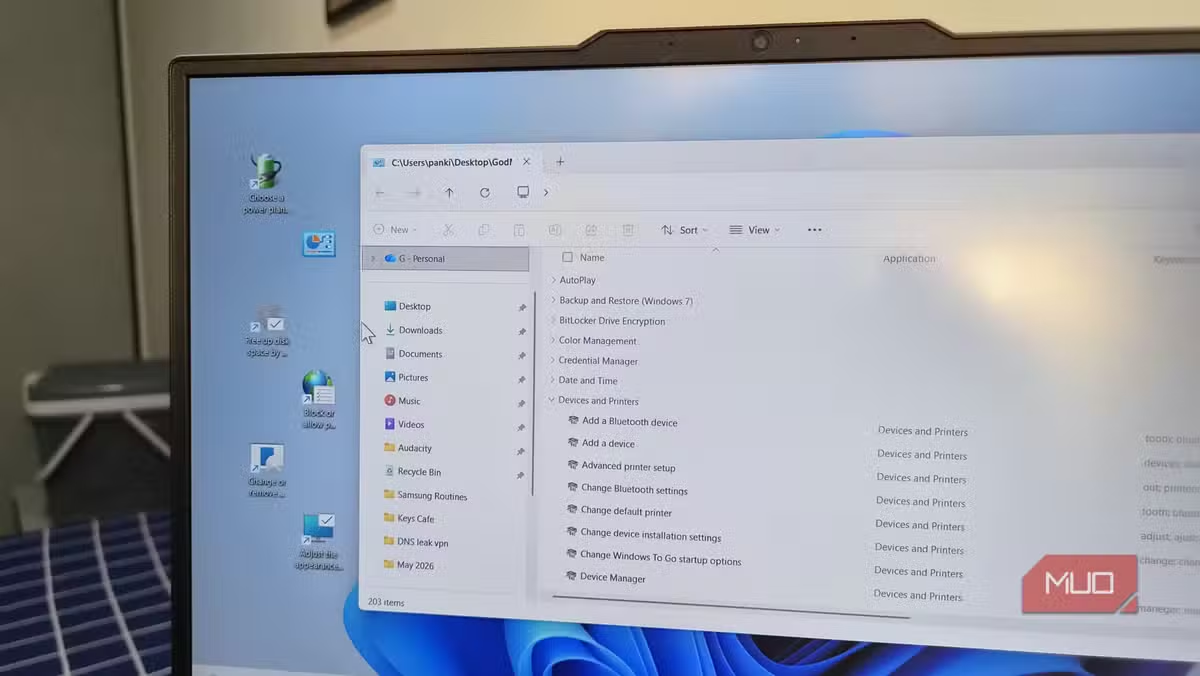
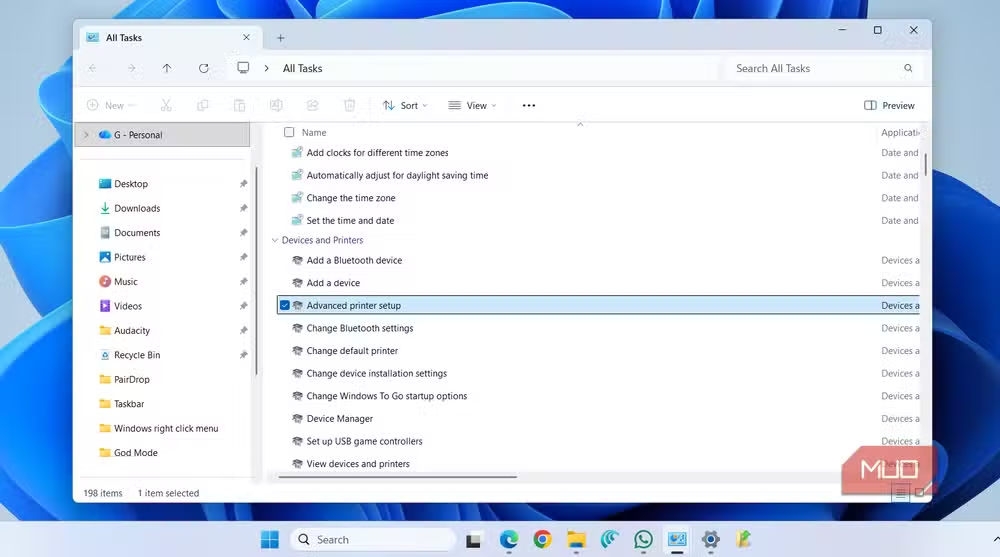
God Mode is a hidden Windows feature that creates a special folder containing links to hundreds of system settings. Instead of navigating through Settings or Control Panel, you scroll through a single alphabetized list or use the folder's search bar.
The interface looks dated. It's essentially the Control Panel view from Windows 7. But it works, and it surfaces options that Microsoft has made increasingly hard to find in the modern Settings app.
Setting Up God Mode
Creating the God Mode folder takes about 30 seconds:
- Right-click on your desktop and select New > Folder
- Name the folder exactly: GodMode.{ED7BA470-8E54-465E-825C-99712043E01C}
- Press Enter
The folder icon changes to a Control Panel icon. Double-click it to open the full list of system settings.
That string of letters and numbers is a CLSID (Class Identifier) that Windows uses internally to reference the Control Panel. You can name the folder anything before the period. "GodMode" is just the common convention.
Creating One-Click Shortcuts
God Mode is useful on its own, but opening the folder and searching still adds friction. If you change the same few settings repeatedly, you can skip the folder entirely by creating desktop shortcuts.
- Open the God Mode folder
- Find the setting you want (use the search bar in the top right)
- Drag the setting to your desktop
- A shortcut appears that opens that specific setting directly
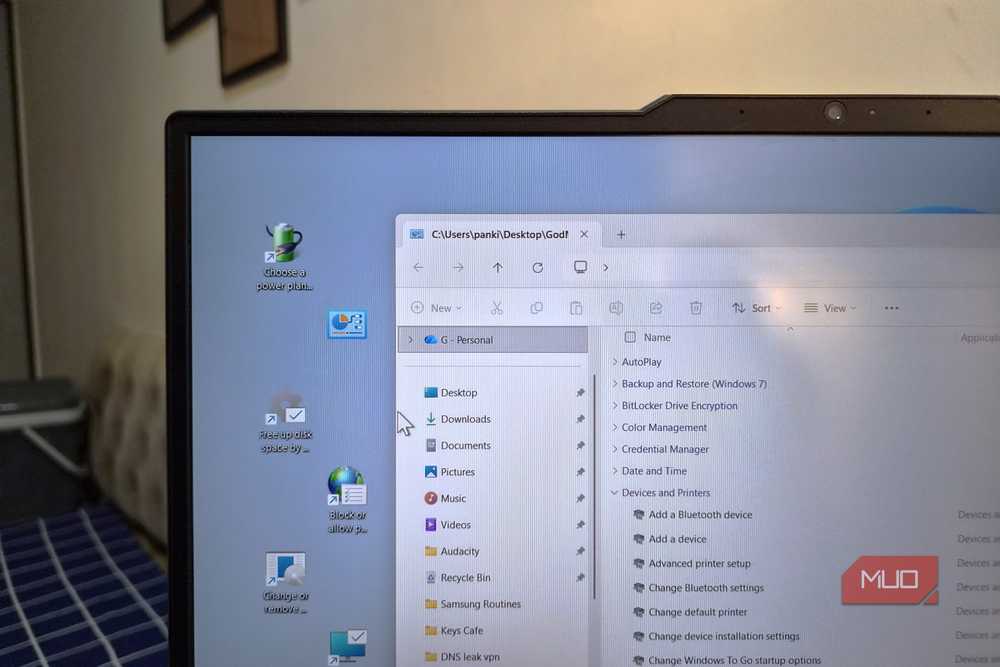
The shortcuts work like any other Windows shortcut. You can rename them, change their icons, or move them to other folders. Some people create a "Settings" folder on their desktop with shortcuts to the 10-15 options they use most.
Useful Settings to Shortcut
Which settings deserve shortcuts depends on your workflow. Here are options that save the most clicks for common tasks:
- Device Manager (troubleshooting hardware issues)
- Power Options (switching between power plans)
- Programs and Features (uninstalling software)
- Sound settings (changing default audio devices)
- Network Connections (managing adapters)
- Credential Manager (stored passwords)
- Backup and Restore (for those still using Windows Backup)
Pin God Mode to the Taskbar
For settings you use less often, keep the God Mode folder accessible without cluttering your desktop. Right-click the God Mode folder, select "Show more options" if needed, then click "Pin to taskbar." The folder opens from any screen with one click.
You can also pin it to the Start menu if you prefer that workflow.
Limitations
God Mode only surfaces settings that exist in the Control Panel's back-end. Some newer Windows 11 features, particularly those related to privacy, accounts, and Windows Update, only exist in the Settings app. You'll still need to use Settings for those.
Third-party tools like Wintoys offer more comprehensive access to hidden settings, but they require installation and trust in external software. God Mode is built into Windows and will keep working as long as Microsoft ships the Control Panel.
More Windows security and privacy tweaks
Logicity's Take
Frequently Asked Questions
Is God Mode safe to use in Windows 11?
Yes. God Mode is a built-in Windows feature, not a hack or third-party tool. It simply creates a folder that displays existing Control Panel settings in one place.
Will God Mode shortcuts survive Windows updates?
Generally yes. The shortcuts point to system settings that rarely change location. Major Windows versions may occasionally break specific shortcuts, but the God Mode folder itself has worked since Vista.
Can I use God Mode on Windows 10?
Yes. The same folder name and CLSID work on Windows 10, 8.1, 8, 7, and Vista. The available settings vary slightly by version.
Does God Mode give admin access or bypass security?
No. God Mode only provides shortcuts to settings you already have permission to access. Settings requiring administrator privileges still prompt for elevation.
Need Help Implementing This?
Source: MakeUseOf
Huma Shazia
Senior AI & Tech Writer
اقرأ أيضاً

رأي مغاير: كيف يؤثر اختراق الأمن الداخلي الأميركي على شركاتنا الخاصة؟
في ظل اختراق عقود الأمن الداخلي الأميركي مع شركات خاصة، نناقش تأثير هذا الاختراق على مستقبل الأمن السيبراني. نستعرض الإحصاءات الموثوقة ونناقش كيف يمكن للشركات الخاصة أن تتعامل مع هذا التهديد. استمتع بقراءة هذا التحليل العميق

الإنسان في زمن ما بعد الوجود البشري: نحو نظام للتعايش بين الإنسان والروبوت - Centre for Arab Unity Studies
في هذا المقال، سنناقش كيف يمكن للبشر والروبوتات التعايش في نظام متكامل. سنستعرض التحديات والحلول المحتملة التي تضعها شركات مثل جوجل وأمازون. كما سنلقي نظرة على التوقعات المستقبلية وفقًا لتقرير ماكنزي

إطلاق ناسا لمهمة مأهولة إلى القمر: خطوة تاريخية نحو استكشاف الفضاء
تعتبر المهمة الجديدة خطوة هامة نحو استكشاف الفضاء وتطوير التكنولوجيا. سوف تشمل المهمة إرسال رواد فضاء إلى سطح القمر لconducting تجارب علمية. ستسهم هذه المهمة في تطوير فهمنا للفضاء وتحسين التكنولوجيا المستخدمة في استكشاف الفضاء.