Windows 11 DNS Privacy Has a Hidden Fallback Problem
Key Takeaways
- Windows 11's DNS-over-HTTPS feature can silently fall back to unencrypted plaintext requests
- The OS doesn't warn you when encrypted DNS fails, leaving your browsing exposed
- A quick settings change can enforce encrypted DNS and block plaintext fallback
If you've enabled DNS-over-HTTPS on Windows 11, you probably assume your DNS requests are encrypted. That assumption may be wrong. Windows 11 has a quiet habit of falling back to plaintext DNS when encrypted connections fail, and it never tells you when this happens.
This means your ISP, network administrators, or anyone snooping on your connection can see exactly which websites you're visiting. All while you think you're protected.
What DNS-over-HTTPS Actually Does
When you type a URL into your browser, your computer needs to translate that domain name into an IP address. That translation request goes to a DNS server. By default, these requests travel in plaintext. Anyone on your network can read them.
DNS-over-HTTPS (DoH) wraps those requests in encryption. Your DNS queries become invisible to eavesdroppers. It's one of the simplest privacy upgrades you can make, and Windows 11 supports it natively.
The problem is how Windows 11 handles failure. When DoH encounters a timeout, misconfiguration, or incompatible network, the OS doesn't show an error. It doesn't block the connection. It just quietly switches to plaintext DNS and completes your request anyway.
Why Silent Fallback Is a Privacy Problem
From your perspective, everything works normally. Pages load. Connections complete. You have no indication that your DNS traffic is now exposed. The fallback behavior prioritizes connectivity over privacy, and it does so without asking.
This matters because your DNS traffic reveals a lot. Every website you visit, every service you connect to, every app that phones home. Your ISP logs this data. On public WiFi, anyone with the right tools can capture it.
How to Check Your Current DNS Settings
Open Settings, then Network & Internet. Select your active connection (WiFi or Ethernet). Look for DNS server assignment. If it shows "Automatic" or lists your router's IP, you're using whatever DNS your network provides, probably unencrypted.
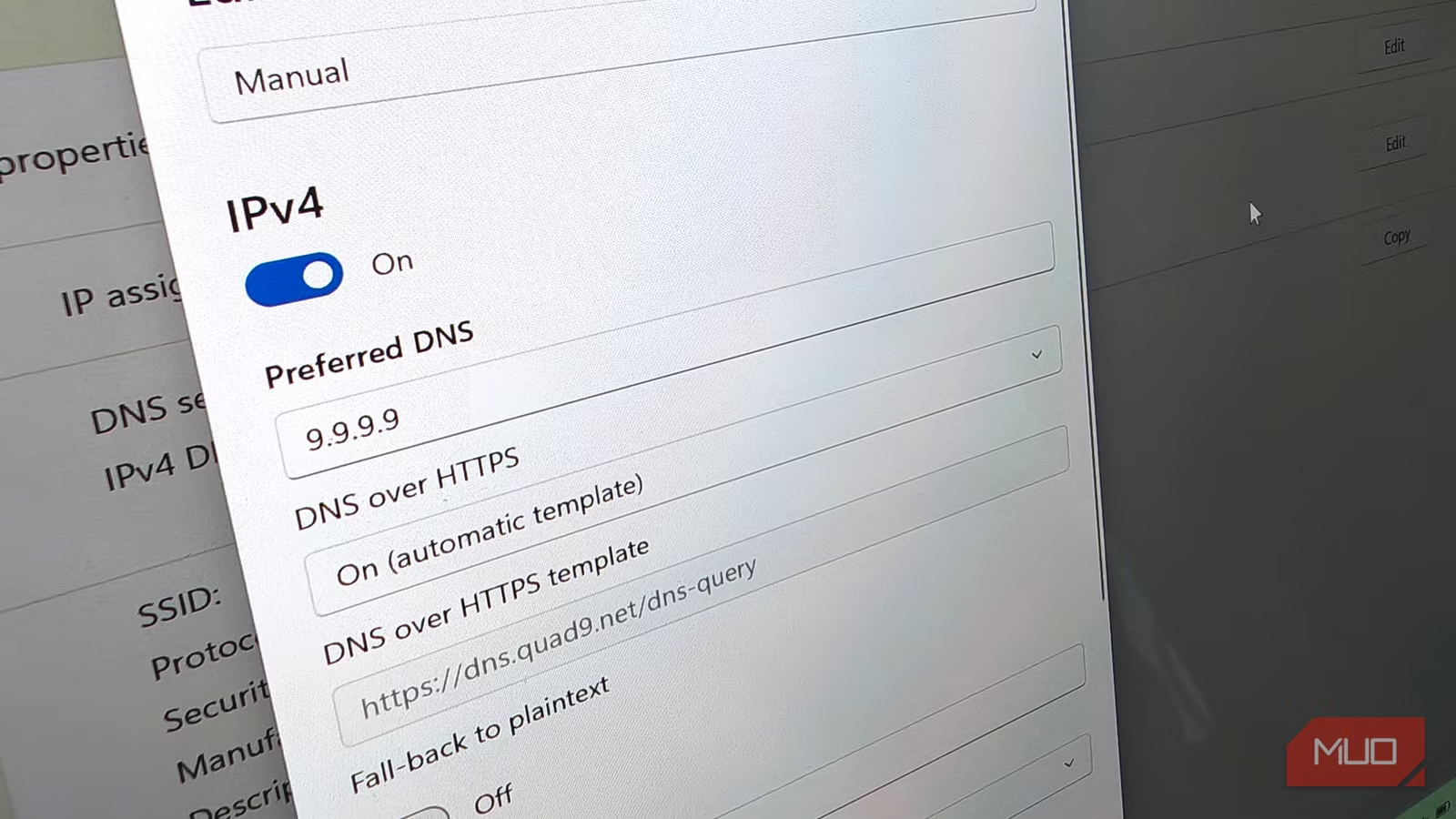
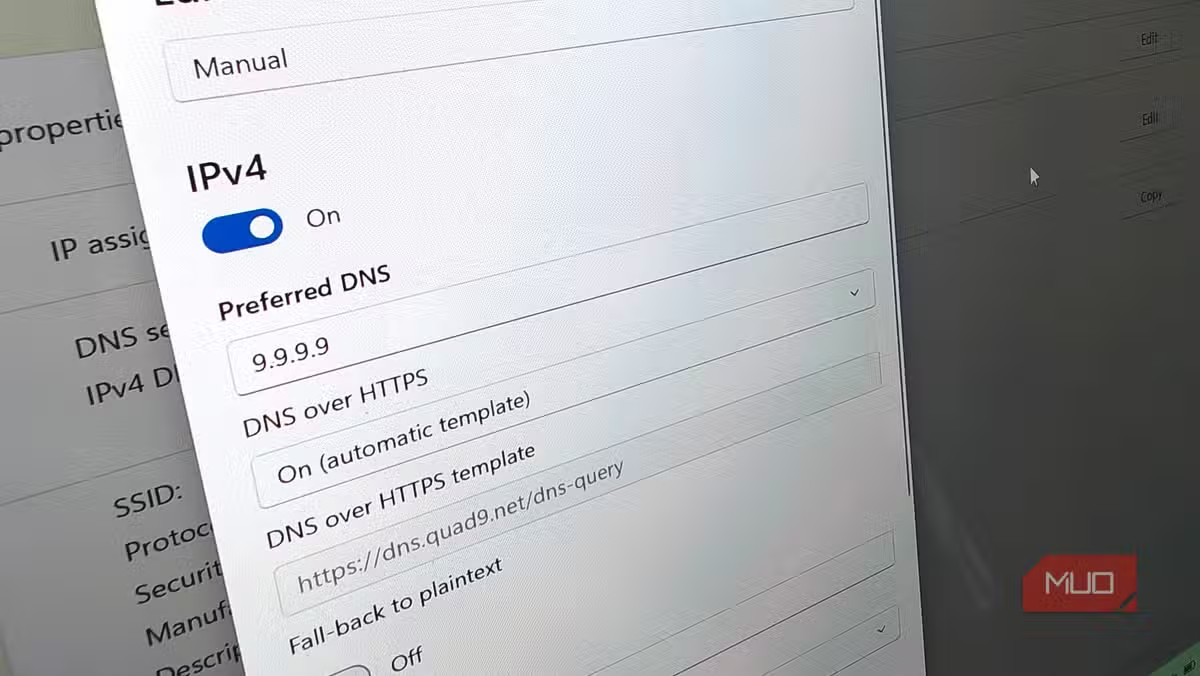
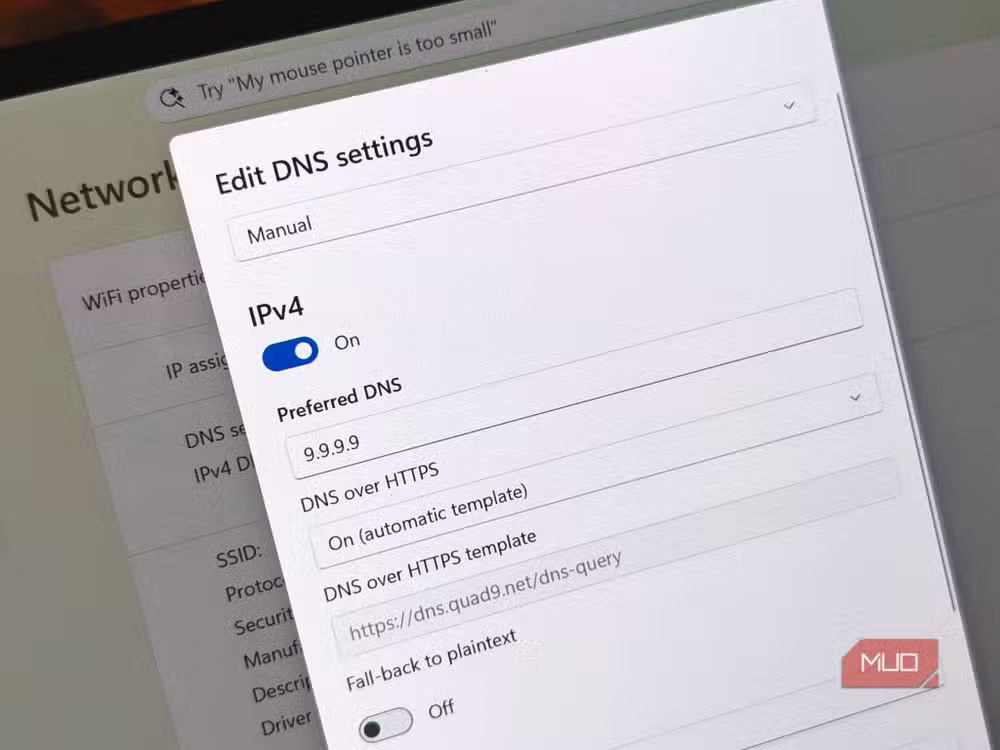
If you've manually configured a DNS server like Cloudflare (1.1.1.1) or Quad9 (9.9.9.9), check the encryption setting. Windows 11 offers three options: Unencrypted only, Encrypted only (DNS-over-HTTPS), and Encrypted preferred, unencrypted allowed.
That third option is the culprit. It sounds reasonable but enables the silent fallback behavior.
The Fix Takes Two Minutes
Change your DNS encryption setting to "Encrypted only (DNS-over-HTTPS)." This forces Windows to use encrypted DNS or fail completely. No silent fallback. If encryption doesn't work, you'll know immediately because your connection won't complete.
- Open Settings > Network & Internet
- Click your active connection (WiFi or Ethernet)
- Click Edit next to DNS server assignment
- Switch from Automatic to Manual
- Enter a DoH-compatible DNS server (1.1.1.1 for Cloudflare, 9.9.9.9 for Quad9)
- Set DNS over HTTPS to "Encrypted only"
- Save and test your connection
Which DNS Servers Support Encryption
Not every DNS server supports DoH. Windows 11 has a built-in list of compatible servers. The most common options:
- Cloudflare: 1.1.1.1 (primary), 1.0.0.1 (secondary)
- Google: 8.8.8.8 (primary), 8.8.4.4 (secondary)
- Quad9: 9.9.9.9 (primary), 149.112.112.112 (secondary)
Cloudflare emphasizes speed. Quad9 focuses on security and blocks known malicious domains. Google is ubiquitous but raises data collection concerns for some users. Pick based on your priorities.
Alternative: Use Cloudflare WARP
If you want a set-and-forget solution, Cloudflare's WARP app handles encrypted DNS at the system level. It's free, works across all your applications, and doesn't rely on Windows 11's native implementation. The tradeoff is running another background service.
Logicity's Take
Frequently Asked Questions
Does DNS-over-HTTPS slow down my internet?
The encryption adds minimal overhead. With fast DNS providers like Cloudflare, you may actually see faster lookups than your ISP's default servers.
Will encrypted-only mode break my connection?
Only if the DNS server is unreachable or your network blocks DoH traffic. Most home and office networks work fine. Some corporate networks or captive portals (hotel WiFi) may have issues.
Can my ISP still see which websites I visit?
They can't see your DNS requests, but they can still see the IP addresses you connect to. For full privacy, you'd need a VPN in addition to encrypted DNS.
Does this setting apply to all apps on my computer?
Yes. System-level DNS settings affect all applications unless they override with their own DNS configuration, which some browsers do.
More hidden settings that improve your daily tools
Need Help Implementing This?
Source: MakeUseOf
Manaal Khan
Tech & Innovation Writer
اقرأ أيضاً

رأي مغاير: كيف يؤثر اختراق الأمن الداخلي الأميركي على شركاتنا الخاصة؟
في ظل اختراق عقود الأمن الداخلي الأميركي مع شركات خاصة، نناقش تأثير هذا الاختراق على مستقبل الأمن السيبراني. نستعرض الإحصاءات الموثوقة ونناقش كيف يمكن للشركات الخاصة أن تتعامل مع هذا التهديد. استمتع بقراءة هذا التحليل العميق

الإنسان في زمن ما بعد الوجود البشري: نحو نظام للتعايش بين الإنسان والروبوت - Centre for Arab Unity Studies
في هذا المقال، سنناقش كيف يمكن للبشر والروبوتات التعايش في نظام متكامل. سنستعرض التحديات والحلول المحتملة التي تضعها شركات مثل جوجل وأمازون. كما سنلقي نظرة على التوقعات المستقبلية وفقًا لتقرير ماكنزي

إطلاق ناسا لمهمة مأهولة إلى القمر: خطوة تاريخية نحو استكشاف الفضاء
تعتبر المهمة الجديدة خطوة هامة نحو استكشاف الفضاء وتطوير التكنولوجيا. سوف تشمل المهمة إرسال رواد فضاء إلى سطح القمر لconducting تجارب علمية. ستسهم هذه المهمة في تطوير فهمنا للفضاء وتحسين التكنولوجيا المستخدمة في استكشاف الفضاء.