Why your gigabit internet caps at 100Mbps
Key Takeaways
- A single Cat5 cable anywhere in the chain will hard-cap your connection at 100Mbps
- Old routers often lack the CPU power to route traffic at gigabit speeds
- Check Windows 'Link Speed' settings before blaming your ISP
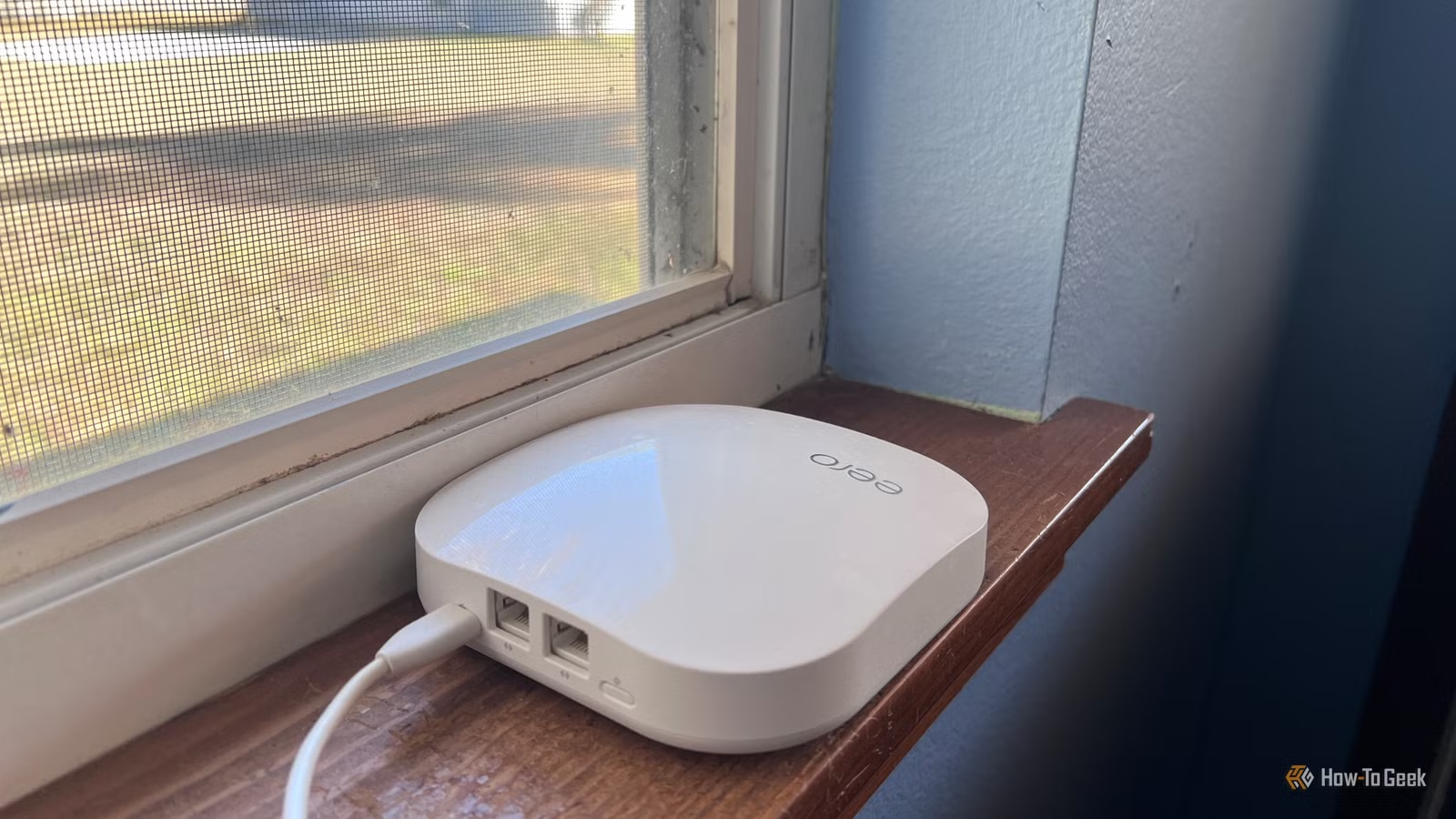
You signed up for gigabit internet. Your ISP confirmed the install. The speed test on your laptop shows 94Mbps. Something is very wrong, but it probably isn't your provider.
Technology journalist Monica J. White spent weeks convinced her ISP was throttling her connection before discovering the real problem: a collection of hardware bottlenecks inside her own home. Her investigation, published on How-To Geek, offers a practical checklist for anyone stuck in the same frustrating loop.
The 100Mbps hard cap explained
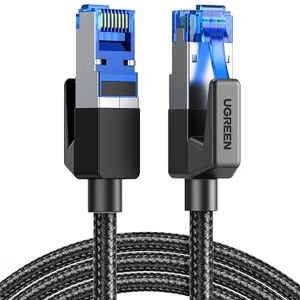
When your speed test consistently tops out around 94 to 100Mbps, you're hitting what network engineers call a "Fast Ethernet" ceiling. This isn't a coincidence. Original Cat5 cables, manufactured before the gigabit standard became common, physically cannot carry more than 100Mbps. One old cable anywhere between your modem and your device will force the entire connection to negotiate down to that slower speed.
The fix is straightforward. Replace any cable you can't definitively identify as Cat5e or higher. That includes the short patch cable connecting your modem to your router, the run through your wall, and the cable plugged into your PC. Cat6 cables cost a few dollars and will carry gigabit speeds over runs up to 100 meters.
Your router's CPU might be the bottleneck
Cables aren't the only hardware limit. Routers older than five or six years often lack the processing power to push traffic at gigabit rates. The CPU inside the device has to inspect, route, and forward every packet. If that chip was designed for a 300Mbps world, it will cap your connection somewhere around 400 to 500Mbps regardless of your plan.
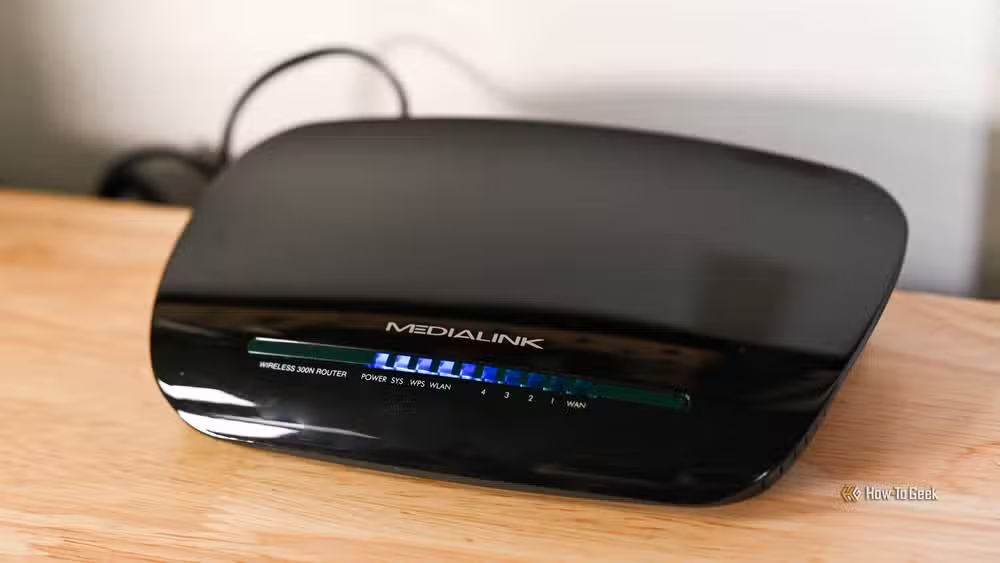
White notes that ISP-provided rental routers are generally safe since they're spec'd for the plans they support. Third-party routers, especially older models kept for sentimental reasons, deserve scrutiny. While you're checking, update the firmware. Outdated router software is a known speed killer that manufacturers rarely advertise.
The device you're testing on matters
Here's the embarrassing one. Your laptop's network adapter might be the weakest link. Many older notebooks shipped with 100Mbps "Fast Ethernet" ports, not gigabit. Budget laptops still do. Even USB Ethernet dongles frequently cap at 100Mbps unless you specifically bought a gigabit model.
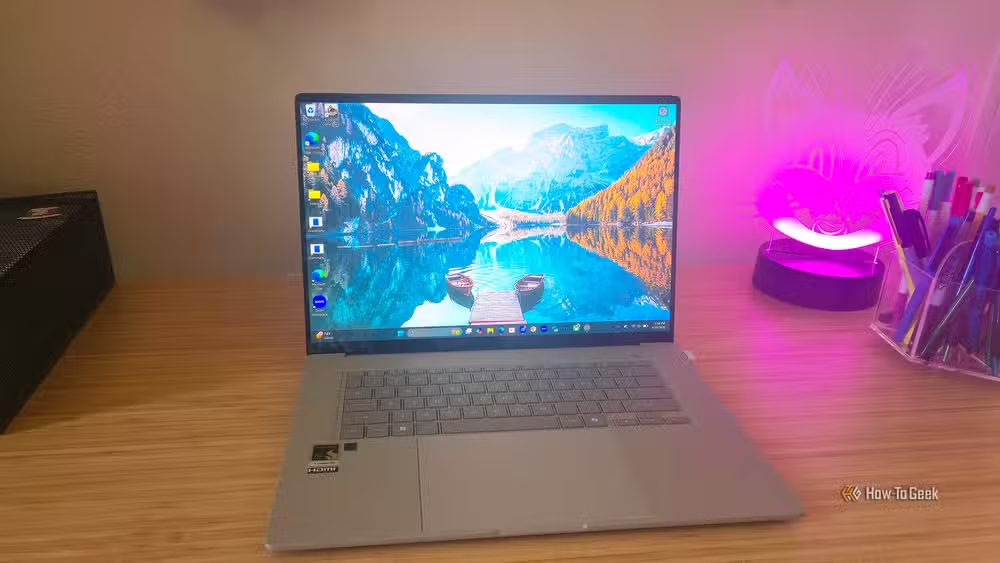
Before calling your ISP, run a speed test on two or three different devices. If one machine hits 800Mbps and another crawls at 94Mbps, the problem is the slower device, not the network. On Windows, you can check your adapter's negotiated speed by opening Network Connections, right-clicking your adapter, and looking at the "Link Speed" field. If it says 100Mbps, your hardware is the ceiling.
Wi-Fi won't deliver your full speed
This is the painful truth for anyone who hates cables. The gigabit speed in your contract is measured at the demarcation point, the point where your ISP's network hands off to your equipment. It is not guaranteed at every spot in your house over a wireless connection.
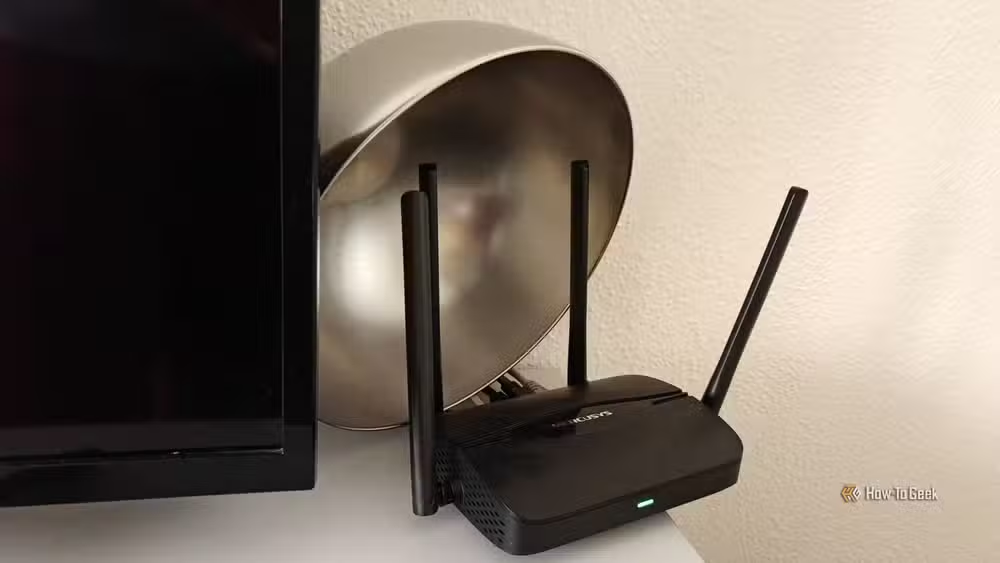
Distance, walls, interference from neighboring networks, and the sheer number of devices sharing your access point all degrade Wi-Fi throughput. Even a Wi-Fi 6 router will struggle to deliver consistent gigabit speeds to a laptop two rooms away. For speed testing, always use a wired connection to eliminate wireless variables.
How to audit your network
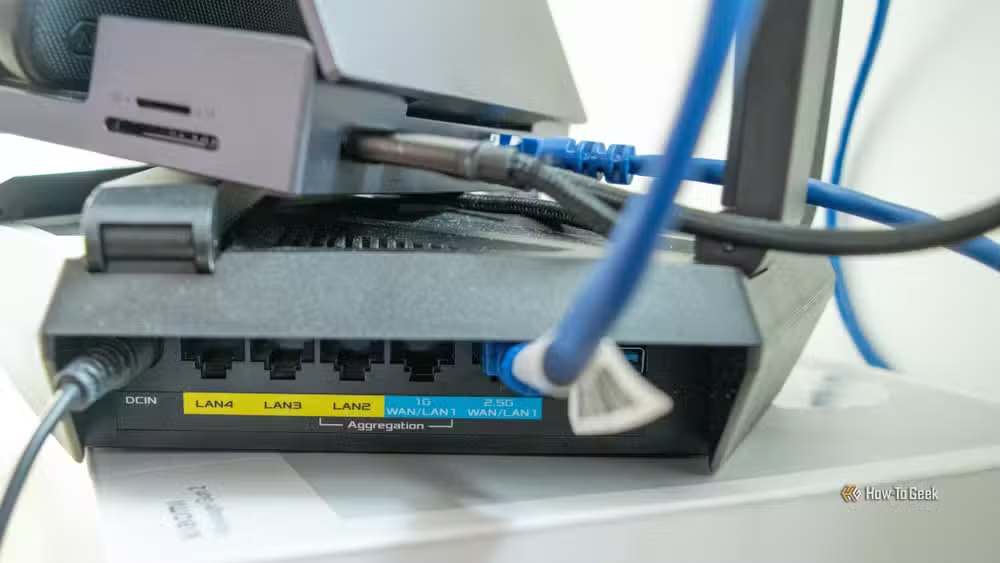
Start at the modem and work outward. Check every cable, switch, and port between your ISP's equipment and the device you're testing on. Replace any cable that isn't clearly marked Cat5e or Cat6. Inspect cables for physical damage, especially if they've been pinched by doors or rolled over by chairs.
- Replace all Ethernet cables with Cat5e or Cat6.
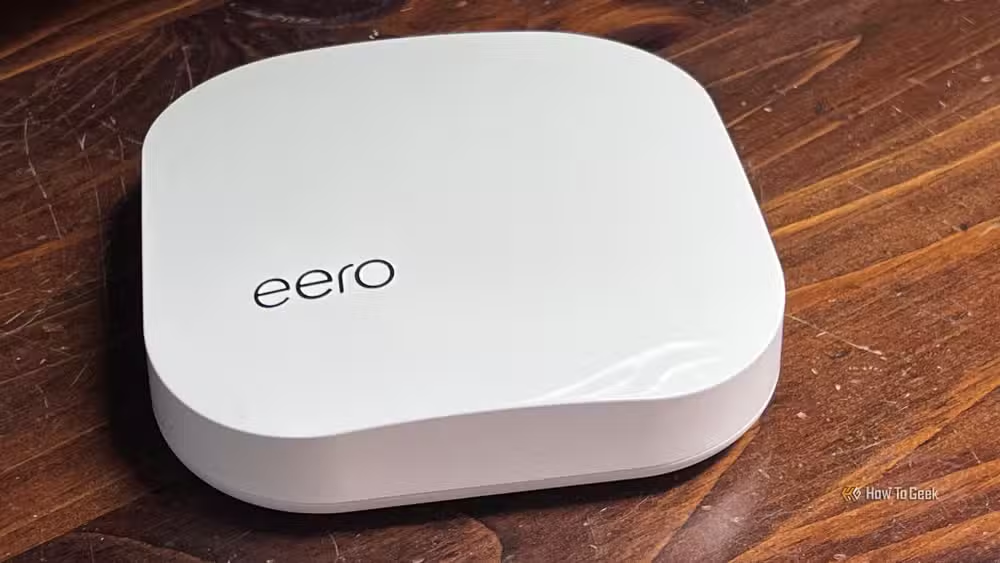
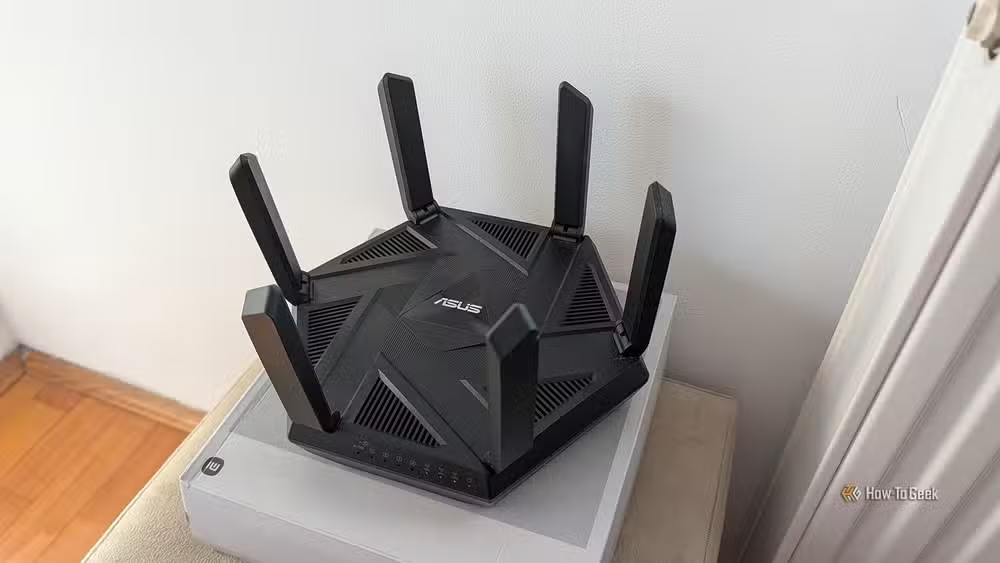
- Verify your router's specs support gigabit routing.
- Update router firmware to the latest version.
- Check the Link Speed on each device's network adapter.
- Test wired before testing wireless.
Reddit's r/HomeNetworking community reports that checking Link Speed is the single most common fix for this problem. Most users never look at that setting until they realize their connection is negotiating at 100Mbps. Once they swap the cable, the issue resolves immediately.
Logicity's Take
The 100Mbps cap is a symptom of the "weakest link" principle that governs all networks. ISPs have little incentive to help you diagnose problems inside your house, and most speed test apps don't tell you why your speeds are low. The real fix here isn't better customer service from your provider. It's treating your home network like enterprise infrastructure: document your hardware, replace aging components proactively, and test each segment independently when something goes wrong.
If you're rebuilding your home network setup, this analysis of compact PC hardware decisions is relevant.
Frequently Asked Questions
Why is my gigabit internet only showing 100Mbps?
The most common cause is a Cat5 Ethernet cable somewhere in your setup. Original Cat5 cables are physically limited to 100Mbps. Replace them with Cat5e or Cat6 to restore gigabit speeds.
How do I check my network adapter's link speed on Windows?
Open Network Connections, right-click your Ethernet adapter, select Status, and look for the Link Speed field. If it shows 100Mbps, your adapter or cable is the bottleneck.
Can an old router slow down gigabit internet?
Yes. Routers older than five years often have CPUs that cannot route traffic at gigabit speeds. They may cap your connection at 400 to 500Mbps even if everything else supports faster speeds.
Will Wi-Fi give me full gigabit speeds?
Rarely. Distance, walls, interference, and device limitations all reduce wireless throughput. For true gigabit performance, use a wired Ethernet connection.
How can I tell if my Ethernet cable is Cat5 or Cat5e?
Check the printed text on the cable jacket. It should say Cat5, Cat5e, Cat6, or similar. If the cable predates 2000 or has no markings, assume it's Cat5 and replace it.
Need Help Implementing This?
If you're managing network infrastructure for a business or home office, our team covers enterprise networking tools and best practices regularly. Subscribe to Logicity's newsletter for practical tech guides delivered weekly.
Source: How-To Geek
Manaal Khan
Tech & Innovation Writer
اقرأ أيضاً

رأي مغاير: كيف يؤثر اختراق الأمن الداخلي الأميركي على شركاتنا الخاصة؟
في ظل اختراق عقود الأمن الداخلي الأميركي مع شركات خاصة، نناقش تأثير هذا الاختراق على مستقبل الأمن السيبراني. نستعرض الإحصاءات الموثوقة ونناقش كيف يمكن للشركات الخاصة أن تتعامل مع هذا التهديد. استمتع بقراءة هذا التحليل العميق

الإنسان في زمن ما بعد الوجود البشري: نحو نظام للتعايش بين الإنسان والروبوت - Centre for Arab Unity Studies
في هذا المقال، سنناقش كيف يمكن للبشر والروبوتات التعايش في نظام متكامل. سنستعرض التحديات والحلول المحتملة التي تضعها شركات مثل جوجل وأمازون. كما سنلقي نظرة على التوقعات المستقبلية وفقًا لتقرير ماكنزي

إطلاق ناسا لمهمة مأهولة إلى القمر: خطوة تاريخية نحو استكشاف الفضاء
تعتبر المهمة الجديدة خطوة هامة نحو استكشاف الفضاء وتطوير التكنولوجيا. سوف تشمل المهمة إرسال رواد فضاء إلى سطح القمر لconducting تجارب علمية. ستسهم هذه المهمة في تطوير فهمنا للفضاء وتحسين التكنولوجيا المستخدمة في استكشاف الفضاء.