Why Your DNS Settings Are Fighting Each Other

Key Takeaways
- Modern networks have three competing DNS layers: browser, operating system, and router
- Chrome and Firefox's encrypted DNS can override your carefully configured router settings
- Switching from ISP-default DNS to providers like Cloudflare can cut latency by 120ms on average
Changing your DNS server used to be simple. Pick Google, Cloudflare, or Quad9. Type in the IP addresses. Done. But modern PCs have turned this one-step process into a three-way fight between your browser, your operating system, and your router.
The result? You might think you've secured your entire network with a privacy-focused DNS provider, while Chrome quietly routes your traffic through Google's servers instead. Or Windows ignores your router's DNS settings entirely. This isn't catastrophic, but it creates real problems: inconsistent privacy protection, confusing troubleshooting, and performance gaps you can't explain.
DNS Now Lives in Three Places
DNS translates human-readable addresses like google.com into the IP addresses computers actually use. It's the internet's phonebook. The problem is that three different systems now maintain their own copy of this phonebook.
- Your router hands out DNS servers to every device through DHCP
- Your operating system (Windows, macOS, Linux) can override router settings with its own DNS configuration
- Your browser can use encrypted DNS (DNS-over-HTTPS) that bypasses both router and OS settings entirely
"The internet is built on DNS, yet it remains the most misunderstood layer of our home networks," writes Monica J. White at How-To Geek. "When your browser, your OS, and your router aren't aligned, you're not just creating performance bottlenecks. You're losing visibility and control over your own traffic."

Why Router-Level DNS Isn't Enough
Configuring DNS on your router seems like the cleanest solution. Set it once, apply it everywhere. Every device on your network uses the same DNS provider. Simple.
Except devices don't have to listen. DHCP (the protocol that assigns network settings to devices) is a suggestion, not a command. Windows can have its own manual DNS settings buried in adapter options. Chrome's Secure DNS feature can route DNS queries through its own encrypted channel. Your router's settings become irrelevant.
This matters more than you might think. If you've configured your router to use Quad9 for malware blocking, but Chrome is using Google's DNS, your browser traffic bypasses that protection entirely. The same applies to parental controls, ad blocking at the DNS level, or privacy configurations.
The Browser Layer: Secure DNS Takes Over
Chrome, Firefox, and Edge all support DNS-over-HTTPS (DoH). This encrypts your DNS queries so your ISP can't see which sites you're visiting. That's good for privacy. But it also means your browser makes DNS decisions independently of your network configuration.

Chrome's Secure DNS is enabled by default in many regions. It automatically uses your existing DNS provider if that provider supports DoH, or falls back to a Google-operated encrypted DNS server. You might not even know it's happening.
The privacy tradeoff here is real. DoH hides your DNS queries from local network snoopers and your ISP. But it centralizes trust in whoever operates the encrypted DNS server. If you're using Chrome with default settings, that's often Google.
The OS Layer: Windows Has Its Own Ideas
Windows 11 added native support for encrypted DNS, which sounds helpful until you realize it's yet another layer that can conflict with your router settings. You can configure DNS-over-HTTPS directly in Windows network adapter settings.
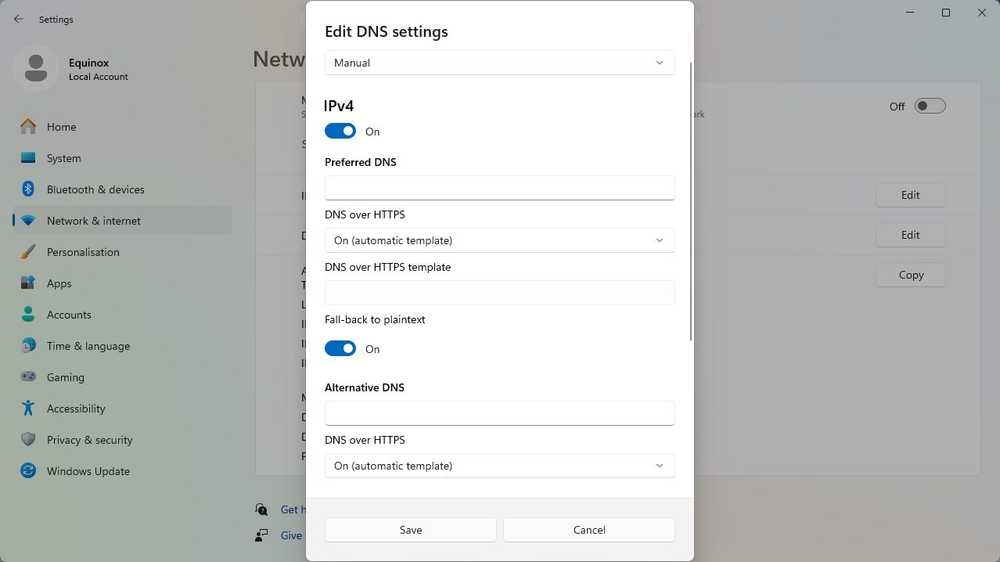
The hierarchy works like this: browser settings override OS settings, which override router settings. If all three are configured differently, the browser wins for browser traffic, the OS wins for system traffic, and the router wins for devices that don't have their own DNS configuration (like most IoT devices).
This creates a situation where your smart thermostat uses your router's DNS, your Windows system updates use Windows DNS settings, and your Chrome browsing uses Google's DNS. Three different DNS providers for one household.
The Performance Angle
DNS conflicts aren't just about privacy. They affect speed too. ISP-default DNS servers are often slow. Switching to Cloudflare (1.1.1.1) or Google (8.8.8.8) can shave 120ms off average lookup times. But if your browser is using a different DNS than your OS, you get inconsistent performance depending on what's making the request.
How to Unify Your DNS Configuration
The fix depends on your goals. If you want maximum control and consistency, you need to align all three layers.
- Choose your DNS provider: Cloudflare (1.1.1.1), Google (8.8.8.8), Quad9 (9.9.9.9), or your preferred option
- Configure it at the router level for network-wide coverage
- Check Windows network adapter settings and remove any manual DNS entries
- Disable or configure browser Secure DNS to use the same provider
For Chrome, go to Settings > Privacy and security > Security > Use secure DNS. You can turn it off entirely, or select a specific provider that matches your router configuration.
For Firefox, the setting is in Settings > Privacy & Security > DNS over HTTPS. Firefox defaults to Cloudflare in some regions, which may or may not match your network setup.
For Windows 11, open Settings > Network & internet > your connection > Hardware properties. Under DNS server assignment, you can specify both IPv4 and IPv6 DNS servers with optional encryption.
The IoT Problem
Smart home devices, security cameras, and other IoT gadgets typically don't have browser-level or OS-level DNS settings. They use whatever the router provides through DHCP. This is actually helpful. It means router-level DNS configuration works reliably for these devices.
But it also means your smart speaker and your laptop might be using completely different DNS providers. If you're trying to block tracking domains at the DNS level, your laptop's Chrome browser might bypass those blocks entirely while your Echo follows the rules.
More tools for taking control of your device's network behavior
When Conflicts Actually Help
There's one scenario where DNS conflicts work in your favor. If you're on a public network with a potentially compromised router, browser-level encrypted DNS protects your queries from the network operator. Your laptop ignores the coffee shop's DNS and uses a trusted provider instead.
This is the design intent behind browser Secure DNS. It's a privacy feature for hostile network environments. The problem is that it applies the same logic to your home network, where you've already configured things the way you want them.
Logicity's Take
Frequently Asked Questions
Does changing DNS make my internet faster?
It can. ISP-default DNS servers are often slow. Switching to Cloudflare or Google DNS can reduce lookup latency by 120ms on average. The improvement varies by location and ISP.
Is DNS-over-HTTPS better than regular DNS?
For privacy on untrusted networks, yes. DoH encrypts your DNS queries so network operators can't see which sites you're visiting. But it centralizes trust in whoever runs the DoH server, usually Google, Cloudflare, or your browser vendor.
Why does Chrome ignore my router's DNS settings?
Chrome's Secure DNS feature makes DNS queries directly to encrypted servers, bypassing your router entirely. This is intentional for privacy on hostile networks, but it overrides your home network configuration.
How do I know which DNS my browser is actually using?
In Chrome, go to chrome://net-internals/#dns to see DNS resolution details. You can also use online tools like dnsleaktest.com to see which DNS servers are handling your queries.
Should I disable Secure DNS in my browser?
If you've configured DNS at the router level and want consistent network-wide settings, yes. If you travel frequently or use public Wi-Fi, browser Secure DNS adds a privacy layer that your home router can't provide remotely.
Need Help Implementing This?
Source: How-To Geek
Huma Shazia
Senior AI & Tech Writer
اقرأ أيضاً

رأي مغاير: كيف يؤثر اختراق الأمن الداخلي الأميركي على شركاتنا الخاصة؟
في ظل اختراق عقود الأمن الداخلي الأميركي مع شركات خاصة، نناقش تأثير هذا الاختراق على مستقبل الأمن السيبراني. نستعرض الإحصاءات الموثوقة ونناقش كيف يمكن للشركات الخاصة أن تتعامل مع هذا التهديد. استمتع بقراءة هذا التحليل العميق

الإنسان في زمن ما بعد الوجود البشري: نحو نظام للتعايش بين الإنسان والروبوت - Centre for Arab Unity Studies
في هذا المقال، سنناقش كيف يمكن للبشر والروبوتات التعايش في نظام متكامل. سنستعرض التحديات والحلول المحتملة التي تضعها شركات مثل جوجل وأمازون. كما سنلقي نظرة على التوقعات المستقبلية وفقًا لتقرير ماكنزي

إطلاق ناسا لمهمة مأهولة إلى القمر: خطوة تاريخية نحو استكشاف الفضاء
تعتبر المهمة الجديدة خطوة هامة نحو استكشاف الفضاء وتطوير التكنولوجيا. سوف تشمل المهمة إرسال رواد فضاء إلى سطح القمر لconducting تجارب علمية. ستسهم هذه المهمة في تطوير فهمنا للفضاء وتحسين التكنولوجيا المستخدمة في استكشاف الفضاء.