UniGetUI Gives Windows the Linux-Style Package Manager It Lacks
Key Takeaways
- Windows has a built-in package manager (winget) that most users don't know exists
- UniGetUI provides a graphical interface for winget that matches Windows 11's design
- You can install UniGetUI from the Microsoft Store, GitHub, or PowerShell
Windows Has a Package Manager. You've Just Never Seen It.
If you've used Linux, you know the joy of installing software with a single command. Type 'apt install firefox' or 'dnf install vlc' and the system handles everything: downloading, dependencies, configuration. No hunting for download pages. No clicking through installers. No wondering if you grabbed the right version.
Windows users don't have that experience. They click through the Microsoft Store, search Google for download links, or dig through installer wizards. It feels like the operating system is fighting them at every step.
Here's the thing: Windows actually does have a package manager. It's called winget. Microsoft built it, ships it with Windows, and it works. The problem is that winget is a command-line tool in an operating system built entirely around graphical interfaces. Most Windows users will never open a terminal, so winget might as well not exist for them.
UniGetUI: A Real Interface for Winget
UniGetUI (formerly called WinGetUI) solves this problem. It's an open-source project that wraps winget in a proper graphical user interface. You get searchable package lists, one-click installs, and batch updates. No terminal required.
The interface follows Windows 11's design language closely. It doesn't look like some janky third-party tool bolted onto your system. Tabs let you browse available packages, see what's installed, and manage updates. Search is fast. Installation is a button click.
This matters because package managers aren't just about convenience. They're about control. You can see exactly what's on your system, update everything at once, and remove software cleanly. The Microsoft Store tries to do this but falls short. UniGetUI gives you what the Store promises but rarely delivers.
Three Ways to Install UniGetUI
You have options for getting UniGetUI onto your system. Pick whichever matches your comfort level.
Option 1: Microsoft Store
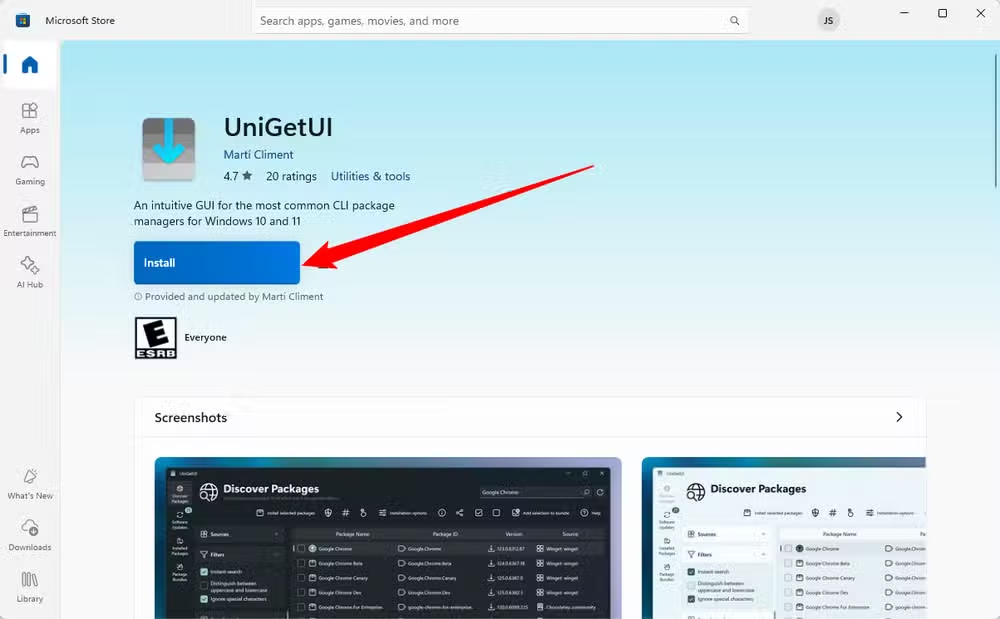
The easiest path. Open the Microsoft Store, search for UniGetUI, and click Install. The Store handles updates automatically. If you want minimal friction, this is your route.
Option 2: GitHub Download
Go to the UniGetUI GitHub repository and download the latest release. This gives you more control over versions and lets you inspect the source code if you're curious about what you're running.

Option 3: PowerShell (The Ironic Choice)
There's a certain poetry in installing a GUI for your command-line package manager using the command line. If you're comfortable with PowerShell or Windows Terminal, you can use winget itself to install UniGetUI. This proves winget works. It just needs a friendlier face.

What You Can Actually Do With It
Once UniGetUI is running, you can browse thousands of packages. Search for software by name, see descriptions, check versions. When you find what you want, click install. UniGetUI calls winget behind the scenes, and the software appears on your system.

The update management is where this really shines. Instead of waiting for individual apps to nag you about updates (or worse, silently updating in the background), UniGetUI shows you everything that has a newer version available. Update one app. Update all apps. Your choice.
Package managers also handle dependencies. If software X needs library Y to run, the package manager installs both. You don't have to track down runtime prerequisites or wonder why something crashed on launch.
Why This Matters for IT and Development Teams
For individual users, UniGetUI is a convenience. For teams managing Windows machines, it's a real workflow improvement.
Setting up a new development machine usually means hours of clicking through installers. With a package manager, you can script the entire setup. New hire starts Monday? Run a script that installs VS Code, Git, Node, Docker, and whatever else they need. Done in minutes instead of hours.
IT teams can standardize software versions across machines. Instead of wondering which version of Python someone installed from the website, everyone gets the same package from the same source.
More ways to make command-line tools more approachable
The Limitations to Know About
UniGetUI can only install what's available in winget's repositories. That's a lot of software, but it's not everything. Niche enterprise tools or highly specialized software may not be there.
Some applications manage their own updates and may conflict with package manager updates. Games from Steam or apps with built-in auto-updaters can get confused if winget tries to update them separately.
And while UniGetUI makes winget accessible, you're still depending on Microsoft maintaining winget. If Microsoft loses interest in the project, the whole ecosystem could stagnate.
Logicity's Take
Frequently Asked Questions
Is UniGetUI safe to use?
Yes. UniGetUI is open-source software hosted on GitHub, so anyone can inspect the code. It's also available through the Microsoft Store, which means it passed Microsoft's security review process.
Does UniGetUI replace winget?
No. UniGetUI is a graphical front-end that calls winget behind the scenes. Winget does the actual work. UniGetUI just makes it easier to use.
Can I use UniGetUI alongside the Microsoft Store?
Yes. They can coexist. Some apps are available in both the Store and winget repositories. You can choose which source to use for each installation.
What happened to WinGetUI?
WinGetUI was renamed to UniGetUI. The project added support for additional package managers beyond winget, so the old name no longer fit.
Need Help Implementing This?
Source: How-To Geek
Huma Shazia
Senior AI & Tech Writer
اقرأ أيضاً

رأي مغاير: كيف يؤثر اختراق الأمن الداخلي الأميركي على شركاتنا الخاصة؟
في ظل اختراق عقود الأمن الداخلي الأميركي مع شركات خاصة، نناقش تأثير هذا الاختراق على مستقبل الأمن السيبراني. نستعرض الإحصاءات الموثوقة ونناقش كيف يمكن للشركات الخاصة أن تتعامل مع هذا التهديد. استمتع بقراءة هذا التحليل العميق

الإنسان في زمن ما بعد الوجود البشري: نحو نظام للتعايش بين الإنسان والروبوت - Centre for Arab Unity Studies
في هذا المقال، سنناقش كيف يمكن للبشر والروبوتات التعايش في نظام متكامل. سنستعرض التحديات والحلول المحتملة التي تضعها شركات مثل جوجل وأمازون. كما سنلقي نظرة على التوقعات المستقبلية وفقًا لتقرير ماكنزي

إطلاق ناسا لمهمة مأهولة إلى القمر: خطوة تاريخية نحو استكشاف الفضاء
تعتبر المهمة الجديدة خطوة هامة نحو استكشاف الفضاء وتطوير التكنولوجيا. سوف تشمل المهمة إرسال رواد فضاء إلى سطح القمر لconducting تجارب علمية. ستسهم هذه المهمة في تطوير فهمنا للفضاء وتحسين التكنولوجيا المستخدمة في استكشاف الفضاء.