How to Stop Android's Hidden Cloud Backups Eating Your Storage
Key Takeaways
- Android backs up call history, SMS/MMS, RCS chats, Wi-Fi passwords, and even your Downloads folder by default
- These automatic backups share Google's 15GB free tier with Gmail, Drive, and Photos
- You can selectively disable backup categories in Settings > Google > Backup without losing essential data
The backup bloat problem
Ask most Android users what their phone backs up to Google, and they'll guess photos and contacts. That's correct, but incomplete. Android also sends your call history, SMS and MMS messages, RCS chats from Google Messages, Wi-Fi network names and passwords, wallpapers, date and time settings, and a list of installed apps with some of their data.
The kicker: recent updates added your local Downloads folder to this list. Users on Reddit's r/Android and Hacker News report getting sudden "Storage Full" warnings without changing their file habits. The culprit is often this hidden backup setting uploading PDFs, APKs, and other downloaded files they thought stayed local.
“The aggressive default backup settings in modern Android are a relic of a time when cloud storage was cheaper and device data was simpler; for the average user, it's now a hidden tax on their digital life.”
— Sarah Jenkins, Cloud Infrastructure Analyst at TechInsights
With 3.9 billion active Android devices worldwide and Google's 15GB free tier shared across Gmail, Drive, and Photos, the math gets tight fast. Research shows 68% of personal cloud storage volume comes from photos and videos alone. Add system backups and downloads, and you're pushing against that ceiling quickly.
What exactly gets backed up
- Contacts synced to your Google account
- Call history (incoming, outgoing, missed calls)
- SMS and MMS text messages
- RCS chats from Google Messages
- Wi-Fi networks and their passwords
- Wallpapers and display settings
- Date, time, and language preferences
- Installed apps list and some app data
- Downloads folder contents (newer Android versions)
- Device settings like ringtones and accessibility options
App data backup varies wildly. Google apps like Maps and Calendar sync reliably. Third-party apps? Many store nothing at all. Don't assume your game progress or password manager data transfers automatically.
How to check your current backup status
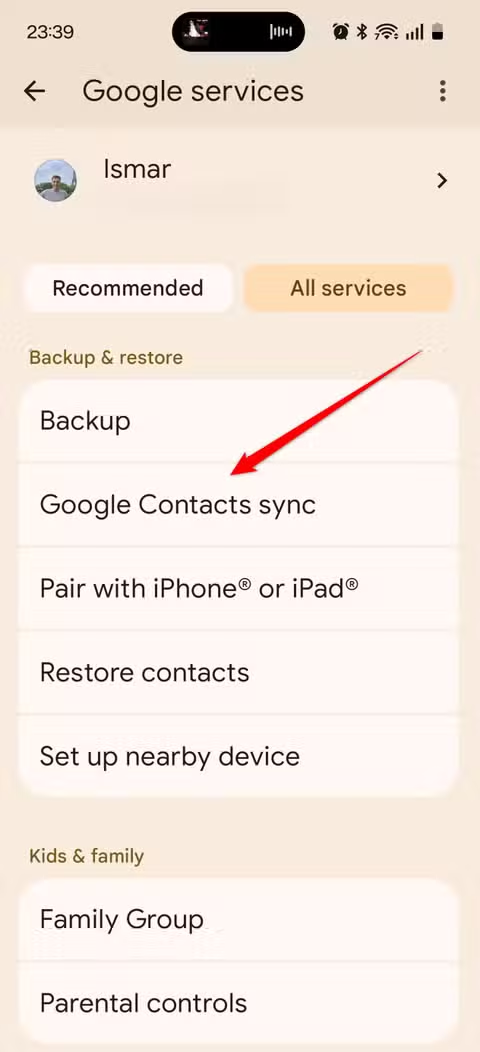
- Open Settings on your Android phone
- Tap Google (or search for "Backup")
- Select Backup
- Review the list of backup categories and their last sync dates
You'll see categories like "Apps," "Photos & videos," "SMS & MMS messages," and "Other device data." That last one is the sneaky culprit. It often includes your Downloads folder without explicitly saying so.
Disabling unwanted backups
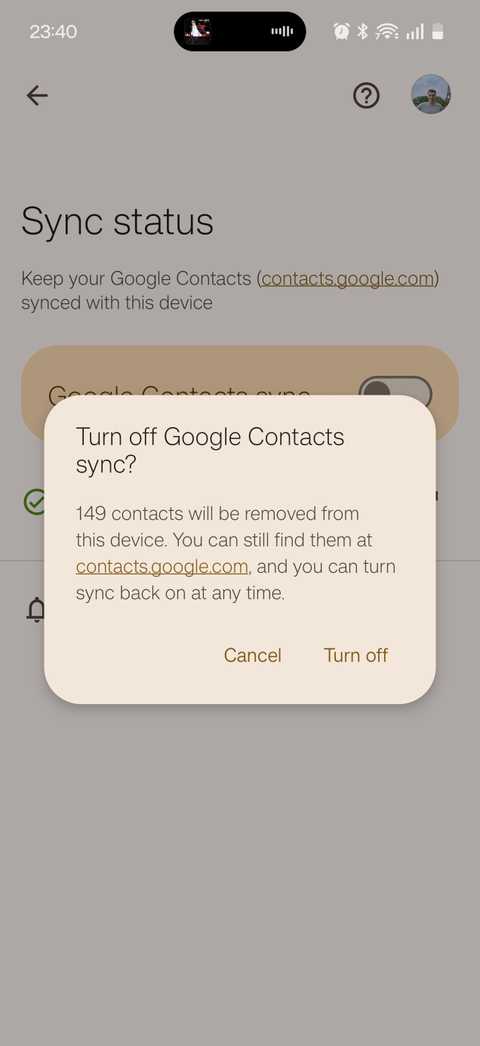
You have two options: turn off backup entirely or selectively disable categories. The nuclear option is the toggle at the top of the Backup screen. Flip it off and nothing syncs. But you probably don't want that. You want contacts and maybe app data, just not your entire Downloads folder.
For selective control, tap each category and disable what you don't need. "Other device data" is the first candidate for most users. SMS backup is another one to reconsider if you use a messaging app that handles its own sync.
- Go to Settings > Google > Backup
- Tap on a category like "Other device data" or "SMS & MMS messages"
- Toggle it off
- Repeat for any category you want to stop backing up
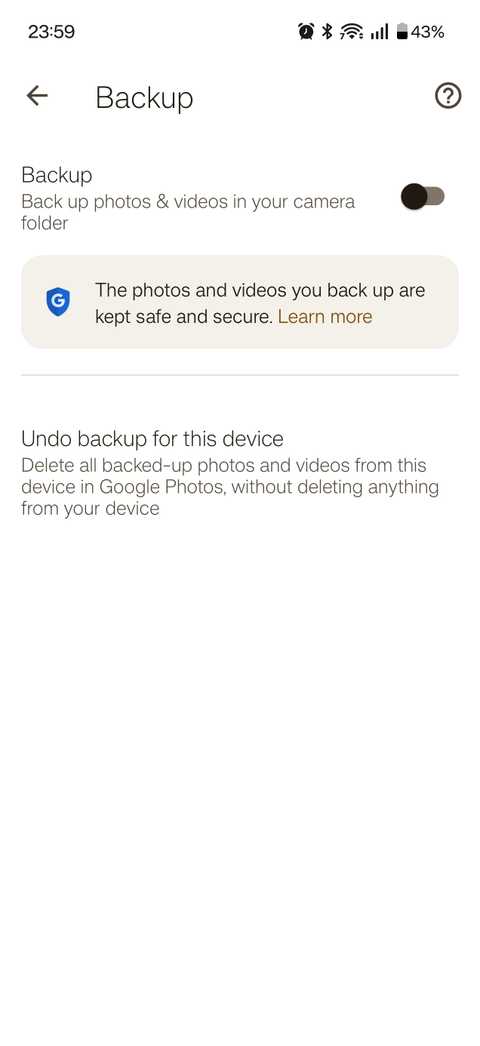
Google Photos deserves separate attention. It doesn't back up photos by default on most devices, but if you enabled it during setup, it's likely using the lion's share of your 15GB. Open Google Photos, tap your profile picture, go to Photos settings > Backup, and disable it if you prefer local-only storage or a different cloud service.
Clearing existing backup data
Disabling future backups doesn't delete what's already stored. To reclaim space, you'll need to visit Google One directly.
- Open one.google.com in a browser or the Google One app
- Go to Storage
- Click "Manage storage" to see breakdown by service
- Select the backup data you want to delete
- Confirm deletion
Be careful here. Deleting backup data means you can't restore it if you lose your phone or factory reset. Only delete what you're certain you don't need.
Alternatives to Google's backup
If you want backup functionality without Google's sprawling approach, several alternatives exist. Samsung phones have their own backup system through Samsung Cloud. Some manufacturers partner with services like OneDrive. For photos specifically, Amazon Photos offers unlimited storage for Prime members.
Local backup is also possible through apps like Swift Backup or using ADB (Android Debug Bridge) from a computer. These give you complete control over what gets saved and where it goes.
For readers interested in taking control of their data and devices beyond stock settings
The setup experience problem
Community feedback on Hacker News and Reddit points to a design flaw: the initial device setup buries these backup options in screens most users tap through quickly. Many are advocating for a more prominent "Selectively Sync" toggle during onboarding instead of all-or-nothing defaults.
Until Google changes this, the burden falls on users to audit their settings after setup. It takes five minutes and can save gigabytes of cloud storage you didn't know you were using.
Logicity's Take
Frequently Asked Questions
Does turning off Android backup delete my existing data?
No. Disabling backup only stops future uploads. To delete existing backup data, you need to manually remove it through Google One's storage management.
Will I lose my contacts if I disable Google backup?
Contacts synced to your Google account are stored separately from device backup. Disabling backup won't delete your contacts from Google's servers.
Why is my Google storage full when I haven't saved many photos?
Android's "Other device data" category often includes your Downloads folder, call logs, and app data. These can consume several gigabytes without you noticing.
Can I back up Android to something other than Google?
Yes. Samsung devices have Samsung Cloud, and third-party apps like Swift Backup offer local or alternative cloud options. You can also use ADB for manual backups.
How often does Android backup to Google?
Android typically backs up when connected to Wi-Fi and charging, usually daily. You can also trigger a manual backup from Settings > Google > Backup.
Need Help Implementing This?
Source: How-To Geek
Manaal Khan
Tech & Innovation Writer
اقرأ أيضاً

رأي مغاير: كيف يؤثر اختراق الأمن الداخلي الأميركي على شركاتنا الخاصة؟
في ظل اختراق عقود الأمن الداخلي الأميركي مع شركات خاصة، نناقش تأثير هذا الاختراق على مستقبل الأمن السيبراني. نستعرض الإحصاءات الموثوقة ونناقش كيف يمكن للشركات الخاصة أن تتعامل مع هذا التهديد. استمتع بقراءة هذا التحليل العميق

الإنسان في زمن ما بعد الوجود البشري: نحو نظام للتعايش بين الإنسان والروبوت - Centre for Arab Unity Studies
في هذا المقال، سنناقش كيف يمكن للبشر والروبوتات التعايش في نظام متكامل. سنستعرض التحديات والحلول المحتملة التي تضعها شركات مثل جوجل وأمازون. كما سنلقي نظرة على التوقعات المستقبلية وفقًا لتقرير ماكنزي

إطلاق ناسا لمهمة مأهولة إلى القمر: خطوة تاريخية نحو استكشاف الفضاء
تعتبر المهمة الجديدة خطوة هامة نحو استكشاف الفضاء وتطوير التكنولوجيا. سوف تشمل المهمة إرسال رواد فضاء إلى سطح القمر لconducting تجارب علمية. ستسهم هذه المهمة في تطوير فهمنا للفضاء وتحسين التكنولوجيا المستخدمة في استكشاف الفضاء.