How to Find the Right HDMI Port for Your PS5
Key Takeaways
- Many TVs have only one or two HDMI 2.1 ports, even if they advertise HDMI 2.1 support
- HDMI 2.0 ports cap output at 4K/60Hz, while HDMI 2.1 supports 4K/120Hz or 8K/60Hz
- Check your TV manual or the port labels on the back panel to identify the correct slot
Not All HDMI Ports Are the Same
Your TV probably has three or four HDMI ports. You might assume they all work identically. They don't.
On many mid-range TVs, especially early HDMI 2.1 models, only one or two ports support the full 48Gbps bandwidth that HDMI 2.1 provides. The rest are HDMI 2.0 ports capped at 18Gbps. This matters because HDMI 2.0's bandwidth ceiling limits you to 4K/60Hz output. HDMI 2.1 pushes that to 4K/120Hz or 8K/60Hz.
If you've plugged your PS5 into a random port, you might be leaving half your console's visual performance on the table.
Why This Affects Your PS5 Pro
The PS5 and PS5 Pro both support HDMI 2.1 features including 4K/120Hz output, Variable Refresh Rate (VRR), and Auto Low Latency Mode (ALLM). But these features only work when the console connects to an HDMI 2.1 port.
Connect to an HDMI 2.0 port and your PS5 will still work. Games will run. But the system will default to 4K/60Hz. High-framerate modes in games like Fortnite, Call of Duty, or Returnal won't hit their potential. VRR won't engage, so you might see screen tearing.
How to Find Your TV's HDMI 2.1 Port
There are three ways to identify which port supports full HDMI 2.1 bandwidth.
1. Check the physical port labels
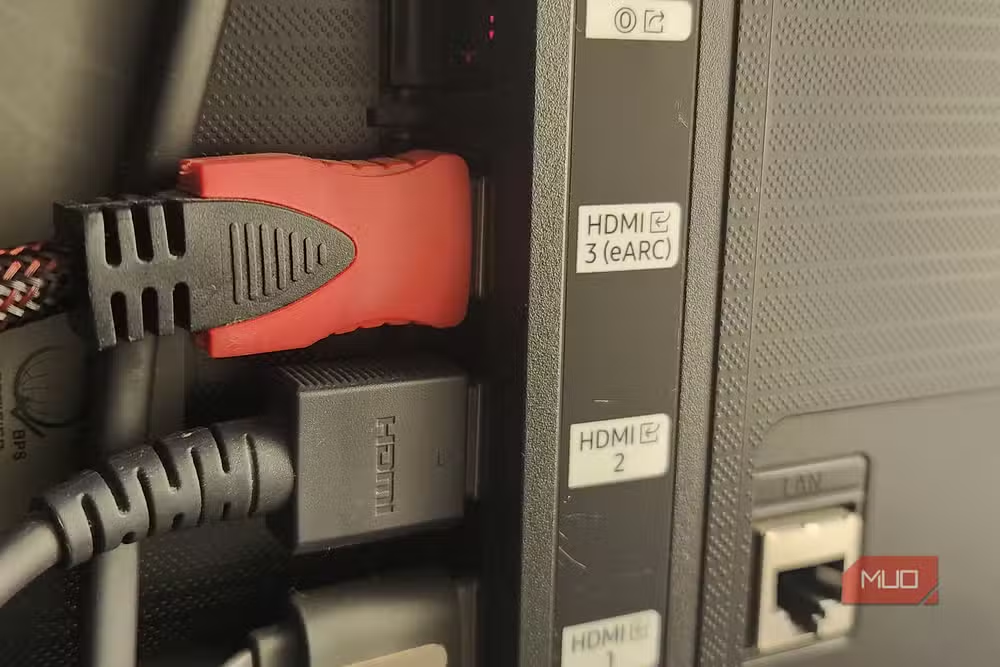
Look at the back or side panel of your TV. Many manufacturers label ports with their capabilities. You might see "HDMI 2.1" or "4K/120" printed next to specific inputs. Sometimes the label says "Game" or "eARC" alongside the HDMI 2.1 designation.
2. Consult your TV's manual
The manual will list which ports support which features. If you've thrown out the paper copy, search for your TV's model number online. Most manufacturers host PDF manuals on their support sites. This approach works best if your TV is wall-mounted and you can't easily see the port labels.
3. Check your TV's settings menu
Navigate to your TV's input or HDMI settings. Many modern TVs show the capabilities of each port. Look for options like "Enhanced HDMI," "Input Signal Plus," or "HDMI Deep Color." These settings often need to be enabled per-port to unlock full HDMI 2.1 bandwidth.
Common Port Configurations by Brand
Different TV brands handle HDMI 2.1 differently. On many Samsung TVs, only ports 3 and 4 support 4K/120Hz. LG OLEDs typically have all four ports at HDMI 2.1, but budget LG models may have just one. Sony Bravia TVs often reserve HDMI 3 or 4 for full bandwidth features.
The pattern holds across brands: flagship models get more HDMI 2.1 ports, while mid-range sets cut costs by limiting high-bandwidth connections to one or two inputs.
Don't Forget the Cable
Finding the right port is only half the equation. You also need an HDMI 2.1 cable. The cable that came with your PS5 is certified for HDMI 2.1, so use that one. Older HDMI cables may not support the full 48Gbps bandwidth even if your TV port does.
If you need a longer cable, look for "Ultra High Speed HDMI" certification. Avoid cheap cables that claim HDMI 2.1 support but lack certification. They often fail at 4K/120Hz or introduce signal dropouts.
Logicity's Take
More ways to optimize your home entertainment system
Verify Your Connection on the PS5
Once you've connected to what you believe is the HDMI 2.1 port, verify the connection on your PS5. Go to Settings > Screen and Video > Video Output Information. The console will display your current resolution, refresh rate, and HDR status. If you see 4K/120Hz listed as available, you're connected to the right port.
If the display shows 4K/60Hz as the maximum, either you're on the wrong port or you need to enable enhanced HDMI settings in your TV's menu.
Frequently Asked Questions
How do I know if my TV has HDMI 2.1?
Check your TV's specifications on the manufacturer's website or in the manual. Look for "HDMI 2.1" or "4K/120Hz support." TVs released before 2020 rarely have HDMI 2.1.
Will my PS5 work on an HDMI 2.0 port?
Yes, the PS5 works on HDMI 2.0 ports. You'll be limited to 4K/60Hz output and won't have VRR support, but games will run normally.
Do I need to change settings on my TV for HDMI 2.1?
Often, yes. Many TVs require you to enable "Enhanced HDMI," "Input Signal Plus," or similar settings per-port to unlock full HDMI 2.1 bandwidth.
Can I use any HDMI cable for 4K/120Hz?
No. You need an Ultra High Speed HDMI cable certified for HDMI 2.1. The cable included with the PS5 meets this standard. Older High Speed HDMI cables may not support 48Gbps bandwidth.
Does Xbox Series X have the same HDMI 2.1 requirements?
Yes. The Xbox Series X also requires an HDMI 2.1 port and cable for 4K/120Hz gaming. The same port identification process applies.
Need Help Implementing This?
Source: MakeUseOf
Manaal Khan
Tech & Innovation Writer
اقرأ أيضاً

رأي مغاير: كيف يؤثر اختراق الأمن الداخلي الأميركي على شركاتنا الخاصة؟
في ظل اختراق عقود الأمن الداخلي الأميركي مع شركات خاصة، نناقش تأثير هذا الاختراق على مستقبل الأمن السيبراني. نستعرض الإحصاءات الموثوقة ونناقش كيف يمكن للشركات الخاصة أن تتعامل مع هذا التهديد. استمتع بقراءة هذا التحليل العميق

الإنسان في زمن ما بعد الوجود البشري: نحو نظام للتعايش بين الإنسان والروبوت - Centre for Arab Unity Studies
في هذا المقال، سنناقش كيف يمكن للبشر والروبوتات التعايش في نظام متكامل. سنستعرض التحديات والحلول المحتملة التي تضعها شركات مثل جوجل وأمازون. كما سنلقي نظرة على التوقعات المستقبلية وفقًا لتقرير ماكنزي

إطلاق ناسا لمهمة مأهولة إلى القمر: خطوة تاريخية نحو استكشاف الفضاء
تعتبر المهمة الجديدة خطوة هامة نحو استكشاف الفضاء وتطوير التكنولوجيا. سوف تشمل المهمة إرسال رواد فضاء إلى سطح القمر لconducting تجارب علمية. ستسهم هذه المهمة في تطوير فهمنا للفضاء وتحسين التكنولوجيا المستخدمة في استكشاف الفضاء.