How to Enable Tablet Mode on Your Samsung Phone
Key Takeaways
- Samsung phones can display a two-column tablet layout by adjusting display density in Developer Options
- Landscape home screen mode puts your dock on the right and expands the widget canvas
- These settings work best on phones with symmetrical bezels, starting from the Galaxy S21 onwards
Phone screens keep getting bigger. The latest "max" models approach seven inches. But the software hasn't kept up. Most apps still show the same single-column layout whether you're on a compact phone or a near-tablet device.
Samsung phones include two hidden settings that change this. Together, they enable a tablet-like experience with two-column app layouts and a landscape home screen. Here's how to unlock them.
Enable Landscape Home Screen
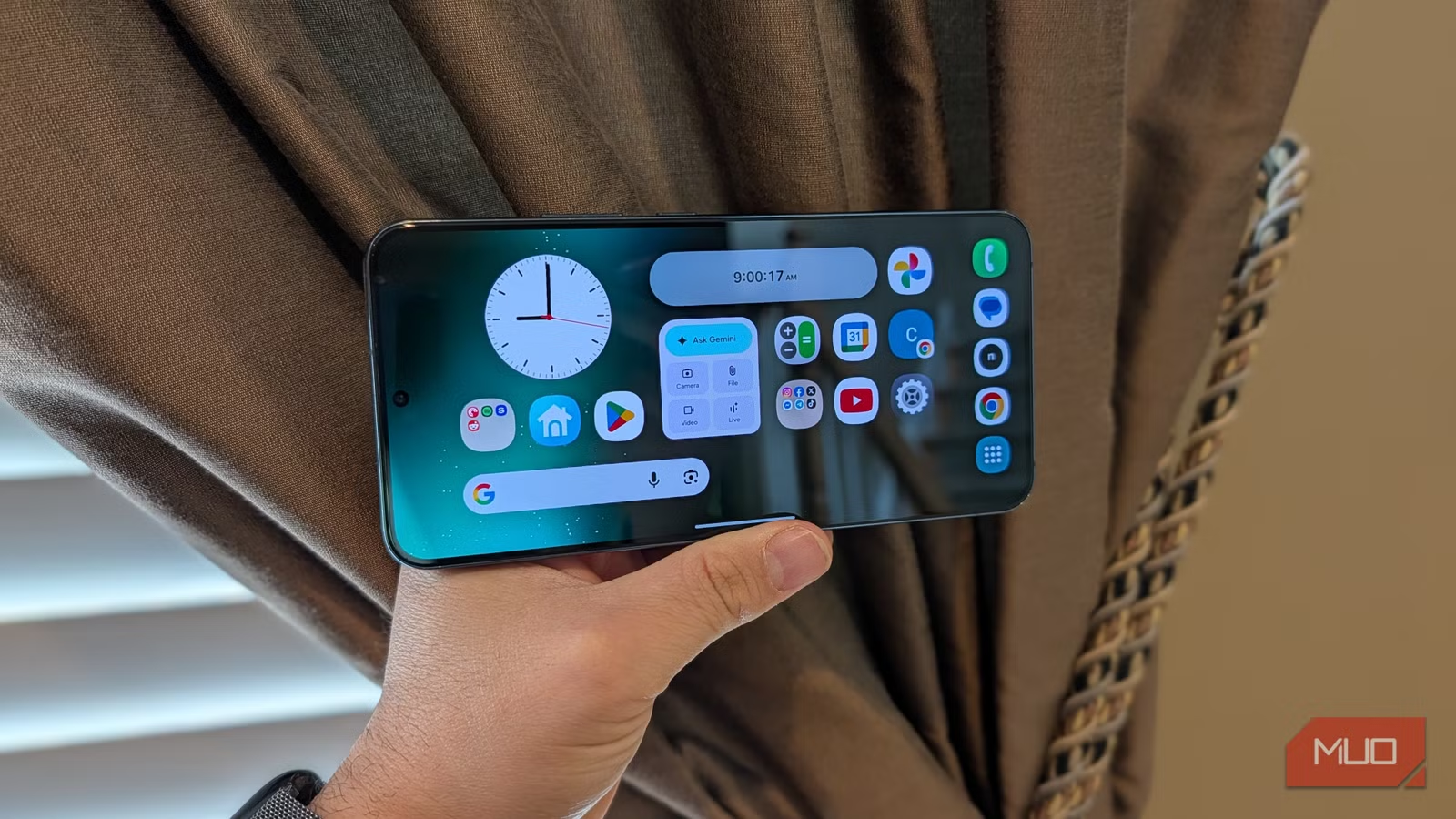
The first step transforms your home screen orientation. Instead of the standard portrait view, you get a wider canvas for apps and widgets.
- Press and hold on your home screen
- Tap Settings
- Enable "Rotate to landscape mode"
This puts your app dock on the right side of the screen. If you're right-handed, this feels natural. The expanded layout gives you more room for widgets and app shortcuts, closer to how a tablet works.
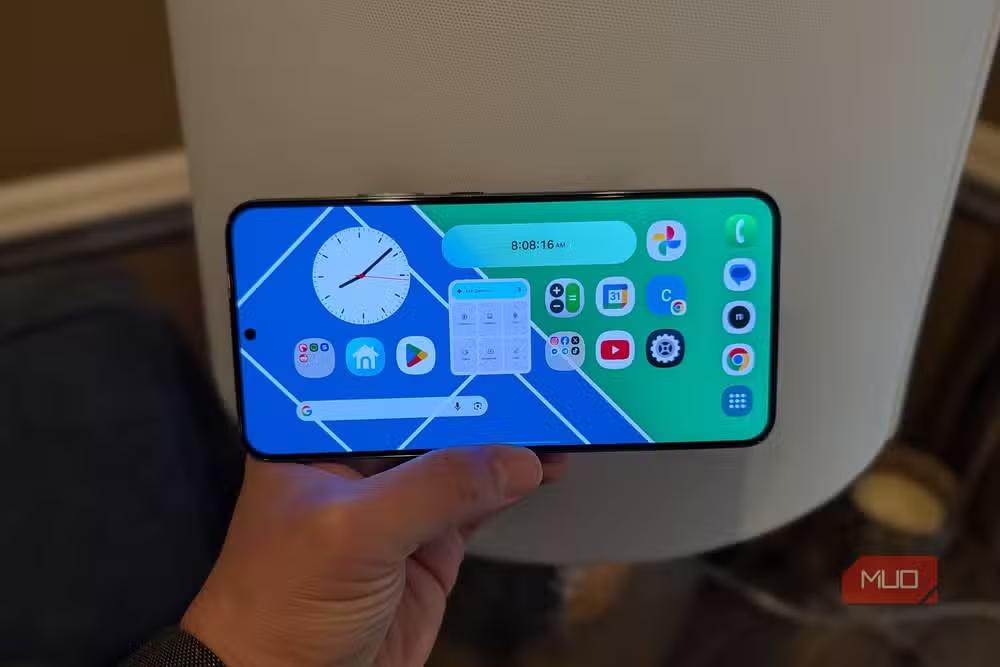
One limitation: Samsung's default launcher doesn't support separate home screen layouts for portrait and landscape. If you switch between orientations, you'll see the same arrangement both ways. The workaround is to lock landscape orientation through your quick settings panel if you plan to use this mode full-time.
Results vary by model. The effect looks best on phones with symmetrical bezels. Samsung returned to flat screens with the Galaxy S21 after the curved displays on the S20 line. Modern Galaxy phones from S21 onwards have the symmetrical bezels that make landscape mode visually balanced.
Increase Display Density for Two-Column Layouts
This second setting works on any Android phone, but it's particularly effective on Samsung devices. Many Samsung apps include a hidden two-panel view, similar to what you'd see on a tablet. Changing display density activates it.
First, you need to enable Developer Options. This is a hidden menu that Android keeps tucked away from casual users.
- Open Settings
- Go to About Phone
- Find Build Number
- Tap Build Number seven times
- Enter your PIN when prompted
You'll see a message confirming Developer Options is now enabled. Go back to the main Settings menu, and you'll find Developer Options near the bottom.
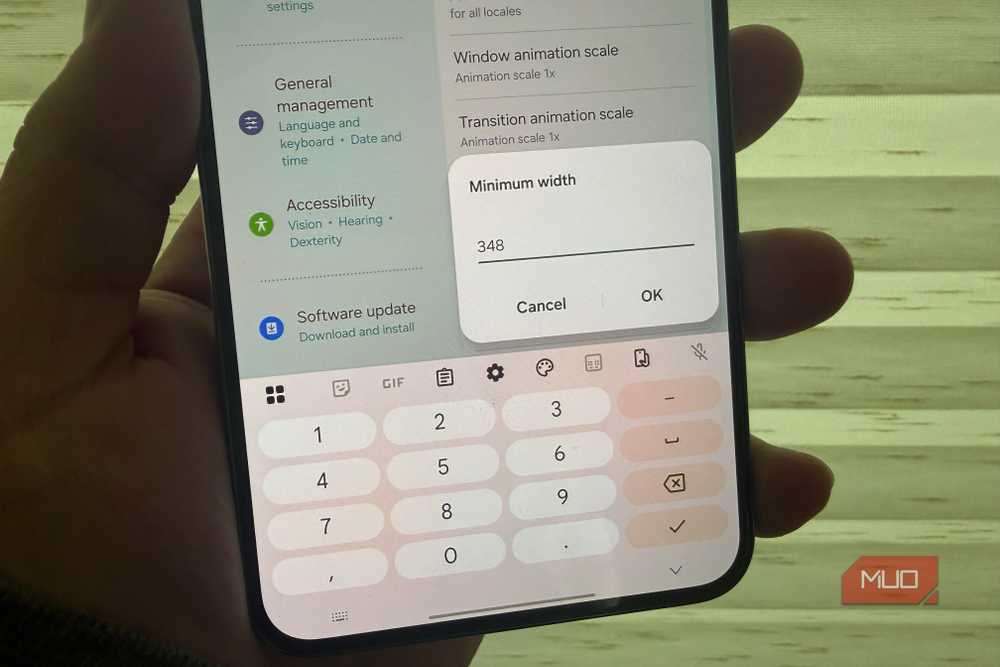
Inside Developer Options, look for "Smallest width" or "Display size" settings. Increasing the display density tells the system to render more content on screen. Apps that support two-column layouts will automatically switch to tablet mode.
Which Apps Support Two-Column View
Samsung's own apps respond best to these changes. The Settings app, Samsung Messages, Samsung Email, and other first-party apps will display a list on the left and content on the right. This mirrors how these apps look on Samsung tablets.
Third-party apps vary. Some, like Gmail and Outlook, have tablet layouts that activate with higher display density. Others ignore the setting entirely and show the same phone layout regardless.
Trade-offs to Consider
These settings come with downsides. Higher display density means smaller text and UI elements. If you have vision issues or prefer larger text, this may not work for you.
Landscape mode also sacrifices one-handed usability. The phone becomes harder to operate with a single hand. You're trading convenience for a more immersive experience.
- Text and icons become smaller with higher display density
- One-handed use becomes difficult in landscape mode
- Not all apps support two-column layouts
- Battery usage may increase slightly with landscape orientation locked
Logicity's Take
Context on Samsung's current mobile strategy
Frequently Asked Questions
Does Samsung tablet mode work on all Galaxy phones?
Any Samsung phone running One UI can enable these settings. However, the visual effect works best on phones with symmetrical bezels, which includes Galaxy S21 and newer models.
Will changing display density break my apps?
No. Apps that don't support two-column layouts will simply display their normal phone interface. The setting is reversible if you don't like the results.
Can I use different home screen layouts for portrait and landscape?
Not with Samsung's default launcher. You would need a third-party launcher that supports separate layout configurations for each orientation.
Does this feature use more battery?
Locking orientation through quick settings uses minimal additional battery. The display density change has no measurable impact on battery life.
Need Help Implementing This?
Source: MakeUseOf
Manaal Khan
Tech & Innovation Writer
اقرأ أيضاً

رأي مغاير: كيف يؤثر اختراق الأمن الداخلي الأميركي على شركاتنا الخاصة؟
في ظل اختراق عقود الأمن الداخلي الأميركي مع شركات خاصة، نناقش تأثير هذا الاختراق على مستقبل الأمن السيبراني. نستعرض الإحصاءات الموثوقة ونناقش كيف يمكن للشركات الخاصة أن تتعامل مع هذا التهديد. استمتع بقراءة هذا التحليل العميق

الإنسان في زمن ما بعد الوجود البشري: نحو نظام للتعايش بين الإنسان والروبوت - Centre for Arab Unity Studies
في هذا المقال، سنناقش كيف يمكن للبشر والروبوتات التعايش في نظام متكامل. سنستعرض التحديات والحلول المحتملة التي تضعها شركات مثل جوجل وأمازون. كما سنلقي نظرة على التوقعات المستقبلية وفقًا لتقرير ماكنزي

إطلاق ناسا لمهمة مأهولة إلى القمر: خطوة تاريخية نحو استكشاف الفضاء
تعتبر المهمة الجديدة خطوة هامة نحو استكشاف الفضاء وتطوير التكنولوجيا. سوف تشمل المهمة إرسال رواد فضاء إلى سطح القمر لconducting تجارب علمية. ستسهم هذه المهمة في تطوير فهمنا للفضاء وتحسين التكنولوجيا المستخدمة في استكشاف الفضاء.