How to Change Your Browser's DNS Settings for Faster, Private Browsing in 2026
Key Takeaways
- Your ISP's default DNS is likely slow, logs your activity, and can block websites
- Switching to a third-party DNS like Cloudflare, Google, or NextDNS takes under two minutes
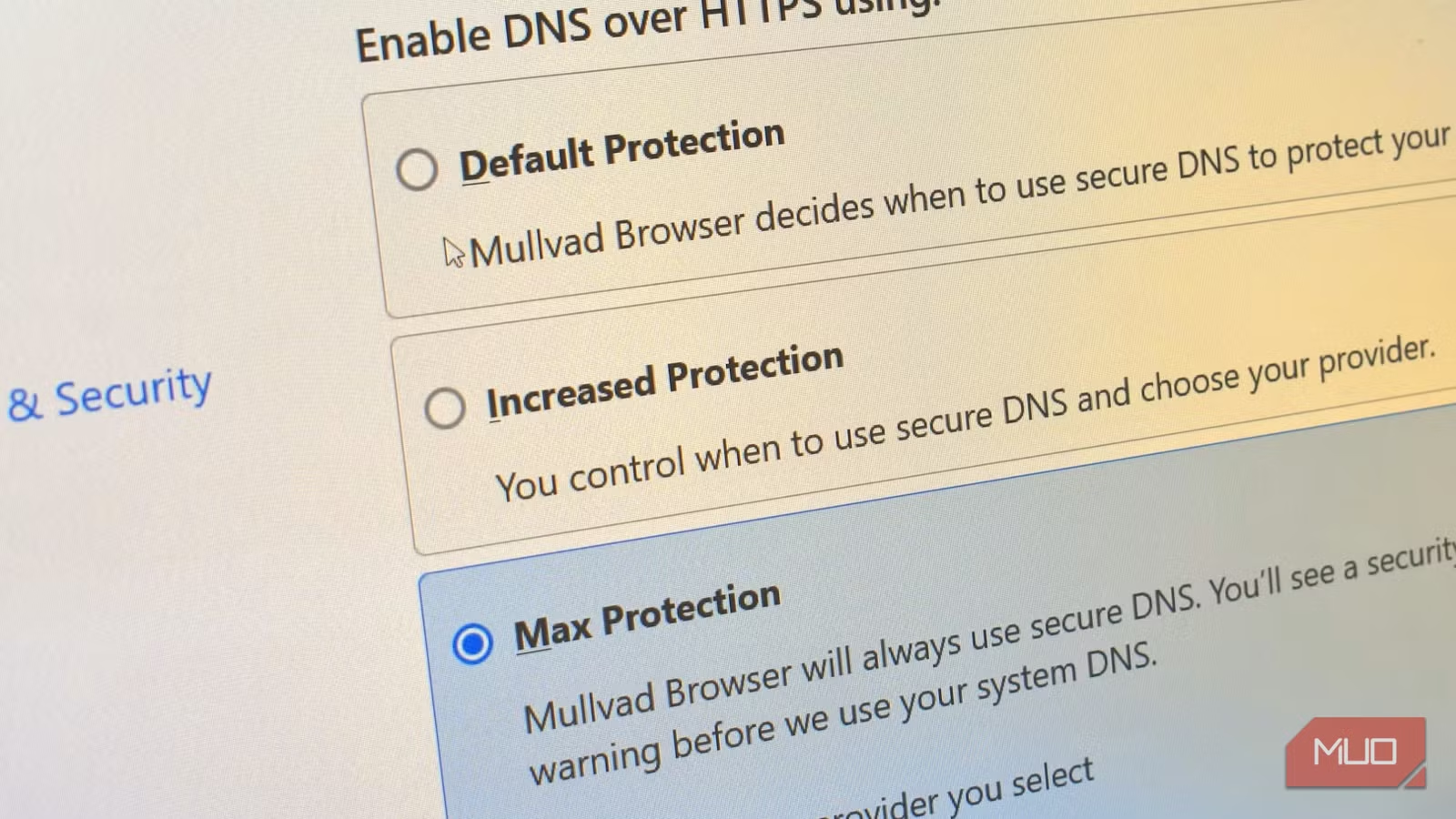
- DNS over HTTPS (DoH) encrypts your queries, preventing man-in-the-middle attacks
- Most major browsers now have built-in DNS settings you can change without touching your OS
Read in Short
Your browser asks a DNS server to translate every website name into an IP address before loading anything. The default DNS from your ISP is usually slow, tracks everything you visit, and can block sites. Switching to Cloudflare (1.1.1.1), Google (8.8.8.8), or NextDNS takes two minutes and makes browsing faster and more private.
Here's something that bugs me. People will spend hours customizing their browser with themes, extensions, and performance tweaks. They'll debate Chrome vs Firefox vs Edge until they're blue in the face. But most of them never touch the one setting that actually affects every single page load: DNS.
I get it. DNS sounds technical and boring. Domain Name System? Sounds like something you'd learn in a networking class and immediately forget. But here's the thing: your DNS settings affect your browsing speed, your privacy, and even which websites you can access. And if you've never changed them, you're probably using whatever your internet provider decided to give you.
That's... not great. Let me explain why.
What DNS Actually Does (The 30-Second Version)
Every time you type a URL like google.com or makeuseof.com, your browser has no idea what that means. Computers communicate through IP addresses, which are those long strings of numbers like 142.250.190.78. Your browser needs someone to translate the human-readable website name into the actual address.
That's what a DNS server does. It's basically a giant phone book for the internet. You ask it "where's google.com?" and it tells you the IP address. Simple enough.
The catch? This lookup happens before anything else. Before the page starts loading. Before you see a single pixel. And your browser does this for every domain on every page you visit. So if your DNS is slow, everything feels sluggish. Not broken, just... off. Like there's always a tiny delay between clicking a link and something happening.
The Three Problems With Your ISP's DNS
By default, your browser uses whatever DNS server your internet provider assigns. Most people never change this because they don't even know it's an option. But there are three solid reasons why you should.

1. Speed (Or Lack Thereof)
ISP DNS servers are rarely optimized for performance. They work, sure. But they're not fast. Independent DNS providers like Cloudflare and Google have invested heavily in infrastructure specifically to make lookups as quick as possible. We're talking milliseconds of difference per request, but those milliseconds add up across hundreds of lookups in a browsing session.
2. Privacy Is Basically Non-Existent
This is the big one for me. Your DNS provider sees every single website you visit. Not what you do on those sites, but they know you went to your bank's website at 9:47 AM, then checked Reddit, then visited that embarrassing medical symptoms page. All timestamped. All logged.
What Your ISP Can See
Your DNS provider logs which domains you visit and when. They can build a detailed profile of your interests, habits, and schedule. Some ISPs sell this data to advertisers. Others are required by law to retain it. Either way, it's information you're giving away for free.
And here's what really gets me. Your ISP can also block websites just by refusing to resolve them. Don't want you accessing a particular domain? They just pretend it doesn't exist. No IP address returned, no page loads.
3. Security Gaps
Traditional DNS requests aren't encrypted. They're sent in plain text, which means anyone sitting between you and the DNS server can see what you're looking up. Worse, they could intercept your request and send back a fake IP address, redirecting you to a malicious site that looks identical to the real one.
This is called a man-in-the-middle attack, and unencrypted DNS makes it way easier to pull off.
The DNS Providers Worth Using
So you're convinced. You want to switch. But to what? Here's a quick breakdown of the most popular options.
| Provider | Primary DNS | Focus | Best For |
|---|---|---|---|
| Cloudflare | 1.1.1.1 | Speed + Privacy | Most users |
| 8.8.8.8 | Reliability | People who trust Google | |
| NextDNS | Custom | Customization | Power users |
| Quad9 | 9.9.9.9 | Security | Malware blocking |
Cloudflare's 1.1.1.1 is my personal go-to. It's consistently among the fastest DNS providers, and they've made strong privacy commitments including not logging your IP address and purging query logs within 24 hours. They also support DNS over HTTPS, which encrypts your lookups.
Google's 8.8.8.8 is reliable and fast, but you're trusting Google with your browsing data. If you're already deep in the Google ecosystem and don't mind that trade-off, it's a solid choice.
NextDNS is fascinating if you want more control. You can set up custom blocklists, see analytics on your DNS queries, and configure it exactly how you want. It's like Pi-hole but without needing hardware.
If you're optimizing your browsing setup, you might also want to upgrade what you're looking at. This QD-OLED monitor just made premium displays affordable.
How to Change DNS in Your Browser
The good news? You don't need to mess with your operating system settings. Most modern browsers let you configure DNS directly, and they'll use that setting regardless of what your system is configured to use.
Chrome
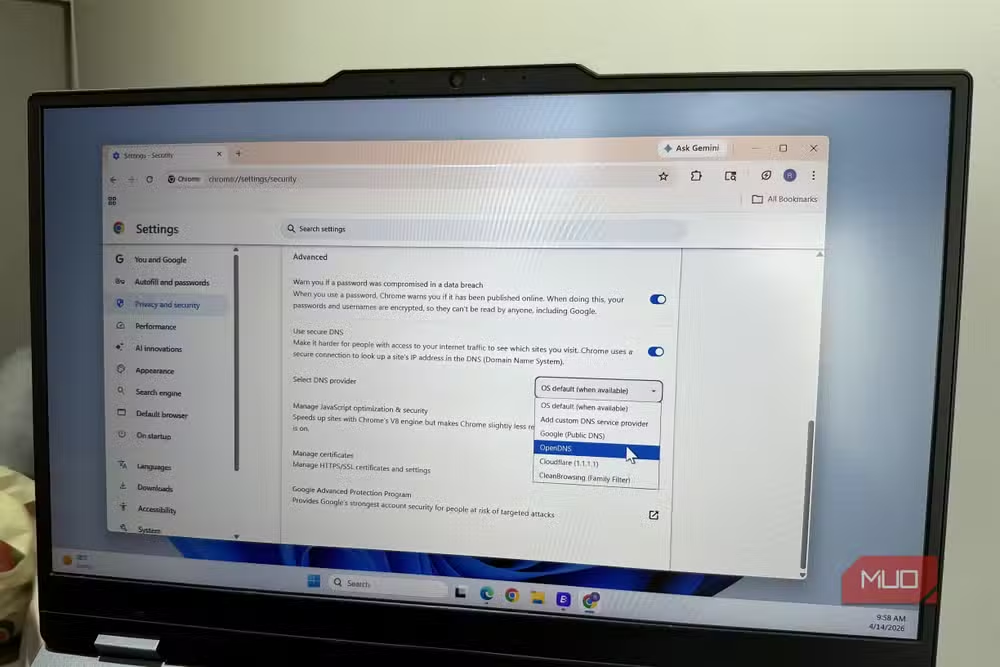
- Open Settings by clicking the three dots in the top right
- Go to Privacy and security, then Security
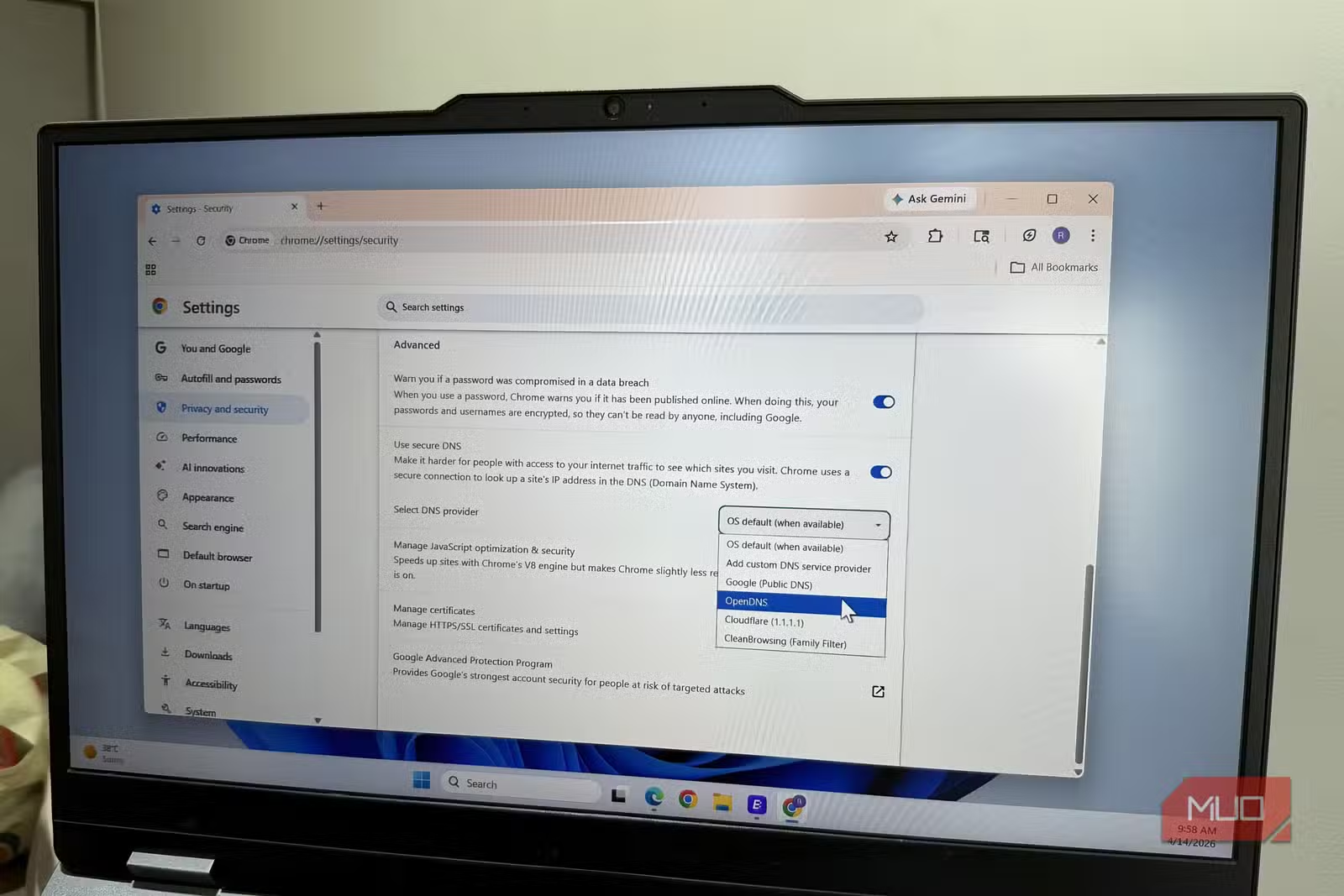
- Scroll down to Advanced and find 'Use secure DNS'
- Toggle it on and select a provider from the dropdown, or enter a custom one
Firefox
- Open Settings and scroll all the way to the bottom
- Click Network Settings
- Check 'Enable DNS over HTTPS'
- Choose a provider or enter a custom URL
Edge
- Open Settings, then Privacy, search, and services
- Scroll to Security and find 'Use secure DNS'
- Toggle it on and pick your provider
DNS Over HTTPS (DoH)
When you enable secure DNS in your browser, you're using DNS over HTTPS. This encrypts your DNS queries so they can't be intercepted or tampered with. It's a significant privacy and security upgrade over traditional DNS.
Should You Change DNS at the Router Level Instead?
You could. Changing DNS on your router applies to every device on your network, which sounds convenient. But there are trade-offs.
Browser-level DNS settings give you encrypted lookups through DoH. Router-level DNS changes usually don't support encryption unless you have fancy hardware. Plus, when you take your laptop to a coffee shop, your browser settings travel with you. Router settings obviously don't.
My approach? I set DNS in my browser on every device I use and leave the router alone. That way I get encrypted DNS everywhere, not just at home.
The Bottom Line
Look, changing your DNS isn't going to transform your internet experience overnight. You're not suddenly going to feel like you upgraded to fiber. But it's one of those small optimizations that makes everything slightly better, slightly faster, slightly more private.
It takes two minutes. You do it once per browser. And then you never think about it again.
That's the kind of setting I love. Zero maintenance, real benefits, and you don't need to understand networking to do it. Just pick Cloudflare or whatever provider appeals to you, flip the switch, and move on with your life.
Your ISP definitely won't miss having access to your browsing history. But honestly? That's kind of the point.
Frequently Asked Questions
Will changing DNS break anything?
Nope. Worst case scenario, a specific DNS provider might not resolve an obscure domain, and you just switch to another one. I've never had this happen with the major providers.
Is Cloudflare DNS really free?
Yes, 1.1.1.1 is completely free. They make money from their enterprise products, not from selling your data.
Does this work on mobile browsers?
Some mobile browsers support custom DNS. On iOS and Android, you can also set private DNS at the system level, which covers all apps.
What about VPNs? Do I still need to change DNS?
Good VPNs handle DNS internally through their own servers. When connected to a VPN, your browser's DNS settings are usually bypassed. But when you're not on the VPN, having secure DNS configured is still valuable.
Source: MakeUseOf
Huma Shazia
Senior AI & Tech Writer
اقرأ أيضاً

رأي مغاير: كيف يؤثر اختراق الأمن الداخلي الأميركي على شركاتنا الخاصة؟
في ظل اختراق عقود الأمن الداخلي الأميركي مع شركات خاصة، نناقش تأثير هذا الاختراق على مستقبل الأمن السيبراني. نستعرض الإحصاءات الموثوقة ونناقش كيف يمكن للشركات الخاصة أن تتعامل مع هذا التهديد. استمتع بقراءة هذا التحليل العميق

الإنسان في زمن ما بعد الوجود البشري: نحو نظام للتعايش بين الإنسان والروبوت - Centre for Arab Unity Studies
في هذا المقال، سنناقش كيف يمكن للبشر والروبوتات التعايش في نظام متكامل. سنستعرض التحديات والحلول المحتملة التي تضعها شركات مثل جوجل وأمازون. كما سنلقي نظرة على التوقعات المستقبلية وفقًا لتقرير ماكنزي

إطلاق ناسا لمهمة مأهولة إلى القمر: خطوة تاريخية نحو استكشاف الفضاء
تعتبر المهمة الجديدة خطوة هامة نحو استكشاف الفضاء وتطوير التكنولوجيا. سوف تشمل المهمة إرسال رواد فضاء إلى سطح القمر لconducting تجارب علمية. ستسهم هذه المهمة في تطوير فهمنا للفضاء وتحسين التكنولوجيا المستخدمة في استكشاف الفضاء.