7 Windows 11 Settings to Disable for a Cleaner, Private PC
Key Takeaways
- Windows 11 assigns a unique advertising ID to your account that apps use for behavioral tracking
- Diagnostic data, lock screen promotions, and notification tips can all be disabled in Settings
- Disabling these features improves privacy without affecting Windows core functionality
A fresh Windows 11 install feels like a blank slate. The system is fast, responsive, and ready to be customized. But beneath that clean surface, Microsoft has enabled a collection of features that serve the company's interests as much as yours.
Tracking identifiers follow your activity across apps. Lock screens display promotional content. Notifications push you toward Microsoft services. None of this is hidden, but all of it ships on by default.
The good news: most of these settings can be disabled once you know where to look. Here are the features worth turning off to make Windows 11 feel like your machine again.
1. Advertising ID: Microsoft's Behavioral Tracker
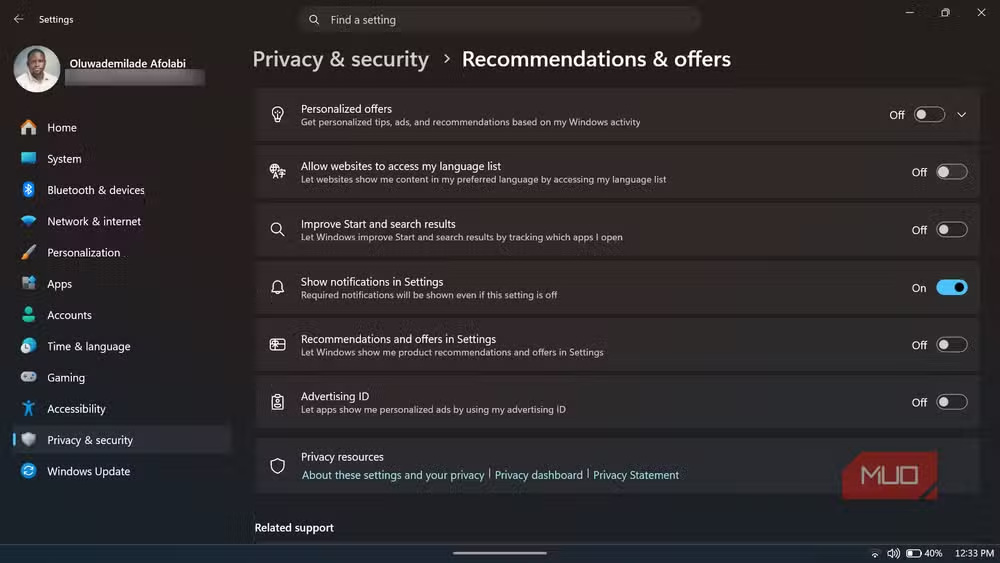
Windows 11 assigns every account a unique advertising ID. Apps and advertisers use this identifier to track activity across services and build a profile of your behavior. That profile feeds into a personalization system that tailors ads and recommendations to your usage patterns.
Disabling the advertising ID doesn't remove ads from Windows entirely. Apps can still display ads, but they lose access to that behavior-linked identifier. The profiling stops.
To disable it: Go to Settings, then Privacy & Security, then General. Some Windows 11 builds place this under Privacy & Security, then Recommendations & Offers instead. Toggle off the Advertising ID option.
2. Personalized Offers and Recommendations
While you're in the same privacy menu, disable Personalized offers and Recommendations and offers in Settings. These features analyze your activity to suggest Microsoft services, apps, and content. Turning them off stops Windows from using your behavior to push promotional suggestions.
3. Diagnostic Data Sharing
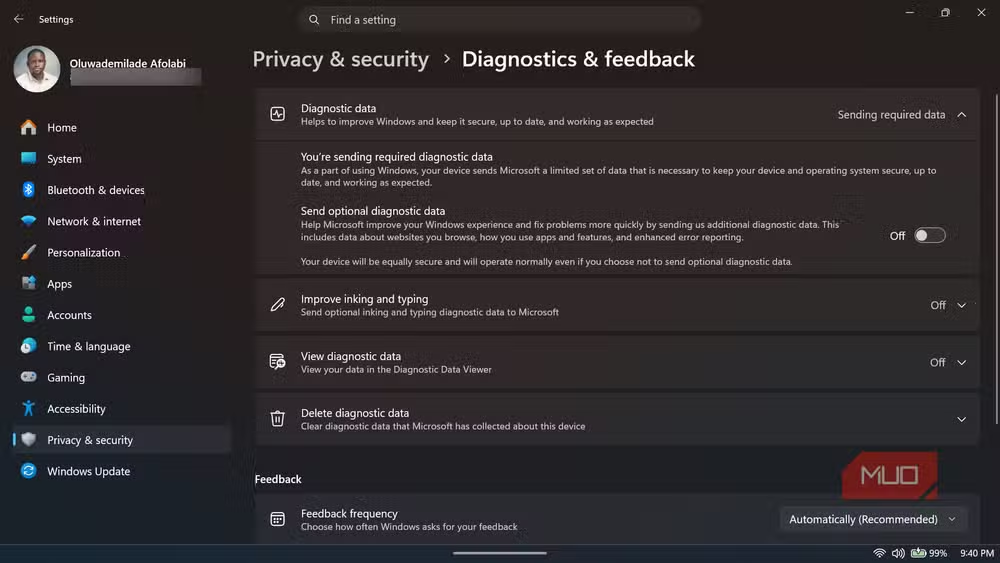
Windows 11 collects diagnostic data about how you use the system. Required diagnostic data covers basic device info and error reports. Optional diagnostic data goes further, tracking browsing history, app usage, and device activity.
Microsoft uses this data to improve Windows and develop new features. If you'd rather not contribute your usage patterns to that effort, you can limit what gets sent.
To adjust: Go to Settings, then Privacy & Security, then Diagnostics & feedback. Turn off Send optional diagnostic data. You can also delete the diagnostic data Microsoft has already collected about your device.
4. Windows Spotlight Lock Screen
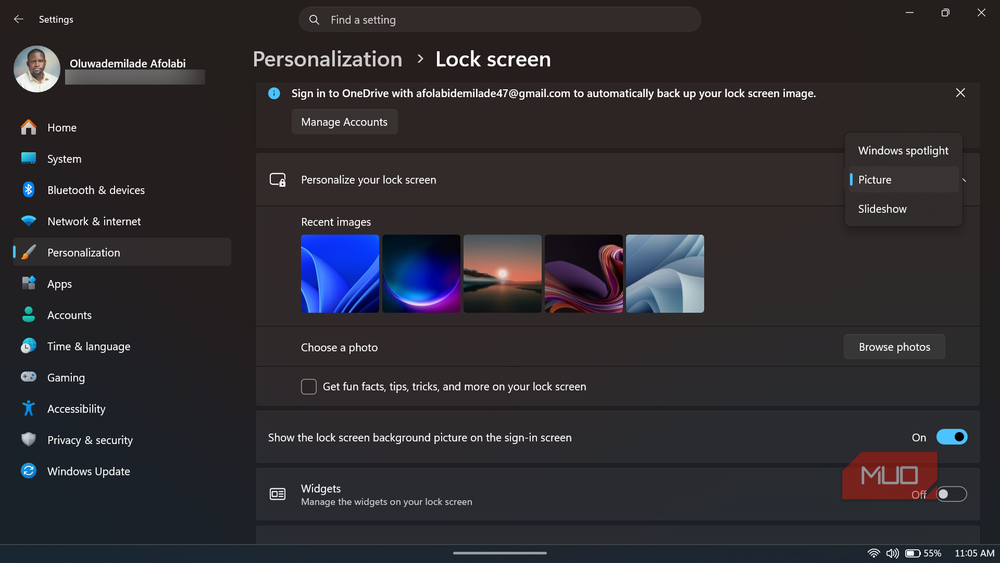
Windows Spotlight displays rotating images on your lock screen, often with fun facts or tips. Sounds harmless, but those images come bundled with promotional content. Microsoft uses the lock screen to advertise apps, services, and features.
Switching to a static picture eliminates the promotional angle and gives you a lock screen that stays consistent.
To change it: Go to Settings, then Personalization, then Lock screen. Change the background option from Windows Spotlight to Picture or Slideshow.
5. Tips and Suggestions Notifications
Windows 11 periodically displays notifications with tips about features you might not be using. In practice, these often feel like prompts to try Microsoft services or change settings Windows thinks you should change.
If you're comfortable with how you've configured your system, these notifications add clutter without value.
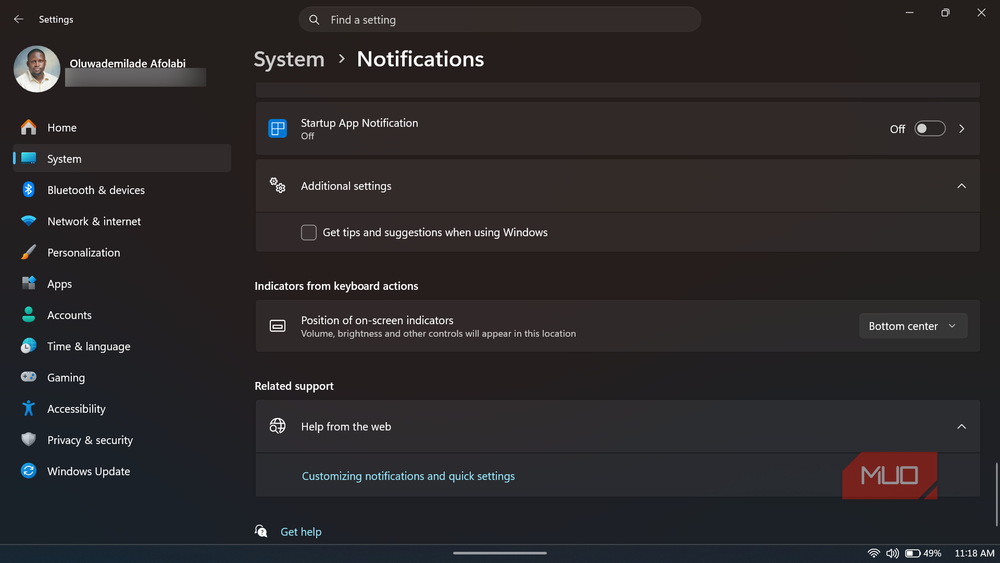
To disable: Go to Settings, then System, then Notifications. Scroll down and uncheck Get tips and suggestions when using Windows.
6. Sync Provider Notifications in File Explorer
File Explorer can display notifications from sync providers like OneDrive. These pop up to remind you about cloud storage, prompt you to back up files, or advertise OneDrive features.
If you've already made your cloud storage decisions, these notifications are just noise.
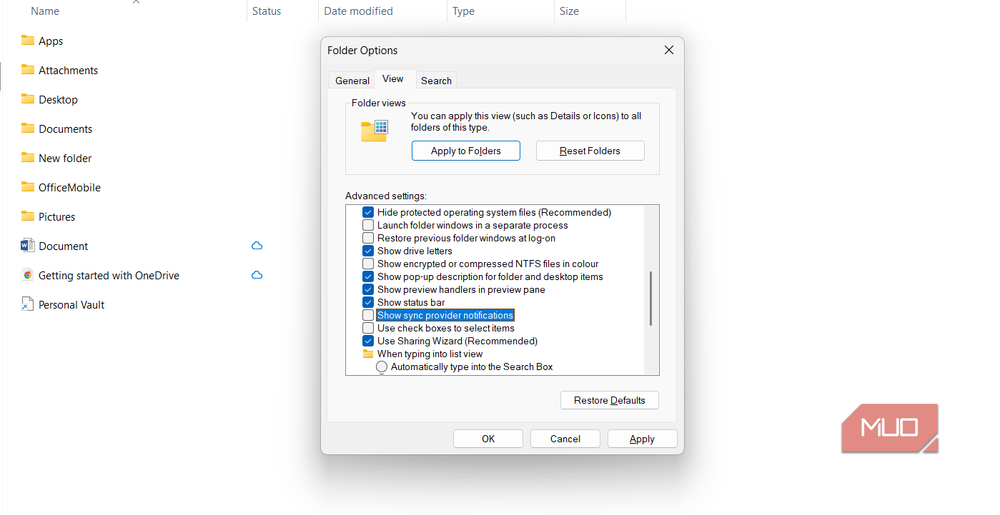
To turn them off: Open File Explorer, click the three-dot menu, select Options, go to the View tab, and uncheck Show sync provider notifications.
7. Review App Permissions Regularly
Beyond these specific toggles, it's worth reviewing which apps have access to sensitive features like your camera, microphone, location, and contacts. Windows 11 lets you control these permissions on a per-app basis.
Go to Settings, then Privacy & Security, and scroll through the App permissions section. Disable access for any app that doesn't need it.
What You're Not Losing
Disabling these features doesn't break Windows 11. Core functionality stays intact. Updates still work. Apps still run. You're simply opting out of the tracking and promotional systems Microsoft built into the default experience.
The tradeoff is minimal. Ads become less targeted. You see fewer suggestions. Your lock screen stays static. For most users, that's not a loss.
More ways to customize your desktop workflow
Logicity's Take
Frequently Asked Questions
Does disabling the advertising ID remove all ads from Windows 11?
No. Apps can still display ads, but they lose access to the behavioral identifier that makes those ads personalized. You'll see generic ads instead of targeted ones.
Will turning off diagnostic data cause problems with Windows updates?
No. Required diagnostic data still gets sent even when you disable optional data. Updates, security patches, and core functionality continue to work normally.
Can I re-enable these features later if I change my mind?
Yes. All these settings are toggles. You can turn any of them back on through the same Settings paths described in the article.
Do these changes affect Microsoft 365 or other Microsoft services?
These changes affect Windows 11 specifically. Microsoft 365 apps have their own privacy settings that you'd need to adjust separately within those applications.
Need Help Implementing This?
Source: MakeUseOf
Manaal Khan
Tech & Innovation Writer
اقرأ أيضاً

رأي مغاير: كيف يؤثر اختراق الأمن الداخلي الأميركي على شركاتنا الخاصة؟
في ظل اختراق عقود الأمن الداخلي الأميركي مع شركات خاصة، نناقش تأثير هذا الاختراق على مستقبل الأمن السيبراني. نستعرض الإحصاءات الموثوقة ونناقش كيف يمكن للشركات الخاصة أن تتعامل مع هذا التهديد. استمتع بقراءة هذا التحليل العميق

الإنسان في زمن ما بعد الوجود البشري: نحو نظام للتعايش بين الإنسان والروبوت - Centre for Arab Unity Studies
في هذا المقال، سنناقش كيف يمكن للبشر والروبوتات التعايش في نظام متكامل. سنستعرض التحديات والحلول المحتملة التي تضعها شركات مثل جوجل وأمازون. كما سنلقي نظرة على التوقعات المستقبلية وفقًا لتقرير ماكنزي

إطلاق ناسا لمهمة مأهولة إلى القمر: خطوة تاريخية نحو استكشاف الفضاء
تعتبر المهمة الجديدة خطوة هامة نحو استكشاف الفضاء وتطوير التكنولوجيا. سوف تشمل المهمة إرسال رواد فضاء إلى سطح القمر لconducting تجارب علمية. ستسهم هذه المهمة في تطوير فهمنا للفضاء وتحسين التكنولوجيا المستخدمة في استكشاف الفضاء.