6 Android Gestures That Make Navigation Faster
Key Takeaways
- Swipe-down on home screen can pull notifications instead of opening search
- Horizontal gesture-bar swipe switches between apps instantly
- One-handed mode shrinks the screen for easier thumb reach on large phones
Android gives you dozens of navigation shortcuts. The problem is most of them are switched off when you first set up your phone. Unless you dig through gesture menus and keyboard settings, you'll never find them.
The defaults work fine. But for anyone who uses their phone heavily, whether bouncing between Slack and email or managing calls while walking, these hidden gestures can shave seconds off every interaction. Over weeks and months, that adds up.
Here are six gestures worth enabling right now.
1. Swipe Down for Notifications Instead of Search
By default, swiping down on your home screen opens a search page. That's useful if you search for apps often. But most people reach for the notification shade far more frequently.
Reaching up to the status bar with one hand isn't comfortable, especially on phones with 6.5-inch displays. The fix takes ten seconds.
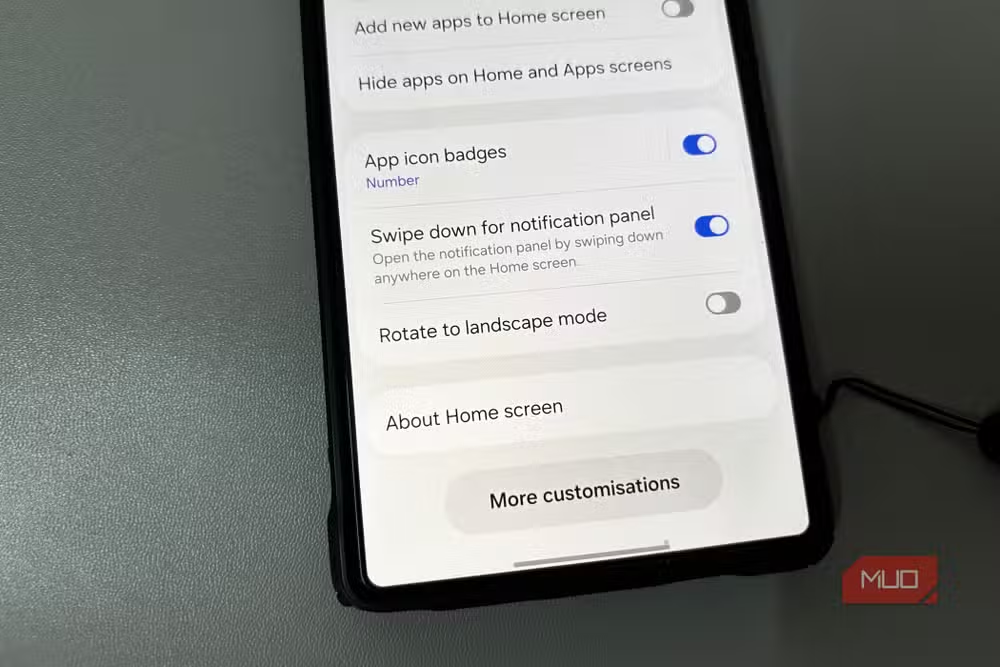
Open your launcher settings, find the Home screen section, and reassign the swipe gesture to pull down notifications instead. Once enabled, a swipe anywhere on your home screen opens the shade directly.
You don't lose search access. The search bar widget on your home screen does the same thing.
2. Horizontal Gesture-Bar Swipe to Switch Apps
Swiping up and pausing to open the recent apps screen works when you need to pick from several open apps. But when you're bouncing between just two, like a browser and a notes app, it's the slow way.
A quick horizontal swipe across the gesture bar at the bottom of your screen takes you straight to your last used app. No pause, no menu, just an instant switch.
This isn't always enabled by default. Check under system navigation or gesture settings for a horizontal swipe or app-switching option. On Pixel phones, it's usually under Settings > System > Gestures > System navigation.

3. One-Handed Mode Shrinks the Screen on Demand
Phone screens keep getting bigger. Reaching the top corners while holding the device with one hand is now physically impossible for most people. Android has a built-in fix for this, but it ships disabled.
One-handed mode shrinks the entire display to a smaller size, usually in one corner. You can reach everything with your thumb.
To enable it, go to your display or accessibility settings and look for One-handed mode. On some phones, it's listed under advanced gestures. The trigger is usually a swipe down on the gesture bar or a double-tap on the home button.

4. Gboard Spacebar Cursor Control
Tapping precisely to place your cursor in the middle of a word is frustrating. The tiny magnifier that appears isn't much help. Gboard has a better way, and it's been there for years.
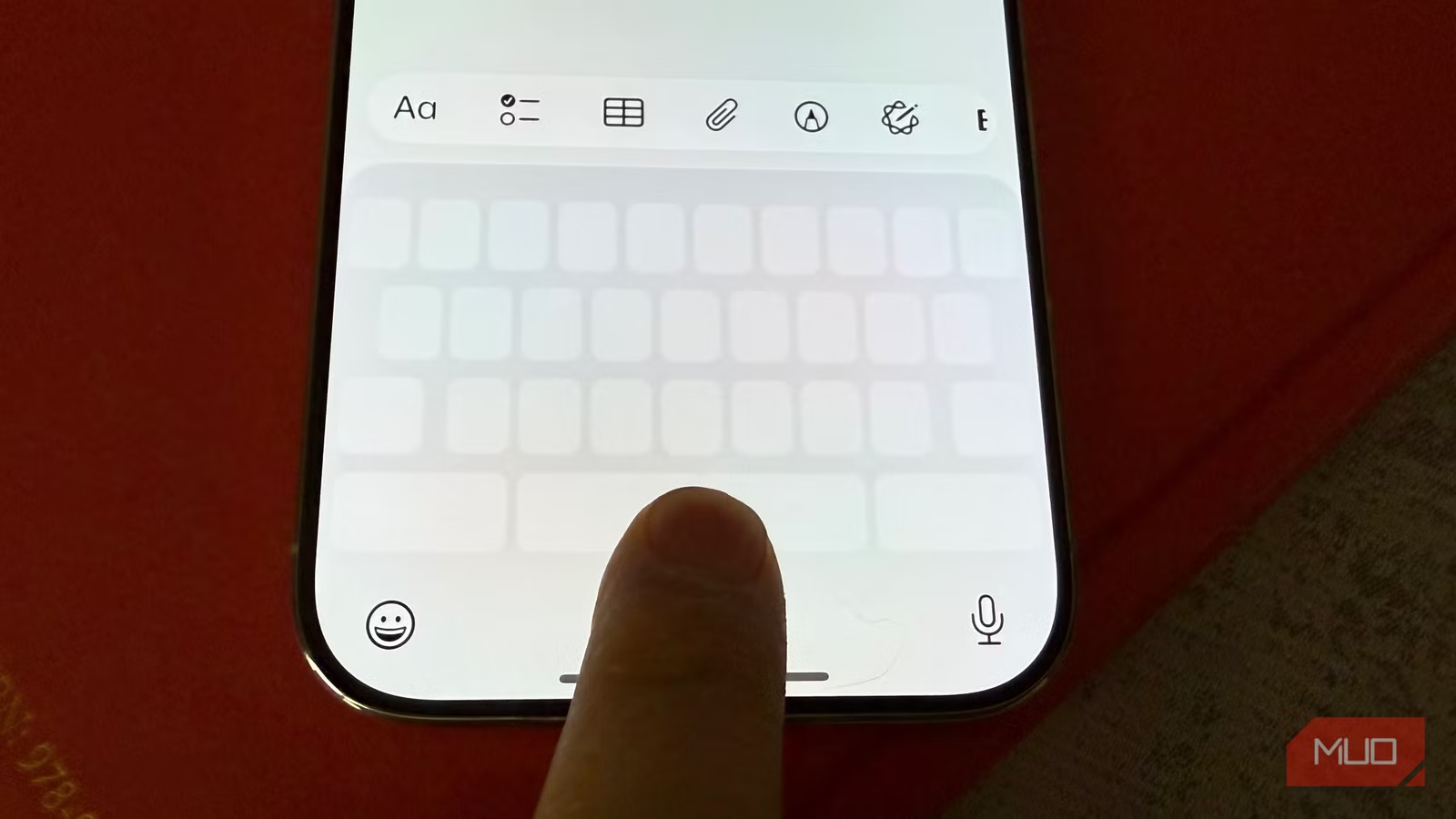
Slide your finger left or right across the spacebar. The cursor moves character by character in that direction. It's precise, fast, and works in any text field.
This works out of the box if you're using Gboard. If you've switched to another keyboard, check its settings for similar gesture controls.

5. Gboard Delete Gesture
Deleting a long sentence by holding the backspace key is slow. Gboard offers a faster method. Slide left from the backspace key, and words will highlight as you drag. Let go, and they're deleted.
The further you drag, the more words get selected. It takes a few tries to get the feel for it, but once you do, deleting entire paragraphs takes one gesture instead of holding a button for five seconds.
6. Corner Swipe for Google Assistant
If you use gesture navigation, the old "OK Google" trigger or long-press home button method for summoning the assistant feels clunky. There's a faster way.
Swipe diagonally from either bottom corner of the screen toward the center. Google Assistant launches immediately. This works while you're in any app.
Check Settings > System > Gestures > System navigation to confirm this is enabled. On some phones it's on by default, on others it requires a toggle.

Why These Ship Disabled
Android has an estimated 3.9 billion active users globally as of 2026. Most of those users never open the settings app beyond initial setup. Shipping with conservative defaults reduces confusion for casual users.
But for power users, this means useful features stay hidden. These gestures don't conflict with normal phone operation. They just require knowing they exist.
“The power of Android lies in its customizability, but the magic happens when users unlock the hidden navigation shortcuts that make day-to-day interactions feel fluid and native.”
— Sarah Jenkins, Lead User Experience Designer at TechInterface
Quick Tap: Bonus Gesture Worth Mentioning
On Pixel phones and some other Android devices, there's a feature called Quick Tap. Double-tap the back of your phone to trigger an action: launch the camera, toggle the flashlight, or run a specific app.
Reddit's r/Android community has threads dedicated to creative Quick Tap workflows, from triggering smart home scenes to launching authentication apps. It's under Settings > System > Gestures > Quick Tap on supported devices.
Logicity's Take
Frequently Asked Questions
Do these gestures work on all Android phones?
Most of these work on Android 12 and later, but exact menu locations vary by manufacturer. Samsung, Pixel, and OnePlus phones may have different names for the same settings.
Will enabling gesture navigation disable the three-button layout?
Yes. Gesture navigation replaces the traditional back, home, and recent buttons. You can switch between modes anytime in system navigation settings.
Does the Gboard spacebar cursor gesture work with other keyboards?
Some keyboards like SwiftKey offer similar features, but they may need to be enabled separately in that keyboard's settings.
Can I customize what Quick Tap does?
Yes. On supported devices, you can assign Quick Tap to launch any app, toggle the flashlight, take a screenshot, or trigger other actions.
More Android app recommendations for power users
Latest Android tablet hardware news
Need Help Implementing This?
Source: MakeUseOf
Huma Shazia
Senior AI & Tech Writer
اقرأ أيضاً

رأي مغاير: كيف يؤثر اختراق الأمن الداخلي الأميركي على شركاتنا الخاصة؟
في ظل اختراق عقود الأمن الداخلي الأميركي مع شركات خاصة، نناقش تأثير هذا الاختراق على مستقبل الأمن السيبراني. نستعرض الإحصاءات الموثوقة ونناقش كيف يمكن للشركات الخاصة أن تتعامل مع هذا التهديد. استمتع بقراءة هذا التحليل العميق

الإنسان في زمن ما بعد الوجود البشري: نحو نظام للتعايش بين الإنسان والروبوت - Centre for Arab Unity Studies
في هذا المقال، سنناقش كيف يمكن للبشر والروبوتات التعايش في نظام متكامل. سنستعرض التحديات والحلول المحتملة التي تضعها شركات مثل جوجل وأمازون. كما سنلقي نظرة على التوقعات المستقبلية وفقًا لتقرير ماكنزي

إطلاق ناسا لمهمة مأهولة إلى القمر: خطوة تاريخية نحو استكشاف الفضاء
تعتبر المهمة الجديدة خطوة هامة نحو استكشاف الفضاء وتطوير التكنولوجيا. سوف تشمل المهمة إرسال رواد فضاء إلى سطح القمر لconducting تجارب علمية. ستسهم هذه المهمة في تطوير فهمنا للفضاء وتحسين التكنولوجيا المستخدمة في استكشاف الفضاء.