5 Ways to Speed Up a Slow Laptop Without Buying New Hardware
Key Takeaways
- Startup apps and background processes are usually the main culprits behind laptop slowdowns
- Disabling Windows visual effects can make older laptops feel noticeably faster
- Dust buildup causes thermal throttling, which artificially limits your processor's speed
Office workers lose an average of 29 minutes per day to slow PC performance. Before you start shopping for RAM upgrades or a new SSD, consider this: most laptop slowdowns have nothing to do with hardware age.
The real culprits are software-level issues. Bloated startup programs, unnecessary visual effects, accumulated junk files, and even dust buildup can throttle a perfectly capable machine. Fix these, and you might avoid spending money entirely.
1. Clear the Software Clutter First
Start with the basics: remove unused apps, delete temporary files, and clear your browser cache. These are often the biggest reasons a laptop feels sluggish. Windows includes built-in cleanup tools through Settings > System > Storage that handle most of this automatically.
But the real speed gains come from auditing what runs at startup. Open Task Manager, click the Startup tab, and disable anything you don't need immediately when your laptop boots. Every app fighting for resources at startup adds seconds to your boot time and keeps consuming memory afterward.
Background apps deserve the same scrutiny. Head to Settings > Apps > Installed apps, click the three-dot menu next to each app, and check Advanced options. If the app has a background permission toggle, disable it unless you genuinely need real-time updates.
2. Turn Off the Eye Candy
Windows 11 looks polished out of the box. Those smooth animations, transparent effects, and shadow effects cost processing power. On older or lower-end laptops, they can make the entire system feel slower than the hardware actually is.
Here's the fix: type "adjust the appearance and performance of Windows" in the Start menu and press Enter. In the dialog that opens, select "Adjust for best performance" and click Apply.
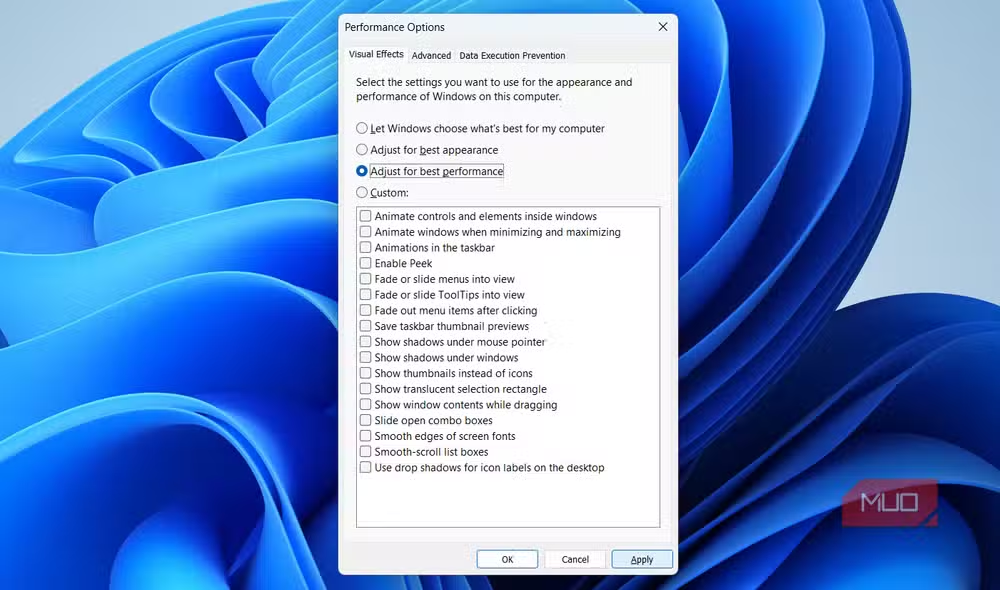
Your desktop won't look as sleek. Animations will disappear. But general navigation will feel snappier, especially on machines with integrated graphics or limited RAM.
3. Clean the Dust Out
This one gets overlooked constantly. Dust buildup inside your laptop blocks airflow, which raises internal temperatures. When a laptop overheats, it triggers thermal throttling. Your processor deliberately slows itself down to prevent damage.
The result: a CPU capable of running at full speed gets held back by poor cooling. You don't need to disassemble the machine. A can of compressed air aimed at the vents and fan exhaust every few months is usually enough to keep airflow healthy.
If your laptop feels hot during basic tasks or the fans run constantly, dust is likely the problem.
4. Check Your Power Settings
Windows defaults to a balanced power plan that prioritizes battery life over performance. If you're plugged in and need speed, switch to the High Performance plan.
Go to Control Panel > Hardware and Sound > Power Options. If High Performance isn't visible, click "Show additional plans" to reveal it. On some laptops, you may need to create it manually through the command prompt.

This change tells Windows to keep your CPU running at higher clock speeds and prevents aggressive power-saving measures that can introduce lag.
5. Consider a Lightweight Linux Distribution
If your laptop is truly old and Windows itself feels like a burden, a lightweight Linux distribution can give it a second life. Options like Linux Mint, Lubuntu, or Xubuntu are designed to run smoothly on hardware that struggles with modern Windows.
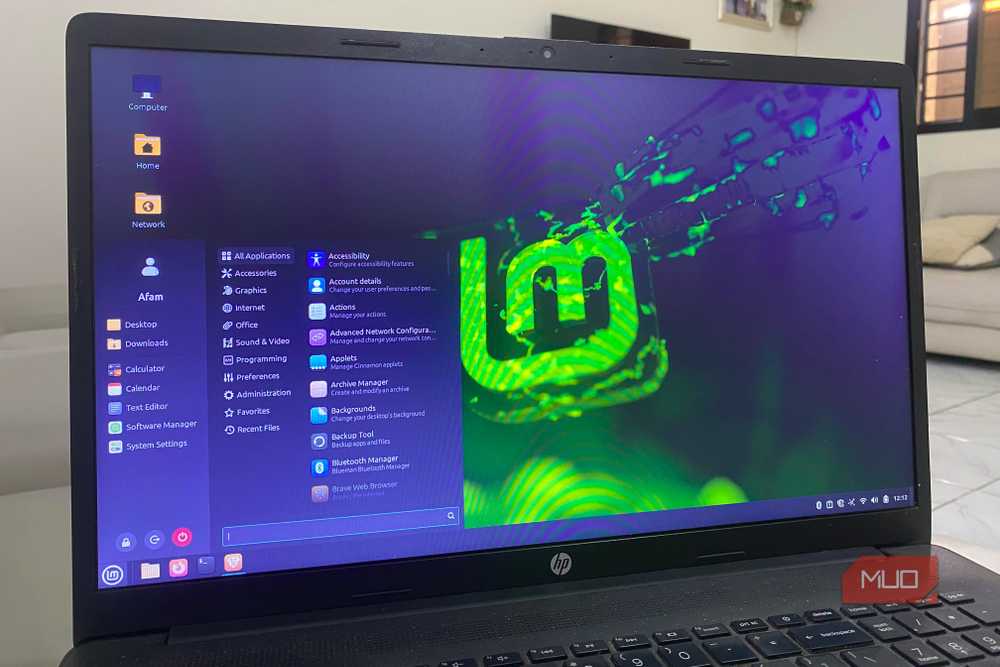
This isn't for everyone. You'll lose access to some Windows-only software, and there's a learning curve. But for basic tasks like web browsing, email, and document editing, Linux can make a 10-year-old laptop feel usable again.
The Real Problem Is Usually Software
Reddit communities like r/techsupport and r/windows confirm this pattern repeatedly: users who do a clean OS reinstall or aggressively manage startup apps often see better results than those who simply add more RAM to a cluttered system.
“When technology can't keep pace, it's not just a delay, it's a morale killer.”
— Theo Priestley, Tech Evangelist
The fix isn't always more hardware. Sometimes it's less software.
More Windows optimization techniques beyond the standard Settings app
Logicity's Take
Frequently Asked Questions
How do I know if my laptop is slow because of hardware or software?
Check Task Manager while the laptop feels slow. If CPU, memory, or disk usage is at 100% from specific apps or processes, it's a software issue. If usage is low but performance is still poor, hardware or thermal throttling may be the cause.
Will disabling visual effects make a big difference?
On laptops with integrated graphics or 4GB of RAM, yes. On modern machines with dedicated GPUs and 16GB+ RAM, the difference is minimal. It's most effective on older or budget hardware.
How often should I clean dust from my laptop?
Every 3-6 months for typical use. If you use your laptop on soft surfaces like beds or couches, clean more frequently since these block vents and accelerate dust buildup.
Is it safe to switch to High Performance power mode?
Yes, but expect higher temperatures and reduced battery life. It's best used when plugged in. Switch back to Balanced when on battery power.
Can I try Linux without erasing Windows?
Yes. You can boot Linux from a USB drive to test it, or dual-boot by partitioning your drive. This lets you keep Windows while experimenting with Linux.
Need Help Implementing This?
Source: MakeUseOf
Manaal Khan
Tech & Innovation Writer
اقرأ أيضاً

رأي مغاير: كيف يؤثر اختراق الأمن الداخلي الأميركي على شركاتنا الخاصة؟
في ظل اختراق عقود الأمن الداخلي الأميركي مع شركات خاصة، نناقش تأثير هذا الاختراق على مستقبل الأمن السيبراني. نستعرض الإحصاءات الموثوقة ونناقش كيف يمكن للشركات الخاصة أن تتعامل مع هذا التهديد. استمتع بقراءة هذا التحليل العميق

الإنسان في زمن ما بعد الوجود البشري: نحو نظام للتعايش بين الإنسان والروبوت - Centre for Arab Unity Studies
في هذا المقال، سنناقش كيف يمكن للبشر والروبوتات التعايش في نظام متكامل. سنستعرض التحديات والحلول المحتملة التي تضعها شركات مثل جوجل وأمازون. كما سنلقي نظرة على التوقعات المستقبلية وفقًا لتقرير ماكنزي

إطلاق ناسا لمهمة مأهولة إلى القمر: خطوة تاريخية نحو استكشاف الفضاء
تعتبر المهمة الجديدة خطوة هامة نحو استكشاف الفضاء وتطوير التكنولوجيا. سوف تشمل المهمة إرسال رواد فضاء إلى سطح القمر لconducting تجارب علمية. ستسهم هذه المهمة في تطوير فهمنا للفضاء وتحسين التكنولوجيا المستخدمة في استكشاف الفضاء.