4 Ways to Force Quit Frozen Apps on Windows Without Hard Reboot
Key Takeaways
- Set Task Manager to 'Always on top' so it appears above frozen full-screen apps
- Create a new virtual desktop with Win+Ctrl+D to escape a locked screen
- Configure the power button to sleep instead of shutdown for safer recovery
You're mid-game or deep in a video edit when the screen freezes. The cursor won't move. Alt+Tab does nothing. Your only option seems to be holding down the power button until the PC dies. That's a forced shutdown, and it's rough on your system. You risk corrupted files, incomplete writes to your SSD, and a lengthy recovery process on the next boot.
A Reddit thread on r/Windows11 recently surfaced several practical workarounds for this exact problem. These aren't obscure registry hacks. They're built-in Windows features that most people never configure. Here are four methods that work.
1. Make Task Manager Always Appear on Top
The most common frustration: you press Ctrl+Shift+Esc to open Task Manager, but it opens behind the frozen full-screen app. You can't see it. You can't click it. It's useless.
The fix takes ten seconds. Open Task Manager when your PC is working normally. Click Settings in the left pane. Under "Window management," enable "Always on top." Now Task Manager will appear above every other window, including frozen full-screen games and apps.
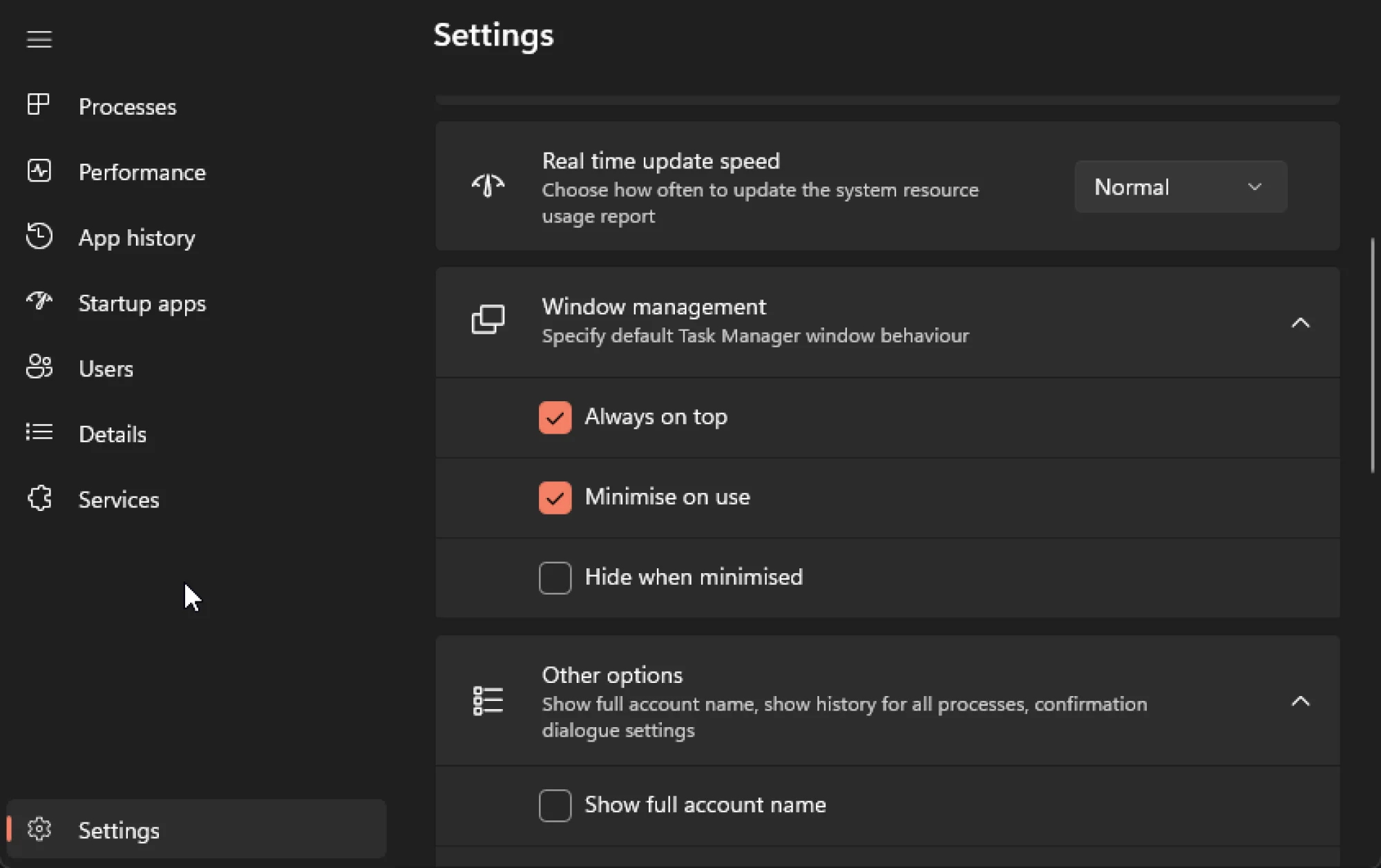
This single setting solves most freeze scenarios. When an app locks up, hit Ctrl+Shift+Esc, find the offending process, and click End Task.
2. Escape to a New Virtual Desktop
Windows 11 supports multiple virtual desktops. If a full-screen app is frozen on Desktop 1, you can create Desktop 2 and switch to it instantly. This forces Windows to render a new workspace where you can access Task Manager or any other tool.
The keyboard shortcut is Win+Ctrl+D. Press it, and Windows creates a fresh desktop and switches to it. From there, open Task Manager and kill the frozen app. When you're done, press Win+Ctrl+F4 to close the extra desktop.
To navigate between desktops manually, use Win+Ctrl+Right Arrow or Win+Ctrl+Left Arrow.
3. Reconfigure the Power Button for Sleep Mode
Most PCs default to shutting down when you press the power button. A long press forces an immediate shutdown, which is the data-loss risk you're trying to avoid. But you can change what a short press does.
Open Control Panel (search for it in the Start menu). In the top-right corner, change "View by" to Large icons or Small icons. Click Power Options, then "Choose what the power buttons do" in the left pane. Change "When I press the power button" to Sleep.
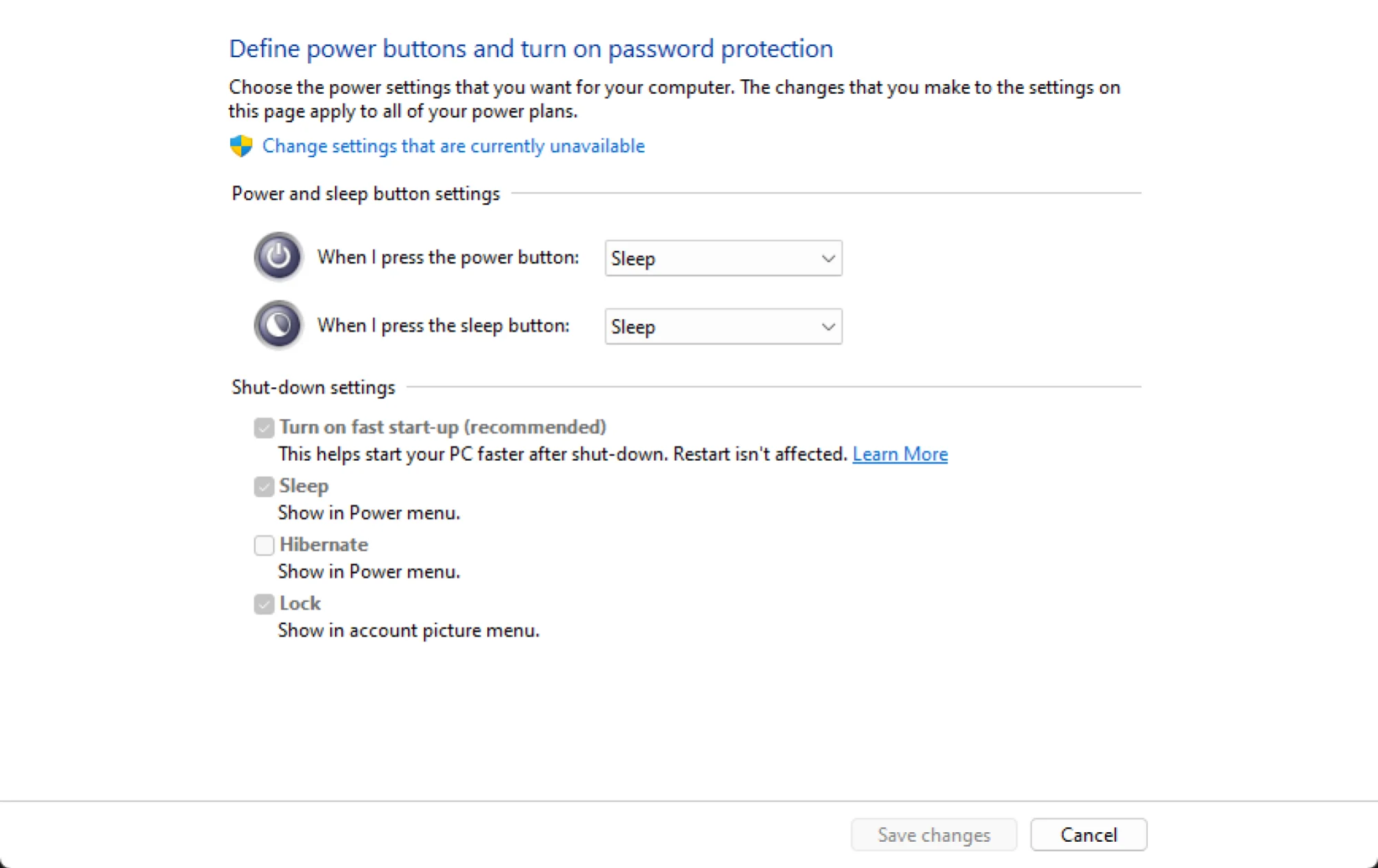
Now when you press the power button, your PC goes to sleep. Wake it up, and you'll see the lock screen. From there, you can sign in and access Task Manager to close the frozen app. This approach is much safer than a forced shutdown because sleep mode preserves your session.
4. Use the Hidden Black Screen Shortcut
Microsoft built a keyboard shortcut into Windows specifically for black screen situations. If your display goes dark or an app is stuck but the system isn't truly frozen, press Win+Ctrl+Shift+B.
This command resets your display driver. You'll hear a beep and see the screen flicker. If the issue was a driver hang rather than a full system freeze, this can restore your display and give you control back.
Why Apps Freeze in Full-Screen Mode
Full-screen apps capture exclusive control of your display. When they hang, they don't release that control. The operating system is still running in the background. Task Manager is still there. But the frozen app sits between you and everything else.
Common causes include display driver conflicts, running out of RAM, and background processes competing for CPU time. If you see freezes repeatedly with the same app, the problem is likely deeper. Check for driver updates, monitor your RAM usage, and look for background processes eating resources.
Power User Option: SuperF4
Reddit users frequently recommend a lightweight utility called SuperF4. It adds a keyboard shortcut, Ctrl+Alt+F4, that sends a more aggressive kill command than Task Manager's End Task button. It's useful when an app refuses to close even after you've told it to.
This is a third-party tool, so evaluate whether you want to install additional software. For most people, the built-in Windows methods above will handle typical freeze scenarios.
Logicity's Take
Frequently Asked Questions
What's the fastest way to force quit a frozen app on Windows?
Press Ctrl+Shift+Esc to open Task Manager, select the frozen app, and click End Task. If Task Manager doesn't appear, enable 'Always on top' in its settings beforehand.
Is holding the power button bad for my computer?
Yes. A forced shutdown cuts power without letting Windows close files properly. You risk data corruption and may face a longer boot process with recovery checks.
What does Win+Ctrl+Shift+B do?
It resets your display driver. This can fix black screens caused by driver hangs without requiring a full reboot.
Can I kill a frozen full-screen game without losing progress?
If the game has autosave or you saved recently, yes. Otherwise, ending the task will lose unsaved progress. Using sleep mode via the power button may give you a chance to recover the session.
More tips on removing software bloat and improving device performance
Related Microsoft system administration and security updates
Need Help Implementing This?
Source: Lifehacker
Manaal Khan
Tech & Innovation Writer
اقرأ أيضاً

رأي مغاير: كيف يؤثر اختراق الأمن الداخلي الأميركي على شركاتنا الخاصة؟
في ظل اختراق عقود الأمن الداخلي الأميركي مع شركات خاصة، نناقش تأثير هذا الاختراق على مستقبل الأمن السيبراني. نستعرض الإحصاءات الموثوقة ونناقش كيف يمكن للشركات الخاصة أن تتعامل مع هذا التهديد. استمتع بقراءة هذا التحليل العميق

الإنسان في زمن ما بعد الوجود البشري: نحو نظام للتعايش بين الإنسان والروبوت - Centre for Arab Unity Studies
في هذا المقال، سنناقش كيف يمكن للبشر والروبوتات التعايش في نظام متكامل. سنستعرض التحديات والحلول المحتملة التي تضعها شركات مثل جوجل وأمازون. كما سنلقي نظرة على التوقعات المستقبلية وفقًا لتقرير ماكنزي

إطلاق ناسا لمهمة مأهولة إلى القمر: خطوة تاريخية نحو استكشاف الفضاء
تعتبر المهمة الجديدة خطوة هامة نحو استكشاف الفضاء وتطوير التكنولوجيا. سوف تشمل المهمة إرسال رواد فضاء إلى سطح القمر لconducting تجارب علمية. ستسهم هذه المهمة في تطوير فهمنا للفضاء وتحسين التكنولوجيا المستخدمة في استكشاف الفضاء.