3 Pixel Voice Typing Tricks That Beat Touch Keyboards
Key Takeaways
- Gboard on Pixel can distinguish between spoken words and punctuation commands based on speech patterns
- Voice commands let you insert emojis inline by saying their names
- You can edit, formalize, and rewrite voice drafts without touching the screen
Voice Typing Has Grown Up
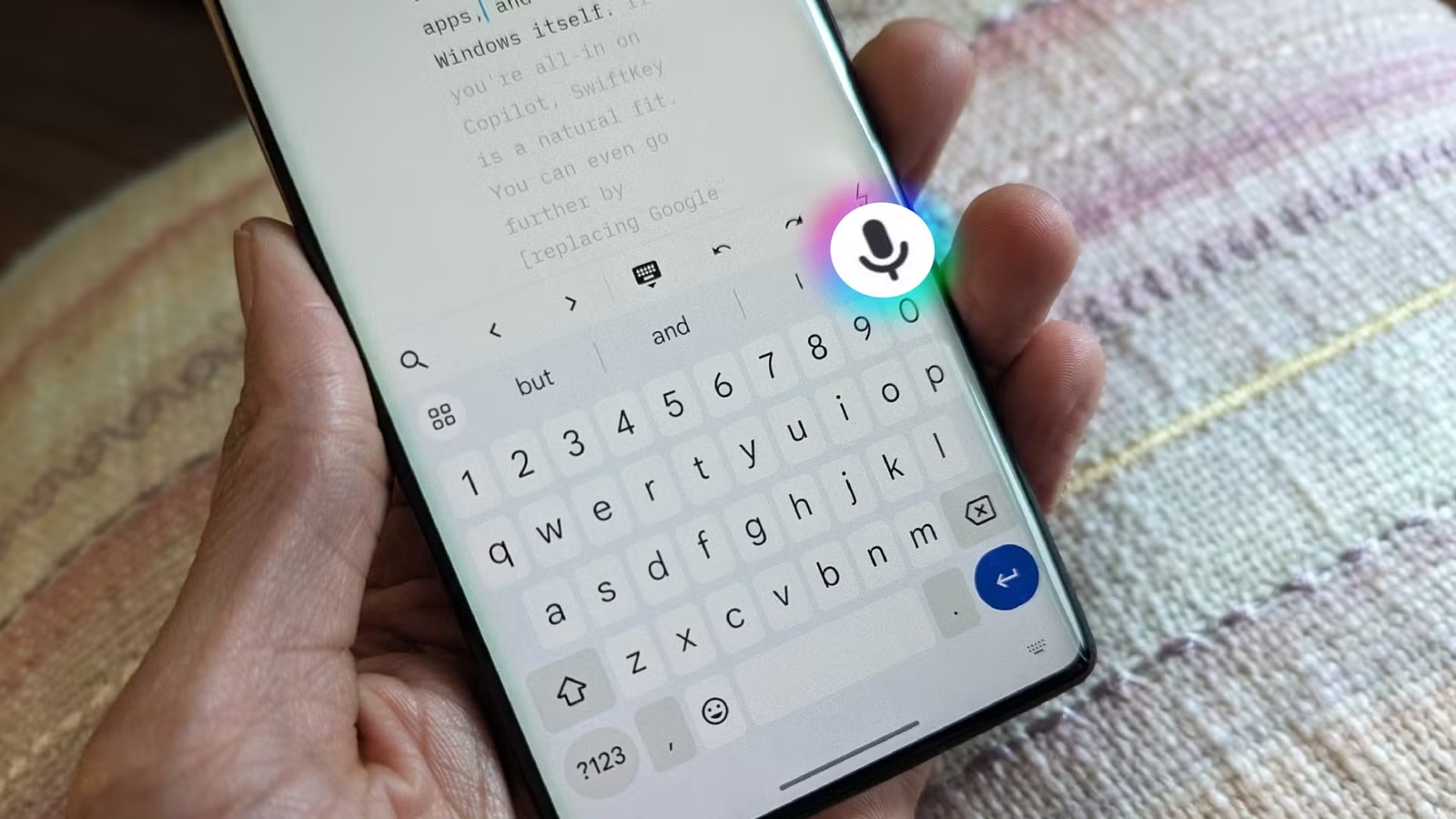
Voice typing used to mean shouting at your phone and hoping for the best. Modern dictation on Pixel phones is different. Gboard now supports context-aware voice commands that let you compose, edit, and refine text without touching the screen.
The key word is context-aware. Gboard analyzes your pauses, speech patterns, and intent to figure out what you mean. Say 'exclamation point' and it knows whether you want the punctuation mark or the actual words.
1. Insert Punctuation by Speaking It
Gboard already places punctuation automatically as you speak. Most of the time, it figures out where commas and periods belong. But automatic placement isn't perfect. Sometimes it misses an obvious comma. Other times you want punctuation in a specific spot.
The fix is simple: say the punctuation out loud. 'Comma.' 'Period.' 'Question mark.' 'Exclamation point.' 'New line.' Gboard inserts them where you speak them.
The impressive part is accuracy. Based on your pauses and speech patterns, Gboard can usually tell whether you mean the word 'exclamation' or the symbol. According to How-To Geek's testing, it's very accurate in practice.
2. Add Emojis Without the Picker
Hunting through emoji menus breaks your flow. Gboard lets you skip that step entirely. Just say the emoji name and it appears inline.
Say 'crying laughing emoji' and you get 😂. Say 'fire emoji' and you get 🔥. The insertion happens mid-sentence, so you don't have to stop dictating, open a picker, scroll, tap, and resume.
One caveat: this works better when you're alone. Saying 'laugh emoji' four times in a row will get you some looks.
3. Edit Text Without Touching the Screen
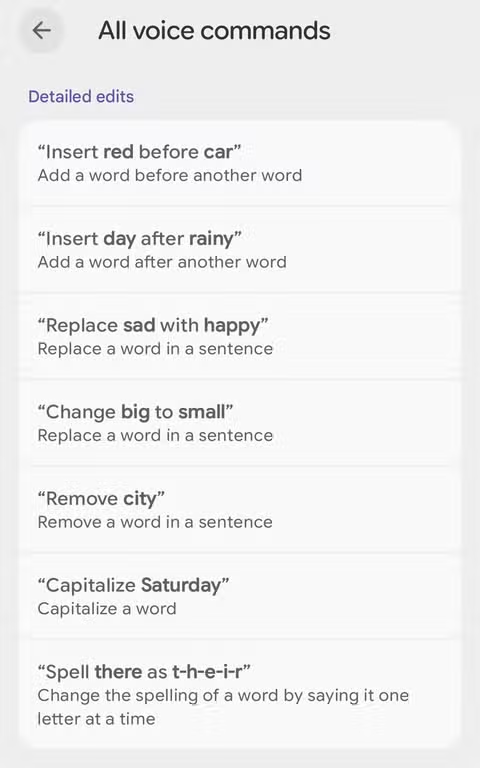
The real power of Pixel's voice typing isn't dictation. It's editing. You can take a messy voice draft and clean it up using commands. Insert words. Remove words. Replace words. Capitalize. Spell out.
This turns voice typing from a rough draft tool into something you can actually use for finished messages. Dictate your thoughts, then refine them, all hands-free.
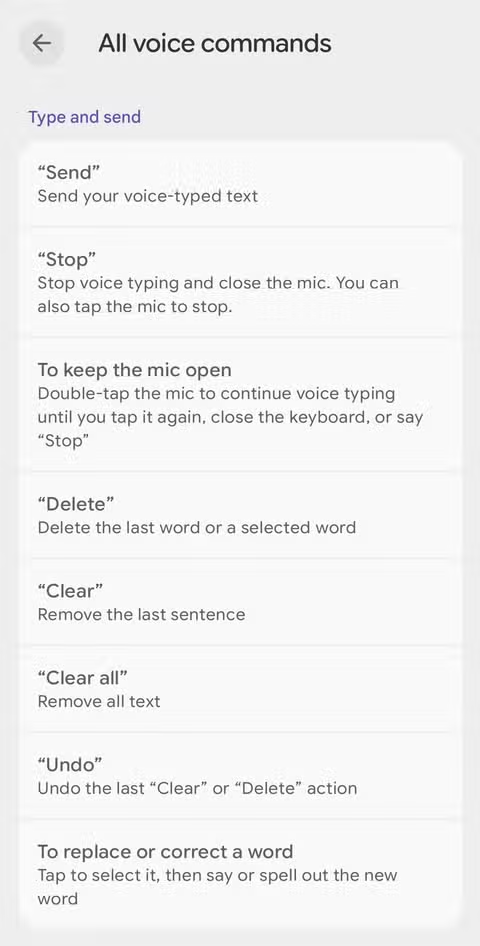
The command set includes 'send,' 'stop,' 'delete,' 'clear,' and 'undo.' Combined with the editing commands for inserting, replacing, and removing words, you have a full text editor controlled by voice.
When This Matters
Hands-free typing isn't just a convenience feature. It's essential when your hands are busy. Driving. Cooking. Walking with bags. Any situation where reaching for your phone is impractical or unsafe.
For professionals who spend time in these contexts, reliable voice typing means fewer moments of 'I'll reply later' that turn into forgotten messages.
Logicity's Take
Getting Started
These features work on Pixel phones running Gboard. If you haven't tried voice typing recently, the experience has improved significantly. Tap the microphone icon on your keyboard and start talking. Use 'comma' and 'period' to place punctuation. Say emoji names to insert them inline.
The voice editing commands are available through Gboard's settings. Look for the 'Voice typing' section to see the full list of supported commands.
If you're upgrading to a Pixel, here's what to do with your old device
Frequently Asked Questions
Does Pixel voice typing work offline?
Gboard supports offline voice typing for many languages. Download the language pack in Gboard settings to use it without an internet connection.
Can I use voice commands on non-Pixel Android phones?
Basic voice typing works on any Android phone with Gboard, but the full set of editing and context-aware commands is optimized for Pixel devices.
How accurate is Pixel voice punctuation?
According to How-To Geek testing, Gboard is very accurate at distinguishing between punctuation commands and regular speech based on pauses and speech patterns.
What emojis can I insert by voice?
You can insert most common emojis by saying their name followed by 'emoji.' Examples include 'crying laughing emoji,' 'fire emoji,' and 'thumbs up emoji.'
Need Help Implementing This?
Source: How-To Geek
Huma Shazia
Senior AI & Tech Writer
اقرأ أيضاً

رأي مغاير: كيف يؤثر اختراق الأمن الداخلي الأميركي على شركاتنا الخاصة؟
في ظل اختراق عقود الأمن الداخلي الأميركي مع شركات خاصة، نناقش تأثير هذا الاختراق على مستقبل الأمن السيبراني. نستعرض الإحصاءات الموثوقة ونناقش كيف يمكن للشركات الخاصة أن تتعامل مع هذا التهديد. استمتع بقراءة هذا التحليل العميق

الإنسان في زمن ما بعد الوجود البشري: نحو نظام للتعايش بين الإنسان والروبوت - Centre for Arab Unity Studies
في هذا المقال، سنناقش كيف يمكن للبشر والروبوتات التعايش في نظام متكامل. سنستعرض التحديات والحلول المحتملة التي تضعها شركات مثل جوجل وأمازون. كما سنلقي نظرة على التوقعات المستقبلية وفقًا لتقرير ماكنزي

إطلاق ناسا لمهمة مأهولة إلى القمر: خطوة تاريخية نحو استكشاف الفضاء
تعتبر المهمة الجديدة خطوة هامة نحو استكشاف الفضاء وتطوير التكنولوجيا. سوف تشمل المهمة إرسال رواد فضاء إلى سطح القمر لconducting تجارب علمية. ستسهم هذه المهمة في تطوير فهمنا للفضاء وتحسين التكنولوجيا المستخدمة في استكشاف الفضاء.