How to Stop Windows From Uploading Updates to Strangers
Key Takeaways
- Windows uses your upload bandwidth to distribute updates to other PCs by default
- Delivery Optimization works like a Microsoft-controlled torrent for Windows updates
- You can disable internet sharing while keeping local network optimization active
Your Windows PC is quietly uploading pieces of Windows updates to strangers on the internet. Microsoft calls this feature Delivery Optimization, and it's been enabled by default for years. The company isn't hiding it, but they're not exactly broadcasting it either.
The feature isn't malicious. It doesn't touch your personal files, photos, or documents. But it does use your upload bandwidth to help distribute Windows updates and Microsoft Store apps to other machines. That includes PCs outside your home network.
How Delivery Optimization Works
Windows updates are massive. Microsoft has to push them to millions of machines. Delivery Optimization eases that burden by turning your PC into a distribution node. It works like a Microsoft-controlled torrent.
Your PC can download pieces of an update from multiple sources: Microsoft's servers, other PCs on your local network, and other PCs on the internet. In return, your machine uploads pieces it already has to help other users.
The system has safeguards. Windows verifies everything it downloads before installing. Only update files and Microsoft Store app content get shared. Your documents stay private.
For households with multiple PCs, there's a genuine benefit. Instead of downloading the same multi-gigabyte update on every machine, one PC grabs it and shares it locally. That saves bandwidth and speeds up the process.
Why You Might Want to Turn It Off
The local sharing makes sense. The internet sharing is where things get complicated.
Your upload bandwidth belongs to you. Most home internet connections have asymmetric speeds. Download is fast, upload is limited. When Windows uses your upload capacity to help strangers, that's bandwidth you can't use for video calls, cloud backups, or file transfers.
If you're on a metered connection or pay for bandwidth by the gigabyte, the calculus shifts further. Microsoft benefits from distributed infrastructure. You pay for the data.
Logicity's Take
How to Check Your Settings
Open Settings and navigate to Windows Update. Click Advanced options, then Delivery Optimization. You'll see a toggle for "Allow downloads from other PCs."
Below that toggle, you'll find two options:
- Devices on my local network
- Devices on the internet and my local network
The second option is the one that shares your bandwidth with strangers. Microsoft sets this as the default on non-Enterprise Windows installations.
How to Disable Internet Sharing
You have three choices:
- Turn off "Allow downloads from other PCs" entirely. This disables all peer-to-peer sharing, including on your local network.
- Switch to "Devices on my local network" only. This keeps the bandwidth-saving benefit for your own machines while blocking uploads to strangers.
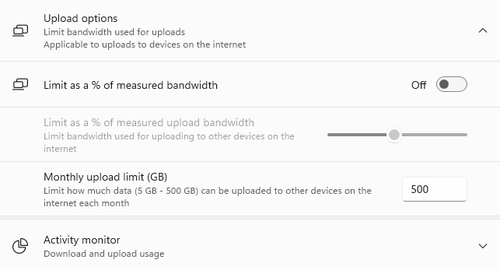
- Click "Advanced options" to set upload and download limits. You can cap how much bandwidth Delivery Optimization uses.
Option two gives you the best of both worlds. Your PCs help each other. Your bandwidth stays home.
Setting Bandwidth Limits
If you want to keep internet sharing active but limit its impact, the Advanced options menu lets you set caps. You can restrict what percentage of your available bandwidth Delivery Optimization uses for both downloads and uploads.
You can also set monthly upload limits. Once your machine has uploaded a certain amount, it stops contributing to the network until the next month.
These controls give you granular power, but they require you to know they exist. Microsoft buries them two menus deep.
Another Microsoft feature that requires user attention
Who Should Keep It On?
If you have fast, unlimited internet and don't mind contributing to Microsoft's distribution network, there's no harm. The feature is secure. It doesn't expose personal data.
Enterprise administrators might appreciate the local network option for offices with many Windows machines. Downloading a major update once and distributing it internally beats hammering the corporate connection.
But for most home users, especially those on slower connections or data caps, switching to local-only makes sense. You keep the efficiency benefit without donating bandwidth to Microsoft's infrastructure.
Alternative operating systems without these defaults
Frequently Asked Questions
Does Windows Delivery Optimization share my personal files?
No. It only shares Windows update files and Microsoft Store app content. Your documents, photos, and personal data are not touched.
Will disabling Delivery Optimization slow down my updates?
Possibly by a small amount. Updates will come only from Microsoft's servers instead of multiple sources. For most users, the difference is negligible.
Is Delivery Optimization a security risk?
No. Windows verifies all downloaded content before installing it. The peer-to-peer system doesn't create vulnerabilities.
Can I limit how much bandwidth Delivery Optimization uses?
Yes. In Settings > Windows Update > Advanced options > Delivery Optimization > Advanced options, you can set percentage limits for upload and download bandwidth.
Does this setting apply to Windows 10 and Windows 11?
Yes. Delivery Optimization exists in both operating systems with similar settings menus.
Need Help Implementing This?
Source: How-To Geek
Manaal Khan
Tech & Innovation Writer
اقرأ أيضاً

رأي مغاير: كيف يؤثر اختراق الأمن الداخلي الأميركي على شركاتنا الخاصة؟
في ظل اختراق عقود الأمن الداخلي الأميركي مع شركات خاصة، نناقش تأثير هذا الاختراق على مستقبل الأمن السيبراني. نستعرض الإحصاءات الموثوقة ونناقش كيف يمكن للشركات الخاصة أن تتعامل مع هذا التهديد. استمتع بقراءة هذا التحليل العميق

الإنسان في زمن ما بعد الوجود البشري: نحو نظام للتعايش بين الإنسان والروبوت - Centre for Arab Unity Studies
في هذا المقال، سنناقش كيف يمكن للبشر والروبوتات التعايش في نظام متكامل. سنستعرض التحديات والحلول المحتملة التي تضعها شركات مثل جوجل وأمازون. كما سنلقي نظرة على التوقعات المستقبلية وفقًا لتقرير ماكنزي

إطلاق ناسا لمهمة مأهولة إلى القمر: خطوة تاريخية نحو استكشاف الفضاء
تعتبر المهمة الجديدة خطوة هامة نحو استكشاف الفضاء وتطوير التكنولوجيا. سوف تشمل المهمة إرسال رواد فضاء إلى سطح القمر لconducting تجارب علمية. ستسهم هذه المهمة في تطوير فهمنا للفضاء وتحسين التكنولوجيا المستخدمة في استكشاف الفضاء.