How to Fix Silent Excel Formula Errors That Break Your Data
Key Takeaways
- Relative cell references shift when you drag formulas, causing silent calculation errors
- Hidden spaces in cells break VLOOKUP and logical matching without any error message
- Use absolute references (F4 to add dollar signs) for fixed values like tax rates or discounts
Excel warns you about obvious mistakes. Divide by zero? You'll see #DIV/0!. Reference a deleted cell? #REF! pops up immediately. But the most damaging errors never trigger an alert. Your spreadsheet looks normal. The numbers seem plausible. And somewhere in your data, a silent bug is quietly corrupting everything downstream.
That's not an outlier. JPMorgan's 'London Whale' trading incident, which cost an estimated $6 billion, was exacerbated by a spreadsheet formula error. The problem isn't that Excel breaks. It's that Excel keeps working while producing wrong answers.
Why Relative References Corrupt Your Calculations
The most common silent error happens when you build a formula and drag it down a column. Excel automatically increments the row numbers in your cell references. This is useful when you're calculating line-by-item totals. It breaks your calculations when your formula needs to reference a single fixed value like a tax rate, discount percentage, or shipping fee.
For example, if you write =B4B1 and drag it down one row, Excel changes it to =B5B2. If cell B2 is empty, Excel treats it as zero. Your formula returns zero instead of an error. You won't notice unless you check every cell individually.
The Fix: Anchor Your References
To stop Excel from shifting a reference, you need to anchor it with dollar signs. Here's the process:
- In the formula bar, select the specific cell reference that needs to stay frozen
- Press F4 once to insert dollar signs around the coordinates (turning B1 into $B$1)
- Press Ctrl+Enter to commit the formula and keep that cell selected
- Drag the fill handle down to apply the locked formula to the rest of your column
Your formula now reads =B8*$B$1. The reference to B1 stays constant no matter where you copy it.
Hidden Spaces Break Lookup and Logical Matching
This one is particularly insidious. A cell displays 'Shipped' and your formula checks if the cell equals 'Shipped'. The formula returns FALSE. Why? Because the cell actually contains ' Shipped' with an invisible leading space.
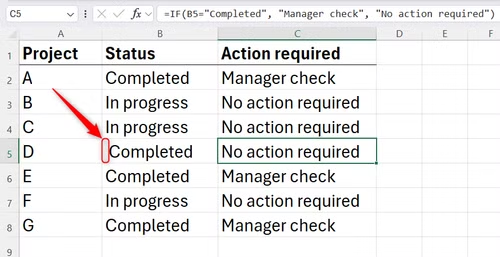
Hidden spaces commonly appear when you copy data from external sources, import CSV files, or paste from web pages. They break VLOOKUP, XLOOKUP, IF statements, and any formula that compares text values. The cell looks right. The formula logic is right. But the data is silently wrong.
The Fix: Clean Your Data
Use the TRIM function to strip leading and trailing spaces from text. Wrap your references in TRIM before comparing them:
- Instead of =IF(A1="Shipped","Yes","No"), use =IF(TRIM(A1)="Shipped","Yes","No")
- For lookups, use =VLOOKUP(TRIM(A1),range,column,FALSE)
- To clean data permanently, create a helper column with =TRIM(A1) and paste values over the original
VLOOKUP's Silent Failure Mode
VLOOKUP has a default behavior that causes more silent errors than any other function. If you omit the fourth parameter (or set it to TRUE), Excel performs an approximate match. This means if your lookup value isn't found exactly, Excel returns the closest value that's less than what you searched for.
The result? Your formula returns a number. It looks correct. But it's pulling data from the wrong row. Unless your data is sorted in ascending order and you specifically want approximate matching, this default behavior is almost always wrong.
The Fix: Always Use FALSE (or XLOOKUP)
Always include FALSE as the fourth parameter in VLOOKUP to force an exact match. Or better yet, switch to XLOOKUP, which defaults to exact matching and offers more flexibility.
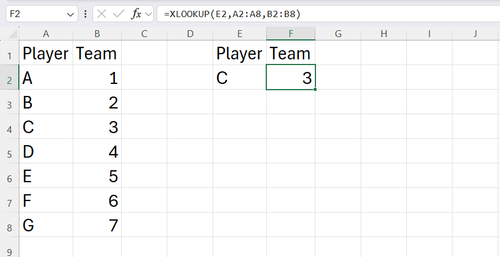
XLOOKUP also lets you specify what to return when no match is found, instead of silently returning #N/A. This makes debugging much easier.
Building Defenses Into Your Spreadsheets
The Excel community has developed several techniques for 'defensive modeling' that catch errors before they propagate. Here are the most practical ones:
- Add checksum rows that verify totals match across different calculation paths
- Use conditional formatting to highlight cells that fall outside expected ranges
- Apply data validation to restrict input to valid values
- Create a separate 'audit' sheet that tests key formulas against known correct answers
“The greatest danger in a spreadsheet is not a formula that crashes; it's a formula that returns a plausible-looking, but incorrect, number.”
— Data analyst and spreadsheet consultant
For complex business logic, consider whether Excel is the right tool at all. Engineers on Hacker News frequently advocate for moving critical calculations into more robust, testable programming environments where version control and automated testing can catch errors that Excel never will.
Logicity's Take
Frequently Asked Questions
How do I know if my Excel formulas have silent errors?
Check formulas manually by clicking each cell and reviewing the formula bar. Look for relative references that should be absolute, missing TRIM functions around text comparisons, and VLOOKUP functions missing the FALSE parameter. Add checksum rows that verify totals independently.
What's the difference between absolute and relative references in Excel?
Relative references (like B1) change when you copy a formula to another cell. Absolute references (like $B$1) stay fixed. Use absolute references for constants like tax rates or discount percentages. Press F4 to toggle between reference types.
Why does VLOOKUP return wrong results even when the value exists?
If you omit the fourth parameter or set it to TRUE, VLOOKUP performs approximate matching and may return data from the wrong row. Always use FALSE as the fourth parameter for exact matching, or switch to XLOOKUP which defaults to exact matching.
How do hidden spaces get into Excel cells?
Hidden spaces commonly appear when importing data from CSV files, copying from web pages, or pasting from other applications. Use the TRIM function to remove leading and trailing spaces before comparing or looking up text values.
Should I stop using Excel for important business calculations?
Not necessarily, but you should add defensive measures like checksums, data validation, and audit sheets. For complex or mission-critical logic, consider whether a database or programming environment with version control and automated testing would be more appropriate.
Need Help Implementing This?
Source: How-To Geek
Manaal Khan
Tech & Innovation Writer
اقرأ أيضاً

رأي مغاير: كيف يؤثر اختراق الأمن الداخلي الأميركي على شركاتنا الخاصة؟
في ظل اختراق عقود الأمن الداخلي الأميركي مع شركات خاصة، نناقش تأثير هذا الاختراق على مستقبل الأمن السيبراني. نستعرض الإحصاءات الموثوقة ونناقش كيف يمكن للشركات الخاصة أن تتعامل مع هذا التهديد. استمتع بقراءة هذا التحليل العميق

الإنسان في زمن ما بعد الوجود البشري: نحو نظام للتعايش بين الإنسان والروبوت - Centre for Arab Unity Studies
في هذا المقال، سنناقش كيف يمكن للبشر والروبوتات التعايش في نظام متكامل. سنستعرض التحديات والحلول المحتملة التي تضعها شركات مثل جوجل وأمازون. كما سنلقي نظرة على التوقعات المستقبلية وفقًا لتقرير ماكنزي

إطلاق ناسا لمهمة مأهولة إلى القمر: خطوة تاريخية نحو استكشاف الفضاء
تعتبر المهمة الجديدة خطوة هامة نحو استكشاف الفضاء وتطوير التكنولوجيا. سوف تشمل المهمة إرسال رواد فضاء إلى سطح القمر لconducting تجارب علمية. ستسهم هذه المهمة في تطوير فهمنا للفضاء وتحسين التكنولوجيا المستخدمة في استكشاف الفضاء.